
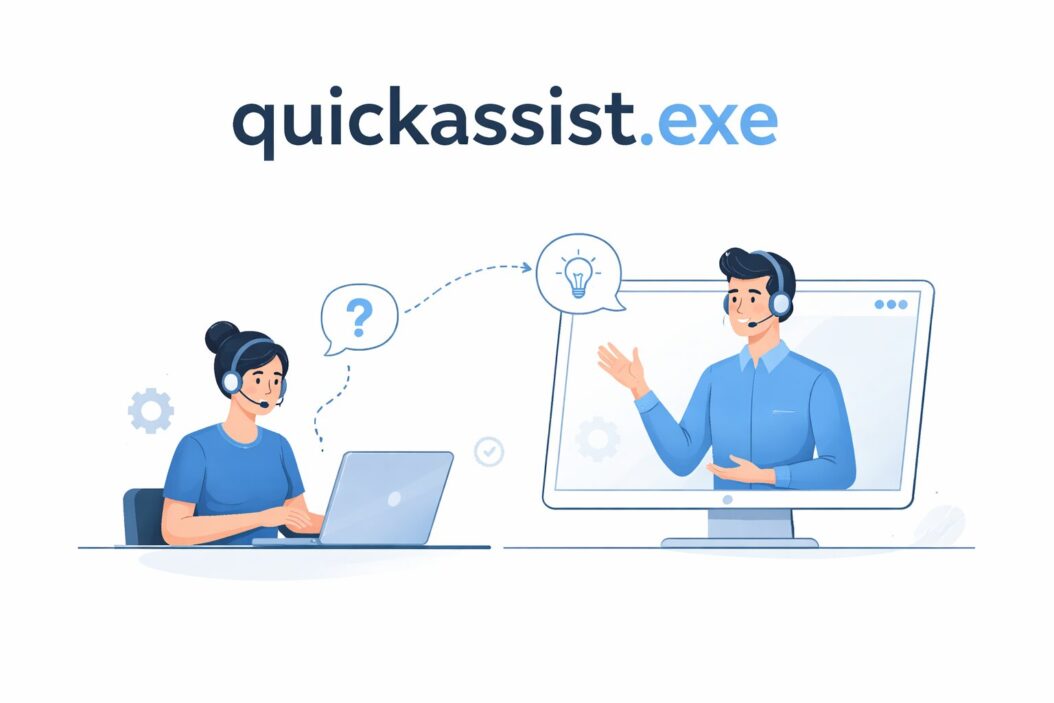
QuickAssist.exe is a built-in Windows tool that lets one person remotely view or control another person’s computer to solve problems. You do not need to download anything. It comes preinstalled on Windows 10 and Windows 11. If your friend, coworker, or IT support person needs to help you fix something on your PC, Quick Assist is one of the fastest and safest ways to do it.
This guide covers everything: how to open it, how to give or receive help, what to expect, common problems, and when not to use it.
What Is QuickAssist.exe and What Does It Do?
Quick Assist is a remote assistance application built by Microsoft. It creates a secure, temporary connection between two computers. One person shares their screen. The other person watches and can optionally take control to click, type, and fix things directly.
It replaced the older Remote Assistance tool. Unlike third-party apps like TeamViewer or AnyDesk, Quick Assist is native to Windows. No installation, no sign-up for the person receiving help.
Here is what each person does:
| Role | What You Do | What You Need |
|---|---|---|
| Helper (giving help) | Generates a 6-digit code | Microsoft account |
| Recipient (getting help) | Enters the 6-digit code | Nothing, just Windows |
The connection only lasts for that session. Once it ends, the helper loses all access. There is no persistent backdoor.
How to Open QuickAssist.exe
There are several ways to launch it. Use whichever is fastest for you.
Method 1: Search Bar (Easiest)
- Click the search icon on the taskbar
- Type Quick Assist
- Click the app when it appears
Method 2: Run Dialog
- Press Windows key + R
- Type quickassist or quickassist.exe
- Press Enter
Method 3: Start Menu
- Press the Windows key
- Scroll to or search for Quick Assist under Windows Tools or All Apps
Method 4: Direct Path
You can also navigate to it manually. The file lives at:
C:\Windows\System32\quickassist.exe
Open File Explorer, paste that path into the address bar, and press Enter.
How to Give Remote Help Using Quick Assist
If you are the one helping someone else, follow these steps.
Step 1: Open Quick Assist using any method above.
Step 2: You will see two options on the screen: “Get assistance” and “Give assistance.” Click Give assistance.
Step 3: Sign in with your Microsoft account if prompted. This is required for the helper only. It keeps the connection accountable.
Step 4: Quick Assist will generate a 6-digit security code. This code expires in 10 minutes.
Step 5: Share that code with the person you are helping. You can read it to them over the phone, send it in a chat message, or text it.
Step 6: Wait for them to enter the code. Once they do, you will see a prompt asking what type of access you need.
Step 7: Choose between:
- View screen (watch only, no control)
- Full control (you can click and type on their PC)
Step 8: The recipient will see a permission prompt. They must click Allow for the session to start.
Once connected, their screen appears in a window on your computer. You can annotate, use the task manager, or interact directly depending on what they allowed.
How to Get Remote Help Using Quick Assist
If someone is helping you, the process is even simpler.
Step 1: Open Quick Assist on your computer.
Step 2: Click Get assistance.
Step 3: Type the 6-digit code the helper gives you into the box.
Step 4: Click Share screen.
Step 5: A message will appear asking whether to allow view-only or full control. Read it carefully. If the person has asked for full control, you will see that clearly. Approve or deny accordingly.
Step 6: The session begins. You can watch everything the helper does in real time. You will see their mouse cursor moving on your screen.
Step 7: When the issue is resolved, click the X or “Stop sharing” button to end the session immediately.
You are always in control. You can end the session at any time.
What You Can Do During a Quick Assist Session
Once connected, the helper gets a toolbar at the top of the screen. Here is what each option does:
| Toolbar Option | What It Does |
|---|---|
| Annotate | Draw on the screen to point things out |
| Actual size / Fit to screen | Resize the view |
| Task Manager | Open Task Manager on the recipient’s PC |
| Pause | Temporarily pause screen sharing |
| Leave | End the session |
The Annotate feature is useful when you want to explain something visually without actually taking control. Teachers, IT trainers, and support staff use this a lot.
Quick Assist Requirements in 2026
Before you try to connect, make sure both computers meet these conditions.
Operating System:
- Windows 10 (version 1607 or later)
- Windows 11 (all versions)
- Quick Assist does not work on Windows 7 or Windows 8
Internet Connection: Both computers need an active internet connection. The tool routes through Microsoft’s servers, so both machines need outbound internet access on port 443.
Microsoft Account: Only the helper needs a Microsoft account. The recipient does not.
Quick Assist App Version: In newer versions of Windows 11, Quick Assist was moved to the Microsoft Store as a separate app. If the built-in version is outdated or missing, you can reinstall or update it from the Microsoft Store by searching “Quick Assist.”
How to Reinstall or Update Quick Assist
If Quick Assist is missing or broken on your PC, you can get it from the Microsoft Store.
- Open the Microsoft Store (search for it in the taskbar)
- Search for Quick Assist
- Click Get or Update
- Launch it from the Store once installed
You can also use PowerShell to reinstall it if you prefer command line:
Get-AppxPackage -Name MicrosoftCorporationII.QuickAssist | Remove-AppxPackage
Then reinstall from the Store. This fixes most issues with corrupted or missing installs.
Common Problems and How to Fix Them
Quick Assist Shows a Blank Screen
This sometimes happens when hardware acceleration interferes with screen capture.
Fix: The recipient should go to Display Settings > Graphics and disable hardware-accelerated GPU scheduling, then try again.
The 6-Digit Code Is Not Working
Codes expire after 10 minutes. If it does not work, go back to the helper’s screen and click Generate a new code.
Also double-check the recipient typed it correctly. The code is numbers only, no letters.
Quick Assist Cannot Connect
Check these things in order:
- Is the internet working on both computers?
- Is a firewall blocking outbound connections on port 443?
- Is the VPN interfering? Disconnect the VPN and try again.
- Is Quick Assist up to date? Reinstall from the Store.
Corporate networks sometimes block Quick Assist at the firewall level. If that is the case, your IT department will need to whitelist it.
Quick Assist Is Missing from Windows
On some Windows 11 builds, Quick Assist was removed from the default installation and moved to the Microsoft Store as an optional app. Go to the Microsoft Store, search Quick Assist, and install it.
The Helper Cannot Take Full Control
The recipient must explicitly grant full control in the permission dialog. If they only approved view-only, the helper cannot click or type. The session needs to be restarted with the correct permission selected.
Quick Assist vs Other Remote Tools
You might wonder how Quick Assist compares to other options. Here is a quick breakdown.
| Feature | Quick Assist | TeamViewer | Windows Remote Desktop |
|---|---|---|---|
| Built into Windows | Yes | No | Yes |
| Free | Yes | Free for personal | Yes |
| Needs installation | No (recipient) | Yes (both) | No |
| Persistent access | No | Yes (optional) | Yes |
| Works without account | Recipient only | No | No |
| Best for | One-time help | Ongoing support | IT pros, self-use |
Quick Assist wins when you need a fast, one-time session with someone you trust. No setup, no persistent access risks. For ongoing remote work or unattended access, Remote Desktop or a dedicated tool makes more sense.
Is Quick Assist Safe to Use?
Yes, when used correctly. A few things make it genuinely safe:
Session codes expire. The 6-digit code only works for 10 minutes. Nobody can use an old code to connect.
The recipient must approve. The person being helped always gets a permission prompt. They can say no or end the session at any time.
No persistent access. Unlike some tools, Quick Assist does not leave any agent or background service running after the session ends.
Microsoft routes the connection. Traffic goes through Microsoft’s encrypted infrastructure, not directly between computers.
The main risk is social engineering. If a stranger calls you claiming to be “Microsoft Support” and asks you to open Quick Assist, that is a scam. Microsoft will never call you out of the blue and ask to access your computer. Only give your Quick Assist code to someone you know personally and trust.
For a broader look at how to stay safe during remote sessions, the Electronic Frontier Foundation has good general guidance on digital security: EFF’s Surveillance Self-Defense
Quick Assist for IT and Business Use
If you work in IT, Quick Assist can save time for simple support calls. It is already on every user’s machine. No deployment needed.
Practical use cases:
- Helping a remote employee install software
- Walking someone through network settings
- Diagnosing an application crash without leaving your desk
- Training staff on a new tool while sharing your screen
For enterprise environments, Microsoft Intune and Microsoft Endpoint Manager have deeper remote management tools. But for ad-hoc help desk support, Quick Assist handles the job well.
One tip: if you frequently help the same people, save the steps as a short reference card. Some IT teams post it in internal wikis so employees can self-guide their way to requesting help.
Keyboard Shortcuts and Pro Tips
A few things that speed up your workflow:
- Windows key + Ctrl + Q opens Quick Assist instantly (Windows 11)
- During a session, the helper can press Ctrl + Alt + Delete on their own keyboard and it will send the command to the remote machine
- The annotate tool uses different colors. Click the pencil icon to switch colors when explaining multiple things
- You can resize the Quick Assist window. The remote screen scales automatically
- If the connection is slow, the helper can reduce resolution by clicking the settings icon during the session
Summary and Conclusion
QuickAssist.exe is one of the most underused tools on Windows. It is free, built-in, secure, and takes under two minutes to set up. If you need help from a friend or colleague, or you want to help someone remotely, it is usually the fastest option available.
The key points to remember:
- The helper needs a Microsoft account. The recipient does not.
- A new 6-digit code is generated for each session. Codes expire in 10 minutes.
- The recipient controls the session and can end it at any time.
- If Quick Assist is missing, reinstall it from the Microsoft Store.
- Never share your code with someone who calls you claiming to be tech support.
For simple, one-time remote help between people who trust each other, Quick Assist is hard to beat in 2026.
Frequently Asked Questions
Does Quick Assist work on Windows 10?
Yes. Quick Assist works on Windows 10 version 1607 and all later versions, including Windows 11. On older Windows 10 builds, you may need to update Windows first. The tool is found the same way on both operating systems.
Can the person being helped see what the helper is doing?
Yes, absolutely. The recipient sees everything in real time. The helper’s mouse cursor is visible on the recipient’s screen at all times. There is no hidden mode. The recipient can also end the session at any moment by clicking the stop button at the top of the screen.
Does Quick Assist work on Mac or mobile?
No. Quick Assist only works on Windows computers. It is a Windows-native tool. If you need to help someone on a Mac or Android device, you would need a cross-platform tool like TeamViewer or Google Remote Desktop.
Why does Quick Assist keep disconnecting?
Disconnections are usually caused by a weak or unstable internet connection, a firewall blocking port 443, or a VPN interrupting the session. Try disabling the VPN, checking your connection speed, and making sure Windows Defender Firewall is not blocking the app. If the issue persists on a work computer, contact your IT team as corporate firewalls may be blocking the tool.
Is there a time limit on a Quick Assist session?
There is no built-in session time limit. A session continues until one of the two people ends it. However, if the connection drops or either computer goes to sleep, the session will terminate. Both parties can reconnect by generating a new code and starting a fresh session.

- How to Fix Overscan on Windows 11/10: Stop Your Screen Getting Cut Off (2026) - April 1, 2026
- How to Disable Lock Screen on Windows 11/10 in 2026 - April 1, 2026
- Top 7 NFT Integration Ideas for Brands in 2026 - March 31, 2026