
Windows 11 includes powerful accessibility tools that help millions of people use their computers more easily. Whether you have vision problems, hearing difficulties, mobility challenges, or cognitive differences, these features can transform how you interact with your PC.
This guide walks you through the seven most useful accessibility features in Windows 11, with clear instructions on how to turn them on and use them effectively.
What Are Windows 11 Accessibility Features?
Accessibility features are built-in tools that make computers easier to use for people with disabilities. Windows 11 has improved these tools significantly, making them more powerful and easier to find than in previous versions.
You don’t need special software or extra hardware. Everything discussed here is already on your computer, waiting to be activated.
How to Access Accessibility Settings Quickly
Press Windows key + U to open Accessibility settings instantly. This keyboard shortcut works from anywhere in Windows 11.
You can also find accessibility settings by:
- Clicking the Start button
- Selecting Settings (gear icon)
- Clicking Accessibility in the left sidebar
Now let’s explore the seven features that make the biggest difference.
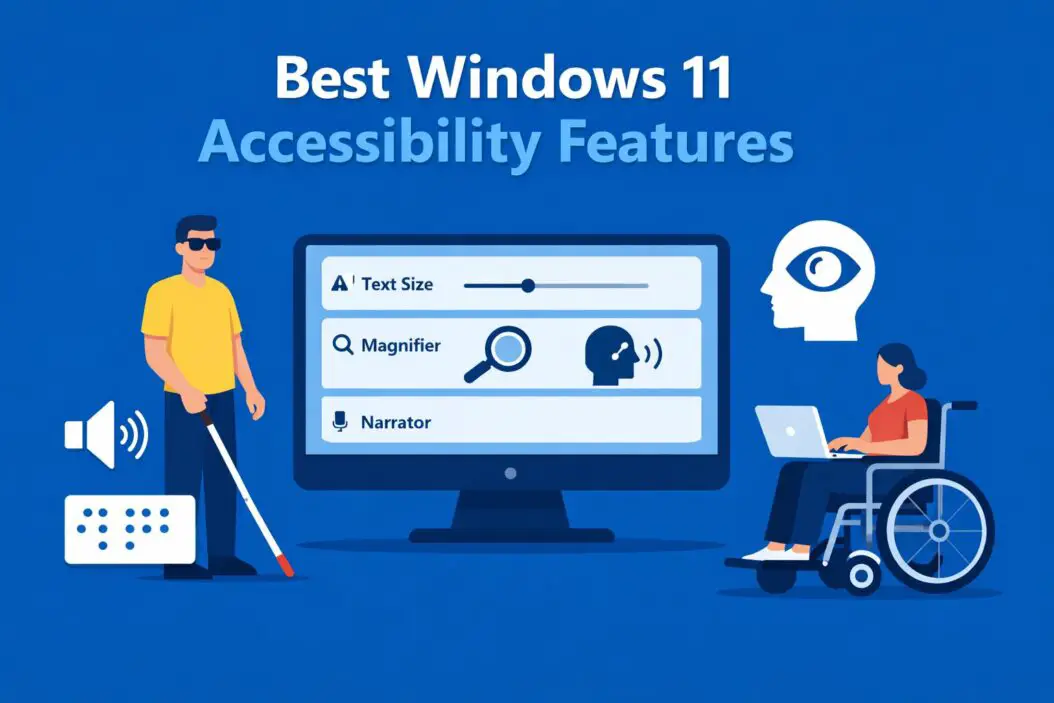
1. Narrator: Your Built-In Screen Reader
Narrator reads everything on your screen out loud. It describes buttons, text, images, and notifications so you can use Windows without looking at the display.
How Narrator Helps
Narrator benefits people who are blind, have low vision, or experience eye strain from prolonged screen time. It turns visual information into spoken words, allowing complete computer navigation through audio feedback.
Turning On Narrator
Quick method: Press Windows key + Ctrl + Enter
Settings method:
- Open Settings > Accessibility
- Click Narrator
- Toggle the switch to On
When Narrator starts, you’ll hear a voice confirming it’s active. The voice will then describe whatever is currently on your screen.
Key Narrator Controls
| Keyboard Shortcut | Action |
|---|---|
| Caps Lock + Esc | Stop Narrator |
| Caps Lock + 1 | Toggle input learning |
| Caps Lock + Right Arrow | Read next item |
| Caps Lock + Left Arrow | Read previous item |
| Caps Lock + D | Read item |
Customizing Narrator Voice
You can change Narrator’s voice, speed, and volume:
- Open Narrator settings
- Click “Change Narrator voice”
- Select a different voice from the dropdown
- Adjust the speed slider (slower for beginners, faster for experienced users)
- Change pitch and volume to your preference
Narrator also works with braille displays if you have one connected. The feature supports over 35 braille display models.
2. Magnifier: See Everything Bigger and Clearer
Magnifier enlarges part or all of your screen, making text, images, and buttons easier to see. It’s essential for people with low vision or anyone who struggles to read small text.
Three Magnifier Modes
Full screen mode: Enlarges your entire screen. Everything gets bigger as you move your mouse around.
Lens mode: Creates a movable magnifying glass that follows your cursor. The rest of the screen stays normal size.
Docked mode: Creates a separate magnified area at the top of your screen while keeping the rest normal.
Starting Magnifier
Quick method: Press Windows key + Plus sign (+)
Settings method:
- Go to Settings > Accessibility
- Click Magnifier
- Turn on the Magnifier toggle
Adjusting Magnification Level
Press Windows key + Plus (+) to zoom in further.
Press Windows key + Minus (-) to zoom out.
You can magnify from 100% to 1600%, giving you extreme flexibility based on your vision needs.
Magnifier Color Filters
Magnifier includes color filters that help people with color blindness or light sensitivity:
- Open Magnifier settings
- Scroll to “Color filters”
- Choose from Inverted, Grayscale, or specific color blindness filters
These filters only affect the magnified area, not your entire screen.
3. Voice Access: Control Windows With Your Voice
Voice Access lets you control Windows 11 completely by speaking. You can open apps, click buttons, type text, and navigate menus without touching your keyboard or mouse.
This feature launched in Windows 11 and represents a major advancement in hands-free computer control.
Who Benefits From Voice Access
Voice Access helps people with:
- Limited hand mobility or dexterity issues
- Repetitive strain injuries
- Paralysis or limb differences
- Conditions that make typing painful
It’s also useful if you simply prefer speaking over typing.
Setting Up Voice Access
- Go to Settings > Accessibility
- Click Speech
- Turn on Voice Access
- Complete the quick setup tutorial
The first time you use Voice Access, Windows downloads necessary voice recognition files. This takes a few minutes with an internet connection.
Essential Voice Commands
Opening apps: Say “Open [app name]” like “Open Chrome” or “Open Word”
Clicking items: Say “Click [item name]” such as “Click Start” or “Click File”
Typing text: Say “Type” followed by what you want to write
Dictation: Say what you want, and it appears as text
Numbers for clicking: Say “Show numbers” to see clickable numbers on all screen elements, then say the number to click that item
Voice Access vs Voice Typing
Voice Access controls everything on your computer through speech. Voice Typing (Windows key + H) only converts speech to text in documents and text fields.
For comprehensive hands-free control, use Voice Access. For quick dictation, Voice Typing works well.
4. Live Captions: See Every Word Spoken
Live Captions displays real-time subtitles for any audio playing on your PC. Whether you’re watching videos, in a video call, or listening to podcasts, you’ll see spoken words as text on screen.
How Live Captions Works
Live Captions uses AI to transcribe audio instantly. It works with:
- YouTube videos and streaming services
- Video conferencing (Teams, Zoom, Google Meet)
- Local video and audio files
- System sounds and notifications
- Browser audio
The captions appear in a floating window you can move anywhere on screen.
Enabling Live Captions
Quick method: Press Windows key + Ctrl + L
Settings method:
- Open Settings > Accessibility
- Click Captions
- Toggle Live Captions on
Customizing Caption Appearance
You can adjust how captions look:
- Open Captions settings
- Change caption style (background color, text size, font)
- Adjust caption position (top, bottom, or custom)
- Enable “Caption effects” for better readability
Microsoft continues improving Live Captions accuracy through regular updates. The feature currently supports English, with more languages planned.
5. High Contrast Themes: Reduce Eye Strain
High contrast themes change Windows colors to make everything easier to distinguish. They reduce visual noise and help people with light sensitivity, low vision, or cognitive processing differences.
What High Contrast Does
High contrast themes:
- Increase contrast between text and backgrounds
- Simplify color schemes to reduce distraction
- Make UI elements more distinct
- Reduce glare and eye fatigue
These themes affect your entire Windows interface, including File Explorer, Settings, and most applications.
Activating High Contrast
Quick method: Press Left Alt + Left Shift + Print Screen
Settings method:
- Go to Settings > Accessibility
- Click Contrast themes
- Select a theme from the dropdown
- Click Apply
Available High Contrast Themes
Windows 11 includes four built-in themes:
| Theme | Best For |
|---|---|
| Aquatic | Blue tones, medium contrast |
| Desert | Warm colors, softer contrast |
| Dusk | Purple and gold, reduced brightness |
| Night Sky | Black background, maximum contrast |
Night Sky provides the strongest contrast and works best for severe low vision.
Customizing Your Theme
You can modify any theme:
- Select a base theme
- Click color swatches to change individual elements
- Adjust text color, background color, hyperlink color, and more
- Click Apply to save your custom theme
Your personalized theme saves automatically and syncs across Windows 11 devices if you use a Microsoft account.
6. Text Cursor Indicator: Never Lose Your Place
The text cursor indicator adds a colored highlight around your text cursor, making it dramatically easier to see where you’re typing.
Why This Matters
Many people struggle to see the thin blinking cursor in text documents. This becomes harder with age, vision conditions, or when using high-resolution displays.
The cursor indicator solves this with a customizable colored box around your cursor.
Turning On the Cursor Indicator
- Open Settings > Accessibility
- Click Text cursor
- Turn on “Text cursor indicator”
- Adjust size and color
Customization Options
Size: Make the indicator thicker or thinner based on visibility needs.
Color: Choose colors that contrast well with your typical backgrounds. Bright colors like cyan, magenta, or yellow work well.
Recommended colors: Pick colors that stand out against both light and dark backgrounds if you switch between documents.
The indicator follows your cursor everywhere you can type, including browsers, email, documents, and system dialogs.
7. Sticky Keys and Filter Keys: Easier Keyboard Control
These two features make keyboard shortcuts and typing easier for people with limited dexterity or who use one hand.
Sticky Keys Explained
Sticky Keys lets you press keyboard shortcuts one key at a time instead of holding multiple keys simultaneously.
Normally, shortcuts like Ctrl+C require holding Ctrl while pressing C. With Sticky Keys, you:
- Press Ctrl (it stays “stuck”)
- Press C
- The shortcut executes
This helps tremendously if you type with one hand or have difficulty holding multiple keys.
Enabling Sticky Keys
Quick method: Press Shift five times rapidly
Settings method:
- Go to Settings > Accessibility
- Click Keyboard
- Turn on Sticky Keys
When active, you’ll hear a sound when modifier keys (Ctrl, Alt, Shift) lock.
Filter Keys Explained
Filter Keys tells Windows to ignore brief or repeated keystrokes. This prevents accidental typing if your hands shake or if you accidentally press keys multiple times.
You can set Windows to:
- Ignore repeated keystrokes within a set time
- Slow down the keyboard repeat rate
- Require keys to be held longer before registering
Enabling Filter Keys
- Open Settings > Accessibility
- Click Keyboard
- Turn on Filter Keys
- Click “Filter Keys settings” to customize timing
These features work together. Many people enable both for maximum typing control.
Setting Up Multiple Accessibility Features
You don’t need to choose just one feature. Most people benefit from combining several accessibility tools.
Common combinations:
- Magnifier + High Contrast for low vision
- Narrator + Live Captions for hearing and vision challenges
- Voice Access + Sticky Keys for mobility issues
- Filter Keys + Text Cursor Indicator for typing accuracy
Windows 11 handles multiple features running simultaneously without performance issues.
Accessibility Shortcuts
| Feature | Keyboard Shortcut |
|---|---|
| Narrator | Windows + Ctrl + Enter |
| Magnifier | Windows + Plus (+) |
| Voice Access | No default shortcut |
| Live Captions | Windows + Ctrl + L |
| High Contrast | Left Alt + Left Shift + Print Screen |
| Sticky Keys | Press Shift 5 times |
Memorizing these shortcuts gives you instant access to accessibility features anytime.
Additional Accessibility Resources
Windows 11 includes many other accessibility features beyond these seven:
- Color filters for color blindness
- Mono audio for single-ear hearing
- Visual notifications for sound alerts
- Eye control for navigation by eye movement
- Mouse pointer customization
Explore the full Accessibility section in Settings to discover tools that fit your specific needs.
The W3C Web Accessibility Initiative provides excellent resources about digital accessibility standards and best practices that influence Windows development.
Troubleshooting Common Issues
Narrator Speaks Too Fast or Slow
Open Narrator settings and adjust the voice speed slider. Start at 50% speed if you’re new to screen readers.
Magnifier Makes Screen Too Large
Press Windows + Minus (-) repeatedly to zoom out. Press Windows + Esc to turn off Magnifier completely.
Voice Access Doesn’t Understand Commands
Speak clearly and at a moderate pace. Run the Voice Access tutorial again through Settings > Accessibility > Speech > Voice Access > Tutorial.
Live Captions Not Appearing
Check that your audio is playing. Live Captions only appears when sound is detected. Also verify the caption window isn’t hidden off-screen by clicking the Live Captions icon in the system tray.
High Contrast Looks Wrong in Apps
Some third-party applications don’t fully support high contrast themes. Try updating the app or contact the developer about accessibility support.
How to Share Accessibility Settings Across Devices
Windows 11 syncs accessibility settings if you sign in with a Microsoft account:
- Go to Settings > Accounts
- Click “Windows backup”
- Enable “Remember my preferences”
- Turn on “Accessibility settings”
Your settings now sync to any Windows 11 device you sign into.
Conclusion
Windows 11 accessibility features remove barriers and create independence for millions of users. Whether you need Narrator to read your screen, Magnifier to see details, Voice Access for hands-free control, or any combination of tools, these features are free, powerful, and ready to use.
Start with one feature that addresses your biggest challenge. Turn it on, adjust the settings, and give yourself time to learn. Accessibility features feel awkward at first but become natural with practice.
Frequently Asked Questions
Do accessibility features slow down Windows 11?
No. Modern accessibility features are optimized and don’t noticeably impact system performance. You can run multiple accessibility features simultaneously on most computers without slowdown.
Can I use accessibility features on a work or school computer?
Yes. Accessibility features are built into Windows 11 and don’t require administrator privileges to enable. However, some organizations may restrict certain features through group policies. Check with your IT department if a feature won’t activate.
Are Windows 11 accessibility features free?
Absolutely. Every accessibility feature mentioned in this article is completely free and included with Windows 11. You don’t need to purchase additional software or subscriptions.
Will accessibility features work with my existing programs?
Most accessibility features work with all programs, including third-party applications. Narrator, Magnifier, Live Captions, and High Contrast have universal compatibility. Some older programs may have limited support for certain features.
How do I suggest improvements to Windows accessibility features?
Use the Feedback Hub app built into Windows 11. Open it, select “Accessibility” as the category, and submit your suggestions. Microsoft actively reviews accessibility feedback for future updates.
