
You need to know what computer you have. Maybe you’re buying software, getting tech support, or upgrading your system. The answer isn’t always obvious, but finding it takes just a few minutes.
What “Computer Type” Actually Means
When someone asks what type of computer you have, they usually want to know one of three things:
Operating system: Windows, macOS, Chrome OS, or Linux
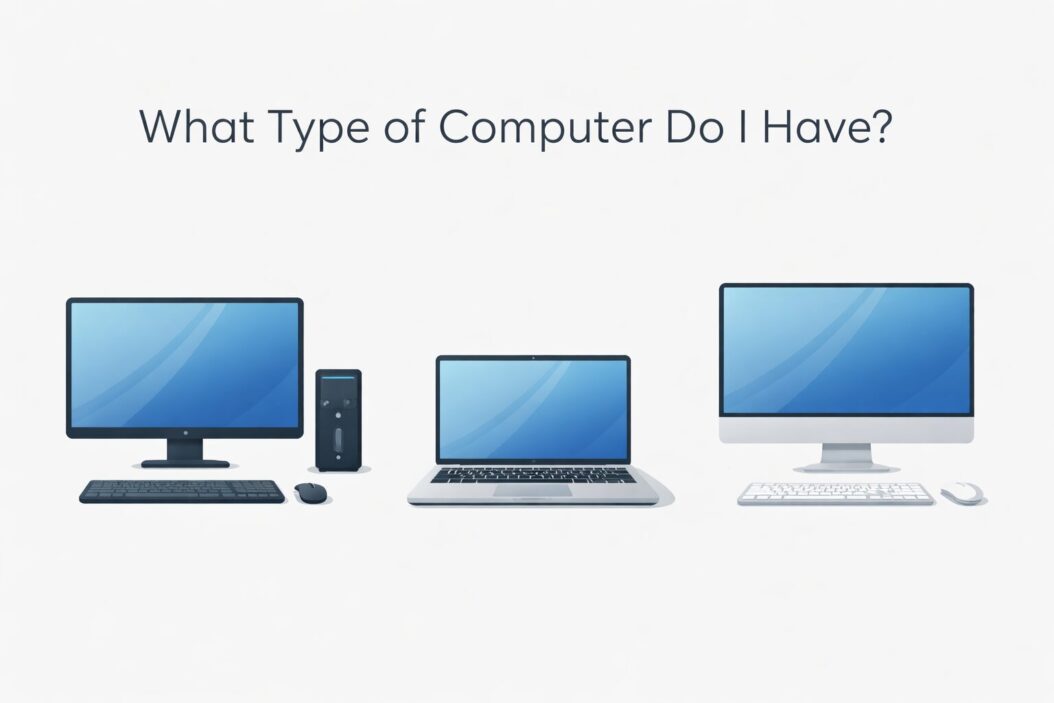
Form factor: Desktop, laptop, tablet, or all-in-one
Brand and model: Dell XPS 15, MacBook Pro, HP Pavilion
All three pieces help people give you the right advice or support. A fix for Windows doesn’t work on a Mac. A part for a Dell won’t fit in a Lenovo.
Quick Method: Check Your Computer’s Physical Labels
Start with the easiest approach. Most computers have labels stuck on them somewhere.
For laptops: Flip it over. Look for a sticker near the bottom. You’ll usually see the brand, model number, and serial number.
For desktops: Check the front panel, top edge, or back panel. Tower computers often have a label on the side or rear.
For all-in-ones: Look at the back of the screen or the base stand.
Write down what you see. The model number is the most important piece. It looks something like “Latitude 5420” or “Inspiron 15 3000” or “ThinkPad X1 Carbon Gen 9.”
Some stickers fade or fall off. If yours is missing, move to the software methods below.
How to Find Your Computer Type on Windows 11 and Windows 10
Windows makes this information easy to access. You have several paths to the same data.
Using System Information (Fastest Method)
Click the Start button. Type “system information” into the search box. Click the System Information app when it appears.
You’ll see a window with detailed specs. Look at these lines:
- System Manufacturer: Who made your computer (Dell, HP, Lenovo, ASUS, etc.)
- System Model: The exact model name or number
- System Type: Shows if you have 64-bit or 32-bit Windows
- Processor: Your CPU brand and model
- Installed Physical Memory (RAM): How much RAM you have
This tells you almost everything you need. Screenshot this page or write it down.
Using Settings App
Open Settings (press Windows key + I). Click “System” in the left sidebar. Scroll down and click “About.”
You’ll see:
- Device name
- Processor type
- Installed RAM
- System type (64-bit or 32-bit)
- Windows version
This method doesn’t always show the manufacturer or exact model. Use System Information if you need those details.
Using Command Prompt
Press Windows key + R. Type “cmd” and press Enter. In the black window, type this command:
wmic computersystem get manufacturer, modelPress Enter. You’ll see your computer’s manufacturer and model printed out. This works even on older Windows versions.
How to Identify Your Mac Computer Type
Apple makes this straightforward. Every Mac has the same basic path to system information.
On macOS Sonoma or Later (2023-2026)
Click the Apple logo in the top left corner. Select “About This Mac.”
A window opens with:
- Model name: MacBook Air, MacBook Pro, iMac, Mac mini, Mac Studio, or Mac Pro
- Chip: Apple M1, M2, M3, M4, or Intel processor details
- Memory: RAM amount
- Serial number: Unique identifier for your specific machine
- macOS version: Current operating system
For more details, click “More Info.” This opens System Settings with complete specifications.
Finding Your Mac’s Year and Model Number
The “About This Mac” window shows your Mac’s name, but not always the year. Here’s how to get that:
Copy your serial number from the About This Mac window. Go to Apple’s Check Coverage page. Paste your serial number and submit.
Apple shows your exact model with the year. Example: “MacBook Pro (14-inch, 2023)” or “iMac (24-inch, M1, 2021).”
You can also click the serial number in About This Mac to reveal the model identifier. This looks like “MacBookPro18,3” or “iMac21,1.” Search this identifier online to find your exact model and year.
Chromebook Identification Steps
Chromebooks work differently than Windows or Mac computers. Here’s how to identify yours.
Click the time in the bottom right corner. Click the gear icon to open Settings. In the left sidebar, click “About ChromeOS.” Click “Additional details.”
You’ll see:
- Platform: Your Chromebook’s board name
- Device name: What you or your organization named it
- Model: The specific hardware model
Scroll down to see firmware version, Chrome OS version, and more.
For the manufacturer and marketing name, flip your Chromebook over. The label shows the brand (Acer, HP, Lenovo, Samsung) and model (like “Chromebook 314” or “Pixelbook Go”).
Understanding Different Computer Types and What They Mean
Now that you know how to find your information, here’s what it all means.
Desktop vs Laptop vs All-in-One
Desktop tower: A separate box that sits under or on your desk. Connects to a separate monitor, keyboard, and mouse. Easier to upgrade and repair. Takes up more space.
Laptop: Portable computer with built-in screen, keyboard, and trackpad. Battery powered. Harder to upgrade. Perfect for working anywhere.
All-in-one: Monitor and computer combined in one unit. Sits on a desk like a desktop but takes less space. Usually harder to upgrade than towers.
Each type has trade-offs. Desktops offer better performance per dollar. Laptops give you mobility. All-in-ones save desk space.
Operating System Differences
Windows: Most common OS worldwide. Runs on computers from hundreds of manufacturers. Works with the most software and games. Familiar to most people.
macOS: Apple’s operating system. Only runs on Mac computers. Known for clean design and strong security. Popular with creative professionals. Works seamlessly with iPhones and iPads.
Chrome OS: Google’s lightweight system. Runs mainly web apps and Android apps. Fast startup and long battery life. Best for basic tasks and students. Requires internet for most features.
Linux: Free, open-source OS. Many different versions (Ubuntu, Fedora, Mint). Popular with developers and tech enthusiasts. Steeper learning curve for beginners.
Processor Types Matter
Your processor (CPU) determines how fast your computer runs. In 2026, you’ll see these types:
Intel processors: Core i3, i5, i7, or i9. Higher numbers mean more power. Ultra chips (formerly called 13th Gen, 14th Gen) are the latest.
AMD processors: Ryzen 3, 5, 7, or 9. Competes directly with Intel. Often better value for performance.
Apple Silicon: M1, M2, M3, or M4 chips. Only in Macs. Very fast and power efficient. Better battery life than Intel Macs.
ARM processors: Used in some Windows laptops and Chromebooks. Energy efficient but may not run all older Windows programs.
RAM Determines Multitasking Ability
RAM (Random Access Memory) lets your computer juggle multiple tasks.
- 4GB: Bare minimum. Struggles with modern tasks.
- 8GB: Adequate for basic use, web browsing, and light work.
- 16GB: Sweet spot for most people in 2026. Handles multitasking well.
- 32GB or more: For heavy work like video editing, 3D rendering, or running virtual machines.
More RAM helps when you have many browser tabs open or run demanding programs.
Finding Detailed Hardware Specifications
Sometimes you need more than just the model name. Here’s how to dig deeper.
Windows: DirectX Diagnostic Tool
Press Windows key + R. Type “dxdiag” and press Enter. The DirectX Diagnostic Tool opens.
The System tab shows your processor, memory, and Windows version. Click the Display tab to see your graphics card (GPU) details. Click the Sound tab for audio hardware info.
This tool helps when troubleshooting games or checking if your computer meets software requirements.
Mac: System Report
Click the Apple logo and choose “About This Mac.” Click “More Info” to open System Settings. In the left sidebar under General, look for “System Report” or find it by searching.
System Report shows everything: processor details, memory specs, storage drives, graphics cards, USB devices, and network hardware. Each category expands to show detailed information.
This is Apple’s equivalent to Windows Device Manager. You rarely need this level of detail, but it’s there when you do.
Third-Party Tools for Complete Details
Sometimes built-in tools aren’t enough. These free programs show everything about your hardware:
CPU-Z (Windows): Shows detailed processor and motherboard information. Download from CPUID’s official website.
Speccy (Windows): Made by CCleaner developers. Shows all hardware specs in one clean interface.
GPU-Z (Windows): Focuses on graphics card details. Useful for gamers.
These tools don’t change anything. They just read and display information. Safe to use when you need extra details.
What This Information Helps You Do
Knowing your computer type solves practical problems.
Buying compatible software: Some programs only work on certain operating systems or require minimum specs.
Getting accurate tech support: Support teams ask for your model and OS version first thing.
Upgrading parts: You need your exact model to find compatible RAM, storage drives, or other components.
Selling or trading in: Buyers want to know exactly what they’re getting.
Checking warranty status: Manufacturers track warranties by serial number and model.
Finding drivers: Graphics card, printer, and other drivers must match your specific hardware.
Determining upgrade potential: Some models can’t add more RAM or storage. Knowing yours helps you plan.
Common Problems When Identifying Your Computer
Sometimes finding this information gets tricky. Here are solutions to common issues.
Labels Are Missing or Unreadable
Physical labels fade or fall off, especially on older laptops. Use the software methods instead. Windows System Information and Mac’s About This Mac don’t depend on stickers.
If you absolutely need the label information, check your purchase receipt or confirmation email. These often include the model number.
Custom-Built Desktop PCs
If someone built your desktop from parts, there’s no single manufacturer or model. Windows System Information shows individual component makers instead.
Your motherboard manufacturer (shown in System Information) is the closest thing to a “computer maker.” The motherboard model matters most for upgrades.
Virtual Machines Show Wrong Information
If you’re running Windows in a virtual machine on a Mac (or vice versa), System Information shows the virtual hardware, not your real computer.
Close the virtual machine and check from your main operating system. That shows your actual hardware.
Generic or White-Box Computers
Some computers come from small builders or have generic parts. System Information might show “System manufacturer” or “To be filled by O.E.M.”
This isn’t an error. These computers just don’t have standard branding. Check your motherboard model instead. That’s what matters for support and upgrades.
Key Specifications to Write Down and Keep
Create a simple document with this information. Store it somewhere easy to find. You’ll reference it repeatedly.
| Information Type | Example | Where You’ll Need It |
|---|---|---|
| Operating System | Windows 11 Pro | Software compatibility |
| Manufacturer | Dell | Driver downloads, support |
| Model Number | XPS 15 9520 | Parts, accessories, cases |
| Processor | Intel Core i7-12700H | Performance requirements |
| RAM | 16GB DDR5 | Multitasking capability |
| Storage | 512GB SSD | Upgrade planning |
| Graphics Card | NVIDIA RTX 3050 Ti | Gaming, design software |
| Serial Number | ABC123XYZ789 | Warranty, theft recovery |
Take a screenshot of your System Information or About This Mac screen. Save it with your important documents. This becomes your quick reference.
Why Computer Types and Models Change Every Year
Manufacturers release new models constantly. Understanding the pattern helps you identify yours.
Model years: Like cars, computers often get yearly updates. A “2025 MacBook Pro” differs from a “2026 MacBook Pro.”
Generation numbers: Intel and AMD use generation numbers. 13th Gen Intel is newer than 12th Gen. Ryzen 7000 is newer than Ryzen 5000.
Refresh cycles: Most manufacturers update their lineup every 6-12 months. Small improvements happen frequently. Major redesigns happen every few years.
Check the release date of your model online. This tells you how current your machine is and when to expect official support to end.
Summary
Finding what type of computer you have takes just a few clicks. On Windows, use System Information or Settings. On Mac, click About This Mac. On Chromebook, check Settings under About ChromeOS.
Write down your manufacturer, model number, processor, RAM, and operating system. Keep this information handy for future reference.
Physical labels work when available, but software methods always work and show more detail. For complete hardware specs, use System Information on Windows or System Report on Mac.
Frequently Asked Questions
How do I know if my Windows computer is 32-bit or 64-bit?
Open Settings and click System, then About. Look at the “System type” line. It says either “64-bit operating system” or “32-bit operating system.” Almost all computers sold after 2020 are 64-bit. The 64-bit version handles more RAM and runs faster with modern programs.
Can I identify my computer from just the serial number?
Yes, for many brands. Apple lets you enter your serial number on their Check Coverage page to see your exact model. Dell, HP, and Lenovo have similar tools on their support websites. Enter your serial number and they show your full system specs and warranty status.
What’s the difference between a computer model and model number?
The model is the marketing name like “MacBook Pro” or “Inspiron 15.” The model number is the specific identifier like “MacBookPro18,3” or “Inspiron 15 3511.” The model number gives you the exact configuration and year, which matters for support and parts.
How do I find my computer specs for gaming requirements?
Check your processor in System Information, your RAM amount in Settings > About, and your graphics card using DirectX Diagnostic Tool (type dxdiag in the Start menu). Compare these specs to the game’s minimum and recommended requirements. Focus especially on your graphics card, as that matters most for gaming.
Why does my computer show different information in different places?
Windows stores system information in multiple locations. Settings shows simplified info for general users. System Information shows detailed technical specs. Device Manager shows individual hardware components. They’re all correct but show different levels of detail. Use System Information for the most complete picture of what you have.
