
If copy-paste stops working during a Remote Desktop session, rdpclip.exe is almost always the reason. This guide explains exactly what that process does, why it breaks, and how to fix it in minutes.
What Is rdpclip.exe?
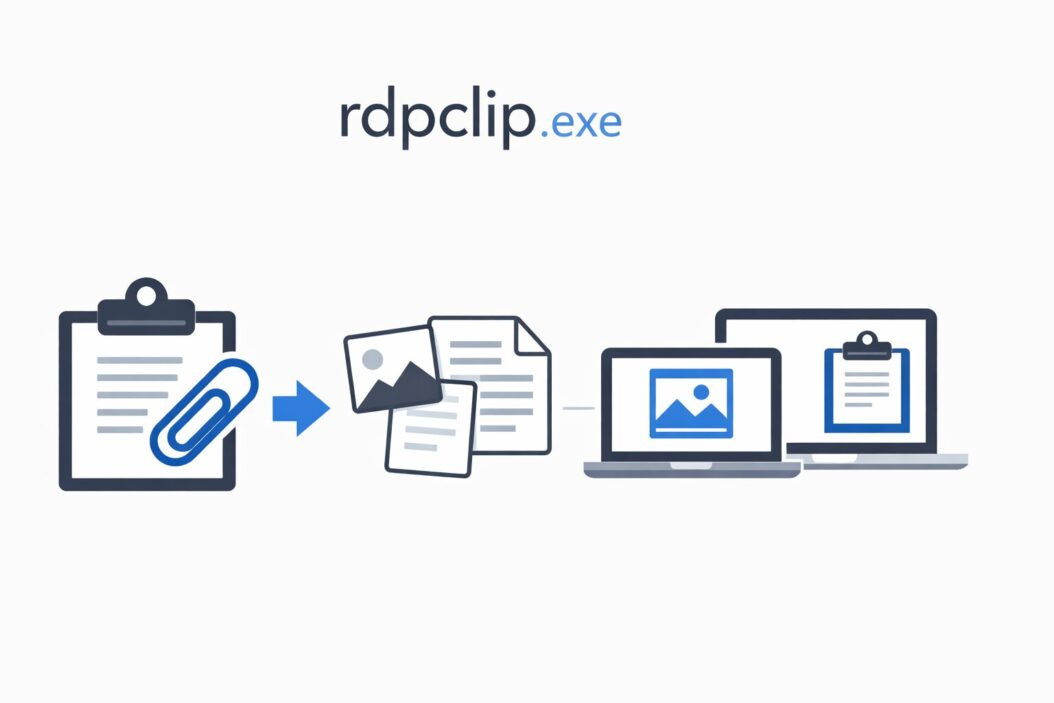
rdpclip.exe stands for Remote Desktop Clipboard. It is a Windows system process that manages clipboard sharing between your local computer and a remote desktop session.
When you copy text on your local machine and paste it inside an RDP session (or vice versa), rdpclip.exe handles that transfer. Without it running correctly, clipboard sync simply does not work.
It lives here:
C:\Windows\System32\rdpclip.exe
It is a legitimate Microsoft process. It is not a virus. It does not run on your local PC unless you are inside a remote desktop session.
Is rdpclip.exe Safe?
Yes. It is a core Windows component tied to Remote Desktop Services.
However, malware sometimes disguises itself using similar-sounding names. Always verify the file location. If rdpclip.exe is running from anywhere other than C:\Windows\System32\, treat it as suspicious and scan immediately.
| Property | Detail |
|---|---|
| File name | rdpclip.exe |
| Developer | Microsoft Corporation |
| Location | C:\Windows\System32\ |
| Purpose | Clipboard sync over RDP |
| Runs on | Remote/host machine inside RDP session |
| Safe? | Yes, if in System32 |
How rdpclip.exe Actually Works
When you start an RDP session, Windows automatically launches rdpclip.exe on the remote machine inside your session. It hooks into the Windows clipboard chain and listens for clipboard changes on both ends.
Here is the basic flow:
- You copy something on your local PC
- rdpclip.exe on the remote machine detects the change
- It transfers the clipboard data through the RDP channel
- You can now paste inside the remote session
The same happens in reverse when you copy on the remote machine and paste locally.
It works at the session level, not system-wide. Each RDP session gets its own rdpclip.exe instance.
Why rdpclip.exe Stops Working
This is the part most people actually need. Copy-paste breaking in RDP is incredibly common. Here are the real reasons it happens:
The process crashes silently. rdpclip.exe sometimes terminates mid-session without any error message. Clipboard just stops working.
The clipboard chain gets corrupted. Windows clipboard depends on a chain of listeners. Any application that mishandles this chain can break it for all other programs, including rdpclip.
Group Policy blocks clipboard redirection. In corporate environments, admins sometimes disable clipboard sharing via policy. rdpclip.exe may be running fine, but the feature itself is turned off.
RDP settings have clipboard redirection disabled. If the RDP connection was configured without clipboard access, rdpclip.exe will not function even if it is running.
Session has been running too long. Occasionally, after hours of continuous use, the process enters a broken state but remains in memory.
How to Fix rdpclip.exe (Step by Step)
Fix 1: Restart rdpclip.exe Manually
This is the fastest fix and works most of the time.
Inside your RDP session:
- Press
Ctrl + Shift + Escto open Task Manager - Go to the Details tab
- Find
rdpclip.exe - Right-click it and select End Task
- Now click File > Run new task
- Type
rdpclip.exeand press Enter
Clipboard should work again immediately. No reboot needed.
If you do not see rdpclip.exe in Task Manager, skip directly to Fix 3.
Fix 2: Use Command Prompt to Restart It
Some users find this faster, especially via command line tools.
Inside the RDP session, open CMD as administrator and run:
taskkill /F /IM rdpclip.exe
rdpclip.exe
The first line kills the process. The second restarts it. Done.
Fix 3: Check RDP Clipboard Redirection Settings
If restarting rdpclip.exe does not help, clipboard redirection may be disabled.
On the machine initiating the RDP connection:
- Open Remote Desktop Connection (search for
mstscin Start) - Click Show Options
- Go to the Local Resources tab
- Under Local devices and resources, check the Clipboard box
- Reconnect to the remote session
This setting must be enabled before connecting. You cannot change it mid-session.
Fix 4: Check Remote Desktop Services Settings on the Host
On the remote machine, an admin can check whether clipboard is allowed:
- Open Group Policy Editor (
gpedit.msc) - Navigate to:
Computer Configuration > Administrative Templates > Windows Components > Remote Desktop Services > Remote Desktop Session Host > Device and Resource Redirection - Find Do not allow clipboard redirection
- Make sure it is set to Disabled or Not Configured
If this policy is Enabled, clipboard will never work regardless of what you do with rdpclip.exe.
Fix 5: Restart Remote Desktop Clipboard Service
- On the remote machine, open Services (
services.msc) - Look for Remote Desktop Services or related clipboard services
- Restart the service
Alternatively, open Task Manager, go to Services tab, right-click UmRdpService and restart it.
Fix 6: Check for Clipboard-Blocking Software
Some clipboard managers, password managers, or antivirus tools intercept the clipboard chain aggressively. If you recently installed software on either machine and clipboard broke afterward, test by temporarily disabling that software.
Common offenders include older versions of clipboard managers and some enterprise endpoint protection tools.
How to Automate the Fix (Task Scheduler)
If clipboard keeps breaking every few hours, you can automate the restart using Windows Task Scheduler.
Create a scheduled task that runs every hour:
- Open Task Scheduler
- Click Create Basic Task
- Name it: Restart RDPClip
- Trigger: Daily, repeat every 1 hour
- Action: Start a program
- Program:
cmd.exe - Arguments:
/c taskkill /F /IM rdpclip.exe & rdpclip.exe - Finish
This is a practical workaround when the root cause is hard to identify.
You can also create a simple .bat file and run it whenever clipboard breaks:
@echo off
taskkill /F /IM rdpclip.exe
start rdpclip.exe
echo Clipboard restarted.
Save it as fix_clipboard.bat, place it on the remote desktop, and double-click it whenever needed.
rdpclip.exe High CPU or Memory Usage
Occasionally rdpclip.exe uses unexpectedly high CPU or RAM. This usually happens when:
- You are copying very large files or clipboard data repeatedly
- A loop is causing repeated clipboard events
- The process is stuck
Fix: Simply kill and restart the process as shown in Fix 1 above. The process is lightweight by design. Normal usage is under 5MB RAM and near-zero CPU.
rdpclip.exe vs Clipboard in Regular Windows
It is worth understanding the difference:
| Feature | Regular Windows Clipboard | RDP Clipboard (rdpclip.exe) |
|---|---|---|
| Process | None specific | rdpclip.exe |
| Scope | Local machine only | Across RDP connection |
| Runs when | Always | Only in RDP session |
| Can be restarted | Not needed | Yes, often helpful |
| Affected by policy | Rarely | Frequently in enterprise |
rdpclip.exe on Windows Server
On Windows Server environments running Remote Desktop Session Host (RDSH), every user session gets its own rdpclip.exe instance. Admins should be aware:
- Do not kill rdpclip.exe for all sessions; target the specific session
- Use
query sessionto identify session IDs - Use
tsconor session-aware Task Manager to manage per-session processes
To kill rdpclip.exe for a specific session via command line:
query session
Find the session ID, then use:
taskkill /PID [PID of rdpclip in that session] /F
This avoids disrupting other users on the same server.
Copy-Paste Still Not Working? Try These Checks
If none of the above fixes solved your problem, go through this checklist:
- Is clipboard redirection enabled in the RDP client settings?
- Is Group Policy blocking clipboard on the remote machine?
- s a firewall blocking the RDP clipboard virtual channel?
- Is rdpclip.exe actually running inside the session?
- Are you copying content types that are not supported (like certain file formats)?
- Is the remote machine running a locked-down security policy?
For enterprise setups, clipboard issues are very often policy-driven. IT admins control this more than the end user does.
What Happens If You Delete rdpclip.exe?
Do not delete it. Deleting it breaks clipboard functionality entirely in Remote Desktop sessions. Windows may also flag the missing file during integrity checks.
If you suspect the file is corrupt, run:
sfc /scannow
This scans and repairs system files including rdpclip.exe if it is damaged.
Conclusion
rdpclip.exe is a small but essential process for anyone using Remote Desktop. When it works, you never notice it. When it breaks, copy-paste stops and productivity takes a hit.
The fix is almost always simple: kill the process, restart it, and clipboard works again. If that does not help, the issue is usually a policy setting or a disabled option in the RDP client itself.
Key takeaways:
- rdpclip.exe is safe and lives in System32
- It only runs inside RDP sessions, not on your regular desktop
- Restarting it via Task Manager or CMD fixes most clipboard issues
- Group Policy can block clipboard even if the process is running
- You can automate restarts if the problem is recurring
- Never delete it; repair it with
sfc /scannowif corrupted
Frequently Asked Questions
Is rdpclip.exe a virus?
No. It is a legitimate Microsoft system file located in C:\Windows\System32\. If you find it running from any other location, such as AppData or Temp, that is suspicious and warrants a malware scan. The real file is safe.
Why does copy-paste stop working in Remote Desktop?
The most common reason is that rdpclip.exe has crashed or entered a broken state. Restarting the process through Task Manager usually fixes it immediately. Other causes include disabled clipboard redirection in RDP settings or Group Policy restrictions.
Can I disable rdpclip.exe?
You can kill it, but there is rarely a reason to. Disabling it means clipboard sharing between your local machine and remote session will not work. If you want to restrict clipboard access for security reasons, it is better to do this through Group Policy rather than killing the process manually.
Does rdpclip.exe run on my local PC?
No. It runs on the remote machine inside your RDP session. Your local PC does not need to run rdpclip.exe. If you see it running outside an RDP session on your local machine, investigate further.
How do I permanently fix clipboard issues in Remote Desktop?
The most permanent fix is to ensure clipboard redirection is enabled in both the RDP client (Local Resources tab) and on the remote machine via Group Policy. If the process keeps crashing, set up a scheduled task to restart rdpclip.exe automatically every hour as a practical long-term workaround.
