
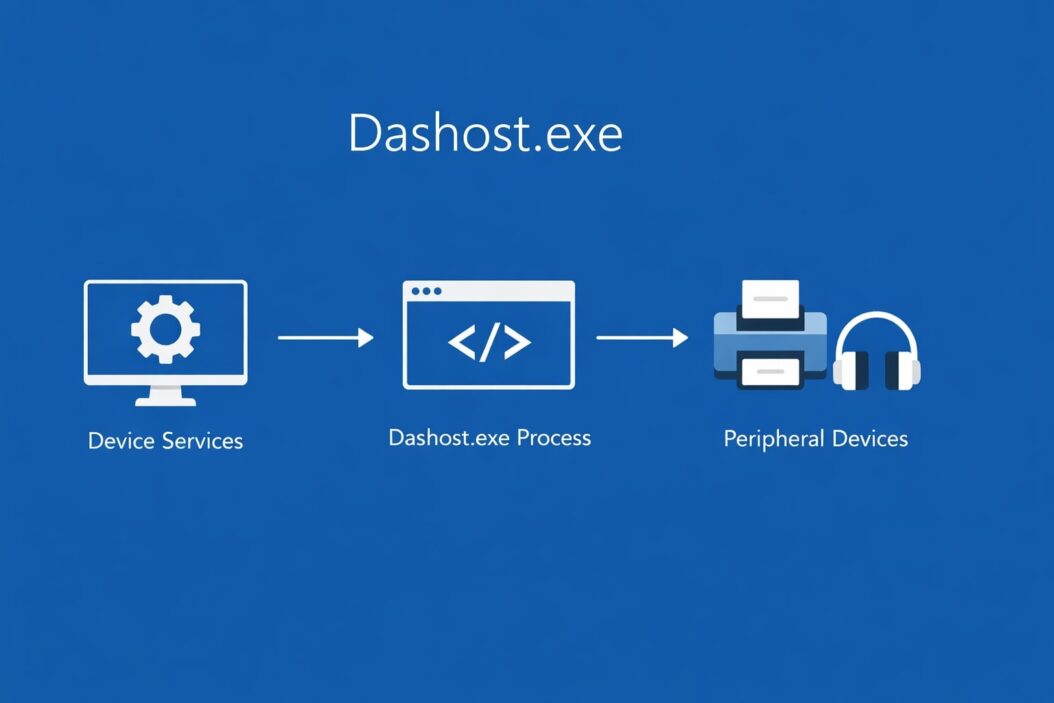
You spotted dashost.exe running on your computer and want to know if it’s safe. Here’s the straight answer: dashost.exe is a legitimate Windows system file called the Device Association Framework Provider Host. It manages how Windows connects and communicates with wired and connected devices like printers, external drives, smartphones, and Bluetooth accessories.
This process typically uses minimal system resources and runs quietly in the background. However, sometimes it causes high CPU usage or memory issues, which we’ll address in this guide.
What Does dashost.exe Actually Do?
The Device Association Framework Provider Host serves as a bridge between your Windows operating system and external devices. When you plug in a USB drive, connect a wireless mouse, or pair Bluetooth headphones, dashost.exe springs into action.
Primary functions include:
- Detecting new devices when you connect them
- Managing communication protocols between devices and Windows
- Handling device setup and configuration processes
- Coordinating data transfer between your PC and connected hardware
- Supporting wireless device pairing and authentication
Think of dashost.exe as a receptionist in a busy office. When someone new arrives (a device connects), the receptionist (dashost.exe) checks them in, verifies their credentials, and directs them to the right department (system resources).
Is dashost.exe Safe or a Virus?
The legitimate dashost.exe file is completely safe. Microsoft developed it as part of the Windows operating system. The authentic file lives in the C:\Windows\System32 folder and has a verified digital signature from Microsoft Corporation.
However, malware sometimes disguises itself using similar names. Cybercriminals create fake processes with names like “dasHost.exe” (note the capital H) or place them in different folders to avoid detection.
How to Verify If Your dashost.exe Is Legitimate
Follow these steps to check if your file is authentic:
Step 1: Open Task Manager by pressing Ctrl + Shift + Esc.
Step 2: Find dashost.exe in the process list. If you don’t see it, click “More details” at the bottom.
Step 3: Right-click on dashost.exe and select “Open file location.”
Step 4: The file should be located in C:\Windows\System32. If it opens to any other location, you likely have malware.
Step 5: Right-click the file, select Properties, then go to the Digital Signatures tab. You should see “Microsoft Windows” as the signer.
Warning Signs of Malware
Watch for these red flags that indicate a fake dashost.exe:
- The process runs from a location other than System32
- Multiple instances consume excessive CPU or memory (over 200 MB)
- The process starts immediately after booting, before you connect any devices
- No digital signature or a signature from an unknown publisher
- The file size differs significantly from the standard (usually around 50-60 KB)
Why Is dashost.exe Using High CPU or Memory?
Under normal circumstances, dashost.exe uses less than 50 MB of RAM and minimal CPU power. If you notice it consuming significantly more resources, several issues might be at play.
Common Causes of High Resource Usage
Driver conflicts: Outdated or corrupted device drivers often trigger excessive dashost.exe activity. When Windows struggles to communicate with a device due to driver issues, the process works overtime trying to establish a connection.
Faulty hardware: A malfunctioning USB device, external hard drive, or wireless adapter can cause dashost.exe to loop endlessly as it attempts to recognize or configure the problematic hardware.
Windows update issues: Sometimes Windows updates introduce bugs that affect how dashost.exe operates. These bugs typically get patched in subsequent updates.
Corrupted system files: Damaged Windows system files can interfere with normal dashost.exe operations, causing it to consume more resources than necessary.
Too many connected devices: Having numerous devices connected simultaneously (especially through USB hubs) can strain the process as it manages multiple connections.
How to Fix High dashost.exe CPU or Memory Usage
Let’s walk through practical solutions to resolve resource consumption issues.
Solution 1: Disconnect Unnecessary Devices
Start with the simplest fix. Unplug all non-essential USB devices, disconnect Bluetooth peripherals, and remove external drives you’re not actively using.
After disconnecting devices, check Task Manager to see if dashost.exe resource usage drops. If it does, reconnect devices one at a time to identify the problematic hardware.
Solution 2: Update Device Drivers
Outdated drivers are a leading cause of dashost.exe issues.
Step 1: Press Windows key + X and select Device Manager.
Step 2: Look for devices with a yellow exclamation mark, indicating driver problems.
Step 3: Right-click each device and select “Update driver.”
Step 4: Choose “Search automatically for drivers” and let Windows find the latest versions.
Step 5: For critical devices like USB controllers and Bluetooth adapters, visit the manufacturer’s website (Microsoft’s driver support page provides guidance on manual updates) to download the newest drivers directly.
Solution 3: Run System File Checker
Windows includes a built-in tool to repair corrupted system files.
Step 1: Type “cmd” in the Windows search box.
Step 2: Right-click Command Prompt and select “Run as administrator.”
Step 3: Type sfc /scannow and press Enter.
Step 4: Wait for the scan to complete. This process can take 15-30 minutes.
Step 5: If the tool finds and fixes issues, restart your computer.
Solution 4: Disable and Re-enable Device Association Service
Sometimes the service itself needs a reset.
Step 1: Press Windows key + R to open the Run dialog.
Step 2: Type services.msc and press Enter.
Step 3: Scroll down and find “Device Association Service.”
Step 4: Right-click it and select “Stop.”
Step 5: Wait 10 seconds, then right-click again and select “Start.”
Solution 5: Check for Windows Updates
Microsoft regularly releases patches that fix known issues.
Step 1: Press Windows key + I to open Settings.
Step 2: Click “Windows Update” (or “Update & Security” in older versions).
Step 3: Click “Check for updates.”
Step 4: Install all available updates and restart your computer.
Solution 6: Perform a Clean Boot
A clean boot starts Windows with minimal drivers and startup programs, helping identify if third-party software conflicts with dashost.exe.
Step 1: Type “msconfig” in the Windows search box and press Enter.
Step 2: Go to the Services tab and check “Hide all Microsoft services.”
Step 3: Click “Disable all.”
Step 4: Go to the Startup tab and click “Open Task Manager.”
Step 5: Disable all startup items in Task Manager.
Step 6: Restart your computer.
If dashost.exe behaves normally after a clean boot, re-enable services and startup items one by one to find the culprit.
Can You Disable or Delete dashost.exe?
You should not disable or delete dashost.exe. As a core Windows component, removing it will cause device connectivity problems. Your computer may fail to recognize USB devices, printers won’t work properly, and Bluetooth connections will become unreliable.
The Device Association Service should remain enabled. Disabling it provides no performance benefits for most users and creates significant functionality problems.
If dashost.exe causes persistent issues despite troubleshooting, the problem lies elsewhere (corrupted drivers, hardware faults, or malware), not with the process itself.
Dashost.exe vs Similar Windows Processes
Windows includes several processes with similar names or functions. Understanding the differences helps you troubleshoot effectively.
| Process Name | Function | Normal CPU Usage | Normal Memory Usage |
|---|---|---|---|
| dashost.exe | Device Association Framework | Less than 1% | 30-60 MB |
| dwm.exe | Desktop Window Manager | 1-5% | 100-200 MB |
| svchost.exe | Service Host (runs multiple services) | Varies | Varies |
| dllhost.exe | COM Surrogate (handles extensions) | Less than 1% | 10-50 MB |
Each process serves a distinct purpose. If you see multiple similar names, verify each one’s location and digital signature to ensure legitimacy.
Advanced Troubleshooting for Persistent Issues
If basic solutions don’t resolve your dashost.exe problems, try these advanced methods.
Check Event Viewer for Errors
Windows Event Viewer logs detailed information about system processes and errors.
Step 1: Press Windows key + X and select Event Viewer.
Step 2: Navigate to Windows Logs > System.
Step 3: Look for recent errors related to Device Association Service or dashost.exe.
Step 4: Double-click error entries to view details and search Microsoft’s support documentation for specific error codes.
Scan for Malware
Even if dashost.exe appears legitimate, hidden malware might interfere with its operation.
Step 1: Run a full scan with Windows Defender or your preferred antivirus software.
Step 2: Use Windows Security’s offline scan feature for deeper malware detection.
Step 3: Consider running Malwarebytes (free version) as a second opinion scanner.
Step 4: Remove any detected threats and restart your computer.
Reinstall Problematic Device Drivers
If updating drivers doesn’t help, try a complete reinstallation.
Step 1: Open Device Manager and locate the problematic device.
Step 2: Right-click it and select “Uninstall device.”
Step 3: Check “Delete the driver software for this device” if the option appears.
Step 4: Restart your computer. Windows will automatically reinstall the driver.
Step 5: If automatic installation fails, manually download and install drivers from the manufacturer’s website.
Reset Windows (Last Resort)
When all else fails, resetting Windows can resolve persistent system issues while keeping your personal files.
Step 1: Press Windows key + I to open Settings.
Step 2: Go to System > Recovery (or Update & Security > Recovery in older versions).
Step 3: Click “Reset PC” under Reset this PC.
Step 4: Choose “Keep my files” to preserve your documents, photos, and personal data.
Step 5: Follow the on-screen instructions to complete the reset.
This process reinstalls Windows while maintaining your files, effectively resolving any corrupted system files or configuration problems affecting dashost.exe.
Prevention Tips to Avoid Future Issues
Taking proactive steps helps prevent dashost.exe problems before they start.
Keep Windows updated: Enable automatic updates so you always have the latest patches and bug fixes. Microsoft regularly releases improvements that enhance system process performance.
Maintain current drivers: Check for driver updates monthly, especially for USB controllers, chipset drivers, and device-specific software. Manufacturers often release updates that improve compatibility and stability.
Use quality hardware: Cheap or counterfeit USB devices, cables, and accessories often have firmware issues that confuse Windows device management processes. Invest in reputable brands when possible.
Safely remove devices: Always use the “Safely Remove Hardware” feature before unplugging USB drives or external devices. Abruptly disconnecting devices can corrupt drivers or system files.
Monitor resource usage: Occasionally check Task Manager to establish a baseline for normal dashost.exe behavior on your system. This helps you quickly spot abnormal activity.
Run regular malware scans: Schedule weekly antivirus scans to catch potential threats before they cause problems. Many security issues manifest as unusual system process behavior.
Conclusion
The dashost.exe process is a legitimate and necessary Windows component that manages device connections. Under normal circumstances, it runs quietly with minimal resource usage. When you experience high CPU or memory consumption, the cause typically involves driver issues, hardware problems, or malware rather than the process itself.
Start troubleshooting by disconnecting unnecessary devices and updating drivers. Use System File Checker to repair corrupted files and verify that your dashost.exe file is authentic by checking its location and digital signature. Most issues resolve with these basic steps.
Remember that deleting or disabling dashost.exe creates more problems than it solves. Focus on addressing the root cause rather than removing this essential system process. Keep your Windows installation and drivers updated to prevent future issues.
Frequently Asked Questions
Is it normal to see multiple dashost.exe processes running?
Seeing two or three instances is normal when you have multiple devices connected or during device setup. However, if you notice more than three instances or they consume excessive resources, investigate for driver issues or malware. Each instance should use minimal CPU and memory under normal conditions.
Will ending dashost.exe task in Task Manager harm my computer?
Ending the task won’t permanently damage your computer, but it will disrupt device connectivity. Connected devices may stop working until you restart Windows or reconnect them. The process automatically restarts when needed, so ending it provides no long-term benefit.
Why does dashost.exe start even when no devices are connected?
Windows loads dashost.exe during startup to prepare for device connections. It remains active to quickly respond when you plug in or connect devices. This preloading behavior is normal and ensures smooth device recognition without delays.
Can antivirus software falsely flag dashost.exe as malicious?
False positives are rare for legitimate Windows system files with valid digital signatures. If your antivirus flags dashost.exe, verify the file location and signature first. Legitimate files in System32 with Microsoft signatures should not trigger alerts. Update your antivirus software and report false positives to the vendor.
Does dashost.exe collect or transmit personal data?
Dashost.exe itself doesn’t collect personal information. It only manages device communication protocols and connections. However, the devices you connect (smartphones, external drives, etc.) may transfer data through this process as part of normal file transfers or device synchronization you initiate.
