
TinyTask.exe is a free, ultra-lightweight macro recorder for Windows. It records your mouse clicks and keyboard actions, then replays them automatically. That is the whole idea.
The file is about 35KB. No installation needed. You download it, double-click it, and it works. In a world where most software bloats your system and demands admin rights, TinyTask is genuinely refreshing.
If you find yourself doing the same clicks over and over, whether it is filling out a form, moving files, copying data between windows, or navigating the same menus daily, TinyTask can do that for you.
How TinyTask.exe Works
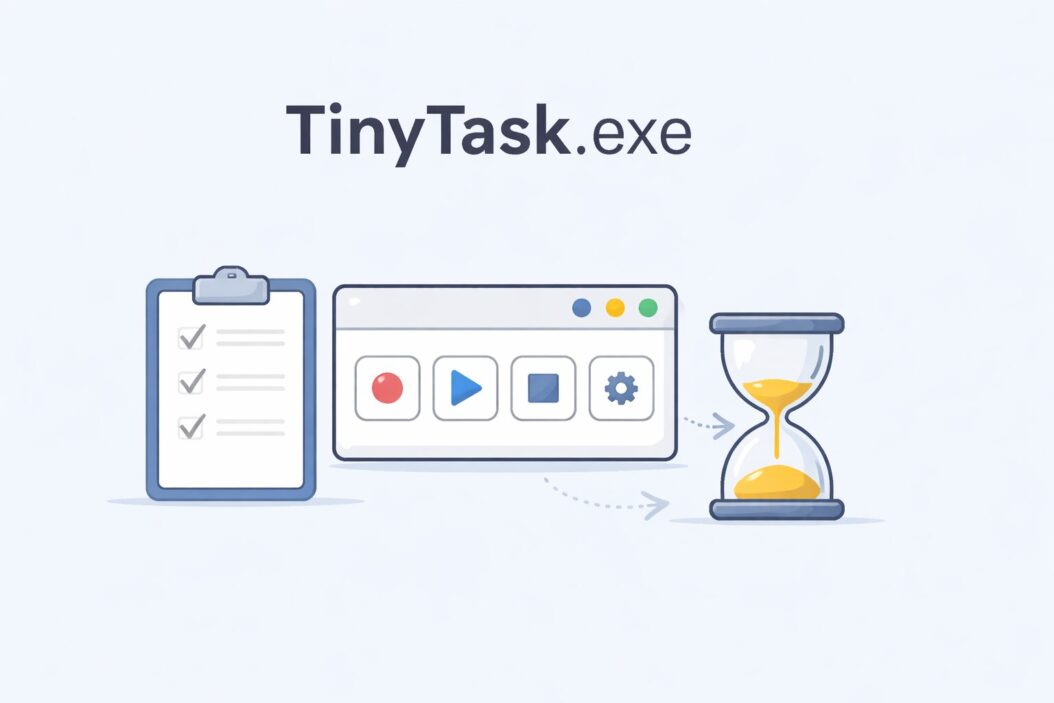
TinyTask sits in a tiny floating toolbar on your screen. It has four buttons. That is it.
Here is what each button does:
| Button | Function |
|---|---|
| Record | Starts capturing your mouse and keyboard actions |
| Stop | Ends the recording |
| Play | Replays your recorded actions once |
| Loop | Replays the recording continuously until you stop it |
When you record, TinyTask captures every mouse movement, click, and keystroke in real time. It saves that as a .rec file. When you hit Play, it executes the exact same sequence. Same timing. Same coordinates. Same keystrokes.
It is not smart automation. It is literal playback. That is both its strength and its limitation.
How to Download and Use TinyTask on Windows
Step 1: Download TinyTask
Go to the official source or a trusted mirror. The developer is Vista Software. The direct download page is at https://www.vista-sw.com/free_utils/tinytask/.
You get a single .exe file. No installer. No setup wizard.
Step 2: Run It Without Installation
Double-click tinytask.exe. A small floating toolbar appears on your screen, usually in the top-left area. That is the entire interface.
If Windows SmartScreen warns you, click “More info” then “Run anyway.” This happens with unsigned executables from lesser-known publishers. It is not dangerous, but always scan files with your antivirus first.
Step 3: Record Your First Macro
- Click the Record button (the circle icon)
- Perform the actions you want to automate
- Click Stop when you are done
- Go to File > Save to save your recording as a .rec file
Step 4: Play It Back
Click Play to run your recorded actions once. Click Loop if you want it to repeat. To stop looping, press a keyboard shortcut or close the program.
Step 5: Set Playback Speed
TinyTask lets you adjust playback speed. You can slow it down if the target application needs more time to respond, or speed it up for faster automation. Access this in the toolbar options.
Common Use Cases for TinyTask.exe
TinyTask is popular because it solves real, repetitive problems. Here are the most common ones people actually use it for:
Data Entry Repetition If you copy the same format of data into a system every day, record yourself doing it once and replay it with minor adjustments.
Form Filling Filling out identical web forms repeatedly? Record one complete session and loop through it with pauses.
Software Testing QA testers use TinyTask to simulate user interactions in apps during basic regression testing.
Game Automation Idle games, grinding, resource farming. TinyTask handles all the clicking so you do not have to.
File Management Tasks Moving, renaming, or sorting files through a GUI in a predictable pattern works well as a TinyTask recording.
Scheduled Clicks Some users pair TinyTask with Windows Task Scheduler to run macros at specific times.
TinyTask Keyboard Shortcuts
You do not always want to click the toolbar. TinyTask supports hotkeys that work even when the toolbar is minimized.
| Action | Default Shortcut |
|---|---|
| Start Recording | Ctrl + Alt + Shift + R |
| Stop Recording | Ctrl + Alt + Shift + S |
| Play Recording | Ctrl + Alt + Shift + P |
You can change these in the settings. Right-click the toolbar to access options.
TinyTask.exe Limitations You Should Know
TinyTask is powerful for what it does, but it has hard limits. Knowing them saves you frustration.
Screen resolution dependency TinyTask records absolute screen coordinates. If you record on a 1920×1080 screen and play back on a 1280×720 screen, everything breaks. The clicks land in the wrong places.
No conditional logic It cannot say “if this window is open, do this, otherwise do that.” It just plays back. Every time. The same way.
No variable data input You cannot tell it to use a different name or number each time. What you recorded is what it does.
App must be in the same position If the window you recorded in has moved or changed size, the clicks will miss their targets.
No image recognition Unlike tools like AutoHotkey or Sikuli, TinyTask does not look for buttons by their appearance. It just clicks coordinates.
No scheduling built in You need Windows Task Scheduler or a third-party tool to run TinyTask recordings at specific times.
TinyTask vs AutoHotkey: Which Should You Use
This is the most common comparison people search for. Here is an honest breakdown:
| Feature | TinyTask | AutoHotkey |
|---|---|---|
| Learning curve | Very easy | Requires scripting |
| Setup time | 30 seconds | Minutes to hours |
| Conditional logic | No | Yes |
| Dynamic variables | No | Yes |
| Image recognition | No | Via libraries |
| Scheduling | External only | Built-in |
| File size | 35KB | ~3MB |
| Best for | Simple repetitive clicks | Complex workflows |
If your task is predictable, linear, and always looks the same on screen, TinyTask wins on simplicity. If your task changes based on conditions or input, AutoHotkey is worth learning. You can read more about automation scripting options at https://www.autohotkey.com/docs/v2/ to compare approaches.
For most non-technical users who just want to stop clicking the same buttons, TinyTask is the right tool.
Tips to Get Better Results With TinyTask
Record Slowly
TinyTask records timing too. If you click fast during recording, it will click fast during playback. Some apps need time to load between actions. Record at a pace that gives the application time to respond.
Use Playback Speed Wisely
If your recorded macro fails because a page loads slowly, slow down playback speed in the settings. This adds buffer time between actions.
Save Multiple Recordings
Save a separate .rec file for each task. Name them clearly. Builds up a useful library over time.
Test Before Looping
Always run a single playback before setting up a loop. One mistake in a loop can repeat 500 times before you notice.
Keep the Screen Consistent
Run TinyTask macros with the same screen resolution and window layout every time. Lock the windows in place if possible.
Pair With Task Scheduler
Open Windows Task Scheduler and create a task that launches tinytask.exe with your .rec file as an argument. This lets you automate at specific times without sitting at your computer.
The command looks like this:
tinytask.exe yourmacro.rec /play
Is TinyTask Safe to Use
TinyTask itself is safe. It is a simple, old utility that has been around for years. Millions of people use it.
The risk is where you download it from. There are fake versions of TinyTask floating around third-party download sites that include bundled malware or adware. Always download from the developer’s site.
Run any downloaded .exe through VirusTotal before opening it. This takes 30 seconds and removes any doubt.
TinyTask does not connect to the internet. It does not call home. It does not require login. It records your actions and plays them back locally. That is the entire scope of what it does.
TinyTask on Windows 10 and Windows 11
TinyTask works on both Windows 10 and Windows 11 as of 2026. No compatibility issues reported for standard use cases.
On Windows 11, you might see more frequent SmartScreen prompts since Microsoft has tightened app reputation filtering. This is normal for small, unsigned utilities. It does not mean the file is harmful.
If you are running TinyTask to automate a program that requires admin privileges, you may need to run TinyTask as administrator too. Right-click tinytask.exe and select “Run as administrator.”
Setting Up TinyTask With Windows Task Scheduler
Here is a quick walkthrough for scheduling a TinyTask macro to run automatically:
- Save your recording as a named .rec file, for example dailytask.rec, in the same folder as tinytask.exe
- Open Task Scheduler from the Start menu
- Click “Create Basic Task”
- Name it and set your trigger (daily, weekly, at login, etc.)
- For the action, choose “Start a program”
- In the Program field, browse to tinytask.exe
- In the “Add arguments” field, type: dailytask.rec /play
- Click Finish
The macro will now run at the scheduled time, even if you are not at the computer.
TinyTask File Format
TinyTask saves recordings as .rec files. These are binary files that store mouse coordinates and timing data. You cannot open them in a text editor and meaningfully edit them. The only way to modify a recording is to re-record it.
There is no community script library for .rec files the way there is for AutoHotkey scripts. Each recording is tied to your specific screen setup.
Summary
TinyTask.exe is one of the most underrated Windows utilities available. It is free, tiny, portable, and requires zero technical knowledge to use. For simple, repetitive tasks that follow a fixed sequence on a fixed screen, it does the job immediately.
The key things to remember:
- Download only from the official Vista Software site
- It records screen coordinates, so keep your resolution and window positions consistent
- It has no logic or conditions, only playback
- Pair it with Windows Task Scheduler for time-based automation
- For complex workflows, AutoHotkey is a more powerful alternative
If you have been manually repeating the same clicks every day and wondering if there is a faster way, TinyTask is the answer. You will have your first macro running in under five minutes.
Frequently Asked Questions
Is TinyTask.exe free and does it have a paid version?
TinyTask is completely free. There is no paid version, no subscription, and no premium tier. The developer released it as a free utility. You can use it without any cost or account creation.
Why does my TinyTask macro fail on playback?
The most common reason is a screen position mismatch. If the application window moved, the screen resolution changed, or a popup appeared that was not there during recording, the clicks will land in the wrong place. Re-record with everything in the exact same position and check that your playback speed is slow enough for the app to keep up.
Can TinyTask run without being visible on screen?
TinyTask runs with a small floating toolbar by default. You can minimize it to the system tray during playback. It will continue running in the background. There is no fully hidden or service mode built into TinyTask itself.
Does TinyTask work with web browsers?
Yes, TinyTask works with any visible browser window. It clicks screen coordinates, so as long as the browser is in the same position and the page loads in the same layout, it will work. Dynamic or changing page layouts can cause issues.
Can I use TinyTask to automate games?
Yes, and this is one of its most popular uses. It works well for idle games, repetitive clicking tasks, and resource grinding in games. Be aware that some online games detect macro input and may flag your account. Use TinyTask for offline games or check the game’s terms of service first.
