
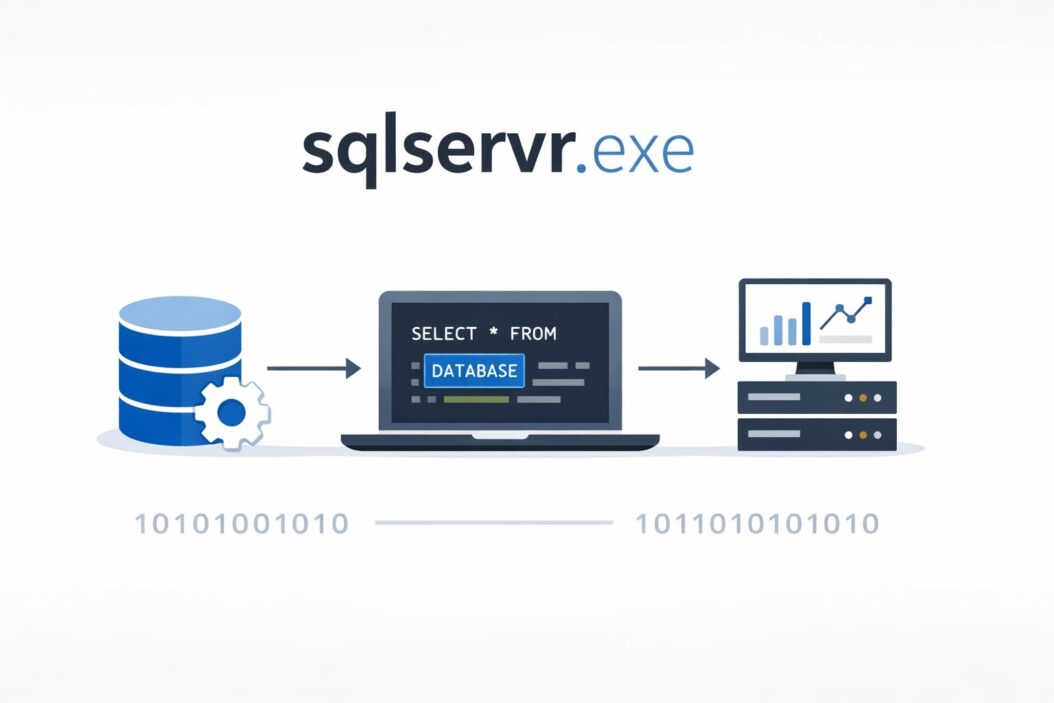
If you’ve noticed sqlservr.exe running on your computer and wondered what it does, whether it’s safe, or why it’s using so much memory, you’re in the right place. This process is the main executable file for Microsoft SQL Server, a database management system used by businesses and developers to store and manage data.
sqlservr.exe is the legitimate core process of SQL Server. It manages all database operations, queries, and connections. While it typically uses significant system resources, this is normal behavior for a database server.
Let’s break down everything you need to know about this process, from basic functionality to troubleshooting common issues.
What Is sqlservr.exe?
sqlservr.exe is the primary executable file that runs Microsoft SQL Server Database Engine. When you install SQL Server on your computer, this process starts automatically and remains active to handle database operations.
The file is typically located at: C:\Program Files\Microsoft SQL Server\MSSQL[version number]\MSSQL\Binn\sqlservr.exe
What Does It Do?
This process handles several critical functions:
- Processes database queries from applications and users
- Manages data storage, retrieval, and modifications
- Handles user authentication and security
- Manages memory allocation for database operations
- Maintains transaction logs and ensures data integrity
- Coordinates backup and restore operations
Think of sqlservr.exe as the engine of your database system. Just like a car engine runs constantly when the vehicle is on, this process must stay active to serve database requests.
Is sqlservr.exe Safe or a Virus?
The legitimate sqlservr.exe file is completely safe. It’s digitally signed by Microsoft Corporation and is an essential component of SQL Server.
However, malware sometimes disguises itself using similar names. Here’s how to verify if your sqlservr.exe is legitimate:
Verification Steps
Check the file location: Right-click the process in Task Manager, select “Open file location.” The genuine file resides in the SQL Server installation directory.
Verify the digital signature: Right-click the file, select Properties, then Digital Signatures tab. You should see Microsoft Corporation as the signer.
Check the file size: The legitimate file ranges from 60 MB to 150 MB depending on the SQL Server version.
Review resource usage patterns: Real sqlservr.exe uses high memory but shows consistent CPU patterns related to database activity.
Red Flags for Malware
Watch for these warning signs:
- File located in unusual directories like C:\Windows or C:\Temp
- No digital signature or signature from unknown publishers
- Extremely high CPU usage with no database activity
- Multiple instances running when you only installed one SQL Server instance
- Unusual network activity to suspicious IP addresses
If you suspect malware, run a full system scan with Windows Defender or your antivirus software.
Why Is sqlservr.exe Using High Memory and CPU?
High resource usage is often normal for SQL Server, but understanding why helps you determine if there’s a problem.
Normal Memory Usage
SQL Server is designed to use as much memory as you allow it. By default, it will consume most available RAM to cache data and improve performance. This is intentional and beneficial.
How SQL Server uses memory:
| Memory Type | Purpose | Typical Usage |
|---|---|---|
| Buffer Pool | Caches data pages | 70-80% of allocated memory |
| Plan Cache | Stores query execution plans | 10-15% of allocated memory |
| Connection Memory | Manages active connections | 5-10% per connection |
| Sort/Hash Operations | Handles complex queries | Variable based on query complexity |
When High CPU Is Normal
CPU spikes occur during:
- Complex query execution
- Index rebuilding or maintenance tasks
- Backup operations
- Large data imports or exports
- Heavy concurrent user activity
When High Usage Indicates Problems
Investigate further if you notice:
- Constant 100% CPU usage with minimal database activity
- Memory usage that causes system instability
- Slow query performance that wasn’t an issue before
- Frequent timeout errors from applications
Common causes of excessive resource usage:
- Missing or outdated database indexes
- Poorly written queries with inefficient logic
- Memory leaks from application code
- Auto-growth events on database files
- Statistics that need updating
How to Manage sqlservr.exe Resource Usage
You can control how much memory and CPU SQL Server uses through configuration settings.
Limiting Memory Usage
Step 1: Open SQL Server Management Studio (SSMS)
Step 2: Right-click your server instance and select Properties
Step 3: Go to the Memory page
Step 4: Set maximum server memory (MB) to your desired limit
A good rule of thumb: Reserve 4-6 GB for the operating system and other applications, then allocate the rest to SQL Server.
Example calculation for a 16 GB system:
- Operating system: 4 GB
- Other applications: 2 GB
- Available for SQL Server: 10 GB (10,240 MB)
Monitoring Resource Usage
Use these tools to track sqlservr.exe performance:
Task Manager: Quick overview of current CPU and memory usage
Resource Monitor: Detailed breakdown of disk, network, and memory activity
Performance Monitor: Create custom counters to track SQL Server-specific metrics
SQL Server Dynamic Management Views: Query sys.dm_os_performance_counters for detailed statistics
Optimizing Performance
Apply these strategies to reduce unnecessary resource consumption:
Update statistics regularly: Outdated statistics lead to poor query execution plans.
EXEC sp_updatestats;
Rebuild fragmented indexes: Run index maintenance during off-peak hours.
Review and optimize slow queries: Use SQL Server Profiler or Query Store to identify problem queries.
Configure max degree of parallelism: Prevent queries from using all CPU cores unnecessarily.
Implement proper indexing: Ensure tables have appropriate indexes for common query patterns.
For comprehensive guidance on SQL Server performance tuning, Microsoft’s official documentation at https://docs.microsoft.com/sql/relational-databases/performance/performance-monitoring-and-tuning-tools provides detailed best practices.
Common sqlservr.exe Errors and Solutions
Error: “sqlservr.exe Application Error”
This generic error often appears during startup or shutdown.
Solutions:
Check Windows Event Viewer for specific error codes. Navigate to Windows Logs > Application and look for SQL Server entries.
Verify SQL Server service account has proper permissions on installation directories and data files.
Run SQL Server Setup repair from the installation media.
Ensure antivirus software isn’t blocking or quarantining SQL Server files.
Error: “sqlservr.exe has stopped working”
This crash error indicates a critical failure.
Troubleshooting steps:
- Check the SQL Server error log at
C:\Program Files\Microsoft SQL Server\MSSQL[version]\MSSQL\Log\ERRORLOG - Look for stack dump files that might indicate the crash cause
- Verify you have the latest SQL Server service packs and cumulative updates installed
- Test memory integrity using Windows Memory Diagnostic tool
- Check disk health with CHKDSK or manufacturer diagnostic tools
Error: High CPU with RESOURCE_SEMAPHORE waits
This indicates queries are waiting for memory grants.
Fix the issue:
Increase SQL Server maximum memory if physical RAM is available.
Optimize queries that request large memory grants.
Check for memory leaks from extended stored procedures or CLR assemblies.
Review max worker threads configuration if you have many concurrent connections.
Different SQL Server Versions and sqlservr.exe
The process behavior varies slightly across SQL Server versions:
SQL Server 2016 and Earlier
These versions show more aggressive memory allocation and may release memory more slowly when under pressure from other applications.
SQL Server 2017
Introduced support for Linux, where the process runs as sqlservr without the .exe extension. This version improved memory management under memory pressure.
SQL Server 2019
Added intelligent query processing features that can increase CPU usage temporarily but improve overall performance. Better handling of large memory grants reduces unnecessary memory consumption.
SQL Server 2022
Latest version includes improved buffer pool scanning and enhanced memory management. Supports hybrid buffer pool for persistent memory devices.
Managing Multiple SQL Server Instances
You can run multiple SQL Server instances on one machine, each with its own sqlservr.exe process.
Identifying Different Instances
Each instance runs as a separate Windows service:
- Default instance:
MSSQLSERVER - Named instance:
MSSQL$[InstanceName]
In Task Manager, you’ll see multiple sqlservr.exe processes. To determine which is which:
Step 1: Open Task Manager and go to the Details tab
Step 2: Right-click the column header and select “Select columns”
Step 3: Enable “Command line” column
Step 4: Look for the -s[InstanceName] parameter in the command line
Resource Allocation for Multiple Instances
When running multiple instances:
Divide available memory among instances using max server memory settings for each.
Consider CPU affinity to dedicate specific cores to each instance.
Place data files on separate physical disks if possible.
Schedule maintenance tasks at different times to avoid resource conflicts.
Should You Disable or Remove sqlservr.exe?
Only disable or remove SQL Server if you’re certain no applications depend on it.
When It’s Safe to Disable
You can stop SQL Server if:
- You installed it accidentally and don’t use any database applications
- You’re using a different database system and SQL Server is no longer needed
- The instance was created for testing and is no longer required
How to Properly Stop SQL Server
Using Services:
- Press Win + R, type
services.msc, press Enter - Find
SQL Server (InstanceName)in the list - Right-click and select Stop
- Set Startup type to Manual or Disabled if you don’t want it to start automatically
Using Command Line:
net stop MSSQLSERVER
For named instances:
net stop MSSQL$INSTANCENAME
Uninstalling SQL Server
If you want to completely remove SQL Server:
- Go to Settings > Apps > Apps & features
- Find Microsoft SQL Server entries
- Uninstall each component
- Restart your computer
- Manually delete remaining folders if needed
Warning: Uninstalling SQL Server deletes all databases unless you back them up first. Make sure you have backups of any data you need.
sqlservr.exe Startup Parameters
SQL Server supports startup parameters that modify how sqlservr.exe runs.
Common Startup Parameters
| Parameter | Purpose | Usage Example |
|---|---|---|
| -d | Master database data file path | -dC:\SQLData\master.mdf |
| -e | Error log file path | -eC:\SQLLogs\ERRORLOG |
| -l | Master database log file path | -lC:\SQLData\mastlog.ldf |
| -m | Single-user mode for recovery | -m |
| -f | Minimal configuration mode | -f |
| -T | Trace flag activation | -T1118 |
Adding Startup Parameters
Step 1: Open SQL Server Configuration Manager
Step 2: Expand SQL Server Services
Step 3: Right-click your SQL Server instance and select Properties
Step 4: Click the Startup Parameters tab
Step 5: Add your parameter in the text box and click Add
Step 6: Click OK and restart SQL Server service
When to Use Special Startup Parameters
Use single-user mode (-m) when:
- Recovering from configuration errors
- Resetting sa password
- Performing emergency database repairs
Use minimal configuration mode (-f) when:
- A configuration setting prevents SQL Server from starting
- You need to reset to default settings
Use trace flags (-T) to:
- Enable specific diagnostic features
- Modify default behavior for troubleshooting
- Implement performance optimizations
Security Considerations for sqlservr.exe
Proper security configuration protects your data and system.
Service Account Best Practices
Never run SQL Server under Local System or Administrator accounts. Instead:
Create a dedicated domain or local service account with minimal permissions.
Grant the service account only the necessary rights:
- Log on as a service
- Access to SQL Server installation folders
- Access to data and log file directories
- Permissions for backup destinations
Use different service accounts for different SQL Server services (Database Engine, Agent, Analysis Services).
Firewall Configuration
If applications on other computers need to connect:
Open TCP port 1433 (default instance) or the port for your named instance.
Consider using Windows Firewall to restrict connections to specific IP addresses.
For named instances, also open UDP port 1434 for SQL Server Browser service.
Use IPsec or VPN connections for data traveling over untrusted networks.
File System Permissions
Restrict access to SQL Server files:
Only the SQL Server service account and administrators should have access to data files (.mdf, .ndf).
Limit who can read error logs and backup files.
Use NTFS permissions to prevent unauthorized file access.
Enable transparent data encryption (TDE) for sensitive databases.
Troubleshooting sqlservr.exe Won’t Start
Startup failures have various causes. Work through these systematically.
Check Windows Event Logs
The Application log contains detailed error information:
- Open Event Viewer (eventvwr.msc)
- Navigate to Windows Logs > Application
- Filter for Source: MSSQLSERVER (or your instance name)
- Look for Error level events around the time of startup failure
Common Startup Failure Causes
Service account authentication failure: Password changed or account locked.
Insufficient permissions: Service account can’t access data files or directories.
Database file corruption: Master database or system databases damaged.
Port conflicts: Another application is using SQL Server’s port.
Missing or corrupt system databases: tempdb, model, msdb, or master database issues.
Recovery Procedures
For corrupted master database:
Start SQL Server with -f and -T3608 trace flags to allow minimal access without opening user databases. Then restore from backup.
For permission issues:
Verify service account password in SQL Server Configuration Manager.
Grant service account full control to SQL Server folders using Windows Explorer.
For port conflicts:
Use SQL Server Configuration Manager to change the TCP port.
Disable protocols you don’t use (Named Pipes, Shared Memory if remote connections not needed).
Performance Monitoring Best Practices
Regular monitoring prevents problems before they impact users.
Key Metrics to Track
Memory metrics:
- Page Life Expectancy (should be > 300 seconds)
- Buffer Cache Hit Ratio (should be > 95%)
- Memory Grants Pending (should be near 0)
CPU metrics:
- Processor Time percentage
- Signal Waits (high values indicate CPU pressure)
- Context Switches per second
Disk metrics:
- Avg Disk Queue Length (should be < 2 per disk)
- Disk Read/Write latency (should be < 20ms)
- Disk Transfers per second
Setting Up Alerts
Configure SQL Server Agent alerts for critical conditions:
Create alerts for:
- Error severity level 19 and above (fatal errors)
- Low Page Life Expectancy
- High blocking duration
- Failed backup jobs
- Low disk space on drives containing database files
Email notifications require configuring Database Mail in SQL Server.
Regular Maintenance Tasks
Schedule these tasks to maintain optimal performance:
Daily:
- Transaction log backups
- Check error logs for issues
Weekly:
- Full database backups
- Update statistics on high-activity tables
- Review query performance statistics
Monthly:
- Index reorganization or rebuilding
- Check database integrity (DBCC CHECKDB)
- Review growth events and adjust file sizes if needed
- Update SQL Server cumulative updates if available
Conclusion
sqlservr.exe is the backbone of SQL Server, managing all database operations on your system. While it typically uses significant memory and CPU resources, this behavior is normal and intentional for optimal database performance.
The key takeaways:
Always verify sqlservr.exe is legitimate by checking its file location and digital signature. High resource usage is usually normal, but persistent 100% CPU or memory issues warrant investigation. Configure maximum memory settings to prevent SQL Server from starving other applications. Regular maintenance and monitoring prevent most common problems. When errors occur, Windows Event Viewer and SQL Server error logs provide diagnostic information.
Whether you’re a developer, database administrator, or end user who simply noticed this process running, understanding sqlservr.exe helps you maintain a healthy, performant SQL Server environment. Take time to configure appropriate memory limits, implement regular maintenance schedules, and monitor key performance metrics.
With proper management, SQL Server runs reliably while efficiently handling your data needs.
Frequently Asked Questions
Can I end the sqlservr.exe process in Task Manager?
You can, but it will stop SQL Server immediately and may corrupt databases if transactions are in progress. Always stop SQL Server properly through the Services console or SQL Server Configuration Manager. Applications using the database will lose connectivity and may report errors.
Why do I have sqlservr.exe if I didn’t install SQL Server?
Some applications bundle SQL Server Express during their installation. Common examples include Microsoft System Center, accounting software, and various business applications. Check your installed programs list for SQL Server entries to confirm.
How much RAM should I allocate to SQL Server?
Reserve 4-6 GB for the operating system and other applications, then allocate remaining RAM to SQL Server. For systems with 16 GB or less, reserve more for the OS. For servers with 64 GB or more, you can allocate a higher percentage to SQL Server. Monitor page faults to confirm your OS has enough memory.
Does sqlservr.exe need internet access?
No, SQL Server doesn’t require internet connectivity for normal operation. If you see internet traffic from sqlservr.exe, it’s likely checking for updates, accessing cloud features, or connecting to linked servers. Review your SQL Server configuration and network settings to understand the connections.
What’s the difference between sqlservr.exe and SQLSERVERAGENT.exe?
sqlservr.exe is the database engine that handles data storage and queries. SQLSERVERAGENT.exe is a separate process that runs scheduled jobs, alerts, and automated tasks. Both are legitimate SQL Server components, but they serve different purposes. You can disable SQL Server Agent if you don’t use scheduled jobs, but the main sqlservr.exe process must run for database access.
