
Your printer stops working right when you need it most. Paper jams, streaky prints, and error messages pile up because most people never maintain their printers.
This guide shows you exactly how to maintain any printer, inkjet or laser—so it works when you need it. You’ll save money on repairs and extend your printer’s life by years.
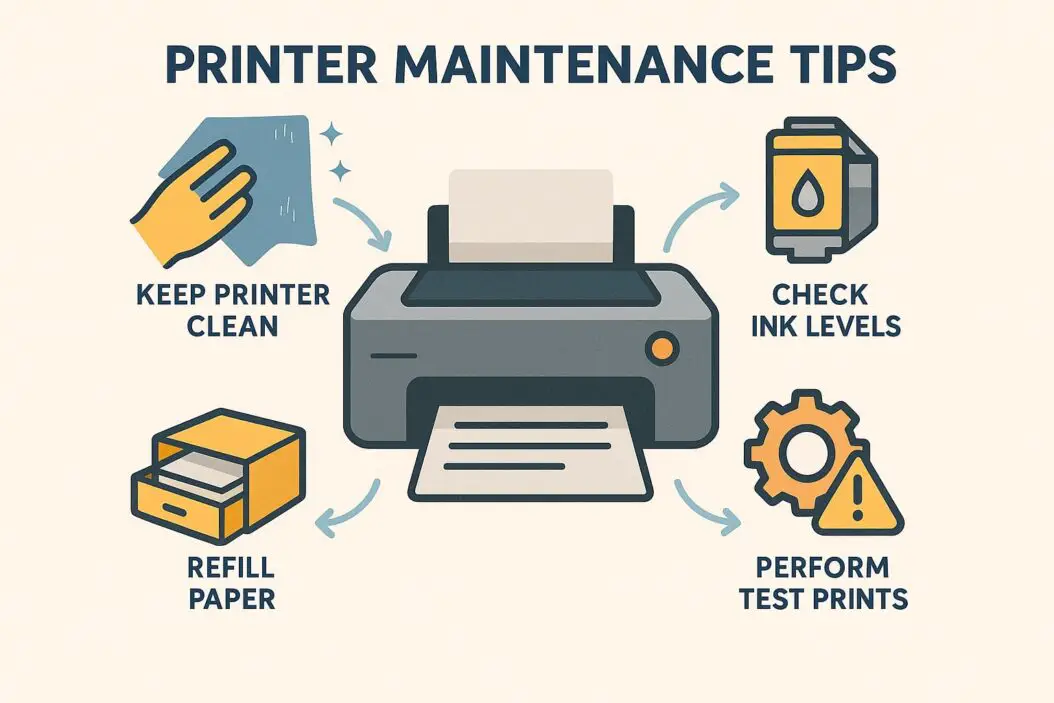
Why Printer Maintenance Actually Matters
Printers collect dust, dried ink, and paper debris. Without regular cleaning, these cause 80% of common printer problems. A simple monthly routine prevents most breakdowns.
Here’s what happens without maintenance:
- Print heads clog and produce streaky output
- Paper rollers get dirty and cause jams
- Toner or ink dries up and clogs nozzles
- Sensors fail to detect paper correctly
- Firmware bugs slow down performance
The fix takes 15 minutes per month. That’s less time than dealing with one major jam.
Essential Printer Maintenance Schedule
Follow this timeline to keep your printer healthy:
| Task | Frequency | Time Needed |
|---|---|---|
| Clean exterior and paper path | Weekly | 3 minutes |
| Run printhead cleaning | Monthly | 5 minutes |
| Deep clean interior | Every 3 months | 20 minutes |
| Update firmware | Every 6 months | 10 minutes |
| Replace rollers | Every 2 years | 30 minutes |
Daily and Weekly Printer Care
Keep Your Printer Dust-Free
Dust is your printer’s biggest enemy. It gets into everything.
Daily steps:
- Keep the printer covered when not in use
- Close paper trays between print jobs
- Don’t place the printer near windows or vents
Weekly cleaning:
- Unplug the printer
- Wipe the exterior with a microfiber cloth
- Use compressed air on vents and openings
- Clean the paper tray with a dry cloth
- Remove any visible dust from paper rollers
Never use household cleaners or wet wipes on internal parts. They leave residue that attracts more dust.
Store Paper Correctly
Bad paper storage causes half of all paper jams.
Do this:
- Keep paper in sealed packages until needed
- Store paper flat in a dry area
- Load only 50-75% of tray capacity
- Fan paper before loading to separate sheets
- Use paper within 6 months of opening
Humid paper expands and jams. Old paper gets brittle and breaks apart inside the printer.
Monthly Printer Maintenance Tips
Clean Print Heads for Inkjet Printers
Clogged print heads cause streaks, missing colors, and faded prints.
Built-in cleaning cycle:
- Open your printer settings on your computer
- Find “Maintenance” or “Tools” section
- Run “Clean Print Heads” or “Nozzle Check”
- Print a test page
- Repeat if you still see streaks
Manual cleaning (if automatic cleaning fails):
- Turn off and unplug the printer
- Remove ink cartridges
- Dampen a lint-free cloth with distilled water
- Gently wipe the print head contacts
- Let dry for 15 minutes before reassembling
Run the cleaning cycle monthly, even if prints look fine. Prevention beats fixing clogs later.
Maintain Laser Printer Drums and Toner
Laser printers need different care than inkjets.
Monthly checks:
- Inspect the drum for scratches or marks
- Clean the paper path with a dry cloth
- Remove loose toner with a toner vacuum (not a regular vacuum)
- Check fuser unit for toner buildup
- Wipe corona wires with a cotton swab
Replace the drum when you see repeated marks in the same spot on every page. Most drums last 10,000-30,000 pages.
Clean Paper Rollers
Dirty rollers grab multiple sheets or no sheets at all.
Cleaning process:
- Unplug the printer
- Open all access doors
- Locate the rubber rollers in the paper path
- Dampen a cloth with distilled water
- Rotate the rollers while wiping them
- Let dry completely before closing
For stubborn residue, use 90% isopropyl alcohol on a cloth. According to Epson’s printer maintenance guidelines, rollers should feel slightly tacky, not slick or sticky.
Quarterly Deep Cleaning
Every three months, clean areas you normally can’t reach.
Interior Cleaning Steps
- Power down completely – Unplug from the wall
- Remove all cartridges and trays – Set aside on paper towels
- Use compressed air – Blow out dust from inside (do this outdoors)
- Clean the platen glass – Use glass cleaner on the scanner bed
- Wipe internal plastic parts – Use a barely damp cloth
- Check for debris – Remove any stuck paper bits or staples
- Lubricate moving parts – Use only manufacturer-approved lubricant
Never spray liquid directly into the printer. Always apply it to your cloth first.
Check and Replace Worn Parts
Parts wear out. Catching them early prevents bigger problems.
Inspect these quarterly:
- Paper pickup rollers (should feel slightly rubbery)
- Separation pad (should not be smooth or shiny)
- Carriage belt (should not have cracks)
- Power cable (should not have exposed wire)
- USB or network cable (should not have bent pins)
Most manufacturers sell maintenance kits with common wear parts. These cost $30-80 but can add years to your printer’s life.
Ink and Toner Management
Prevent Ink from Drying
Dried ink causes 90% of inkjet failures.
Keep ink fresh:
- Print at least one page per week (even a test page)
- Don’t turn off the printer at the wall—let it enter sleep mode
- Store spare cartridges upright in a cool, dark place
- Use the printer within 6 months of installing cartridges
- Never remove and reinstall cartridges unnecessarily
When you remove a cartridge, chips track it as “used” even if you put it right back.
Handle Toner Cartridges Properly
Toner doesn’t dry like ink, but it still needs care.
Toner tips:
- Shake new cartridges gently before installing
- Never expose toner to direct sunlight
- Dispose of empty cartridges through manufacturer recycling programs
- Keep replacement toner sealed until needed
- Don’t touch the drum surface or internal components
Toner powder is extremely fine. One spill takes hours to clean properly.
Software and Firmware Maintenance
Physical cleaning is half the battle. Software matters too.
Update Printer Firmware
Firmware updates fix bugs, improve speed, and add features.
Update process:
- Check your printer model number
- Visit the manufacturer’s support website
- Download the latest firmware for your exact model
- Follow the installation instructions carefully
- Never turn off the printer during an update
Set a calendar reminder every six months.
Clean Up Print Queue and Drivers
Old print jobs and corrupted drivers slow everything down.
Monthly software maintenance:
- Cancel all stuck print jobs in the queue
- Delete and reinstall printer drivers yearly
- Remove unused printer entries from your computer
- Clear temporary print files
- Update your operating system
On Windows, use the built-in printer troubleshooter to catch common issues.
Environmental Factors
Where you place your printer affects how often it needs maintenance.
Optimal Printer Location
Good placement:
- On a flat, stable surface
- Away from direct sunlight
- In a room with 40-60% humidity
- At least 6 inches from walls on all sides
- Away from heat sources and air conditioners
Bad placement:
- Near windows with sun exposure
- In damp basements or garages
- On top of other electronics that generate heat
- In dusty workshops or craft rooms
Temperature swings cause condensation inside the printer. This leads to paper jams and electrical issues.
Humidity Control
Too dry or too humid both cause problems.
| Humidity Level | What Happens | Solution |
|---|---|---|
| Below 30% | Static electricity, paper sticks together | Use a humidifier nearby |
| 40-60% | Ideal range | Maintain this zone |
| Above 70% | Paper absorbs moisture, causes jams | Use a dehumidifier |
Professional print shops keep humidity at exactly 50% for a reason.
Troubleshooting Common Maintenance Issues
Paper Keeps Jamming
Most common causes:
- Dirty pickup rollers—clean them
- Wrong paper type for your printer—check manual
- Overfilled paper tray—reduce paper amount
- Damaged paper—check for tears or bends
- Worn separation pad—replace it
If jams happen in the same spot repeatedly, something inside is broken or misaligned.
Print Quality Declining
Check these in order:
- Run the built-in print head cleaning utility
- Replace low or empty cartridges
- Check if you’re using economy/draft mode
- Clean the paper path and rollers
- Replace the drum (laser printers)
If a new, genuine cartridge still prints poorly, the print head may be permanently damaged.
Printer Running Slowly
Speed up your printer:
- Update to the latest firmware
- Reduce print quality for everyday documents
- Print directly via USB instead of over Wi-Fi when possible
- Clear old print jobs from the queue
- Restart the printer weekly
- Add memory if your model supports it
Complex graphics and high-resolution photos always print slower. That’s normal.
Long-Term Storage
Not using your printer for a while? Prepare it properly.
Before storing:
- Run a full print head cleaning cycle
- Print a test page to verify quality
- Remove all paper from trays
- Cover the printer with a cloth or original packaging
- Unplug from power and disconnect cables
- Store in a climate-controlled area
For inkjet printers: Some experts recommend removing cartridges for storage over 3 months. Others say leave them in. Check your manufacturer’s specific guidance.
When you return: Let the printer sit at room temperature for 24 hours if it was in a cold area. Run 2-3 cleaning cycles before printing important documents.
Cost-Saving Maintenance Tips
Maintenance saves money, but these tips save even more.
Reduce maintenance needs:
- Buy quality paper (cheap paper creates more dust)
- Use genuine or high-quality compatible cartridges
- Print in draft mode for everyday documents
- Batch your printing instead of one page at a time
- Keep spare maintenance items on hand
When to call a professional:
- Error codes that persist after basic troubleshooting
- Strange noises during printing
- Visible damage to internal components
- Repeated issues after you’ve done all maintenance
- Printers under warranty (DIY might void it)
A $100 repair is cheaper than a $400 replacement, but a $300 repair on a $350 printer makes no sense.
What Shortens Printer Life
Avoid these to maximize your printer’s lifespan.
Printer killers:
- Turning off at the power strip (prevents proper shutdown)
- Ignoring “replace cartridge” warnings for weeks
- Using the printer once every few months
- Refilling cartridges repeatedly without cleaning
- Operating in extreme temperatures
- Printing only high-coverage images constantly
The average home printer lasts 3-5 years with proper maintenance. Without it, many fail within 18 months.
Maintenance by Printer Type
Different printers need different approaches.
Inkjet-Specific Tips
- Never let the printer sit unused for over 2 weeks
- Use the printer’s power button, not a power strip switch
- Replace cartridges before they’re completely empty
- Run cleaning cycles more frequently in dry climates
Laser-Specific Tips
- Let the printer cool down after heavy use
- Replace the drum before it completely fails
- Use the correct paper weight (laser printers are picky)
- Clean more often if you print high volumes
All-in-One Printer Extras
- Clean the scanner glass weekly if you use it often
- Check the automatic document feeder for stuck paper
- Update scanning software along with printer drivers
- Clean scanner rollers monthly
Summary
Printer maintenance isn’t complicated. Clean your printer monthly, update firmware twice a year, and replace worn parts before they break. Store paper correctly and print regularly to prevent dried ink.
The essential routine:
- Weekly: Wipe exterior, check paper
- Monthly: Clean print heads and rollers
- Quarterly: Deep clean interior, check parts
- Twice yearly: Update firmware
Fifteen minutes of monthly maintenance prevents hours of frustration and hundreds of dollars in repairs or replacements.
Your printer will work when you need it, produce better quality output, and last years longer than neglected models. Start your maintenance routine today—your future self will thank you.
Frequently Asked Questions
How often should I clean my printer?
Clean the exterior and paper path weekly. Run print head cleaning monthly. Do a deep clean every three months. This schedule works for both home and office use.
Can I use tap water to clean print heads?
No, use distilled water only. Tap water contains minerals that leave deposits and can damage sensitive components. Distilled water costs $1 per gallon and lasts months.
How do I know when to replace printer rollers?
Replace rollers when they feel smooth instead of slightly tacky, or when you get frequent paper jams even after cleaning. Most rollers last 2-3 years with normal use.
Should I turn off my printer when not in use?
No, use the power button to put it in sleep mode. Don’t switch it off at the wall. Printers run automatic maintenance during sleep mode that prevents ink from drying and clogs from forming.
Why does my printer still jam after cleaning the rollers?
Check your paper quality, storage, and tray capacity. If those are fine, the separation pad likely needs replacement. This small rubber pad under the paper tray wears out and causes persistent jams.

- How to Uninstall Apps from the Start Menu in Windows 11/10 (2026 Guide) - April 2, 2026
- How to Fix Overscan on Windows 11/10: Stop Your Screen Getting Cut Off (2026) - April 1, 2026
- How to Disable Lock Screen on Windows 11/10 in 2026 - April 1, 2026