
You can pin your favorite contacts to the Windows taskbar by using the People app in Windows 10 or by creating contact shortcuts and pinning them in Windows 11. This feature lets you reach important people with one click, right from your desktop.
Let me show you exactly how to do this, step by step.
Contact Pinning on Windows Taskbar
The Windows taskbar serves as your quick access hub for apps and tools. Pinning contacts there means you can email, call, or message someone without opening any programs first.
Why pin contacts to your taskbar?
- Instant access to people you contact daily
- Skip multiple clicks through apps
- Keep work contacts separate from personal ones
- Quick communication during busy workdays
Windows 10 had a dedicated People app that made this simple. Windows 11 removed this app, but you can still pin contacts using workarounds.
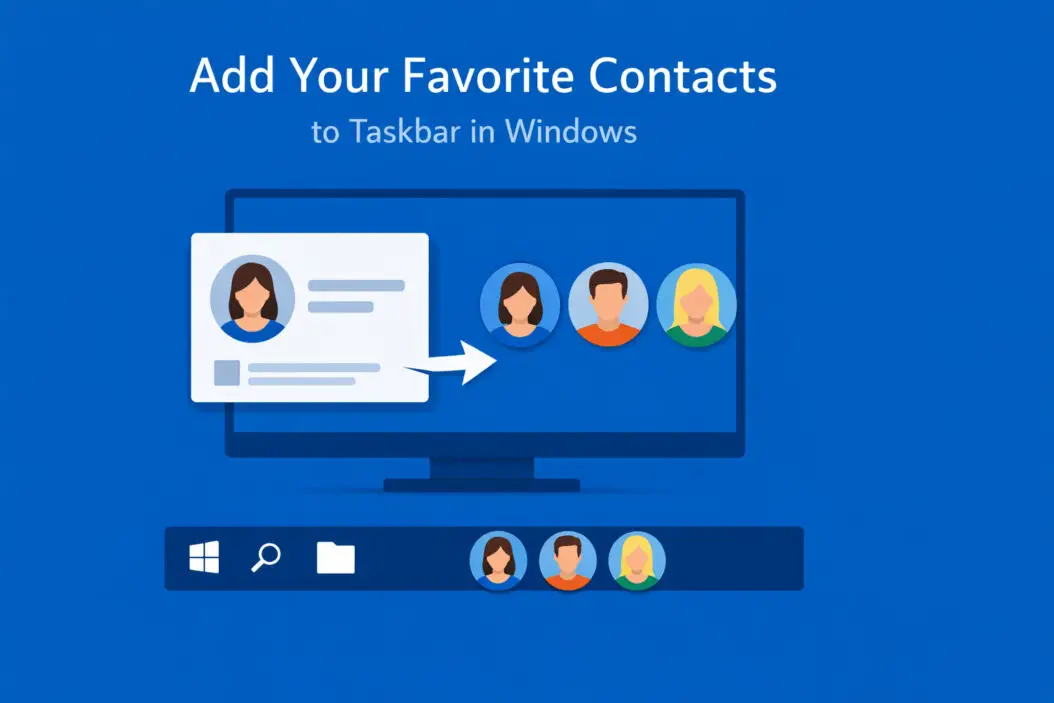
Pinning Contacts in Windows 10
Windows 10 includes the People app built into the taskbar. Here’s how to use it.
Step 1: Enable the People App on Taskbar
First, make sure the People icon appears on your taskbar.
- Right-click any empty space on your taskbar
- Look for “Show People button” in the menu
- Click it to enable the People icon
- A small person icon will appear on your taskbar
If you don’t see this option, your Windows 10 version might need updating.
Step 2: Add Contacts to People App
Before pinning, you need contacts in your system.
- Click the People icon on your taskbar
- Click “Get started” if it’s your first time
- Connect your email accounts (Outlook, Gmail, iCloud)
- Your contacts will sync automatically
- Wait a few minutes for all contacts to load
The app pulls contacts from:
- Microsoft account contacts
- Outlook and Exchange accounts
- Gmail contacts
- iCloud contacts
Step 3: Pin Specific Contacts to Taskbar
Now you can pin your most important contacts.
- Click the People icon on taskbar
- Find the contact you want to pin
- Click on their name to open their card
- Click the pin icon at the top right
- The contact appears as a separate icon on your taskbar
You can pin up to three contacts directly to the taskbar. Each pinned contact shows their profile picture or initials.
Step 4: Contact Your Pinned People
Using pinned contacts is simple.
To send an email:
- Click the pinned contact icon
- Click the email icon
- Your default mail app opens with their address filled in
To make a call:
- Click the pinned contact icon
- Click the phone icon (if Skype is connected)
- The call starts immediately
To send a message:
- Click the pinned contact
- Choose messaging option
- Type and send through connected apps
Pinning Contacts in Windows 11
Windows 11 removed the People app from the taskbar. But you can still create quick contact shortcuts.
Method 1: Create Desktop Shortcuts for Email
This method works for any contact you email regularly.
- Right-click on your desktop
- Select “New” then “Shortcut”
- Type:
mailto:person@email.com(replace with actual email) - Click “Next”
- Name the shortcut (like “Email John”)
- Click “Finish”
- Drag this shortcut to your taskbar
The shortcut will open your default email app with that person’s address ready.
Method 2: Pin Outlook Contacts
If you use Microsoft Outlook, this works well.
- Open Outlook app
- Go to People section (bottom left icon)
- Find the contact you want
- Right-click their name
- Select “Add to Favorites”
- Open File Explorer
- Navigate to:
%APPDATA%\Microsoft\Windows\Start Menu\Programs - Find Outlook shortcut
- Right-click and pin to taskbar
- Right-click the pinned Outlook icon, you’ll see recent contacts
Method 3: Use Third-Party Contact Manager
Several apps restore contact pinning functionality:
Contact Manager Pro
- Adds contact icons to taskbar
- Works with Outlook, Gmail, and more
- Free version available
QuickContact
- Creates contact shortcuts
- Supports email, phone, SMS
- Simple interface
Download these from the Microsoft Store or their official websites for safety.
Method 4: Create VBS Script Shortcuts
For tech-comfortable users, scripts offer flexibility.
- Open Notepad
- Type this script (replace email):
Set objOutlook = CreateObject("Outlook.Application")
Set objMail = objOutlook.CreateItem(0)
objMail.To = "person@email.com"
objMail.Display
- Save as “ContactName.vbs”
- Create shortcut to this VBS file
- Pin shortcut to taskbar
- Change icon (right-click > Properties > Change Icon)
This opens a new email to that person when clicked.
Customizing Your Pinned Contacts
Make your contact shortcuts more useful and recognizable.
Change Contact Icons
Generic icons look boring. Add personal touches.
For desktop shortcuts:
- Right-click the contact shortcut
- Select “Properties”
- Click “Change Icon” button
- Browse for an image file or choose from system icons
- Click “OK” twice
For better visuals:
- Save contact photos as ICO files
- Use online ICO converters for photos
- Place ICO files in Documents folder for easy access
Organize Multiple Contacts
If you pin many contacts, stay organized.
Create contact groups:
- Pin team members together on left side
- Keep family contacts on right side
- Use color-coded icons for different groups
Use taskbar sections:
- Work contacts near work apps
- Personal contacts near personal apps
- Emergency contacts at the far right
Set Default Communication Apps
Your contact shortcuts work better when default apps are set correctly.
For email shortcuts:
- Open Settings
- Go to Apps > Default apps
- Find “Email” section
- Select your preferred email app (Outlook, Gmail, Thunderbird)
- Confirm selection
For phone/messaging:
- Settings > Apps > Default apps
- Choose default messaging app
- Set calling app if you use Skype or Teams
Troubleshooting Common Issues
Problems happen. Here’s how to fix them.
People App Missing in Windows 10
Solution:
- Open Microsoft Store
- Search for “Microsoft People”
- Click “Get” or “Install”
- Wait for installation
- Restart computer
- Enable People button on taskbar
Contacts Not Syncing
Check account connection:
- Open People app
- Click settings (gear icon)
- Select “Manage accounts”
- Verify accounts are connected
- Click “Sync” if available
Force a sync:
- Disconnect the account
- Restart computer
- Reconnect the account
- Allow 10-15 minutes for sync
Pinned Contact Icons Disappear
This happens after Windows updates sometimes.
Fix it:
- Unpin affected contacts
- Clear icon cache by restarting Explorer
- Press Ctrl + Shift + Esc for Task Manager
- Find “Windows Explorer”
- Right-click and select “Restart”
- Re-pin your contacts
Email Links Don’t Open Correct App
Reset default apps:
- Settings > Apps > Default apps
- Scroll to bottom
- Click “Reset” under Microsoft recommended defaults
- Set your preferred email app again
Windows 11 Shortcuts Not Working
Verify shortcut syntax:
- Email should be:
mailto:email@domain.com - No spaces in the command
- Valid email address format
Check permissions:
- Right-click the shortcut
- Properties > Security tab
- Ensure you have “Full control”
- Apply if needed
Advanced Contact Pinning Tips
Take your contact management further with these techniques.
Create Contact Templates
Save time when you email certain people regularly.
- Create mailto link with subject and body pre-filled
- Format:
mailto:person@email.com?subject=Weekly Update&body=Hi there, - Make this into a shortcut
- Pin to taskbar
The email opens with everything ready except your specific message.
Use Contact Shortcuts with Keyboard
Access pinned contacts without your mouse.
Windows 10:
- Press Windows key + 1, 2, 3, etc.
- Numbers match taskbar position left to right
- Works for any pinned item
Windows 11:
- Same keyboard shortcuts work
- Count positions including Start button
- Combine with Alt key for some apps
Integrate with Teams or Skype
For video calls and instant messaging.
Microsoft Teams:
- Open Teams
- Right-click a contact
- Select “Pin”
- Access from Teams icon on taskbar
- Right-click Teams icon to see pinned contacts
Skype:
- Add frequent contacts as Favorites in Skype
- Pin Skype to taskbar
- Right-click Skype icon
- Recent contacts appear in jump list
Backup Your Contact Shortcuts
Don’t lose your setup during reinstalls.
- Collect all contact shortcut files
- Copy to cloud storage (OneDrive, Google Drive)
- Save VBS scripts if you created any
- Note custom icon locations
- After fresh Windows install, restore these files
According to Microsoft’s official documentation, maintaining backups of customizations helps preserve your workflow during system changes.
Privacy and Security Considerations
Pinning contacts to your taskbar creates visible shortcuts on your screen.
Who Can See Your Pinned Contacts
On shared computers:
- Anyone using the computer sees taskbar icons
- Contact names appear on hover
- Profile pictures are visible
During screen sharing:
- Video calls show your entire taskbar
- Screenshots capture pinned contacts
- Presentations reveal contact information
Protecting Sensitive Contacts
Use initials or codes:
- Name shortcuts “JD” instead of “John Doe”
- Use generic icons without photos
- Create abbreviations only you understand
Separate user accounts:
- Create different Windows accounts for work/personal
- Each account has its own taskbar
- Contacts stay private to that account
Remove when not in use:
- Unpin contacts before presentations
- Hide taskbar during screen shares
- Re-pin after sensitive situations
Email Security Best Practices
Contact shortcuts send emails, so maintain security.
Verify addresses:
- Double-check email spelling when creating shortcuts
- Test each shortcut after creation
- Update if contacts change email addresses
Avoid public computers:
- Never pin contacts on shared/public PCs
- Information persists after you log off
- Others could misuse contact information
Comparison Table: Windows 10 vs Windows 11 Contact Pinning
| Feature | Windows 10 | Windows 11 |
|---|---|---|
| Built-in People app | Yes | No |
| Direct taskbar pinning | Yes (up to 3 contacts) | No |
| Email shortcuts | Yes | Yes (manual creation) |
| Contact syncing | Automatic | Through apps only |
| Setup difficulty | Easy | Moderate |
| Customization options | Limited | Flexible |
| Third-party app needed | No | Recommended |
| Profile pictures shown | Yes | Depends on method |
Alternative Solutions for Quick Contact Access
Beyond taskbar pinning, other methods might suit your workflow better.
Browser Bookmarks for Web Email
If you use Gmail, Outlook.com, or Yahoo Mail in browsers.
- Open your web email
- Compose new message to the contact
- Bookmark that page
- Name bookmark with contact name
- Add to bookmarks bar
- Access with one click
Email Client Quick Access
Most email programs have built-in contact shortcuts.
Outlook:
- Add to Favorites folder
- Access from left sidebar
- Double-click to compose
Thunderbird:
- Use Quick Filter bar
- Create Saved Searches for contacts
- Keyboard shortcuts available
Gmail desktop app:
- Star important contacts
- Use search filters
- Create labels for contact groups
Mobile Integration
Sync your Windows contact shortcuts with phone.
Microsoft Your Phone app:
- Install on Windows PC
- Install on Android phone
- Link devices
- Access contacts from PC
- Send messages through PC
iCloud for Windows:
- Install iCloud app
- Enable Contacts sync
- Access in People app (Windows 10)
- View through Outlook or webmail
Physical Hardware Solutions
Some devices offer dedicated contact buttons.
Programmable keyboards:
- Assign macro keys to open email to specific person
- Works independent of Windows version
- Requires compatible keyboard
Stream Deck:
- Create custom buttons for contacts
- Visual icons for each person
- Touch to activate email or call
Conclusion
Pinning your favorite contacts to the Windows taskbar saves time and keeps important people accessible. Windows 10 users have the straightforward People app built right in. Windows 11 users need to create manual shortcuts or use third-party tools, but the functionality remains achievable.
Key takeaways:
- Windows 10: Enable People app, connect accounts, pin up to three contacts directly
- Windows 11: Create mailto shortcuts, use Outlook favorites, or install contact manager apps
- Customize icons and organization to match your workflow
- Consider privacy on shared computers and during screen sharing
- Backup your shortcuts before system changes
Quick summary table:
| What You Want | Best Method |
|---|---|
| Simple setup on Windows 10 | Built-in People app |
| Email shortcuts on Windows 11 | Manual mailto shortcuts |
| Multiple communication methods | Third-party contact manager |
| Maximum customization | VBS script shortcuts |
| Team collaboration | Microsoft Teams pinning |
Start with one or two most-contacted people. Test the method that fits your Windows version and technical comfort level. Once you see how much time it saves, you’ll likely pin more contacts.
The perfect contact pinning setup is the one you’ll actually use every day. Whether that’s the simple People app or custom shortcuts with personalized icons, the goal stays the same: reach the people who matter with fewer clicks.
Frequently Asked Questions
Can I pin more than three contacts to my taskbar in Windows 10?
The People app limits direct taskbar pinning to three contacts. However, you can access unlimited contacts through the People icon itself. Click the People icon, and your full contact list appears. For more than three quick-access contacts, consider creating desktop shortcuts for additional people and organizing them in a folder on your desktop or using the methods described for Windows 11.
Do pinned contacts automatically update when someone changes their email address?
It depends on your method. The Windows 10 People app automatically updates contact information when synced with email accounts like Outlook or Gmail. Manual mailto shortcuts in Windows 11 do not update automatically. You must edit or recreate the shortcut with the new email address. This is why using Outlook or email client favorites often works better for contacts whose information might change.
Will my pinned contacts sync across multiple Windows devices?
Windows 10 People app contacts sync across devices if you use a Microsoft account and have sync enabled in Settings. The actual taskbar pins do not sync. You need to pin contacts separately on each device. Manual shortcuts in Windows 11 do not sync unless you manually copy the shortcut files to each computer. Third-party contact management apps may offer cloud sync features depending on the specific software.
Can I pin contacts for phone calls or text messages instead of email?
Yes, but it requires the right apps installed. The Windows 10 People app can initiate Skype calls and messages if Skype is connected to your Microsoft account. For regular phone calls or SMS, you need apps like Microsoft Your Phone (for Android) or third-party calling software installed on your PC. Create shortcuts that open these apps with the specific contact selected, though this requires more technical setup than simple email shortcuts.
What happens to my pinned contacts after a Windows update?
Windows 10 People app contacts typically remain after updates, though you might need to re-enable the People button on your taskbar. Major updates from Windows 10 to Windows 11 remove the People app functionality entirely, and you’ll need to use alternative methods. Manual shortcuts in Windows 11 usually survive updates but may occasionally need to be re-pinned to the taskbar. Always backup your contact shortcut files before major system updates to avoid losing your customizations.

- How to Fix Overscan on Windows 11/10: Stop Your Screen Getting Cut Off (2026) - April 1, 2026
- How to Disable Lock Screen on Windows 11/10 in 2026 - April 1, 2026
- Top 7 NFT Integration Ideas for Brands in 2026 - March 31, 2026