
If you’ve ever tried to enable Hyper-V, install the Windows Subsystem for Linux, or turn on .NET Framework, you’ve probably landed on optionalfeatures.exe without even knowing its name. This tool is built into every version of Windows and it controls which Windows features are active on your machine.
This guide explains exactly what optionalfeatures.exe is, how to use it, what each major feature does, and how to fix common problems with it. No fluff. Just answers.
What Is optionalfeatures.exe?
optionalfeatures.exe is a Windows executable that opens the “Turn Windows features on or off” dialog. It lives at:
C:\Windows\System32\optionalfeatures.exe
When you run it, you get a list of optional Windows components. You can check or uncheck them to enable or disable features. Windows then installs or removes those components without needing an external installer or the internet (most of the time).
Think of it as a master switch panel for Windows capabilities that Microsoft ships with the OS but keeps turned off by default.
It is not a third-party tool. It is not spyware. It is a core part of Windows built by Microsoft.
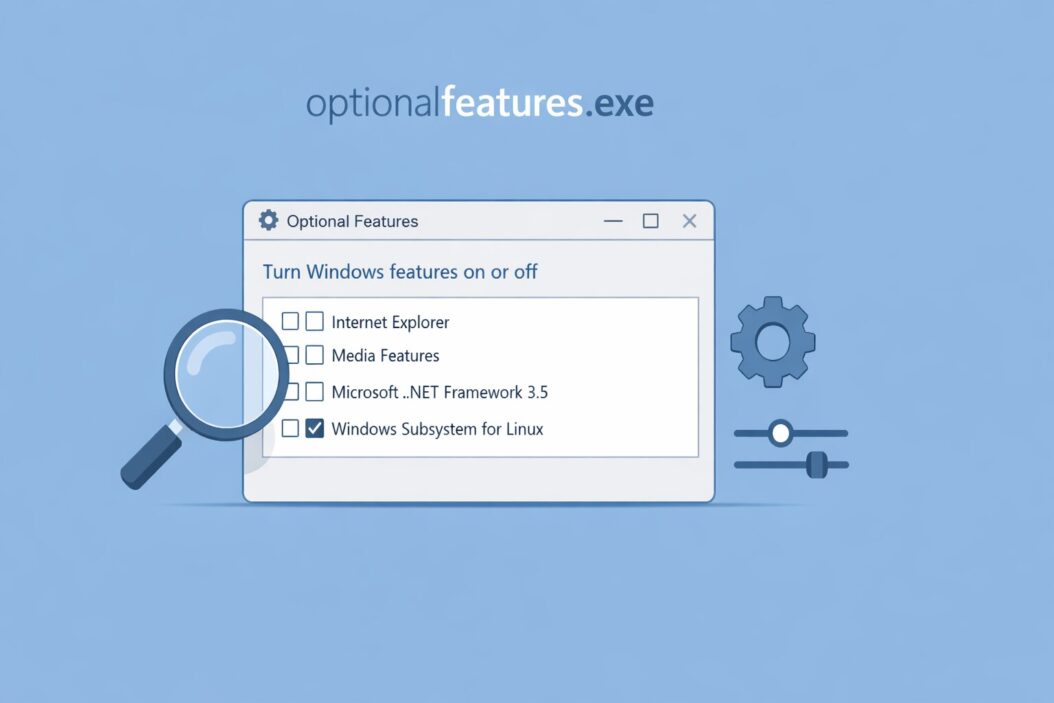
How to Open optionalfeatures.exe
There are several ways to launch it.
Method 1: Run Dialog Press Win + R, type optionalfeatures.exe, and hit Enter.
Method 2: Search Click the Start menu, type “Turn Windows features on or off,” and click the result.
Method 3: Control Panel Go to Control Panel > Programs > Programs and Features > Turn Windows features on or off.
Method 4: Command Prompt or PowerShell Type optionalfeatures and press Enter. You do not need the .exe extension.
Method 5: Direct Path Open File Explorer, navigate to C:\Windows\System32\, and double-click optionalfeatures.exe.
All five methods open the same window.
What the Window Looks Like
When optionalfeatures.exe opens, you see a scrollable list of features with checkboxes. Each feature has:
- A checkbox (checked = enabled, unchecked = disabled, filled square = partially enabled)
- A name
- A small arrow to expand sub-features
Some features have child options underneath them. For example, “.NET Framework 3.5” expands into “Windows Communication Foundation HTTP Activation” and “Windows Communication Foundation Non-HTTP Activation.”
A filled square checkbox means some sub-features are on and some are off.
After you make changes and click OK, Windows applies them. Sometimes it asks you to restart. Always save your work before restarting.
Complete List of Major Windows Optional Features (2026)
Here is a breakdown of what the most important features actually do.
.NET Framework Features
| Feature | What It Does |
|---|---|
| .NET Framework 3.5 | Runs older apps built on .NET 2.0 and 3.0. Many legacy enterprise apps need this. |
| .NET Framework 4.8 Advanced Services | Runs modern Windows apps. Usually enabled by default. |
| ASP.NET 4.8 | Enables ASP.NET web apps on IIS. Needed for local web development. |
.NET Framework 3.5 is one of the most commonly enabled features. Many older software installers will prompt you to enable it automatically. If the auto-install fails, you enable it here manually.
Hyper-V
Hyper-V is Microsoft’s built-in virtualization platform. Enabling it lets you create and run virtual machines directly on Windows 10 or 11 Pro, Enterprise, or Education.
Sub-features:
- Hyper-V Management Tools (the GUI and PowerShell tools)
- Hyper-V Platform (the actual hypervisor engine)
Important: Enabling Hyper-V changes how Windows handles hardware virtualization. It can affect performance of other virtualization tools like VMware Workstation or VirtualBox on older versions. VMware and VirtualBox have improved compatibility in recent years, but it is worth knowing.
You need a CPU that supports virtualization (Intel VT-x or AMD-V) and it must be enabled in BIOS/UEFI.
Internet Information Services (IIS)
IIS is Windows’s built-in web server. If you are a developer and want to run websites locally, you enable this.
It has a large tree of sub-features:
- Web Management Tools
- World Wide Web Services
- Application Development Features (ASP, ASP.NET, CGI, PHP handler, etc.)
- Common HTTP Features (static content, default document, directory browsing)
- Health and Diagnostics
- Performance Features (compression)
- Security (basic auth, Windows auth, IP restrictions, etc.)
For most local development, you enable IIS, then enable Static Content, Default Document, and ASP.NET under Application Development Features. That covers 80% of use cases.
Windows Subsystem for Linux (WSL)
This is one of the most popular features for developers. WSL lets you run a real Linux environment inside Windows without a virtual machine overhead.
Note: For WSL 2 (the current version), the recommended installation method in 2026 is wsl --install in PowerShell rather than using optionalfeatures.exe. But if you need to enable the legacy WSL 1 components manually, optionalfeatures.exe is where you do it. You would enable:
- Virtual Machine Platform
- Windows Subsystem for Linux
Virtual Machine Platform
This is a lightweight hypervisor layer separate from Hyper-V. It is required for WSL 2 and Android app support on Windows 11. You do not need full Hyper-V enabled to use it.
Windows Sandbox
Windows Sandbox creates a temporary, isolated desktop environment. You open it, test something potentially risky (an installer, a suspicious file), close it, and everything inside disappears. No trace left on your main system.
It requires:
- Windows 10/11 Pro or Enterprise
- Virtualization enabled in BIOS
- At least 4GB RAM (8GB recommended)
It is incredibly useful for testing software safely.
Media Features
This sub-tree includes Windows Media Player. If you uncheck it, Windows Media Player is removed. Most users have no reason to touch this. Some enterprise IT departments disable it for compliance reasons.
Legacy Components
| Feature | What It Does |
|---|---|
| DirectPlay | Old multiplayer gaming API. Needed for some classic games from the early 2000s. |
| DirectX Legacy User Runtime Web Installer | Rarely needed. Legacy DirectX components. |
If an old game refuses to install or run, enabling DirectPlay often fixes it.
SMB Direct and SMB 1.0/CIFS File Sharing Support
SMB 1.0 is a security risk. Microsoft disabled it by default because it was exploited in major ransomware attacks like WannaCry. Do not enable it unless you absolutely need to connect to a very old NAS or legacy device that only supports SMB 1.0. If you must enable it, isolate that device from the internet.
SMB Direct is a high-performance version of SMB using RDMA. Relevant in data center environments. Most home users will never need it.
Telnet Client
This is a command-line tool for connecting to remote servers over the Telnet protocol. It is mostly replaced by SSH, but some legacy systems still use Telnet. Disabled by default because Telnet sends data unencrypted.
TFTP Client
Trivial File Transfer Protocol. Used for transferring files to network devices like routers and switches. IT administrators use this. Most home users never need it.
Simple SNMP
For network monitoring. Relevant to system administrators managing networked hardware. Not needed for home use.
Print and Document Services
Includes Internet Printing Client, LPD Print Service, and LPR Port Monitor. Used in network printing environments, especially in organizations using Unix-based print servers.
Remote Differential Compression API Support
Used by applications that synchronize files over a network by only transferring changed portions of files. Windows features like Remote Desktop use this internally.
How to Enable a Windows Optional Feature (Step by Step)
Here is a clear walkthrough using .NET Framework 3.5 as the example.
Step 1: Press Win + R, type optionalfeatures.exe, press Enter.
Step 2: Wait for the list to load. It takes a few seconds.
Step 3: Find “.NET Framework 3.5 (includes .NET 2.0 and 3.0)” in the list.
Step 4: Click the checkbox to put a checkmark in it.
Step 5: Click OK.
Step 6: Windows will say “Searching for required files” or ask you to download files from Windows Update. Allow it.
Step 7: Wait for it to finish. It may take 1 to 5 minutes.
Step 8: Restart your computer if prompted.
The same process works for any feature. Just find it, check or uncheck it, click OK.
How to Disable a Windows Optional Feature
Same process. Just uncheck the box instead of checking it. Windows removes the component after you click OK and restart.
Disabling features you do not use can slightly reduce attack surface and keep your system cleaner, but the performance gains are minimal on modern hardware.
Using DISM Instead of the GUI
If the GUI does not work or you prefer the command line, use DISM (Deployment Image Servicing and Management tool). This is useful for scripting or remote administration.
To enable a feature:
dism /online /enable-feature /featurename:NetFx3 /all /source:D:\sources\sxs /limitaccess
To disable a feature:
dism /online /disable-feature /featurename:NetFx3
To list all features and their status:
dism /online /get-features /format:table
Run these in an elevated (Administrator) Command Prompt.
You can also use PowerShell:
Get-WindowsOptionalFeature -Online
Enable-WindowsOptionalFeature -Online -FeatureName NetFx3
DISM is particularly useful when optionalfeatures.exe fails or when deploying Windows images at scale.
For more about DISM and Windows servicing, see the official Microsoft DISM documentation.
Common Problems and How to Fix Them
optionalfeatures.exe Won’t Open
Possible causes and fixes:
- Corrupted system files: Run
sfc /scannowin an elevated Command Prompt. This scans and repairs corrupted Windows files. - Group Policy restriction: On work or school computers, IT administrators may block it. Contact your IT department.
- Windows component store corruption: Run
DISM /Online /Cleanup-Image /RestoreHealthto repair the component store.
Feature Installation Fails or Gets Stuck
This is one of the most common issues. Windows sometimes fails to find the installation files.
Fix 1: Use Windows Update as source When you try to enable a feature, Windows should automatically download what it needs. Make sure you are connected to the internet and Windows Update is not blocked.
Fix 2: Use installation media as source If you have a Windows ISO or installation drive, you can point DISM to it:
dism /online /enable-feature /featurename:NetFx3 /source:D:\sources\sxs /limitaccess
Replace D: with your actual drive letter.
Fix 3: Repair the component store
DISM /Online /Cleanup-Image /RestoreHealth
Then try again.
.NET Framework 3.5 Installation Error 0x800F0950 or 0x800F081F
These are the most common .NET installation errors. They usually mean Windows cannot find the source files.
The fastest fix is to use installation media:
- Download the Windows ISO matching your version from Microsoft.
- Mount it by double-clicking.
- Note the drive letter (e.g., E:).
- Run this in elevated Command Prompt:
dism /online /enable-feature /featurename:NetFx3 /source:E:\sources\sxs /limitaccess
This almost always resolves the error.
Changes Do Not Persist After Restart
If you enable a feature, restart, and it is disabled again, Group Policy may be overriding your changes. This happens on domain-joined computers. Talk to your IT administrator.
Is optionalfeatures.exe Safe?
Yes. The real optionalfeatures.exe located at C:\Windows\System32\optionalfeatures.exe is a legitimate, signed Microsoft file.
How to verify it is legitimate:
- Right-click the file in
C:\Windows\System32\ - Click Properties
- Go to the Digital Signatures tab
- You should see “Microsoft Windows” as the signer
If optionalfeatures.exe is appearing somewhere else on your system (like your Downloads folder, AppData, or Temp), that is suspicious. Run a malware scan immediately. Malware authors sometimes name their files after legitimate Windows tools to avoid detection.
optionalfeatures.exe vs. Windows Settings
Windows 11 added an “Optional features” page in Settings (Settings > System > Optional features). This is different from optionalfeatures.exe. The Settings page controls things like Notepad, Paint, WordPad, and other optional apps. The optionalfeatures.exe window controls deeper system components like IIS, Hyper-V, and .NET Framework. Both exist and serve different purposes.
Features Worth Knowing About for Developers (2026)
If you are a developer on Windows in 2026, these are the features you will likely interact with most:
| Feature | Use Case |
|---|---|
| Windows Subsystem for Linux | Running Linux tools, shells, and environments |
| Virtual Machine Platform | Required for WSL 2 |
| Hyper-V | Full virtual machines |
| IIS | Local web server |
| .NET Framework 3.5 | Running older .NET apps and some installers |
| Windows Sandbox | Safe testing environment |
| Containers | Docker on Windows requires this |
For a deeper dive into what Windows Subsystem for Linux can do and how to set it up properly, the official WSL documentation is well-maintained and up to date.
Quick Reference: Should You Enable It?
| Feature | Enable If… |
|---|---|
| .NET Framework 3.5 | An app asks for it or fails without it |
| Hyper-V | You want to run VMs natively on Windows |
| IIS | You are developing web applications locally |
| WSL / Virtual Machine Platform | You want to use Linux tools on Windows |
| Windows Sandbox | You want a safe space to test unknown software |
| Telnet Client | You need to connect to a legacy device |
| SMB 1.0 | Only if absolutely required, and with caution |
| DirectPlay | A classic game requires it |
| Media Features | Only if Windows Media Player stops working |
Conclusion
optionalfeatures.exe is one of the most useful and underused tools in Windows. It gives you direct control over which operating system components are active. Whether you are a developer enabling Hyper-V and IIS, a power user turning on Windows Sandbox, or a home user trying to fix a .NET installation error, this tool is your starting point.
The key things to remember: it lives at C:\Windows\System32\optionalfeatures.exe, it is completely safe, and most problems with it can be fixed using DISM from an elevated Command Prompt. If the GUI fails, DISM works. If DISM fails on finding source files, point it to a Windows ISO.
Know what each feature does before you enable it. That is especially true for SMB 1.0, which should stay off unless you have a very specific reason to turn it on.
Frequently Asked Questions
What is optionalfeatures.exe and is it safe to run?
optionalfeatures.exe is a legitimate Windows system file made by Microsoft. It opens the “Turn Windows features on or off” control panel. It is completely safe to run as long as it is located in C:\Windows\System32\. If you find it anywhere else on your system, treat it as suspicious and run a malware scan.
Why is optionalfeatures.exe not opening or showing a blank list?
This usually means the Windows component store is corrupted. Run DISM /Online /Cleanup-Image /RestoreHealth in an elevated Command Prompt, then run sfc /scannow. After both complete, restart and try again. On work computers, a Group Policy may be blocking the tool entirely.
How do I enable .NET Framework 3.5 using optionalfeatures.exe?
Open optionalfeatures.exe via Win + R, find “.NET Framework 3.5” in the list, check the box, and click OK. Windows will try to download the files. If it fails with error 0x800F081F or 0x800F0950, mount a Windows installation ISO and run: dism /online /enable-feature /featurename:NetFx3 /source:X:\sources\sxs /limitaccess where X is your ISO drive letter.
Does enabling Hyper-V affect other virtualization software like VMware or VirtualBox?
On older versions of VMware and VirtualBox, enabling Hyper-V would break them because both could not share the hardware hypervisor. In 2026, both VMware Workstation and VirtualBox have added Hyper-V compatibility modes, so they can run alongside Hyper-V. That said, performance may differ slightly. Check your specific software version’s release notes to confirm compatibility.
What is the difference between optionalfeatures.exe and the Optional Features page in Windows Settings?
They are two different tools. optionalfeatures.exe controls deep system components like Hyper-V, IIS, .NET Framework, and WSL. The Optional Features page in Windows Settings (Settings > System > Optional features) manages lighter add-ons like Notepad, Paint, WordPad, OpenSSH, and similar tools. If you are looking for something and cannot find it in one place, check the other.

- How to Fix Overscan on Windows 11/10: Stop Your Screen Getting Cut Off (2026) - April 1, 2026
- How to Disable Lock Screen on Windows 11/10 in 2026 - April 1, 2026
- Top 7 NFT Integration Ideas for Brands in 2026 - March 31, 2026