
Windows Narrator is a built-in screen reader that helps people with visual impairments use their computers. The narrator.exe file is the executable program that launches this accessibility tool. If you’ve encountered this file running on your system, noticed it in Task Manager, or want to understand how to use or manage it, this guide covers everything you need to know.
What Is Narrator.exe?
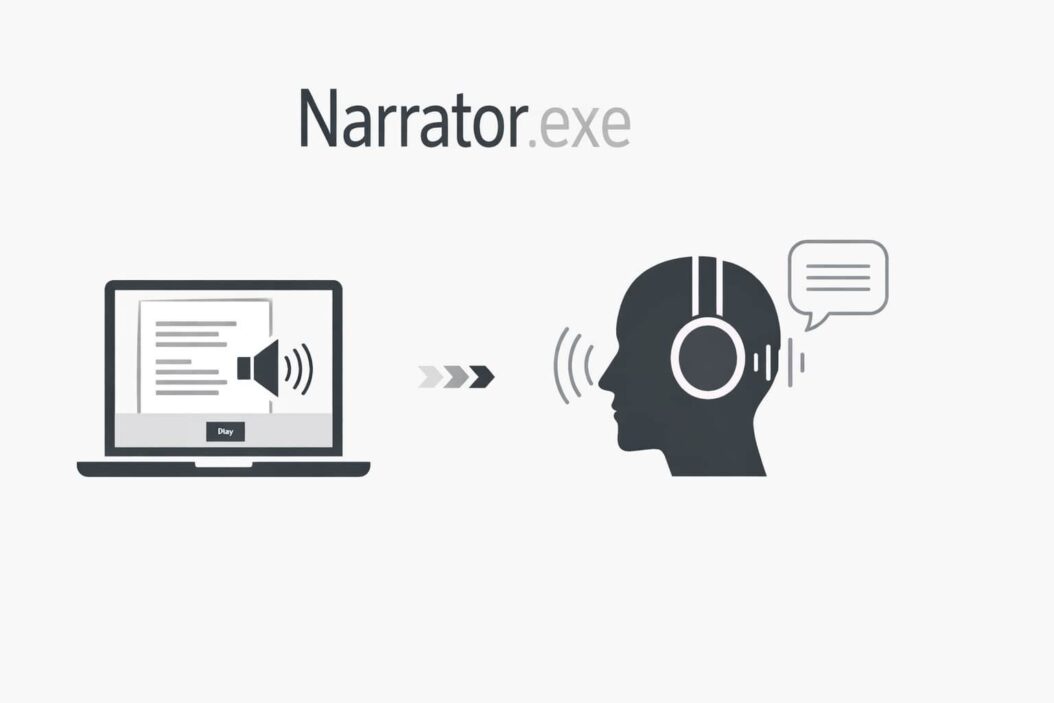
Narrator.exe is the executable file for Windows Narrator, Microsoft’s text-to-speech accessibility feature. When you launch Narrator, this file runs in the background and powers the screen reading functionality.
Location: C:\Windows\System32\Narrator.exe
File Size: Typically 100-200 KB depending on your Windows version
Publisher: Microsoft Corporation
This is a legitimate Windows system file, not malware. It’s been part of Windows since Windows 2000 and has improved significantly with each Windows release.
What Does Narrator.exe Do?
When narrator.exe runs, it:
- Reads text on your screen aloud using text-to-speech
- Announces buttons, menus, and other interface elements
- Describes what’s happening when you navigate Windows
- Helps users with visual impairments interact with their computer
- Works with keyboards, mice, and touch screens
How to Launch Narrator
There are several ways to start narrator.exe on your Windows computer.
Keyboard Shortcut
Press Windows key + Ctrl + Enter simultaneously. This is the fastest method and works on Windows 10 and 11.
Through Settings
- Press Windows key + I to open Settings
- Click on “Accessibility”
- Select “Narrator” from the left menu
- Toggle “Narrator” to On
Using Search
- Press Windows key
- Type “narrator”
- Click on the Narrator app when it appears
Through Run Dialog
- Press Windows key + R
- Type “narrator.exe”
- Press Enter
Understanding Narrator.exe in Task Manager
You might notice narrator.exe running in Task Manager even when you didn’t intentionally start Narrator.
Normal Resource Usage
- CPU: Usually under 1% when idle
- Memory: 10-30 MB typically
- Disk: Minimal activity
If narrator.exe is using significantly more resources, it might be actively reading complex content or processing voice commands.
Why Is Narrator.exe Running?
Common reasons include:
Accidentally triggered: The Windows key + Ctrl + Enter shortcut is easy to press by mistake
Startup setting enabled: Narrator may be set to launch automatically
Windows Update: Sometimes updates can trigger Narrator to start
Accessibility settings: Another accessibility feature may have launched Narrator
How to Stop Narrator.exe
If Narrator is running and you want to close it:
Quick Method
Press Windows key + Ctrl + Enter again. This toggles Narrator on and off.
Through Narrator Window
- Find the small Narrator window on your screen
- Click the X button to close it
- Or press Alt + F4 while Narrator window is active
Through Task Manager
- Press Ctrl + Shift + Esc to open Task Manager
- Find “Narrator” or “narrator.exe” in the process list
- Right-click and select “End Task”
Disable Auto-Start
To prevent Narrator from starting automatically:
- Open Settings (Windows key + I)
- Go to Accessibility > Narrator
- Turn off “Start Narrator after sign-in”
- Turn off “Start Narrator before sign-in”
Using Narrator: Essential Commands
If you want to use Narrator for accessibility purposes, these commands help you navigate effectively.
Basic Navigation Commands
| Command | Action |
|---|---|
| Caps Lock + F1 | View all Narrator commands |
| Caps Lock + Esc | Exit Narrator |
| Caps Lock + 1 | Toggle input learning |
| Caps Lock + Right Arrow | Move to next item |
| Caps Lock + Left Arrow | Move to previous item |
| Caps Lock + Up/Down Arrow | Change view |
| Caps Lock + Enter | Activate current item |
Reading Commands
| Command | Action |
|---|---|
| Caps Lock + M | Start reading |
| Ctrl | Stop reading |
| Caps Lock + D | Read item |
| Caps Lock + R | Read window |
| Caps Lock + W | Read page |
Caps Lock as Narrator Key
By default, Narrator uses Caps Lock as the modifier key. You can change this to Insert or both in Narrator settings if Caps Lock conflicts with your workflow.
Configuring Narrator Settings
Narrator offers extensive customization options to match different user needs.
Voice Settings
- Open Narrator settings (Windows key + I > Accessibility > Narrator)
- Adjust voice speed from slow to very fast
- Change voice pitch to make it higher or lower
- Select different voices if multiple are installed
- Adjust volume independently from system volume
Reading Preferences
Control what Narrator reads:
- Read hints for buttons and controls
- Read character phonetics when typing
- Change context level (amount of information provided)
- Enable or disable reading of punctuation
- Adjust capitalization reading preferences
Navigation Options
Customize how Narrator moves through content:
- Sync Narrator cursor with keyboard focus
- Highlight cursor visually on screen
- Change cursor size and color
- Enable navigation by headings, links, or tables
Is Narrator.exe Safe?
The legitimate narrator.exe file from Microsoft is completely safe. However, malware sometimes disguises itself with similar names.
How to Verify Legitimacy
Check file location: Real narrator.exe is always in C:\Windows\System32
Verify digital signature:
- Right-click narrator.exe in Task Manager
- Select “Properties”
- Check “Digital Signatures” tab
- Should show Microsoft Corporation
Check file size: Legitimate file is typically 100-200 KB
Warning Signs of Malware
Be suspicious if:
- File is located outside System32 folder
- No digital signature from Microsoft
- Unusually high CPU or memory usage constantly
- File size is several megabytes
- Multiple narrator.exe processes running simultaneously
If you suspect malware, run a full system scan with Windows Security or your antivirus software.
Troubleshooting Common Narrator.exe Problems
Narrator Won’t Start
Solution 1: Run System File Checker
- Open Command Prompt as Administrator
- Type:
sfc /scannow - Press Enter and wait for completion
Solution 2: Check if narrator.exe exists
- Open File Explorer
- Navigate to C:\Windows\System32
- Look for narrator.exe
- If missing, system files may be corrupted
Solution 3: Create a new user account Sometimes user profile corruption prevents Narrator from launching properly.
Narrator Keeps Starting Automatically
Solution 1: Disable from Settings (covered above)
Solution 2: Check Task Scheduler
- Press Windows key + R
- Type:
taskschd.msc - Look for any tasks related to Narrator
- Disable or delete them
Solution 3: Check Registry (Advanced)
- Press Windows key + R
- Type:
regedit - Navigate to: HKEY_CURRENT_USER\Software\Microsoft\Windows NT\CurrentVersion\Accessibility
- Look for Narrator-related startup values
- Delete or modify as needed
Warning: Only modify registry if you’re comfortable doing so. Incorrect changes can cause system problems.
Narrator Voice Not Working
Check audio output: Ensure speakers or headphones are connected and working
Test with another voice: Switch to a different TTS voice in settings
Update audio drivers: Outdated drivers can cause TTS problems
Reinstall speech components:
- Settings > Time & Language > Speech
- Manage voices
- Remove and reinstall voices
High CPU Usage from Narrator.exe
If narrator.exe consistently uses high CPU:
Close complex applications: Narrator works harder with complex interfaces
Update Windows: Bugs in older versions may cause performance issues
Reduce Narrator verbosity: Lower context level in settings
Restart Narrator: Close and relaunch to clear any processing issues
Narrator vs Other Screen Readers
Windows Narrator has improved dramatically but isn’t the only option.
Narrator Advantages
- Built into Windows, no installation needed
- Free with Windows license
- Good integration with Windows interface
- Regular updates from Microsoft
- Works immediately on fresh Windows installs
Narrator Limitations
- Less sophisticated than paid alternatives
- Fewer customization options than specialized tools
- May struggle with complex web applications
- Limited braille display support compared to alternatives
Alternative Screen Readers
NVDA (NonVisual Desktop Access): Free, open-source, more features than Narrator
JAWS (Job Access With Speech): Professional-grade, expensive, industry standard for many years
Both alternatives offer capabilities beyond Narrator but require separate installation. NVDA is available free and is a good starting point if Narrator doesn’t meet your needs.
Using Narrator with Different Applications
Narrator works differently depending on what application you’re using.
Microsoft Office
Narrator integrates well with Word, Excel, PowerPoint, and Outlook. It can:
- Read document text naturally
- Announce formatting changes
- Navigate by headings and styles
- Read spreadsheet cells with row and column information
- Describe images with alt text
Web Browsers
Modern browsers work reasonably well with Narrator:
Microsoft Edge: Best compatibility since both are Microsoft products
Google Chrome: Good support with occasional quirks
Firefox: Decent support but may have minor issues
Narrator can navigate web pages by headings, links, landmarks, and tables.
File Explorer
Narrator reads folder names, file names, file types, and sizes as you navigate Windows File Explorer.
Command Prompt and PowerShell
Narrator reads command output line by line. Use keyboard commands to review previous output.
Security and Privacy Considerations
Narrator.exe has access to screen content, which raises some considerations.
What Narrator Can Access
- Everything displayed on screen
- Text being typed (for reading it back)
- System notifications
- Application interfaces
What Narrator Doesn’t Do
- Send data to Microsoft servers during normal operation
- Record your screen or keystrokes to files
- Share information with third parties
- Access encrypted data it can’t normally see
Narrator processes everything locally on your computer. It’s part of the operating system and follows standard Windows privacy policies.
Advanced Configuration Options
For users who need deeper customization, Narrator offers advanced settings.
Developer Mode
Enable to hear more technical information useful for software development and testing:
- Open Narrator settings
- Find “Developer mode” option
- Toggle on
Scan Mode
Scan mode lets you navigate with arrow keys without modifier keys:
- Turn on with Caps Lock + Spacebar
- Navigate with arrow keys alone
- Useful for reading documents and web pages
- Press Spacebar to activate buttons and links
Braille Display Support
Narrator supports refreshable braille displays:
- Connect braille display via USB or Bluetooth
- Open Narrator settings
- Select “Braille” section
- Choose your display model
- Configure braille translation tables
Keyboard Layout Options
Change modifier key from Caps Lock to Insert:
- Narrator settings
- “Choose Narrator key”
- Select Insert, Caps Lock, or both
Narrator.exe and System Performance
Understanding how narrator.exe affects your computer helps you make informed decisions.
Resource Requirements
Narrator is lightweight but does use some resources:
RAM: 10-50 MB depending on activity
CPU: Usually under 5%, spikes when reading complex content
Storage: Under 1 MB for the executable itself
Impact on Battery Life
On laptops and tablets, running Narrator continuously increases battery consumption by approximately 3-7%, depending on how actively it’s being used.
Running Narrator on Older Systems
Narrator works on systems that meet minimum Windows requirements, but older computers may experience:
- Slight lag when starting Narrator
- Delayed voice responses on very slow processors
- Audio crackling if CPU is overwhelmed
If performance is poor, reduce Narrator’s speech rate and lower verbosity settings.
Future of Narrator and Accessibility
Microsoft continues improving Narrator with each Windows update.
Recent Improvements (2024-2026)
- Better natural-sounding voices
- Improved web page navigation
- Enhanced touch screen support
- Faster response times
- More language options
Expected Developments
Microsoft has indicated continued investment in accessibility features, suggesting future Narrator versions will include:
- AI-powered image descriptions
- Better context awareness
- Improved voice customization
- Enhanced support for modern web applications
Frequently Asked Questions
Can I uninstall narrator.exe?
No, you cannot and should not uninstall narrator.exe. It’s a protected system file essential to Windows. Even if you don’t use accessibility features, removing system files can cause stability problems. If you don’t want Narrator, simply ensure it’s not set to auto-start.
Does narrator.exe slow down my computer?
When not running, narrator.exe has zero impact on performance. When active, it uses minimal resources (typically under 30 MB RAM and 5% CPU). You won’t notice any slowdown on modern computers. Only very old systems with limited resources might experience minor performance impacts.
Why does narrator.exe start randomly?
The most common cause is accidentally pressing Windows + Ctrl + Enter. This keyboard shortcut toggles Narrator on and off. If it happens frequently, check your accessibility settings to ensure auto-start is disabled. Some keyboards or keyboard shortcuts software can also trigger it unintentionally.
Can narrator.exe be a virus?
The legitimate narrator.exe in C:\Windows\System32 is safe Microsoft software. However, malware can disguise itself with similar names or run from different locations. Always verify the file location and digital signature if you’re suspicious. Malware named narrator.exe typically appears in user folders or temp directories.
How do I make Narrator read faster or slower?
Open Narrator settings by pressing Windows + I, then Accessibility > Narrator. Look for “Voice speed” and adjust the slider. You can also change speed while Narrator is running by pressing Caps Lock + Plus (faster) or Caps Lock + Minus (slower). The speed range goes from very slow to very fast with multiple increments.
Conclusion
Narrator.exe is Windows’ built-in screen reader designed to help people with visual impairments use their computers effectively. It’s a legitimate system file that’s safe and uses minimal resources when running.
If you accidentally launched Narrator, simply press Windows + Ctrl + Enter to close it. If you’re using it for accessibility, take time to explore the settings and keyboard commands to customize the experience to your needs.
For most users, Narrator runs only when needed and causes no issues. Understanding what it does and how to control it helps you manage your system confidently, whether you use accessibility features daily or encounter them occasionally.
The improvements Microsoft continues making to Narrator show their commitment to accessibility. While specialized screen readers like NVDA and JAWS offer more features, Narrator provides solid functionality built right into Windows without additional cost or installation.

- How to Uninstall Apps from the Start Menu in Windows 11/10 (2026 Guide) - April 2, 2026
- How to Fix Overscan on Windows 11/10: Stop Your Screen Getting Cut Off (2026) - April 1, 2026
- How to Disable Lock Screen on Windows 11/10 in 2026 - April 1, 2026