
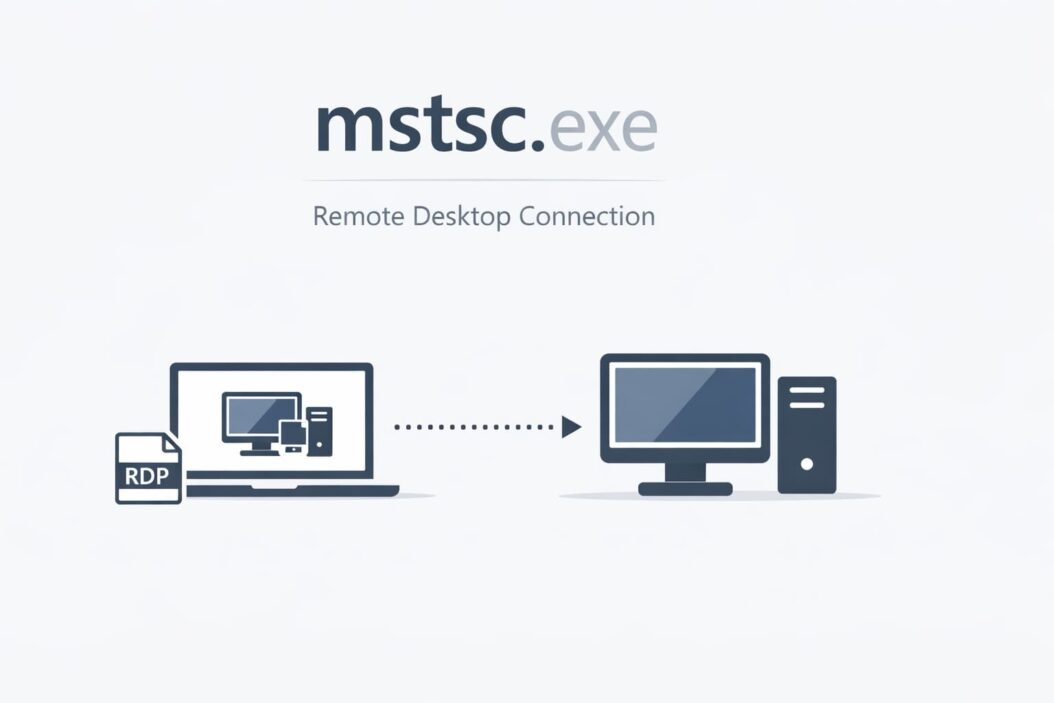
If you need to access another computer from your Windows machine, mstsc.exe is the tool that makes it happen. This executable file launches Remote Desktop Connection, Microsoft’s built-in application for controlling computers remotely over a network.
In this guide, you’ll learn what mstsc.exe does, how to use it safely, how to troubleshoot common problems, and how to get the most out of Remote Desktop features. Whether you’re connecting to a work computer from home or managing multiple servers, this information will help you work more efficiently.
What Is mstsc.exe?
mstsc.exe stands for Microsoft Terminal Services Client. It’s a legitimate Windows system file that opens the Remote Desktop Connection application. This program lets you connect to another Windows computer over the internet or local network and control it as if you were sitting right in front of it.
The file typically lives in the C:\Windows\System32 folder and comes pre-installed with Windows. You don’t need to download or install anything extra to use it on Windows 10, Windows 11, or Windows Server editions.
Key facts about mstsc.exe:
- File size ranges from 1.5 to 2.5 MB depending on your Windows version
- Digitally signed by Microsoft Corporation
- Requires network connectivity to function
- Uses Remote Desktop Protocol (RDP) on port 3389 by default
- Works with Windows Pro, Enterprise, and Server editions
How Remote Desktop Connection Works
When you launch mstsc.exe, it creates an encrypted connection between your computer (the client) and the target computer (the host). The host computer must have Remote Desktop enabled and you need proper credentials to log in.
The process works like this:
- Your computer sends a connection request to the host
- The host authenticates your username and password
- An encrypted tunnel establishes using RDP
- Your screen displays the host computer’s desktop
- Your keyboard and mouse inputs control the remote machine
- Audio, clipboard, and files can transfer between machines
Everything you do happens on the remote computer. Your local machine just sends inputs and receives screen updates. This means you can access powerful work computers from a basic laptop, or manage servers from anywhere.
How to Launch mstsc.exe (5 Quick Methods)
Method 1: Run Dialog Box
Press Windows Key + R, type mstsc, and hit Enter. This opens Remote Desktop Connection immediately.
Method 2: Start Menu Search
Click the Start button, type “remote desktop connection,” and select the app from the results.
Method 3: Command Prompt or PowerShell
Open Command Prompt or PowerShell and type:
mstsc
Press Enter to launch the application.
Method 4: File Explorer
Navigate to C:\Windows\System32, scroll down to find mstsc.exe, and double-click it.
Method 5: Create a Desktop Shortcut
Right-click on your desktop, select New > Shortcut, type %windir%\system32\mstsc.exe, name it, and click Finish.
Using mstsc.exe: Step-by-Step Guide
Basic Connection Setup
Step 1: Launch mstsc.exe using any method above.
Step 2: In the “Computer” field, enter the IP address or computer name of the remote machine. Examples:
- 192.168.1.100
- OFFICE-PC
- workstation.company.com
Step 3: Click “Connect.”
Step 4: Enter your username and password when prompted. Use the format DOMAIN\username if connecting to a domain computer.
Step 5: Click OK. You’ll see a certificate warning on first connection. Verify it’s expected and click Yes.
Advanced Connection Options
Click “Show Options” in the Remote Desktop Connection window to access powerful configuration settings:
Display Tab:
- Adjust screen resolution for the remote session
- Choose full screen or windowed mode
- Configure color depth (16-bit or 32-bit)
Local Resources Tab:
- Enable sound from remote computer
- Allow keyboard shortcuts in full screen
- Share printers connected to your local machine
- Access local drives on the remote computer
Experience Tab:
- Optimize for your connection speed
- Enable desktop background
- Show window contents while dragging
- Configure menu and window animation
Programs Tab:
- Launch specific applications automatically on connection
- Useful for dedicated tasks
Essential mstsc.exe Command Line Parameters
Running mstsc.exe from Command Prompt or PowerShell with parameters gives you advanced control. Here are the most useful commands:
| Parameter | Function | Example |
|---|---|---|
| /v: | Specify computer to connect to | mstsc /v:192.168.1.50 |
| /admin | Connect to session for administering server | mstsc /admin /v:server01 |
| /f | Start connection in full screen | mstsc /f /v:workstation |
| /w: /h: | Set width and height | mstsc /w:1920 /h:1080 /v:pc-name |
| /edit | Open existing RDP file for editing | mstsc /edit connection.rdp |
| /span | Match desktop to virtual desktop | mstsc /span /v:computer |
| /multimon | Use multiple monitors | mstsc /multimon /v:host |
| /public | Run in public mode (no caching) | mstsc /public /v:kiosk |
| /shadow: | Shadow another session (requires permissions) | mstsc /shadow:2 /v:server |
Practical example: Create a batch file for quick connections:
@echo off
mstsc /v:192.168.1.100 /f /admin
Save this as “connect-server.bat” on your desktop for one-click access.
Creating and Using RDP Files
RDP files store connection settings so you don’t need to configure options repeatedly. They’re especially helpful when you connect to the same computers regularly.
How to Create an RDP File
- Open mstsc.exe
- Click “Show Options”
- Configure all your preferred settings (computer name, display, local resources, etc.)
- Click “Save As” in the Connection settings section
- Choose a location and filename
- Click Save
The file saves with a .rdp extension. Double-click it anytime to launch that exact connection configuration.
Editing RDP Files Manually
RDP files are plain text. Right-click any .rdp file, select “Edit,” and you’ll see configuration lines like:
full address:s:192.168.1.100
username:s:DOMAIN\jsmith
screen mode id:i:2
use multimon:i:1
You can manually adjust these values. This is useful for:
- Changing IP addresses quickly
- Updating usernames
- Tweaking advanced settings not available in the GUI
Security Considerations for mstsc.exe
Remote Desktop is a powerful tool, but it requires proper security measures. An improperly configured RDP connection creates vulnerabilities.
Best Security Practices
Use Strong Authentication:
- Enable Network Level Authentication (NLA)
- Require complex passwords (minimum 12 characters)
- Implement multi-factor authentication where possible
- Create separate accounts for remote access
Limit Network Exposure:
- Never expose RDP directly to the internet
- Use VPN connections for remote access
- Change default RDP port from 3389 to a non-standard port
- Implement firewall rules limiting RDP access to specific IP addresses
Monitor and Update:
- Keep Windows updated with latest security patches
- Review Windows Event Logs for failed RDP attempts
- Set account lockout policies after failed login attempts
- Enable RDP connection logging
Encrypt Connections:
- Modern Windows versions use strong encryption by default
- Verify certificate warnings (they can indicate man-in-the-middle attacks)
- Use SSL certificates for enhanced security
Is mstsc.exe a Virus?
The legitimate mstsc.exe file from Microsoft is completely safe. However, malware sometimes disguises itself with similar names. Verify your file is genuine:
Check file location: Should be in C:\Windows\System32
Verify digital signature:
- Right-click mstsc.exe
- Select Properties
- Click Digital Signatures tab
- Confirm signer is Microsoft Windows
Check file size: Should be between 1.5 and 2.5 MB
Scan with antivirus: Use Windows Defender or your preferred security software
If mstsc.exe is located elsewhere or lacks Microsoft’s signature, it may be malware. Run a full system scan immediately.
Common mstsc.exe Problems and Solutions
Problem 1: Remote Desktop Can’t Find the Computer
Causes:
- Incorrect computer name or IP address
- Network connectivity issues
- Remote computer is turned off
- Firewall blocking connection
Solutions:
- Verify the computer name using
ping computernamein Command Prompt - Check network connectivity with
ping IP-address - Ensure remote computer is powered on and connected to network
- Temporarily disable firewall to test (re-enable afterward)
- Verify Remote Desktop is enabled on the target computer
Problem 2: Authentication Failed
Causes:
- Incorrect username or password
- Account doesn’t have remote access permissions
- Network Level Authentication requirement
Solutions:
- Double-check credentials (watch for Caps Lock)
- Add user to “Remote Desktop Users” group on host computer
- Enable NLA on both computers
- Use domain credentials format: DOMAIN\username
Problem 3: Black Screen After Connection
Causes:
- Graphics driver issues
- Display configuration problems
- Remote session already active
Solutions:
- Press Ctrl+Alt+End (equivalent of Ctrl+Alt+Del in RDP)
- Disconnect and reconnect
- Reduce color depth in RDP settings
- Update graphics drivers on both machines
Problem 4: “Your Credentials Did Not Work” Error
Causes:
- Windows Home edition on host (doesn’t support Remote Desktop)
- Account restrictions
- Policy settings preventing connection
Solutions:
- Verify host runs Windows Pro, Enterprise, or Server
- Check Local Security Policy settings
- Add user to Remote Desktop Users group
- Verify account isn’t disabled or expired
Problem 5: Connection Drops Frequently
Causes:
- Unstable network connection
- Timeout settings too aggressive
- Resource limitations
Solutions:
- Test network stability with continuous ping
- Adjust “Keep-alive” settings in RDP file
- Reduce display quality and disable visual effects
- Close unnecessary applications on both computers
Performance Optimization Tips
Slow Remote Desktop connections frustrate productivity. These tweaks improve performance:
Network Optimization
Reduce bandwidth usage:
- Lower color depth to 16-bit
- Disable desktop background
- Turn off font smoothing
- Disable menu animations
Configure experience settings:
- Match settings to actual connection speed
- Use “Modem (56 kbps)” preset for slow connections
- Use “LAN (10 Mbps or higher)” for local networks
Resource Management
On local computer:
- Close unnecessary applications
- Ensure stable internet connection
- Use wired Ethernet instead of Wi-Fi when possible
On remote computer:
- Close unused programs before disconnecting
- Limit startup programs
- Keep system updated and optimized
Multiple Monitor Setup
Working across multiple monitors increases productivity:
- Open mstsc.exe
- Click “Show Options”
- Go to Display tab
- Check “Use all my monitors for the remote session”
- Connect
Alternatively, use command line:
mstsc /v:computername /multimon
Advanced mstsc.exe Features
RemoteApp
RemoteApp lets you run individual applications from a remote computer as if they’re installed locally. The app window appears on your desktop without showing the full remote desktop.
To use RemoteApp, your organization needs Remote Desktop Services configured. Contact your IT administrator for access details.
Remote Desktop Gateway
RD Gateway lets you connect to internal networks without a VPN. It tunnels RDP traffic through HTTPS (port 443), which works through most firewalls.
Configure RD Gateway:
- Open mstsc.exe
- Show Options > Advanced
- Click Settings under “Connect from anywhere”
- Enter gateway server address
- Choose authentication method
Session Shadowing
IT administrators can shadow user sessions to provide support. This requires special permissions and specific commands:
mstsc /v:servername /shadow:SessionID /control
The /control parameter allows interaction; remove it for view-only mode.
Alternatives to mstsc.exe
While mstsc.exe works well for Windows-to-Windows connections, other tools offer different features:
Microsoft Remote Desktop App (from Microsoft Store): Modern interface with better multi-monitor support and touch gesture integration. Recommended for Windows 10/11 users.
TeamViewer: Cross-platform support, easier setup through internet, free for personal use. Good when connecting between different operating systems.
Chrome Remote Desktop: Free, works through web browser, simple setup. Limited features but works on any device with Chrome.
AnyDesk: Fast performance, low latency, free for personal use. Good alternative to TeamViewer.
VNC (Virtual Network Computing): Open-source, cross-platform, multiple implementations available. More technical to configure.
For enterprise environments, consider Remote Desktop Services or Azure Virtual Desktop for cloud-based solutions with advanced management features.
mstsc.exe in Business Environments
Organizations use Remote Desktop extensively for IT management, remote work, and accessing centralized resources.
Common Business Use Cases
IT Support:
- Troubleshoot user problems remotely
- Install software on multiple machines
- Perform system maintenance without physical access
Remote Work:
- Access office computers from home
- Use powerful workstations for CAD, video editing, or development
- Maintain security by keeping data on company servers
Server Administration:
- Manage Windows Servers without visiting data centers
- Configure applications and services remotely
- Monitor system performance and logs
Managing Multiple Connections
IT professionals often connect to dozens of computers daily. Organization strategies help:
Create RDP file library: Store .rdp files in dedicated folders organized by:
- Department
- Server type
- Location
- Project
Use descriptive filenames: “Accounting-Server-01.rdp” beats “connection1.rdp”
Implement Remote Desktop Connection Manager: Microsoft’s free tool manages multiple RDP connections through a organized interface.
Deploy scripts: PowerShell scripts can launch multiple connections simultaneously or in sequence.
Understanding Remote Desktop Licensing
Windows Home editions cannot act as Remote Desktop hosts. You need Windows Pro, Enterprise, Education, or any Windows Server edition.
Client side (your computer): Any Windows version can run mstsc.exe to connect to other computers.
Host side (remote computer): Must be Pro or higher, with these limitations:
- Windows Pro/Enterprise: One concurrent remote connection (plus one local session)
- Windows Server: Multiple concurrent connections with proper Remote Desktop Services CALs (Client Access Licenses)
Organizations with many users accessing Remote Desktop Services need appropriate licensing. This involves RDS CALs in addition to Windows licenses.
Summary
mstsc.exe is Windows’ built-in tool for Remote Desktop connections, allowing you to control another computer over a network. It’s secure, reliable, and packed with features for both basic and advanced users.
Key takeaways:
- Launch mstsc.exe quickly using Windows Key + R, then typing “mstsc”
- Save connection settings as RDP files for repeated use
- Use command-line parameters for automation and quick access
- Implement proper security measures, especially NLA and strong passwords
- Troubleshoot common issues by checking network connectivity, credentials, and firewall settings
- Optimize performance by adjusting display and experience settings
- Consider alternative tools for cross-platform or easier internet connections
Whether you’re working from home, managing servers, or supporting users remotely, mastering mstsc.exe makes your job easier and more efficient.
Frequently Asked Questions
What does mstsc stand for?
mstsc stands for Microsoft Terminal Services Client. It’s the executable filename for Remote Desktop Connection, the program that lets you connect to and control other Windows computers remotely.
Can I use mstsc.exe to connect to a Mac or Linux computer?
No, mstsc.exe only connects to Windows computers with Remote Desktop enabled. However, you can use Microsoft Remote Desktop apps on Mac, iOS, or Android to connect TO Windows computers. For connecting to Mac or Linux machines, you need different tools like VNC, SSH, or third-party software like TeamViewer.
How do I enable Remote Desktop on my computer so others can connect?
Right-click the Start button, select System, click “Remote Desktop” in the left panel, and toggle “Enable Remote Desktop” to On. Make sure your user account has a strong password. Note that this only works on Windows Pro, Enterprise, Education, or Server editions, not Windows Home.
Is it safe to use Remote Desktop over the internet?
Direct RDP connections over the internet are not recommended due to security risks. Instead, use a VPN to create a secure tunnel first, implement Remote Desktop Gateway, or use port forwarding with a changed RDP port and strong security settings. Never expose port 3389 directly to the internet without additional security measures.
Why does mstsc.exe use so much bandwidth?
Remote Desktop streams your screen, keyboard, mouse, audio, and potentially file transfers. Higher resolutions, 32-bit color depth, and enabled visual effects increase bandwidth usage. To reduce consumption, lower the color depth to 16-bit, decrease resolution, disable desktop background and animations, and adjust the Experience settings to match your actual connection speed.
