
Local user and group management is a core administrative task in Windows. The lusrmgr.msc tool gives you direct access to create, modify, and control user accounts and groups on your computer without navigating through multiple settings menus.
This guide shows you exactly how to use lusrmgr.msc, what it does, and how to solve common problems you’ll encounter when managing Windows accounts.
What is lusrmgr.msc?
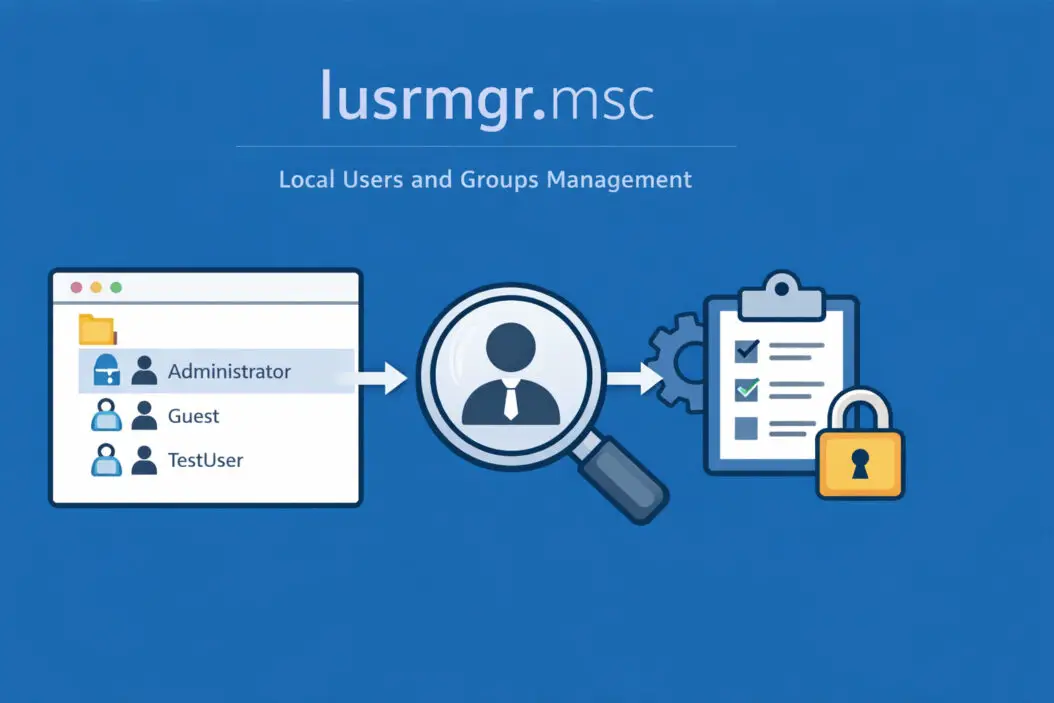
lusrmgr.msc is a Microsoft Management Console (MMC) snap-in that opens the Local Users and Groups manager in Windows. This tool lets you control user accounts and security groups directly on your local machine.
When you run lusrmgr.msc, you get a simple interface with two main folders:
- Users: Shows all local user accounts on your computer
- Groups: Displays security groups that determine what users can do
System administrators use this tool daily to add employees, remove old accounts, reset passwords, and assign permissions. Home users can create separate accounts for family members or troubleshoot login issues.
The tool connects directly to your Windows Security Accounts Manager (SAM) database, which stores all local account information. This makes changes immediate and permanent.
Why You Need lusrmgr.msc
Windows Settings offers basic account management, but lusrmgr.msc provides advanced control that serious users and IT professionals require.
Complete account control: You can disable accounts without deleting them, set password policies per user, and configure account expiration dates. Settings doesn’t expose these options.
Group membership management: Adding users to the Administrators group or Remote Desktop Users group requires this tool. You cannot do this through the standard Settings interface in most Windows versions.
Troubleshooting access issues: When someone can’t access a folder or run a program, checking their group memberships in lusrmgr.msc identifies permission problems quickly.
Network and domain preparation: Before joining a domain, you often need to create local admin accounts or modify existing ones. This tool handles those tasks efficiently.
Security auditing: You can see exactly which accounts exist on a machine, when they were created, and when someone last changed their password.
Which Windows Versions Include lusrmgr.msc
Not every Windows version includes this tool. Microsoft restricts it to professional and enterprise editions.
Available in:
- Windows 10 Pro
- Windows 10 Enterprise
- Windows 10 Education
- Windows 11 Pro
- Windows 11 Enterprise
- Windows 11 Education
- Windows Server (all versions)
Not available in:
- Windows 10 Home
- Windows 11 Home
If you run Windows Home edition, lusrmgr.msc simply won’t work. Typing it in Run or Command Prompt returns “Windows cannot find lusrmgr.msc” or “MMC could not create the snap-in.”
Some users try workarounds to enable it on Home editions, but these methods are unreliable and can create system instability. Upgrading to Pro gives you the legitimate tool plus other professional features.
You can check your Windows edition by pressing Windows Key + Pause/Break, or by going to Settings > System > About.
How to Open lusrmgr.msc
Opening the Local Users and Groups manager takes seconds using any of these methods.
Method 1: Run Dialog
- Press Windows Key + R
- Type
lusrmgr.msc - Press Enter or click OK
This is the fastest method and works on all compatible Windows versions.
Method 2: Command Prompt
- Press Windows Key + X
- Select Command Prompt or Windows PowerShell
- Type
lusrmgr.mscand press Enter
Method 3: Windows Search
- Click the Start button
- Type
lusrmgr.mscin the search box - Click the result that appears
Method 4: Computer Management
- Right-click Start button
- Select Computer Management
- Expand System Tools
- Click Local Users and Groups
This method embeds lusrmgr.msc within a larger management console that includes other system tools.
Understanding the lusrmgr.msc Interface
The interface divides into two main sections that control different aspects of local security.
Users Folder
The Users folder displays every local account on your computer. Each account shows:
- Name: The username people type at login
- Full Name: A descriptive name (optional)
- Description: Notes about the account’s purpose
Common default accounts include:
| Account Name | Purpose | Should You Modify? |
|---|---|---|
| Administrator | Built-in admin account | Usually disabled; can enable for recovery |
| Guest | Limited access for temporary users | Disabled by default; keep it that way |
| DefaultAccount | System use only | Leave alone |
| WDAGUtilityAccount | Windows Defender Application Guard | Leave alone |
Your personal account appears here too, along with any accounts you’ve created.
Groups Folder
Groups control what users can do on the system. Adding a user to a group grants them specific permissions.
Critical groups include:
| Group Name | What Members Can Do |
|---|---|
| Administrators | Complete system control, install software, modify any file |
| Users | Run most programs, change their own settings only |
| Power Users | Legacy group, limited use in modern Windows |
| Remote Desktop Users | Connect via Remote Desktop Protocol |
| Backup Operators | Backup and restore files regardless of permissions |
Each group shows its members when you double-click it. You can add or remove users from groups to adjust their access level.
Managing User Accounts with lusrmgr.msc
Creating, modifying, and deleting accounts requires understanding each operation’s impact on system security.
Creating a New User Account
- Open lusrmgr.msc
- Right-click the Users folder
- Select New User
- Fill in the required fields:
- User name: The login name (required)
- Full name: Display name (optional)
- Description: Account purpose (optional)
- Password: Initial password (required)
- Confirm password: Verify password (required)
- Check or uncheck password options:
- User must change password at next logon (recommended for new employees)
- User cannot change password (for shared accounts)
- Password never expires (violates security best practices)
- Account is disabled (create account but don’t allow login yet)
- Click Create
The new account appears in the Users list immediately. By default, new accounts join the Users group only.
Modifying User Properties
Double-click any user account to access its properties dialog with six tabs.
General tab: Change the full name, description, and password settings. You can disable the account here by checking “Account is disabled.”
Member Of tab: Shows which groups this user belongs to. Click Add to include them in additional groups. Click Remove to take away group memberships. Every user needs at least one group.
Profile tab: Set advanced options like:
- Profile path (for roaming profiles in domain environments)
- Logon script (runs commands when user logs in)
- Home folder (default document location)
Most standalone computers leave these fields empty.
Environment tab and Sessions tab: Apply only to Terminal Services environments.
Remote control tab: Configures remote assistance settings.
Resetting User Passwords
When someone forgets their password:
- Right-click the user account
- Select Set Password
- Read the warning about data loss (encrypted files and stored passwords may become inaccessible)
- Click Proceed
- Enter the new password twice
- Click OK
Password resets bypass the old password completely. This is powerful but can lock users out of encrypted data they created with their previous password.
For your own account, use Settings > Accounts > Sign-in options to change your password the normal way, which preserves encryption keys.
Disabling vs. Deleting Accounts
Disabling an account:
- Right-click the user
- Select Properties
- Check “Account is disabled”
- Click OK
Disabled accounts retain all data and settings but cannot log in. This works perfectly when employees leave temporarily or when you need to preserve an account for audit purposes.
Deleting an account:
- Right-click the user
- Select Delete
- Confirm the deletion
Deletion is permanent. The account, its security identifier (SID), and all associated permissions disappear. Even creating a new account with the same name won’t restore access to the old account’s encrypted files.
Only delete accounts you’re certain you’ll never need again.
Managing Groups with lusrmgr.msc
Groups simplify permission management by letting you assign rights to categories of users instead of individuals.
Creating a New Group
- Right-click the Groups folder
- Select New Group
- Enter a group name
- Add a description explaining the group’s purpose
- Click Add to include members
- Type usernames or click Advanced to search
- Click Create
Custom groups help organize users by department, project, or access level.
Adding Users to Groups
Adding someone to a group grants them all permissions assigned to that group.
From the group side:
- Double-click a group
- Click Add
- Type the username
- Click Check Names to verify
- Click OK twice
From the user side:
- Double-click a user account
- Click the Member Of tab
- Click Add
- Select the group
- Click OK
Both methods achieve the same result. Use whichever feels more intuitive for your workflow.
Removing Users from Groups
- Double-click the group
- Select the user you want to remove
- Click Remove
- Click OK
Users need at least one group membership. Windows prevents you from removing someone from all groups.
Removing someone from Administrators immediately revokes their admin privileges. They’ll need to log out and back in for changes to take full effect.
Common lusrmgr.msc Use Cases
Real-world scenarios show how this tool solves actual problems.
Setting Up a Computer for Multiple Family Members
Create separate standard user accounts for each family member:
- Open lusrmgr.msc
- Create new users for each person
- Don’t add them to Administrators
- Enable “User must change password at next logon”
- Let each person set their own password at first login
This protects system files from accidental changes and gives everyone private space.
Granting Administrative Rights Temporarily
You need to install software that requires admin rights but don’t want to keep elevated privileges:
- Create a new admin account
- Add it to Administrators group
- Use it only for installation
- Disable the account when done
This limits the time window where admin privileges could be exploited.
Fixing “Access Denied” Errors
A user can’t access a shared folder or program:
- Check their group memberships in lusrmgr.msc
- Verify they’re in the necessary group
- Add them if missing
- Have them log out and back in
Group changes don’t apply to active sessions. Logging out refreshes security tokens.
Preparing for Remote Work
Enable Remote Desktop access for specific users:
- Add the user to Remote Desktop Users group
- Ensure Remote Desktop is enabled in System Properties
- Configure firewall rules to allow RDP connections
Without membership in this group, users see “The connection was denied” errors when attempting remote connections.
Troubleshooting Account Lockouts
When an account keeps getting locked:
- Check the account properties in lusrmgr.msc
- Review “Account is locked out” on the General tab
- Uncheck it if locked
- Investigate why lockouts occur (wrong password attempts, automated scripts)
Frequent lockouts suggest security issues or configuration problems that need investigation beyond just unlocking the account.
Security Best Practices for Local User Management
Proper account management prevents unauthorized access and data breaches.
Limit administrator accounts: Create standard user accounts for daily work. Use administrator accounts only when installing software or changing system settings. Fewer admin accounts mean fewer attack surfaces.
Disable unused accounts: Old employee accounts, default accounts like Guest, and any account inactive for 90+ days should be disabled or deleted. Attackers target forgotten accounts because nobody monitors them.
Require complex passwords: While lusrmgr.msc doesn’t enforce complexity by itself, you should set strong passwords manually. Combine uppercase, lowercase, numbers, and symbols. Minimum 12 characters.
Document group memberships: Keep a spreadsheet showing which users belong to which groups and why. This prevents permission creep where people accumulate unnecessary access over time.
Regular audits: Monthly, review the Users and Groups folders. Remove people who left. Verify group memberships still match job requirements. Delete accounts you don’t recognize after investigation.
Enable account lockout: Use Local Security Policy (secpol.msc) to configure account lockout after failed login attempts. This stops brute force password attacks.
Separate accounts for administration: Create two accounts for IT staff: one standard for email and daily tasks, one administrator for system changes. This prevents credential theft from compromising admin access.
Microsoft provides detailed security guidance through their Windows security documentation that complements local account management.
Troubleshooting lusrmgr.msc Problems
Common issues have straightforward solutions when you understand the underlying causes.
“Windows cannot find lusrmgr.msc”
Cause: You’re running Windows Home edition, which doesn’t include this tool.
Solution:
- Verify your Windows edition in Settings > System > About
- If Home edition, upgrade to Pro or use Computer Management’s limited account tools
- If Pro/Enterprise, check if file exists at
C:\Windows\System32\lusrmgr.msc
“MMC could not create the snap-in”
Cause: System files are corrupted or the Management Console has errors.
Solution:
- Open Command Prompt as Administrator
- Run
sfc /scannowto repair system files - If that fails, run
DISM /Online /Cleanup-Image /RestoreHealth - Restart computer and try again
“Access is denied”
Cause: Your account lacks administrative privileges.
Solution:
- Right-click Start button
- Select Command Prompt (Admin) or PowerShell (Admin)
- Run
lusrmgr.mscfrom the elevated prompt - Or log in with an administrator account
Changes Don’t Take Effect
Cause: Security tokens refresh only at login.
Solution:
- Have the affected user log out completely
- Wait 10 seconds
- Log back in
- Changes to group membership now apply
Cannot Remove User from Group
Cause: The user’s primary group is the one you’re trying to remove, or it’s their only group.
Solution:
- Add user to another group first
- Then remove from the original group
- Every user must belong to at least one group
Account Keeps Getting Locked
Cause: Failed login attempts exceed lockout threshold, or mapped drives use old credentials.
Solution:
- Check Credential Manager for stored passwords using old credentials
- Remove outdated credentials
- Disconnect mapped network drives
- Clear cached credentials with
cmdkey /listandcmdkey /delete
Advanced lusrmgr.msc Techniques
Power users can leverage additional features for complex scenarios.
Command Line User Management
While lusrmgr.msc provides a GUI, command line offers scriptable alternatives:
Create user:
net user username password /add
Add to group:
net localgroup groupname username /add
Delete user:
net user username /delete
These commands help when automating account creation across multiple computers or scripting routine tasks.
Importing Users from CSV
For bulk account creation:
- Create a PowerShell script reading from CSV
- Use
New-LocalUsercmdlet for each entry - Set group memberships with
Add-LocalGroupMember - Verify in lusrmgr.msc after script completes
This saves hours when setting up computer labs or onboarding large teams.
Profile Path Configuration
For managed environments:
- Create a network share for profiles
- In user properties, Profile tab, enter
\\server\profiles\%username% - Windows creates roaming profile on first login
- User settings follow them to any computer
Roaming profiles require proper server infrastructure. Home users rarely need this feature.
Account Expiration Settings
Temporary contractors or seasonal workers need accounts that automatically disable:
- Open user properties
- Click Account tab (in some versions, this is on General tab)
- Set expiration date under “Account expires”
- Account disables automatically at midnight on that date
This prevents forgotten temporary accounts from becoming security vulnerabilities.
Alternatives to lusrmgr.msc
Other tools provide similar functionality with different interfaces.
Computer Management (compmgmt.msc)
Contains lusrmgr.msc plus disk management, device manager, and services. Use this when you need multiple administrative tools in one window. The Local Users and Groups section functions identically to standalone lusrmgr.msc.
Settings App
Windows 10/11 Settings > Accounts offers basic user management. You can add family members, create local accounts, and change account types (standard/administrator). This works on Home editions but lacks advanced features like group membership control and account properties.
PowerShell
Modern Windows PowerShell provides cmdlets for complete user management:
Get-LocalUser: List accountsNew-LocalUser: Create accountsSet-LocalUser: Modify propertiesRemove-LocalUser: Delete accountsGet-LocalGroup: List groupsAdd-LocalGroupMember: Add to group
PowerShell excels at automation and remote management. The Microsoft PowerShell documentation shows complete syntax for each cmdlet.
Net User Command
Legacy command-line tool still functional in Windows 2026:
net user (displays all users)
net user username (shows account details)
net user username password /add (creates user)
net localgroup groupname username /add (adds to group)
Simple for quick tasks but limited compared to PowerShell or lusrmgr.msc.
User Management Tools
| Feature | lusrmgr.msc | Settings App | PowerShell | Net User |
|---|---|---|---|---|
| Available on Home edition | No | Yes | Yes | Yes |
| GUI interface | Yes | Yes | No | No |
| Full group control | Yes | Limited | Yes | Limited |
| Account properties | All | Basic | All | Limited |
| Scriptable | No | No | Yes | Yes |
| Remote management | No | No | Yes | Yes |
| Best for | Interactive admin tasks | Basic account creation | Automation | Quick commands |
Summary
lusrmgr.msc provides comprehensive local user and group management through an intuitive interface. This tool gives you direct control over who can access your computer and what they can do once logged in.
The core capabilities include creating and deleting user accounts, resetting passwords, managing group memberships, and configuring account policies. These functions support everything from simple home computer setups to complex business security requirements.
Professional and Enterprise Windows editions include lusrmgr.msc by default. Home edition users must upgrade or use alternative tools like Settings, PowerShell, or net user commands.
Proper user management improves security by limiting administrative access, disabling unused accounts, and organizing permissions through groups rather than individual assignments. Regular audits prevent permission creep and identify security gaps.
The tool integrates with other Windows security features. Combine it with Local Security Policy for password requirements, Windows Defender for malware protection, and BitLocker for encryption. Together, these create defense in depth.
Master lusrmgr.msc and you control a fundamental aspect of Windows security. Whether managing a single computer or preparing to administer business networks, this tool forms the foundation of access control and user management.
Frequently Asked Questions
Can I use lusrmgr.msc on Windows 11 Home?
No, Windows 11 Home does not include lusrmgr.msc. Microsoft restricts this tool to Pro, Enterprise, and Education editions. You can manage basic accounts through Settings > Accounts, but advanced features like direct group membership control require upgrading to Windows 11 Pro or using PowerShell cmdlets as a partial alternative.
How do I make someone an administrator using lusrmgr.msc?
Open lusrmgr.msc, expand Users, double-click the account, select the Member Of tab, click Add, type “Administrators”, click Check Names, then OK twice. The user gains admin rights immediately but must log out and back in for full privileges to activate. This works for local accounts only, not Microsoft accounts linked to the computer.
What happens if I delete the Administrator account?
You cannot delete the built-in Administrator account through lusrmgr.msc because Windows protects it as a critical system account. You can disable it, which is the default state on most Windows installations. If you somehow deleted your only administrator account, you would need to boot into Safe Mode or use installation media to create a new admin account.
Why does lusrmgr.msc show accounts I didn’t create?
Windows creates several built-in accounts automatically: Administrator, Guest, DefaultAccount, and WDAGUtilityAccount. These serve system functions. DefaultAccount supports default app experiences, while WDAGUtilityAccount runs Windows Defender Application Guard. Leave these accounts alone unless you have specific security requirements. Only modify accounts you recognize and created yourself.
Can lusrmgr.msc manage domain user accounts?
No, lusrmgr.msc manages only local accounts stored on your specific computer. Domain accounts exist on Active Directory servers and require Active Directory Users and Computers (dsa.msc) for management. When your computer joins a domain, you can add domain users to local groups through lusrmgr.msc, but you cannot create, delete, or modify domain accounts themselves using this tool.
