
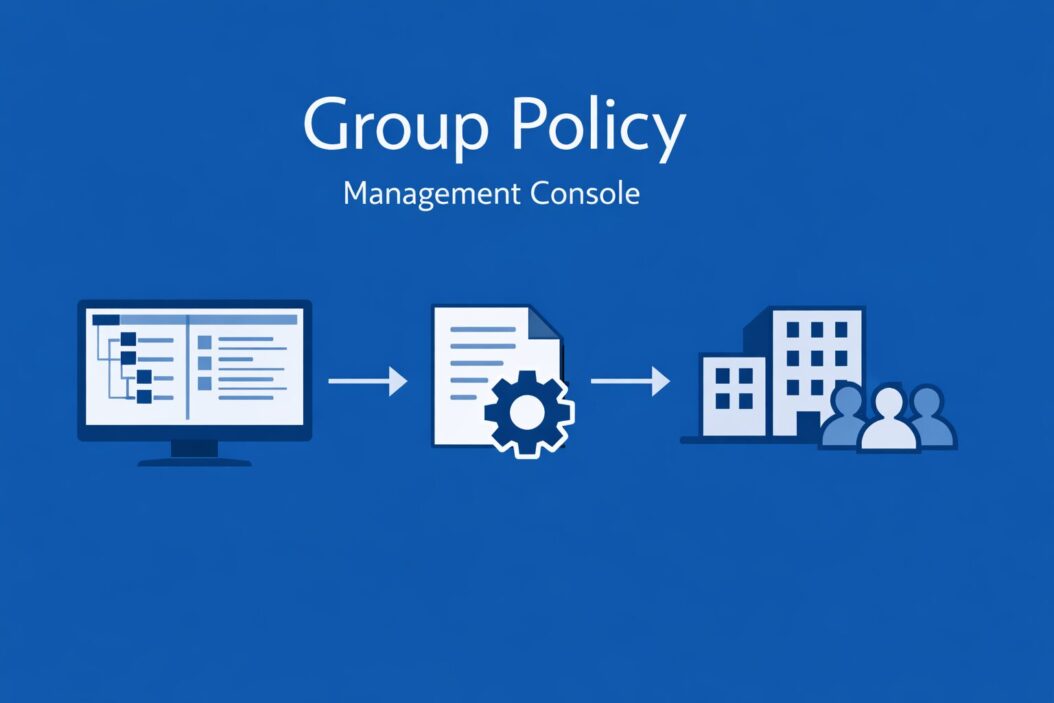
Group Policy Management Console (GPMC) is a free Microsoft tool that lets you manage Group Policy Objects across your entire Active Directory environment from one place. You open it by running gpmc.msc in the Run dialog or Command Prompt. That is the short answer. Now let us go deep so you actually know how to use it.
What Is gpmc.msc and Why It Matters
If you manage Windows computers in a business or school, you need Group Policy. It controls hundreds of settings: password rules, software restrictions, desktop lockdowns, firewall configurations, and much more.
Before GPMC existed, managing these policies was painful. You had to jump between different tools and consoles. GPMC brought everything into one unified interface.
GPMC works with Active Directory. It connects to your domain and shows you every Group Policy Object (GPO), every site, domain, and Organizational Unit (OU). You can create, edit, link, back up, and restore GPOs all from this single console.
Key point: gpmc.msc does not work on standalone computers. You need an Active Directory domain environment.
System Requirements and How to Open gpmc.msc
Where Is GPMC Available
GPMC is built into:
- Windows Server 2008 and all later Server versions
- Windows 10 Pro, Enterprise, and Education
- Windows 11 Pro, Enterprise, and Education
- Windows 7 and 8.1 Professional and Enterprise editions
It is NOT included in Windows Home editions.
How to Install GPMC on Windows 10 or 11
If you are on a domain-joined workstation and GPMC is not already installed:
- Open Control Panel
- Go to Programs then Turn Windows features on or off
- Expand Remote Server Administration Tools
- Expand Feature Administration Tools
- Check Group Policy Management Tools
- Click OK and wait for installation
Alternatively, open PowerShell as Administrator and run:
Add-WindowsCapability -Online -Name Rsat.GroupPolicy.Management.Tools~~~~0.0.1.0
How to Open GPMC
You have several options:
- Press Win + R, type gpmc.msc, press Enter
- Open Command Prompt and type gpmc.msc
- Search “Group Policy Management” in the Start menu
- Open Server Manager, go to Tools, click Group Policy Management
Understanding the GPMC Interface
When GPMC opens, you see a tree structure on the left and a details pane on the right.
The Left Panel Tree Structure
| Node | What It Shows |
|---|---|
| Forest | The top level of your AD structure |
| Domains | Your domain(s) listed underneath |
| Sites | AD sites for managing by physical location |
| Group Policy Objects | All GPOs in the domain |
| WMI Filters | Windows Management Instrumentation filters |
| Starter GPOs | Pre-configured GPO templates |
The Right Panel
This changes depending on what you click on the left. If you click a GPO, you see tabs like Scope, Details, Settings, Delegation, and Status.
If you click a domain or OU, you see linked GPOs, inheritance settings, and delegation options.
Core Concepts You Must Understand
What Is a GPO
A Group Policy Object is a container that holds policy settings. Each GPO has two sections:
- Computer Configuration: Settings that apply to the computer regardless of who logs in
- User Configuration: Settings that apply to the user regardless of which computer they use
GPO Scope and Linking
Creating a GPO does nothing by itself. You must link it to a site, domain, or OU. When you link a GPO to an OU, every user and computer inside that OU gets the policy.
GPO Inheritance
Policies flow from top to bottom:
- Local Computer Policy
- Site Level
- Domain Level
- OU Level
- Child OU Level
Lower-level GPOs can override higher ones unless you use enforcement. This matters when troubleshooting.
GPO Processing Order (LSDOU)
The acronym LSDOU helps you remember the order: Local, Site, Domain, OU. The last policy applied wins. So OU-level settings win over domain-level settings in most cases.
How to Create a New GPO in GPMC
Step 1: Open GPMC
Run gpmc.msc and connect to your domain.
Step 2: Navigate to Group Policy Objects
Expand your forest, expand your domain, then click Group Policy Objects in the left panel.
Step 3: Create the GPO
Right-click Group Policy Objects and select New. Type a descriptive name. Be specific. “Disable USB Storage – Workstations” is better than “GPO1”.
Step 4: Edit the GPO
Right-click the new GPO and select Edit. This opens the Group Policy Management Editor. Now you can configure settings inside Computer Configuration or User Configuration.
Step 5: Link the GPO
After editing, go back to GPMC. Right-click the OU where you want this policy applied. Select Link an Existing GPO. Choose your GPO from the list.
Step 6: Confirm the Link
Click the OU in the left panel. In the right panel under the Linked Group Policy Objects tab, you will see your GPO listed.
How to Edit an Existing GPO
- In GPMC, expand Group Policy Objects
- Right-click the GPO you want to edit
- Select Edit
- The Group Policy Management Editor opens
- Navigate to the setting you want to change
- Double-click a setting to configure it
- Set it to Enabled, Disabled, or Not Configured
- Click OK
Changes take effect on client computers after Group Policy refreshes. This happens automatically every 90 minutes with a random offset of 0 to 30 minutes. You can force an immediate refresh on a client by running gpupdate /force in Command Prompt.
Managing GPO Links
Linking a GPO to an OU
Right-click the OU in GPMC and select Link an Existing GPO. Select the GPO. Done.
Changing Link Order
When multiple GPOs are linked to the same OU, the link order matters. GPO with link order 1 is processed last, meaning it wins. You can drag GPOs up and down in the Linked Group Policy Objects tab to change the order.
Disabling a GPO Link
Right-click the linked GPO under the OU and select Link Enabled to toggle it off. This keeps the GPO but stops it from applying. Useful for testing.
Removing a GPO Link
Right-click the linked GPO and select Delete. This removes the link only. The GPO still exists in the Group Policy Objects container. If you want to permanently delete the GPO, right-click it there and select Delete.
GPO Filtering: Controlling Who Gets the Policy
Security Filtering
By default, every GPO applies to Authenticated Users. You can change this.
- Click the GPO in GPMC
- Go to the Scope tab
- Under Security Filtering, remove Authenticated Users
- Click Add and choose a specific group or user
Now only members of that group get the policy. This is called security filtering and is very useful for targeting specific groups within an OU.
WMI Filtering
WMI filters let you target policies based on hardware or software properties. For example, apply a policy only to laptops, or only to computers with less than 8GB of RAM.
- Right-click WMI Filters in GPMC and create a new filter
- Write a WMI query (for example:
SELECT * FROM Win32_Batteryto target laptops) - Link the WMI filter to a GPO by selecting it in the GPO’s Scope tab under WMI Filtering
WMI filters slow down Group Policy processing slightly. Use them only when needed.
Backing Up and Restoring GPOs
Backing up GPOs is something many administrators forget until disaster strikes.
How to Back Up a Single GPO
- Right-click the GPO in GPMC
- Select Back Up
- Choose a folder location
- Add a description
- Click Back Up
How to Back Up All GPOs
- Right-click Group Policy Objects
- Select Back Up All
- Choose a folder and click Back Up
The backup creates a folder with a GUID name for each GPO. Inside you will find the GPO settings in XML format, plus security information and WMI filter links.
How to Restore a GPO
- Right-click Group Policy Objects and select Manage Backups
- Browse to your backup folder
- Select the GPO backup you want to restore
- Click Restore
You can also restore a GPO from backup when creating a new one by choosing New GPO from Backup during creation.
Copying and Importing GPOs
Copying a GPO
Right-click a GPO in GPMC and select Copy. Then right-click Group Policy Objects and select Paste. Useful when you want to duplicate a working configuration.
Importing Settings
Import lets you bring settings from a backed-up GPO into an existing GPO without replacing the target GPO entirely. Right-click the destination GPO and select Import Settings. Follow the wizard.
This is handy when migrating settings between domains or test environments.
Viewing GPO Settings and Reports
Viewing Settings in GPMC
Click any GPO in GPMC and go to the Settings tab. GPMC generates an HTML report showing all configured settings. If the tab is blank, right-click and choose Show All or check that Internet Explorer Enhanced Security Configuration is not blocking the report.
Running Group Policy Results (RSoP)
Group Policy Results shows you the effective policy for a specific user on a specific computer. It reflects what actually applied.
- Right-click Group Policy Results in GPMC
- Select Group Policy Results Wizard
- Choose the computer and user you want to analyze
- The wizard generates a report showing every setting and which GPO it came from
Running Group Policy Modeling
Group Policy Modeling lets you simulate what would happen before you deploy a policy. You specify a user, a computer, an OU, and any changes you plan to make. GPMC simulates the outcome without actually applying anything.
- Right-click Group Policy Modeling in GPMC
- Select Group Policy Modeling Wizard
- Choose domain controller, user, computer, and OU
- Add any simulated changes (moving to a new OU, adding to a group)
- Review the simulated result
This is one of the most underused and most valuable features in GPMC.
Delegation in GPMC
You can give other people specific permissions in GPMC without making them full Domain Admins.
Delegating GPO Creation Rights
- Click Group Policy Objects in GPMC
- Go to the Delegation tab on the right
- Click Add and choose a user or group
- Set the permission level
Delegating GPO Management on an OU
- Click the OU in GPMC
- Go to the Delegation tab
- Click Add, choose a user or group
- Choose the permission: link GPOs, perform Group Policy Modeling analysis, or read Group Policy results data
This lets helpdesk staff run RSoP reports without giving them edit rights on GPOs.
Common Real-World Group Policy Tasks
Mapping Network Drives
User Configuration then Preferences then Windows Settings then Drive Maps
Right-click, select New, then Mapped Drive. Set the drive letter and UNC path. Use item-level targeting to apply to specific groups.
Deploying Software
Computer Configuration then Policies then Software Settings then Software Installation
Right-click, select New then Package. Browse to an MSI file on a network share. Software deploys on next computer startup.
Setting Desktop Wallpaper
User Configuration then Policies then Administrative Templates then Desktop then Desktop
Enable Desktop Wallpaper and enter the UNC path to the image file.
Disabling USB Storage
Computer Configuration then Policies then Administrative Templates then System then Removable Storage Access
Enable All Removable Storage classes: Deny all access.
Password Policy
Computer Configuration then Policies then Windows Settings then Security Settings then Account Policies then Password Policy
Set minimum length, complexity, and age requirements here. Note that password policy only works at the domain level unless you use Fine-Grained Password Policies through ADAC.
Troubleshooting Group Policy Issues
Policy Not Applying
Check these things in order:
- Is the GPO linked to the correct OU?
- Is the user or computer actually in that OU?
- Is security filtering set correctly? Does the user have Read and Apply Group Policy permissions?
- Is there a WMI filter blocking the GPO?
- Is the GPO link enabled?
- Is the GPO enforced or is it being blocked?
Run gpresult /r on the client machine to see what is applying. Run gpresult /h report.html to get a full HTML report.
Checking GPO Status on the Client
Open Command Prompt on the client and run:
gpresult /r
This shows applied GPOs and any errors. Look for GPOs listed under “Denied GPOs” to find filtering issues.
Replication Issues
GPOs are stored in two places: the SYSVOL folder (replicated by DFS-R or FRS) and the AD database. If these get out of sync, policies behave inconsistently.
Check SYSVOL replication health using dfsrdiag or review the DFS Replication event log. For deeper reading on GPO troubleshooting methodology, the Microsoft Group Policy troubleshooting guide is the authoritative reference.
Group Policy Preferences vs. Group Policy Settings
Many people confuse these two. They are different.
| Feature | Group Policy Settings | Group Policy Preferences |
|---|---|---|
| Enforcement | Enforced, user cannot change | Applied as default, user can change |
| Removal behavior | Reverted when GPO removed | Remains after GPO removal |
| Targeting | WMI filters, security groups | Item-level targeting (very granular) |
| Use case | Security configurations | Desktop preferences, drive maps, printers |
Preferences are found under Preferences nodes in both Computer and User Configuration sections. They are more flexible but less enforced.
GPMC and PowerShell
You can manage Group Policy with PowerShell using the GroupPolicy module. This module comes with GPMC.
Common commands:
Get-GPO -All
New-GPO -Name "My New GPO"
New-GPLink -Name "My New GPO" -Target "OU=Workstations,DC=company,DC=com"
Get-GPOReport -Name "My New GPO" -ReportType HTML -Path C:\report.html
Backup-GPO -All -Path C:\GPOBackups
Restore-GPO -Name "My New GPO" -Path C:\GPOBackups
PowerShell automation is essential when managing large environments. For learning PowerShell Group Policy commands in depth, the PowerShell GroupPolicy module documentation covers every cmdlet with examples.
Security Best Practices for Group Policy
- Always test GPOs in a test OU before linking to production
- Use descriptive GPO names with a naming convention
- Do not edit the Default Domain Policy or Default Domain Controllers Policy directly. Create new GPOs for your changes
- Back up all GPOs weekly at minimum
- Audit GPO changes by enabling Advanced Audit Policy for Directory Service Changes
- Use the least privilege principle when delegating GPO management
- Avoid using the Block Inheritance option excessively as it makes policy flow hard to follow
- Document every GPO and what it does
GPMC Keyboard Shortcuts and Tips
| Action | How to Do It |
|---|---|
| Refresh GPMC display | Press F5 |
| Open Group Policy Editor | Right-click GPO, select Edit |
| Search for a GPO | Click Group Policy Objects, use the search box |
| View effective policy | Use Group Policy Results wizard |
| Simulate policy changes | Use Group Policy Modeling wizard |
Conclusion
GPMC (gpmc.msc) is the central tool for managing Windows environments at scale. Once you understand the tree structure, GPO creation, linking, filtering, and troubleshooting, you can control thousands of computers from a single console.
The most important habits: name your GPOs clearly, always test before deploying to production, back them up regularly, and use Group Policy Results and Modeling to verify behavior before and after changes.
Whether you are locking down USB ports, mapping drives, deploying software, or enforcing password policies, GPMC is where it all happens. Learn it well and it will save you enormous time and prevent countless user issues.
Frequently Asked Questions
What is the difference between gpmc.msc and gpedit.msc?
gpedit.msc is the Local Group Policy Editor. It only manages policies on the local computer where you run it. It has no connection to Active Directory. gpmc.msc is the Group Policy Management Console and manages policies across your entire Active Directory domain. If you are in a domain environment, gpmc.msc is the correct tool. If you are on a standalone computer with no domain, gpedit.msc is what you use.
How do I force Group Policy to apply immediately?
On the client computer, open Command Prompt as Administrator and run gpupdate /force. This triggers an immediate Group Policy refresh for both Computer and User configuration. Some settings like software deployment and folder redirection still require a logoff or restart to fully apply.
Why does a GPO show in GPMC but not apply to users?
The most common reasons are: the user does not have Read and Apply Group Policy permissions on the GPO, a WMI filter is excluding the computer, the user or computer is in a different OU than where the GPO is linked, or Block Inheritance is enabled on the target OU. Use the Group Policy Results wizard in GPMC to see exactly which GPOs applied and which were denied, and why.
Can I use GPMC without being a Domain Admin?
Yes. You can delegate specific GPMC permissions to non-admin users. For example, you can grant a helpdesk user the right to read Group Policy results for troubleshooting, or allow a department IT person to link GPOs to a specific OU. Full GPO editing and creation rights typically stay with Domain Admins or a delegated Group Policy Administrators group.
What happens to computers when a GPO is deleted?
It depends on the setting type. For Group Policy Settings (the enforcement type), most settings revert to their previous state once the GPO is removed and Group Policy refreshes. For Group Policy Preferences, the settings remain on the computer even after the GPO is deleted because preferences are applied as defaults rather than enforced. Always test GPO removal in a lab environment before doing it in production.

- How to Uninstall Apps from the Start Menu in Windows 11/10 (2026 Guide) - April 2, 2026
- How to Fix Overscan on Windows 11/10: Stop Your Screen Getting Cut Off (2026) - April 1, 2026
- How to Disable Lock Screen on Windows 11/10 in 2026 - April 1, 2026