
Mouse acceleration is one of those settings most people never touch, and yet it quietly ruins aiming, drawing, and precise cursor work for millions of users. If your mouse cursor moves farther than expected when you flick it fast, you are experiencing mouse acceleration. Turning it off takes less than two minutes on Windows, and the difference feels immediate.
This guide walks you through exactly how to turn off mouse acceleration on Windows, explains what it actually does, and shows you when keeping it on might make sense.
What Is Mouse Acceleration?
Mouse acceleration is a Windows feature that makes your cursor travel farther when you move your mouse quickly, and shorter when you move it slowly, beyond the simple 1:1 ratio of physical movement to cursor movement.
In plain terms: the harder you flick your mouse, the farther the cursor jumps. It is not just about speed. The distance your cursor travels depends on how fast you moved the mouse, not just how far you physically moved it.
This breaks what is called muscle memory. Gamers, graphic designers, and anyone doing precise work on screen needs consistent cursor behavior. When acceleration is on, you never fully know where your cursor will land because the outcome changes based on your movement speed.
How to Turn Off Mouse Acceleration on Windows (Step by Step)
Method 1: Through Windows Settings (Windows 10 and 11)
This is the fastest way and works on most modern Windows machines.
Step 1. Press the Windows key, type “mouse settings,” and press Enter.
Step 2. In the Mouse Settings window, click on “Additional mouse settings“ (on Windows 11, this may say “Additional mouse options” and appear on the right side of the screen).
Step 3. A new window called Mouse Properties will open. Click the “Pointer Options” tab at the top.
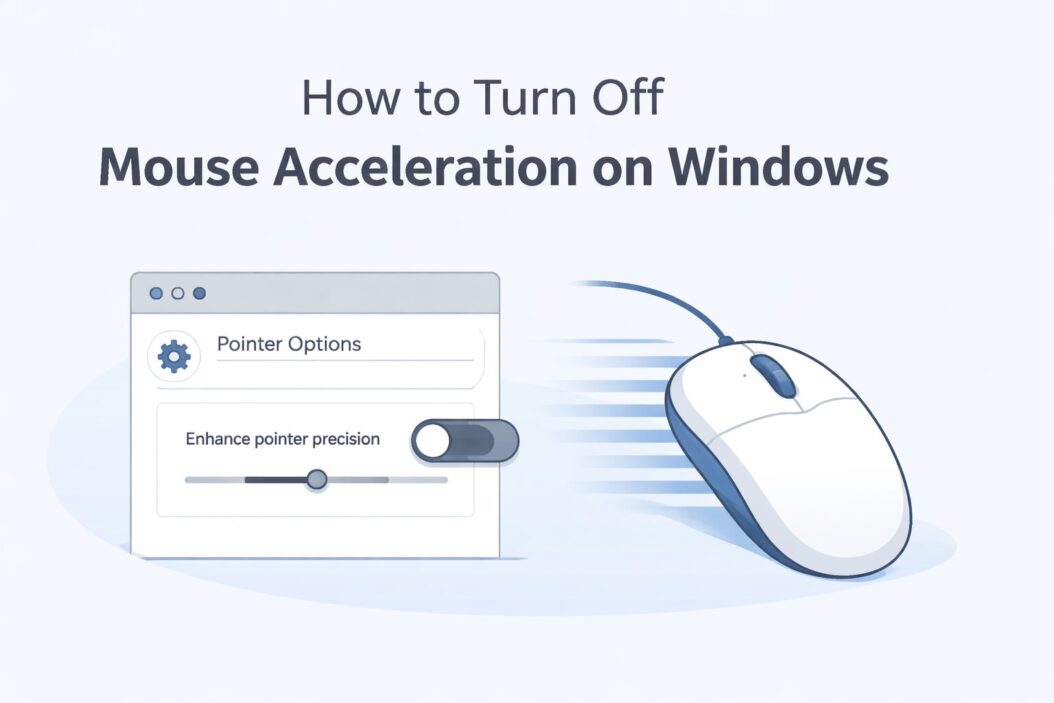
Step 4. Look for the section labeled “Motion.” You will see a checkbox that says “Enhance pointer precision.”
Step 5. Uncheck that box.
Step 6. Click Apply, then click OK.
That is it. “Enhance pointer precision” is Microsoft’s name for mouse acceleration. Unchecking it disables the feature entirely.
Method 2: Through Control Panel (Works on All Windows Versions)
If you cannot find the setting through the Settings app, use the classic Control Panel.
Step 1. Press Windows + R to open the Run dialog.
Step 2. Type control and press Enter.
Step 3. In Control Panel, go to Hardware and Sound, then click Mouse.
Step 4. Click the Pointer Options tab.
Step 5. Uncheck “Enhance pointer precision.”
Step 6. Click Apply and OK.
Method 3: Using the Registry Editor (Advanced Users)
If you want to fully disable acceleration at a deeper level, you can edit the Windows Registry. This is optional and only needed in rare cases where the checkbox method does not fully work.
Warning: Editing the registry incorrectly can cause system issues. Make a backup first by going to File > Export in Registry Editor.
Step 1. Press Windows + R, type regedit, and press Enter.
Step 2. Navigate to this path:
HKEY_CURRENT_USER\Control Panel\Mouse
Step 3. Find the value named MouseSpeed and double-click it. Set the value to 0.
Step 4. Also set MouseThreshold1 to 0 and MouseThreshold2 to 0.
Step 5. Close Registry Editor and restart your computer.
These three values control acceleration behavior at the system level. Setting all three to 0 ensures acceleration is fully off.
Windows Mouse Acceleration Settings at a Glance
| Setting | Location | What It Does |
|---|---|---|
| Enhance pointer precision | Mouse Properties > Pointer Options | Main toggle for mouse acceleration |
| MouseSpeed | Registry: HKCU\Control Panel\Mouse | Controls acceleration algorithm (0 = off) |
| MouseThreshold1 | Registry | First speed threshold for acceleration curve |
| MouseThreshold2 | Registry | Second speed threshold for acceleration curve |
| Pointer Speed slider | Mouse Properties > Pointer Options | Controls DPI scaling, not acceleration |
How to Verify Acceleration Is Actually Off
After disabling it, here is a quick test:
Place your mouse on one side of your mousepad. Move it slowly to the other side and note where your cursor lands on screen. Now reset and move the same physical distance quickly. If your cursor lands in the same spot both times, acceleration is off. If the fast movement sends your cursor farther, something is still active.
For gamers, most games have their own acceleration setting inside the game or engine. Even if Windows acceleration is off, in-game acceleration can still be on. Check your game’s sensitivity or input settings separately.
Should You Turn Off Mouse Acceleration?
For most users, yes. Here is a simple breakdown:
Turn off acceleration if you:
- Play first-person shooters or competitive games where aim consistency matters
- Do graphic design, photo editing, or illustration work
- Use CAD or precision software
- Want predictable, repeatable mouse movement
You might keep it on if you:
- Use a very small mousepad and need the cursor to reach far corners of your screen
- Have accessibility needs that benefit from the extra range
- Work mostly on a laptop trackpad (acceleration is handled differently there)
For the overwhelming majority of desktop users with a dedicated mouse, turning it off results in more accurate and consistent cursor control. According to Blur Busters, precise input is foundational to a smooth, responsive computing experience, and disabling acceleration is one of the first steps professionals recommend.
Does Turning Off Mouse Acceleration Affect Pointer Speed?
No. The pointer speed slider in Mouse Properties is separate from acceleration. That slider adjusts how many pixels your cursor moves per inch of physical mouse movement. It is essentially a sensitivity multiplier.
You can set your pointer speed to whatever feels comfortable. Turning off acceleration does not change that setting. Many gamers prefer to set pointer speed at exactly the midpoint (6 out of 11 on the Windows slider) because that slider at its default position applies no additional scaling beyond your mouse’s native DPI.
What About Raw Input in Games?
Most modern PC games offer a “raw input” option in their settings. When raw input is enabled, the game bypasses Windows entirely and reads your mouse directly. This means Windows acceleration settings do not matter for that game at all.
If you see “raw input” or “raw mouse input” in your game settings, turn it on. It guarantees no acceleration regardless of your Windows settings. Games like Valorant, CS2, and Quake use raw input by default.
If raw input is not available in your game, then disabling Windows acceleration becomes critical for consistent aiming.
You can learn more about how Windows processes mouse input from Microsoft’s official input documentation.
Common Issues After Disabling Mouse Acceleration
“My cursor feels too slow now.” Increase your pointer speed in Mouse Properties or bump up your mouse’s DPI through its software. Do not re-enable acceleration to fix speed. Fix speed with the speed slider or hardware DPI.
“The setting keeps turning back on.” Some software, especially gaming software like Razer Synapse or Logitech G Hub, can override Windows mouse settings. Check your mouse software and look for any acceleration or “Smart” movement options inside it and disable them there too.
“I disabled it but games still feel weird.” Check if your game has its own acceleration setting. Also verify the game is not running with administrator privileges that bypass your user settings, and consider enabling raw input inside the game.
“I use a gaming mouse with onboard DPI. Does that matter?” Your mouse’s hardware DPI is independent of Windows acceleration. Hardware DPI is always a clean 1:1 ratio. Acceleration is a software layer on top. Disabling Windows acceleration removes that software layer, letting your hardware DPI work cleanly.
Mouse Acceleration: On vs. Off Comparison
| Feature | Acceleration On | Acceleration Off |
|---|---|---|
| Cursor behavior | Speed-dependent distance | Distance-only dependent |
| Muscle memory | Hard to build | Easy to build |
| Aiming consistency | Inconsistent | Consistent |
| Best for | Casual browsing | Gaming, design, precision |
| Cursor predictability | Low | High |
Conclusion
Turning off mouse acceleration on Windows is a two-minute fix that makes a real difference. Go to Mouse Properties, click the Pointer Options tab, and uncheck “Enhance pointer precision.” That single checkbox is responsible for the unpredictable cursor behavior that trips up gamers and designers alike.
If you want deeper control, set MouseSpeed, MouseThreshold1, and MouseThreshold2 to 0 in the registry. For games, enable raw input inside the game settings as well.
Once acceleration is off, your cursor will move exactly as far as your hand moved the mouse, every single time, no matter how fast or slow you move it. Consistent, predictable, reliable.
Frequently Asked Questions
What does “Enhance pointer precision” mean in Windows?
“Enhance pointer precision” is Windows’ official name for mouse acceleration. When it is checked, Windows adjusts how far your cursor travels based on how fast you move your mouse, not just how far. Unchecking it disables this behavior and gives you a pure 1:1 ratio between physical mouse movement and cursor movement.
Does turning off mouse acceleration improve gaming performance?
It does not improve your hardware performance, but it significantly improves aim consistency. When acceleration is off, you move your mouse the same distance every time you want to reach a specific target. Over time, this builds muscle memory that makes you more accurate in games, especially in first-person shooters.
Will disabling mouse acceleration make my cursor feel slower?
It can feel that way at first, especially if you had acceleration on for a long time and got used to fast flicks sending your cursor across the screen. The actual pointer speed has not changed, but the feel has. If it is genuinely too slow, raise your DPI in your mouse’s software or adjust the pointer speed slider in Windows settings.
Do I need to restart my computer after disabling mouse acceleration?
For the standard checkbox method through Mouse Properties, no restart is needed. The change applies immediately. If you edited the registry manually, a restart or at least a log-out and log back in is recommended to make sure the changes take effect properly.
Is mouse acceleration disabled by default in Windows 11?
No. Windows 11 ships with “Enhance pointer precision” enabled by default. Microsoft keeps it on because it feels smoother to average users navigating a desktop. But for anyone doing precision work or gaming, it should be turned off manually using the steps in this guide.

- How to Fix Overscan on Windows 11/10: Stop Your Screen Getting Cut Off (2026) - April 1, 2026
- How to Disable Lock Screen on Windows 11/10 in 2026 - April 1, 2026
- Top 7 NFT Integration Ideas for Brands in 2026 - March 31, 2026