
OneNote sync issues are frustrating. You update a note on your laptop, then grab your phone and nothing is there. This guide fixes that.
Here is the short answer: OneNote syncs through your Microsoft account via OneDrive. If sync is broken, it is almost always because of a sign-in mismatch, a wrong notebook location, or a setting that got turned off. Read on and you will have it working in minutes.
What You Need Before Syncing OneNote
Before touching any settings, confirm you have these three things:
- One Microsoft account used on every device
- OneDrive enabled on each device (this is the backbone of OneNote sync)
- An internet connection when syncing for the first time
If your notebooks are saved locally (on your hard drive, not OneDrive), they will never sync automatically. That is the number one reason sync fails silently.
How OneNote Sync Actually Works
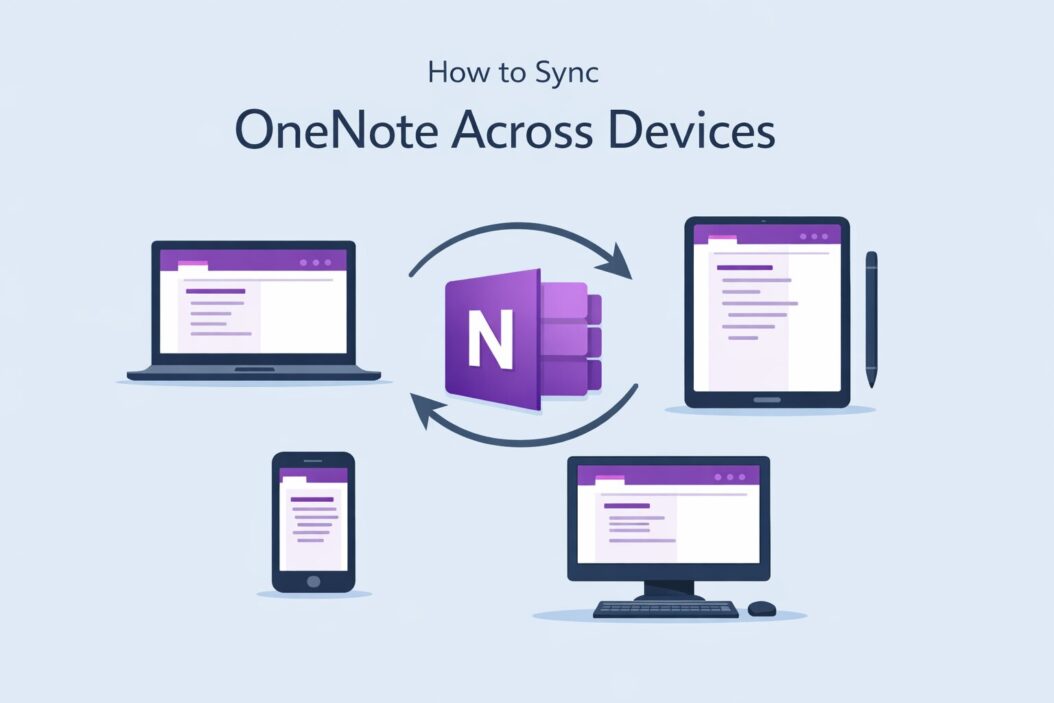
OneNote does not sync device to device directly. It uses OneDrive as the middleman.
When you write something on your laptop, OneNote pushes that change to OneDrive. When you open OneNote on your phone, it pulls that change from OneDrive. Remove OneDrive from that equation and sync stops completely.
This matters because:
- Notebooks stored in local folders do not sync
- Notebooks stored in SharePoint or work OneDrive accounts sync separately from personal ones
- Free Microsoft accounts come with 5 GB of OneDrive storage, which is enough for most users
How to Sync OneNote Across Devices: Step by Step
Step 1: Make Sure You Are Signed Into the Same Account Everywhere
This sounds obvious, but many people have two Microsoft accounts (a personal one and a work one) and do not realize they are using different ones on different devices.
On Windows:
- Open OneNote
- Click your profile picture or name in the top right corner
- Check which email address is displayed
- Do the same on your other device and confirm they match
On iPhone or Android:
- Open OneNote
- Tap the three lines (menu) in the top left
- Tap your profile name at the top
- You will see which account is active
If the accounts do not match, sign out and sign back in with the correct one.
Step 2: Move Your Notebooks to OneDrive
If your notebook is stored locally, you need to move it to OneDrive.
In OneNote for Windows 10 or 11:
- Right-click the notebook name in the left panel
- Select Properties
- Look at the location. If it shows a local path like
C:\Users\..., it is not syncing - Click Change Location
- Choose a OneDrive folder and save it there
After moving, give it a minute. OneNote will start uploading to the cloud automatically.
Step 3: Enable Sync in OneNote Settings
Sometimes sync gets switched off, especially after updates.
On Windows (OneNote app):
- Go to File
- Click Options
- Select Sync
- Make sure “Sync notebooks automatically” is checked
- You can also choose “Sync all files and images”
On Mac:
- Open OneNote
- Go to OneNote in the menu bar
- Click Preferences
- Select Sync
- Turn on automatic sync
On iPhone/Android:
- Open device Settings
- Find OneNote in your app list
- Make sure background app refresh (iOS) or background data (Android) is turned on
Step 4: Force a Manual Sync
If automatic sync feels slow or stuck, force it manually.
Windows: Press Shift + F9 to sync the current notebook. Press F9 to sync all notebooks.
Mac: Go to File and click Sync All Notebooks.
iPhone/Android: Pull down on the notebook list to trigger a manual refresh. Or tap the three dots next to a notebook and choose Sync Now.
Step 5: Open the Notebook on Each Device
Sync does not happen on a device unless OneNote is installed and the notebook is actually opened there. Go to your second device, open OneNote, and if the notebook is not listed, you need to add it.
On Windows or Mac:
- Open OneNote
- Go to File > Open
- Select OneDrive
- Browse to your notebook and open it
On Mobile:
- Open OneNote
- Tap the + icon or go to Open More Notebooks
- Sign in to OneDrive and select your notebook
Once opened, it will appear in your list from that point forward and sync automatically.
Syncing OneNote for Work or School Accounts
Work and school accounts use Microsoft 365 and store notebooks in OneDrive for Business or SharePoint. The process is slightly different.
| Feature | Personal Account | Work/School Account |
|---|---|---|
| Storage location | Personal OneDrive | OneDrive for Business / SharePoint |
| Sync method | Microsoft account | Microsoft 365 organization account |
| Admin control | None | IT department may restrict sync |
| Shared notebooks | Limited | Full collaboration features |
If you cannot sync work notebooks on a personal device, your IT department may have blocked external sync. Contact them directly.
Common OneNote Sync Problems and How to Fix Them
Sync Error: “We’re having trouble syncing your notebook”
This usually means OneNote lost connection to OneDrive.
Fix:
- Sign out of OneNote completely
- Restart the app
- Sign back in
- Wait 2-3 minutes
If that does not work, open OneDrive on your device and check if it is running and signed in.
Notebook Shows as “Not Yet Synced”
This happens when a notebook was created offline and never pushed to OneDrive.
Fix:
- Make sure you are connected to the internet
- Right-click the notebook
- Select Sync This Notebook Now
Changes Not Appearing on Other Devices
This is often a caching issue.
Fix:
- On the device that is not updating, close OneNote completely
- Reopen it
- Force a manual sync using the shortcut or menu option
- If still stuck, sign out and sign back in
OneNote on Mobile Not Syncing
Fix:
- Check that background app refresh is on (iOS: Settings > OneNote > Background App Refresh)
- Check that Wi-Fi or mobile data is working
- Delete and reinstall the app if sync never works on that device
Duplicate Pages or Content Conflicts
When the same page is edited on two devices before either syncs, OneNote creates a duplicate with a conflict notice.
Fix: You will see a section called “Notebook Recycle Bin” or a page flagged as a conflict. Open both versions, decide which one to keep, and delete the other. OneNote does not auto-merge conflicting edits.
OneNote Sync Settings Worth Knowing
| Setting | Where to Find It | What It Does |
|---|---|---|
| Sync automatically | File > Options > Sync (Windows) | Keeps notebooks updated without manual action |
| Sync all files and images | File > Options > Sync (Windows) | Downloads embedded files for offline use |
| Background app refresh | iOS Settings | Lets OneNote update while app is closed |
| Background data | Android Settings | Same as above for Android |
| Download all files | Mobile app settings | Stores full notebooks offline |
Syncing Across Specific Devices
Windows to iPhone
- Confirm the same Microsoft account is used on both
- Install OneNote from the App Store on iPhone
- Sign in with your Microsoft account
- Your notebooks will appear within a minute
Windows to Android
Same process. Install OneNote from the Google Play Store, sign in, and your notebooks populate automatically.
Mac to Windows
Use the same Microsoft account on both. Notebooks stored in OneDrive will appear on both platforms without extra steps.
iPad to Windows
iPad and Windows sync identically to iPhone and Windows. The iPad version of OneNote is feature-rich and handles sync well as of 2026.
Tips to Keep OneNote Syncing Smoothly
- Do not store notebooks locally. Always save to OneDrive.
- Stay signed in. Signing out stops sync until you sign back in.
- Keep the app updated. Old versions of OneNote have known sync bugs.
- Avoid editing the same page on two devices at once. This creates conflicts.
- Use one account. Mixing personal and work accounts across devices causes confusion.
Microsoft’s own sync troubleshooting guide at support.microsoft.com covers some edge cases worth bookmarking.
OneNote Versions: Which One Should You Use in 2026?
There are two versions of OneNote on Windows:
OneNote (Microsoft Store version): The current, actively developed version. Use this.
OneNote 2016: An older desktop version. Microsoft has shifted focus away from it. It still works but gets fewer updates.
On Mac, iPhone, and Android, there is only one version. Use it.
The Microsoft Store version of OneNote syncs more reliably and gets regular fixes. If you are on Windows and still using the 2016 version, switching to the newer app often resolves persistent sync problems on its own.
Conclusion
Syncing OneNote across devices is simple once you understand the setup. Everything runs through OneDrive and your Microsoft account. The most common problems come down to using the wrong account, storing notebooks locally, or having sync turned off.
Start with one check: open OneNote on two devices and confirm the same Microsoft account is active on both. From there, follow the steps above in order and you will have your notes appearing everywhere within minutes. Once it is set up correctly, you rarely need to think about it again.
Frequently Asked Questions
Why is my OneNote not syncing between devices?
The most common reasons are: you are signed into different Microsoft accounts on different devices, the notebook is saved locally instead of on OneDrive, or sync has been disabled in the app settings. Check all three before anything else.
Does OneNote sync automatically?
Yes, when automatic sync is turned on and the notebook is stored in OneDrive, OneNote syncs in the background whenever you are connected to the internet. You can also force it manually with Shift + F9 on Windows.
Can I sync OneNote without OneDrive?
No. OneDrive is required for sync to work. There is no official way to sync OneNote between devices without it. If you prefer not to use OneDrive, you would need to use a third-party backup solution, but automatic real-time sync will not be available.
How long does OneNote sync take?
For small changes, sync happens in seconds. For large notebooks with many embedded images or files, the first sync can take several minutes. Subsequent syncs are fast because only changes are uploaded, not the whole notebook.
How do I sync a OneNote notebook shared with me?
Open the shared notebook link from email or Teams. It will open in OneNote and be added to your notebook list. From that point forward it syncs just like your own notebooks, as long as you have permission to view or edit it.
