
Hidden columns in Excel can be frustrating, especially when you know the data should be there but the spreadsheet looks like it is missing a chunk. This guide covers every way to show hidden columns in Excel, from the fastest right-click method to more advanced techniques for stubborn cases. Whether you are using Excel 365, Excel 2021, or an older version, these steps work.
The Fastest Way to Unhide Columns in Excel
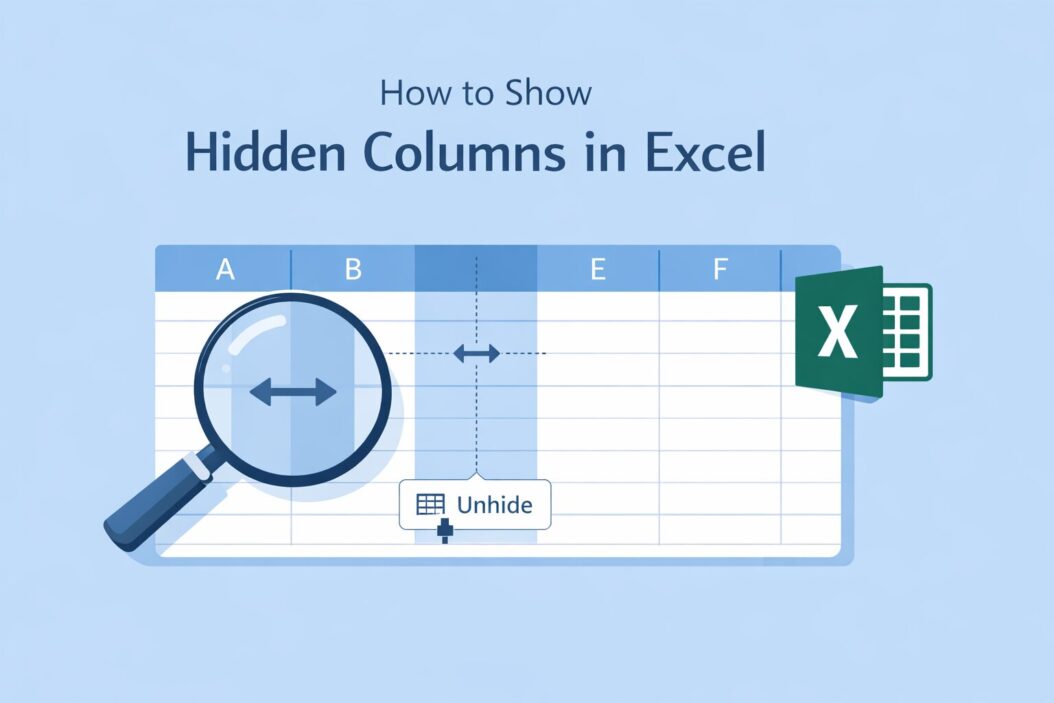
Select the columns on both sides of the hidden one. Right-click the selection. Click Unhide. That is it for most cases.
Here is the exact sequence:
- Click the column letter to the left of the gap (for example, column B).
- Hold Shift and click the column letter to the right of the gap (for example, column D).
- Right-click anywhere in the highlighted area.
- Select Unhide from the context menu.
If column C was hidden, it will now appear.
Why Columns Get Hidden in the First Place
Before diving into more methods, it helps to know why this happens. Columns get hidden by accident (someone dragged a column edge too far), intentionally (to keep the sheet clean or protect data), or through formatting rules. Sometimes a column is hidden by setting its width to zero, which behaves slightly differently than using the standard Hide option.
How to Show Hidden Columns in Excel: All Methods
Method 1: Using Right-Click (Most Common)
This is what most users need.
Steps:
- Click the column header to the left of the hidden column.
- Hold Ctrl and click the column header to the right. Or hold Shift to select everything between.
- Right-click the selected headers.
- Choose Unhide.
Example: Columns A, B, C, E are visible. Column D is hidden. Click C, shift-click E, right-click, unhide.
Method 2: Using the Format Menu (Ribbon)
This works well if right-click is not accessible or you prefer the ribbon.
Steps:
- Select the columns surrounding the hidden one.
- Go to the Home tab.
- Click Format in the Cells group.
- Hover over Hide and Unhide.
- Click Unhide Columns.
Method 3: Unhide All Hidden Columns at Once
If you do not know which columns are hidden, select the entire worksheet first.
Steps:
- Press Ctrl + A to select all cells, or click the triangle in the top-left corner (above row 1, left of column A).
- Right-click any column header.
- Click Unhide.
This reveals every hidden column in the sheet at once.
Method 4: Using the Name Box to Select a Hidden Column
Sometimes columns are hidden and you cannot click around them easily. The Name Box lets you jump directly to a hidden cell.
Steps:
- Click the Name Box (the field showing the current cell address, top-left of the spreadsheet).
- Type a cell address inside the hidden column, for example D1.
- Press Enter.
- Go to Home > Format > Hide and Unhide > Unhide Columns.
This is especially useful when column A is hidden (more on that below).
Method 5: Double-Clicking the Column Border
This is a visual trick. When a column is hidden, the column border between its neighbors is slightly thicker or shows a small double line.
Steps:
- Hover over the border between the two columns that surround the hidden one.
- Your cursor will change to a double-sided arrow with a small line in the middle.
- Double-click to auto-fit the hidden column back to its default width.
Note: This works best when the column was hidden by dragging its width to zero, not by using the Format > Hide command.
Method 6: Set Column Width Manually
If a column has been hidden by setting its width to zero, you can restore it by typing a width value.
Steps:
- Select the columns on either side of the hidden one.
- Go to Home > Format > Column Width.
- Enter a value like 8.43 (Excel’s default width).
- Click OK.
Method 7: Using a Keyboard Shortcut
Excel has a built-in shortcut to unhide columns quickly.
- Select the surrounding columns.
- Press Ctrl + Shift + 0 (zero).
Important: On some Windows systems, this shortcut is disabled by default or overridden by another program. If it does not work, use the right-click method instead. You can re-enable it in Windows keyboard settings if needed.
How to Unhide Column A in Excel (Special Case)
Column A is tricky because there is no column to its left to select. Here is how to handle it.
Method 1: Use the Name Box
- Click the Name Box.
- Type A1 and press Enter.
- Go to Home > Format > Hide and Unhide > Unhide Columns.
Method 2: Select from the Name Box range
- Type A1:B1 in the Name Box and press Enter.
- Now both A and B are selected, even though A is hidden.
- Right-click and choose Unhide.
Method 3: Use Go To
- Press Ctrl + G or F5 to open the Go To dialog.
- Type A1 in the Reference field.
- Click OK.
- Then use Format > Unhide Columns.
How to Show Hidden Columns in Excel Using a Macro
If you manage large files or do this frequently, a simple VBA macro saves time.
Sub UnhideAllColumns()
    Columns.EntireColumn.Hidden = False
End Sub
To run it:
- Press Alt + F11 to open the VBA editor.
- Go to Insert > Module.
- Paste the code above.
- Press F5 or click Run.
This instantly unhides every column in the active sheet. You can also scope it to a specific range:
Sub UnhideRange()
    Range("A:Z").EntireColumn.Hidden = False
End Sub
For anyone working with Excel automation regularly, Microsoft’s official VBA documentation is a solid reference for going deeper with these kinds of scripts.
Excel Unhide Column Methods
| Method | Best For | Speed | Works on Column A? |
|---|---|---|---|
| Right-click > Unhide | Most users, standard cases | Fast | No (need left column) |
| Format > Hide and Unhide | Ribbon preference | Medium | Yes (select surrounding) |
| Select All + Unhide | Unhide everything at once | Fast | Yes |
| Name Box + Format | Column A or unknown location | Medium | Yes |
| Double-click border | Zero-width columns | Fast | No |
| Set Column Width | Zero-width columns | Medium | Yes |
| Ctrl + Shift + 0 | Power users | Very fast | No (need selection) |
| VBA Macro | Bulk or repeated tasks | Very fast | Yes |
What to Do If Unhide Does Not Work
Sometimes you follow all the steps and the column still does not appear. Here are the likely reasons and fixes.
The sheet is protected. If the workbook or sheet has protection enabled, you cannot unhide columns without the password. Go to Review > Unprotect Sheet and enter the password if you have it.
The column width is set to zero. The column is technically not hidden using the Hide command but has a width of 0. Use the Set Column Width method above.
The rows are filtered, not the columns. Double-check that you are looking at columns and not rows. If data seems missing vertically, check for active filters instead.
Group collapse is hiding columns. Excel’s Group feature can collapse sections. Look for small numbered buttons (1, 2, 3) near the top-left of the column headers. Click the highest number to expand all groups. You can also go to Data > Ungroup or press Alt + Shift + Left Arrow to ungroup.
Hidden Columns vs. Grouped Columns
These two features look similar but work differently.
Hidden columns use the Format > Hide command. The column header disappears from view but the data still exists. Excel skips that letter in the header row (A, B, D instead of A, B, C, D).
Grouped columns use the Data > Group feature. A bracket appears above the column headers with a minus sign. Clicking the minus collapses the group. Clicking the plus expands it again.
If you see small number buttons at the top of your spreadsheet (usually labeled 1 and 2), you have grouped columns. Click 2 or the + icon to expand them. This is not the same as hidden columns and requires a different approach to reveal.
How to Prevent Accidental Column Hiding
A few practical habits help keep this from happening repeatedly.
- Lock column widths. Protect the sheet with the option to allow column width changes turned off.
- Use sheet protection selectively. Allow editing of specific ranges while protecting the layout.
- Freeze panes instead of hiding. If you are hiding columns just to keep a cleaner view, try freezing panes so key columns stay visible while you scroll.
According to Microsoft’s Excel support documentation, sheet protection combined with column hiding is one of the most common sources of confusion for users sharing files with colleagues.
How to Check If Any Columns Are Hidden
You do not always know a column is hidden. Here is a quick way to check.
Look at the column headers. If the letters jump (A, B, D, E), column C is hidden. The gap in the alphabet is the giveaway.
Another way: click any cell, then press Ctrl + End. Excel jumps to the last used cell. If the column number seems too large compared to what you see, there may be hidden columns extending beyond your visible area.
You can also use this formula to check if a specific column is hidden:
=CELL("width", C1)
If the result is 0, column C has a width of zero (which means it is effectively hidden even if not formally marked as hidden).
Real-World Example: Shared Workbook with Hidden Data
Imagine you receive a budget spreadsheet from a colleague. It jumps from column B (Q1 Actuals) to column F (Q2 Budget). Columns C, D, and E are hidden. They may contain formulas, notes, or sensitive figures the sender did not want visible.
To reveal them:
- Click column B header.
- Shift-click column F header.
- Right-click and choose Unhide.
Columns C, D, and E reappear instantly. If they do not, the sheet is likely protected. Ask the sender for the password or check Review > Unprotect Sheet.
For more on working with protected Excel workbooks and managing shared files, the ExcelJet guide to Excel protection is a thorough resource.
Summary
Showing hidden columns in Excel is straightforward once you know the right method. For most situations, selecting the columns on either side and right-clicking to Unhide gets the job done in seconds. When that does not work, the issue is usually a zero-width column (fix it with Column Width), sheet protection (fix it with Unprotect Sheet), or grouped columns (fix it with the expand button or Data > Ungroup).
The Name Box method is your best friend for hidden Column A, and a short VBA macro handles bulk unhiding across large workbooks. Keep an eye on the column header letters to spot gaps, and you will catch hidden columns before they cause confusion.
Frequently Asked Questions
Why can’t I unhide columns in Excel even after following the steps?
The most common reason is sheet protection. When a sheet is protected, structural changes like unhiding columns are blocked. Go to Review > Unprotect Sheet. If it asks for a password you do not have, you will need to contact whoever protected the file. Another reason is that the column width is set to zero rather than using the Hide command. In that case, use Format > Column Width and enter a positive number.
How do I unhide column A specifically in Excel?
Click the Name Box (top-left, showing the cell address). Type A1 and press Enter. Then go to Home > Format > Hide and Unhide > Unhide Columns. Alternatively, type A1:B1 in the Name Box, press Enter to select both columns, then right-click and choose Unhide.
What is the keyboard shortcut to unhide columns in Excel?
The shortcut is Ctrl + Shift + 0. Select the columns on both sides of the hidden one first, then press the shortcut. Note that this shortcut is disabled on some Windows configurations. If it does not work, use the right-click method or go through the Home ribbon instead.
How do I unhide all hidden columns in an Excel sheet at once?
Press Ctrl + A to select the entire sheet, or click the triangle in the top-left corner above the row numbers. Then right-click any column header and choose Unhide. This reveals all hidden columns across the entire sheet in one step.
What is the difference between hidden columns and grouped columns in Excel?
Hidden columns are removed from view using Format > Hide. The column letter disappears from the header row. Grouped columns use Excel’s Data > Group feature and show a collapsible bracket above the headers with plus and minus icons. To reveal grouped columns, click the plus icon or the highest number button near the top-left of the spreadsheet. The fix for each is different: right-click Unhide for hidden columns, expand button or Data > Ungroup for grouped columns.
