
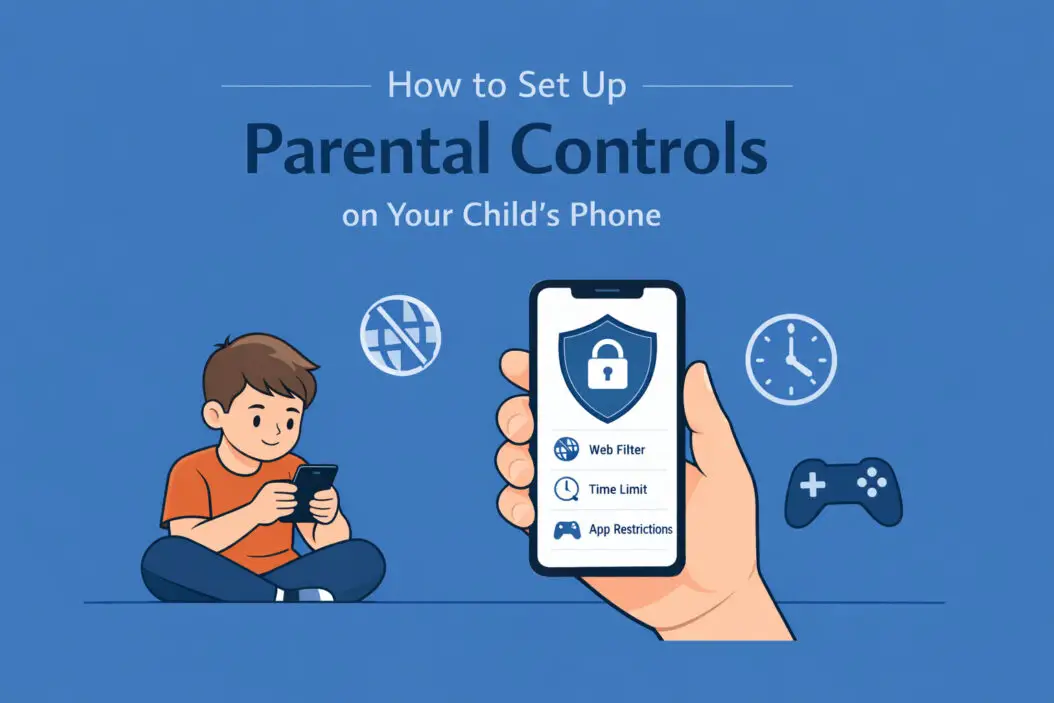
Your child needs a phone for school, emergencies, and staying connected. But you also need to keep them safe online. Parental controls help you manage what your child can access, how long they use their device, and who they communicate with.
This guide walks you through setting up parental controls on both iPhone and Android devices. You’ll learn exactly which settings to adjust, what apps to use, and how to create boundaries that protect your child without completely blocking their digital life.
What Parental Controls Actually Do
Parental controls are software tools built into phones or available through apps. They let you:
- Block inappropriate websites and content
- Set time limits for apps and overall screen time
- Track your child’s location
- Monitor who they text or call
- Restrict app downloads and purchases
- Filter search results
- Block specific contacts
The goal isn’t to spy on your child. It’s to create a safer digital environment that matches their age and maturity level.
Should You Tell Your Child About Parental Controls?
Yes. Being transparent builds trust. Explain that these controls exist to keep them safe, not to invade their privacy. Talk about online dangers like cyberbullying, inappropriate content, and strangers who target kids.
Make it clear that as they get older and prove they can make good decisions, you’ll adjust the controls. This gives them something to work toward.
How to Set Up Parental Controls on iPhone
Apple’s built-in system is called Screen Time. It’s free and powerful.
Step 1: Enable Screen Time
- Open Settings on your child’s iPhone
- Scroll down and tap Screen Time
- Tap Turn On Screen Time
- Select This is My Child’s iPhone
Step 2: Set Up Downtime
Downtime blocks most apps during specific hours, like bedtime or homework time.
- In Screen Time, tap Downtime
- Toggle it on
- Set start and end times (example: 9 PM to 7 AM)
- Choose which days this applies
During downtime, only phone calls and apps you specifically allow will work.
Step 3: Configure App Limits
This controls how long your child can use certain app categories.
- Tap App Limits in Screen Time
- Tap Add Limit
- Choose categories like Social Networking, Games, or Entertainment
- Set the daily time limit
- Tap Add
Your child will get a warning when they have 5 minutes left. When time runs out, the app icon grays out.
Step 4: Block Inappropriate Content
- In Screen Time, tap Content & Privacy Restrictions
- Toggle it on
- Enter a Screen Time passcode (different from the phone unlock code)
- Tap Content Restrictions
Here’s what to set:
Web Content:
- Select Limit Adult Websites (automatically blocks many inappropriate sites)
- Or choose Allowed Websites Only and manually add approved sites
Apps:
- Set age restrictions (4+, 9+, 12+, or 17+)
- This prevents downloading apps above that rating
Movies and TV:
- Choose appropriate age ratings
Music and Podcasts:
- Toggle Explicit to off
Books:
- Toggle Explicit to off
Siri:
- Turn off Web Search Content to prevent Siri from showing inappropriate results
Step 5: Disable In-App Purchases and Downloads
- In Content & Privacy Restrictions, tap iTunes & App Store Purchases
- Set Installing Apps to Don’t Allow
- Set Deleting Apps to Don’t Allow
- Set In-app Purchases to Don’t Allow
This prevents surprise charges and stops your child from downloading apps without permission.
Step 6: Set Communication Limits
- In Screen Time, tap Communication Limits
- Choose who your child can communicate with during Screen Time and During Downtime
- Options include Everyone, Contacts Only, or Specific Contacts
This is crucial for preventing contact with strangers.
Step 7: Enable Family Sharing for Remote Management
Managing controls directly on your child’s phone works, but it’s better to control everything from your own device.
- On your iPhone, open Settings
- Tap your name at the top
- Tap Family Sharing
- Tap Add Member
- Create an Apple ID for your child if they don’t have one
- Follow the prompts to add them
Now you can manage their Screen Time settings from your phone under Settings > Screen Time > [Child’s Name].
iPhone Parental Control Quick Reference Table
| Feature | Where to Find It | What It Does |
|---|---|---|
| Downtime | Screen Time > Downtime | Blocks apps during set hours |
| App Limits | Screen Time > App Limits | Controls daily app usage time |
| Content Restrictions | Screen Time > Content & Privacy | Blocks inappropriate websites, apps, media |
| Communication Limits | Screen Time > Communication Limits | Controls who can contact your child |
| Purchase Controls | Content & Privacy > iTunes & App Store | Prevents unauthorized downloads and purchases |
How to Set Up Parental Controls on Android
Android uses Google Family Link. It’s free and works on phones running Android 7.0 or newer.
Step 1: Download Google Family Link
You need two apps:
- Family Link for parents (on your phone)
- Family Link for children (on your child’s phone)
Download both from the Google Play Store.
Step 2: Set Up Family Link on Your Phone
- Open the Family Link app on your device
- Tap Get Started
- Select Parent
- Sign in with your Google account
- Tap Yes to confirm you’re the parent
- Tap Next
Step 3: Set Up Family Link on Your Child’s Phone
- On your child’s phone, open Family Link
- Tap This device will be used by a child
- Enter the child into your child’s Google account (or create one)
- On your phone, tap Next when it finds your child’s device
- Enter your password to confirm
- Review the permissions on your child’s device
- Tap Allow on each permission screen
- Name the device so you can identify it later
- Complete the setup
Step 4: Configure App and Content Settings
In the Family Link parent app:
- Tap your child’s name
- Tap Controls
- Tap Google Play
Set up these protections:
Apps & Games:
- Choose an age rating (3+, 7+, 12+, 16+, or 18+)
- This blocks downloads above that rating
- Toggle Require approval for all content if you want to approve every app
Movies:
- Select appropriate age rating
TV:
- Select appropriate age rating
Books:
- Choose Show only books suitable for children
Music:
- Toggle Allow music with explicit lyrics off
Step 5: Set Screen Time Limits
- In your child’s profile, tap Controls
- Tap Daily limit
- Set maximum daily usage time
- Or tap Edit daily limits to set different times for each day
You can also set Bedtime to lock the phone during sleeping hours.
Step 6: Manage Apps
- Tap App activity to see what your child uses most
- Tap App limits to set time limits for specific apps
- Block apps by going to Manage apps and toggling them off
Step 7: Filter Web Content
- In Controls, tap Filters on Google
- Under Google Search, toggle SafeSearch on (blocks explicit results)
- Under Google Chrome, tap Manage sites
- Choose Try to block mature sites or Only allow certain sites
- Add specific websites to block or allow
Step 8: Track Location
Family Link includes location tracking.
- In your child’s profile, tap Location
- Toggle Location sharing on
- You’ll see their current location and can set location alerts
This feature requires location services to be enabled on your child’s phone.
Android Parental Control Quick Reference Table
| Feature | Where to Find It | What It Does |
|---|---|---|
| Daily Limits | Controls > Daily limit | Sets total phone usage time |
| Bedtime | Controls > Bedtime | Locks phone during night hours |
| App Approval | Controls > Google Play | Requires permission to download apps |
| Content Filters | Controls > Filters on Google | Blocks inappropriate search results and websites |
| App Limits | Controls > App limits | Controls time spent in specific apps |
| Location | Location tab | Shows where your child’s phone is |
Third-Party Parental Control Apps
Built-in controls work well, but third-party apps offer more features. Consider these options:
Qustodio
- Works on iPhone and Android
- Advanced web filtering
- Social media monitoring
- Detailed activity reports
- Costs around $55 per year for one device
Bark
- Monitors texts, emails, and social media for concerning content
- Alerts you to potential dangers like cyberbullying or depression
- Doesn’t require constant checking
- Costs around $49 per year per child
Net Nanny
- Strong web filtering
- YouTube monitoring
- Profanity masking
- Time management tools
- Costs around $90 per year
Norton Family
- Video supervision for YouTube
- Social network monitoring
- Location tracking
- Free with Norton 360 subscription
According to the Federal Trade Commission, parents should use multiple tools to protect children online, not just rely on one method.
Setting Up Parental Controls for Specific Apps
Some apps need individual attention because built-in controls don’t fully restrict them.
YouTube
On iPhone:
- Open the YouTube app
- Tap your profile picture
- Go to Settings
- Tap General
- Enable Restricted Mode
Better option: Download YouTube Kids instead. It’s designed for children with pre-filtered content.
TikTok
- Open TikTok
- Go to Profile
- Tap the three lines (menu)
- Go to Settings and Privacy
- Tap Family Pairing
- Connect your account to your child’s account
- Set screen time limits, restrict content, and disable direct messages
- Open Instagram
- Go to Settings
- Tap Account Center
- Select Supervision
- Send your child an invitation to link accounts
- Once connected, set time limits and monitor who they follow
Snapchat
Snapchat offers Family Center:
- Open Snapchat
- Go to Profile
- Tap settings
- Scroll to Family Center
- Invite your child to link accounts
- View their friends list and who they’ve communicated with
You cannot see message content, but you can see patterns.
Common Mistakes Parents Make
Setting overly strict controls
If controls are too tight, kids find workarounds. They’ll use friends’ phones, create secret accounts, or learn to bypass restrictions. Set age-appropriate boundaries instead.
Never updating settings
Your 8-year-old needs different controls than your 13-year-old. Review settings every 6 months and adjust as your child matures.
Not explaining why
Kids who understand the reasons behind controls are more likely to follow them. Have regular conversations about online safety.
Forgetting to secure passwords
If your child knows your Screen Time passcode or your Google account password, they can change everything. Keep these private.
Ignoring communication
Parental controls work best alongside open dialogue. Ask your child about their online experiences. Create an environment where they feel safe reporting problems.
What to Do If Your Child Bypasses Parental Controls
Kids are tech-savvy. They might:
- Factory reset the phone
- Use a VPN to bypass web filters
- Download apps through alternative methods
- Use incognito mode in browsers
If this happens:
- Don’t react with anger. Stay calm.
- Ask why they felt the need to bypass controls.
- Explain the dangers you’re trying to protect them from.
- Adjust controls if they’re too restrictive.
- Reset passwords and codes.
- Consider using a more robust third-party app.
Research from the Pew Research Center shows that open communication combined with reasonable monitoring is more effective than strict controls alone.
Age-Appropriate Control Recommendations
Ages 5 to 8:
- Allow only parent-approved apps
- Use YouTube Kids instead of regular YouTube
- Block all web browsing or use allowed websites only
- Set strict screen time limits (1-2 hours daily)
- No social media
Ages 9 to 12:
- Approve all apps before download
- Limited web browsing with strong filters
- Monitor text messages and calls
- Allow some social media with heavy supervision
- Screen time limits around 2-3 hours daily
- Regular conversations about what they see online
Ages 13 to 15:
- Approve apps less frequently, focus on age ratings
- Web filters still active but less restrictive
- Social media allowed with privacy settings locked down
- Check activity weekly rather than daily
- Screen time limits around 3-4 hours
- Emphasize digital citizenship and responsibility
Ages 16 to 18:
- Focus more on communication than control
- Remove most app restrictions
- Keep location tracking (for safety, not surveillance)
- Discuss time management rather than enforcing limits
- Prepare them for complete digital independence
Testing Your Parental Controls
After setup, test everything:
- Try visiting blocked websites on your child’s phone
- Attempt to download an age-inappropriate app
- Check if time limits actually lock apps
- Verify that downtime or bedtime modes work
- Send a test message from an unknown number to see if it’s blocked
Fix any issues before handing the phone to your child.
Balancing Safety and Privacy
Parental controls walk a fine line. You want to protect your child, but you also want them to develop independence and trust.
Consider these principles:
Privacy increases with age Younger children need more monitoring. Teenagers need more privacy.
Focus on safety, not surveillance You’re preventing harm, not reading their diary.
Be consistent If you say you’ll check their phone weekly, do it. Inconsistency erodes trust.
Respect their feelings If your teen feels suffocated, listen. Adjust controls together.
Model good behavior Kids learn from what you do. If you’re glued to your phone, they will be too.
Summary
Setting up parental controls protects your child from online dangers while teaching them responsible device use. iPhone users should enable Screen Time with content restrictions, app limits, and communication controls. Android users should install Google Family Link for similar protections.
Review settings regularly as your child grows. Combine technical controls with honest conversations about online safety. The goal is to guide your child toward making good decisions independently, not to control their every move forever.
Start with stricter controls for younger children and gradually reduce restrictions as they demonstrate maturity. Test all settings after setup to ensure they work properly.
Frequently Asked Questions
Can my child disable parental controls?
On iPhone, they cannot disable Screen Time without your passcode. On Android, they cannot uninstall Family Link without your permission, but they could factory reset the device. Keep your passwords secure and check settings regularly.
Do parental controls work on Wi-Fi only or cellular data too?
Parental controls work on both Wi-Fi and cellular data. However, web filters work best when the phone uses its own data or your home Wi-Fi. Public Wi-Fi networks might bypass some restrictions, so discuss this with your child.
Will parental controls slow down my child’s phone?
No. Built-in controls like Screen Time and Family Link do not noticeably affect phone performance. Some third-party apps might use more battery or memory, but the impact is usually minimal.
How do I handle parental controls when my child visits the other parent?
Parental controls stay active regardless of whose house the child is at. Both parents can access Family Link or Screen Time if they share the same family account. Discuss consistent rules with your co-parent so your child doesn’t get mixed messages.
What age should I start using parental controls?
Start the moment you give your child a device with internet access. Even young children can stumble onto inappropriate content. Adjust the strictness based on age, but some level of protection should always be active until they’re 18 and on their own plan.

- How to Fix Overscan on Windows 11/10: Stop Your Screen Getting Cut Off (2026) - April 1, 2026
- How to Disable Lock Screen on Windows 11/10 in 2026 - April 1, 2026
- Top 7 NFT Integration Ideas for Brands in 2026 - March 31, 2026