
Setting up a VPN on your router protects every device in your home with one configuration. This guide walks you through the entire process, from checking compatibility to troubleshooting common issues.
Why Put a VPN on Your Router
Installing a VPN directly on your router means every device that connects to your WiFi gets VPN protection automatically. Your smart TV, gaming console, phone, and laptop all benefit without individual apps.
Key benefits:
- Protect devices that don’t support VPN apps (smart TVs, IoT devices, game consoles)
- One setup covers unlimited devices
- No need to remember turning on VPN on each device
- Bypass VPN connection limits from your provider
- Secure guest network traffic
Drawbacks to consider:
- Slightly slower internet speeds on all devices
- Cannot easily switch VPN locations without router reconfiguration
- More complex initial setup than device-level VPN apps
- May void router warranty if flashing custom firmware
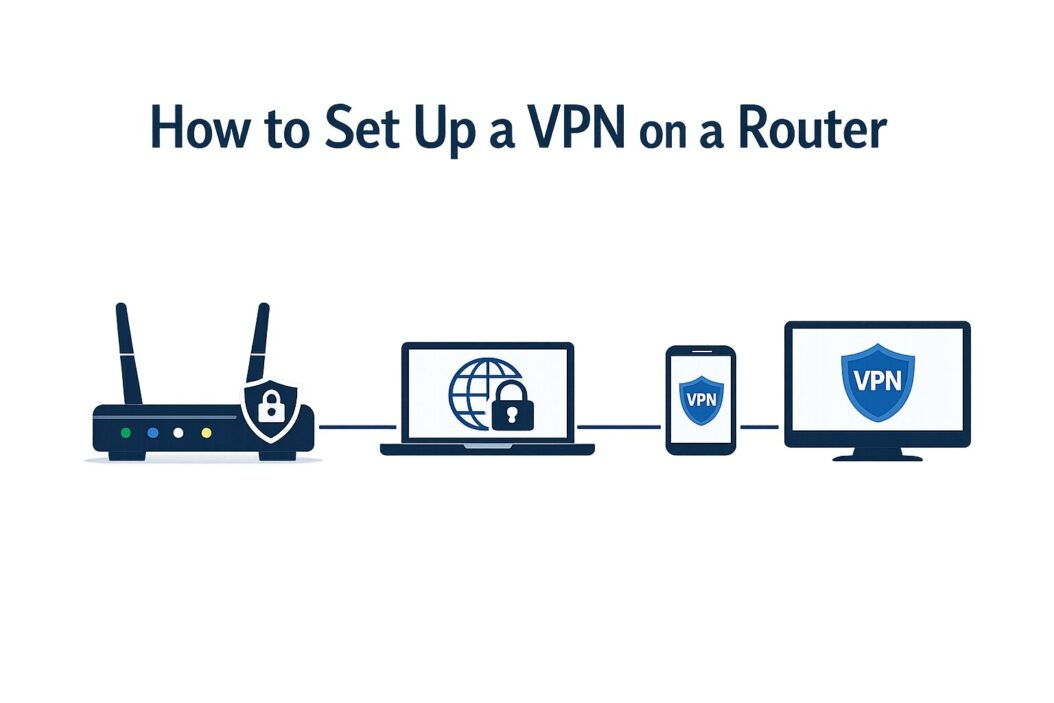
Check If Your Router Supports VPN
Not all routers can run VPN connections. You need either built-in VPN support or the ability to install custom firmware.
Routers with Built-in VPN Support
Premium routers from these brands typically include VPN client features:
- ASUS (RT-AC68U, RT-AX88U, GT-AX11000)
- Netgear (Nighthawk R7000, RAX80)
- Linksys (WRT3200ACM, WRT32X)
- TP-Link (Archer C7, AX6000)
- Synology RT2600ac
Check your router’s admin panel under Advanced Settings or VPN Client sections. If you see options for OpenVPN or WireGuard, your router supports VPN.
Routers Compatible with Custom Firmware
If your router lacks VPN support, you can install custom firmware like DD-WRT, OpenWrt, or Tomato. These add VPN functionality to compatible routers.
Popular models that support custom firmware:
| Router Model | DD-WRT | OpenWrt | Tomato |
|---|---|---|---|
| Netgear R7000 | Yes | Yes | Yes |
| ASUS RT-AC68U | Yes | Yes | Yes |
| TP-Link Archer C7 | Yes | Yes | No |
| Linksys WRT1900AC | Yes | Yes | No |
| Buffalo WZR-HP-G300NH | Yes | Yes | Yes |
Visit the DD-WRT router database to verify your specific model before attempting firmware installation.
Warning: Flashing custom firmware carries risks. You might brick your router if done incorrectly. Follow instructions exactly and never interrupt the process.
What You Need Before Starting
Gather these items before beginning:
- VPN subscription with router support (ExpressVPN, NordVPN, Surfshark, Private Internet Access)
- Router admin credentials (usually on a sticker underneath your router)
- VPN configuration files (download from your VPN provider’s website)
- Computer connected via Ethernet (WiFi connection may drop during setup)
- Current router firmware backup (optional but recommended)
Most VPN providers offer OpenVPN or WireGuard configuration files. Download these before starting.
Method 1: Set Up VPN on ASUS Router
ASUS routers offer the most straightforward VPN setup through their AsusWRT interface.
Step 1: Access Router Admin Panel
- Open your browser
- Type
192.168.1.1orrouter.asus.comin the address bar - Enter your admin username and password
- Click Sign In
Step 2: Navigate to VPN Settings
- Click Advanced Settings on the left sidebar
- Select VPN tab
- Choose VPN Client tab at the top
- Click Add profile button
Step 3: Configure VPN Connection
- Select OpenVPN from the dropdown menu
- Enter a description (like “NordVPN US Server”)
- Upload or paste your VPN provider’s
.ovpnfile - Enter your VPN username and password
- Click OK
Step 4: Activate the Connection
- Find your new VPN profile in the list
- Toggle the switch to ON
- Wait 30-60 seconds for connection
- Status should show “Connected”
Step 5: Verify VPN is Working
- Visit a site like https://whatismyipaddress.com
- Check if your IP address matches your VPN server location
- Test on multiple devices connected to your WiFi
ASUS-specific tips:
- Enable “VPN Fusion” to route only specific devices through VPN
- Set DNS servers manually to prevent leaks (use VPN provider’s DNS)
- Update router firmware before VPN setup for best compatibility
Method 2: Configure VPN on DD-WRT Firmware
DD-WRT provides VPN support for hundreds of router models through custom firmware.
Installing DD-WRT (If Not Already Installed)
Only proceed if your router is confirmed compatible.
- Download correct DD-WRT build for your exact router model
- Access router admin panel (usually
192.168.1.1) - Go to Administration > Firmware Upgrade
- Select downloaded DD-WRT file
- Click Upgrade and wait 5-10 minutes without interrupting
- Router will reboot automatically
Setting Up OpenVPN on DD-WRT
- Log into DD-WRT interface (default:
192.168.1.1, username: root, password: admin) - Navigate to Services > VPN
- Enable OpenVPN Client
- Paste your VPN provider’s configuration into the Config field
Configuration template:
client
dev tun
proto udp
remote [vpn-server-address] 1194
resolv-retry infinite
nobind
persist-key
persist-tun
ca ca.crt
cert client.crt
key client.key
cipher AES-256-CBC
auth SHA256
comp-lzo
verb 3
- Upload certificate files (CA, client cert, client key) in respective fields
- Set Start OpenVPN Client to Enable
- Click Save then Apply Settings
Add Kill Switch Protection
A kill switch prevents internet access if VPN drops.
- Go to Administration > Commands
- Paste this script:
WAN_IF=$(nvram get wan_iface)
iptables -I FORWARD -i br0 -o $WAN_IF -j REJECT --reject-with icmp-host-prohibited
iptables -I FORWARD -i br0 -o tun1 -j ACCEPT
- Click Save Firewall
- Reboot router to activate
Method 3: WireGuard Setup (Modern Protocol)
WireGuard offers faster speeds and better battery life than OpenVPN. Many newer routers and firmware versions support it.
On Routers with Native WireGuard Support
- Access router admin interface
- Find WireGuard or VPN Client section
- Click Add WireGuard Tunnel
- Download WireGuard configuration from your VPN provider
- Copy and paste the configuration into router
- Save and enable the tunnel
Sample WireGuard configuration:
[Interface]
PrivateKey = your_private_key_here
Address = 10.2.0.2/32
DNS = 103.86.96.100

[Peer]
PublicKey = peer_public_key_here
Endpoint = vpn-server.example.com:51820
AllowedIPs = 0.0.0.0/0
Testing WireGuard Connection
- Check connection status in router interface
- Run speed test before and after enabling VPN
- Verify IP address change on connected devices
WireGuard typically shows 15-30% less speed loss compared to OpenVPN on similar hardware.
Configuring Split Tunneling
Split tunneling lets you choose which devices or services use the VPN while others connect directly.
On ASUS Routers (VPN Fusion)
- Go to VPN > VPN Fusion
- Click Add profile
- Select VPN client profile
- Choose Redirect mode
- Add device IP addresses or select from list
- Click Activate
On DD-WRT with Policy-Based Routing
- Navigate to Setup > Basic Setup
- Note your LAN subnet (usually
192.168.1.0/24) - Go to Administration > Commands
- Enter routing rules for specific IPs
Example to exclude one device:
ip route add 192.168.1.50 via $(nvram get wan_gateway)
This sends traffic from 192.168.1.50 outside the VPN tunnel.
Optimizing VPN Router Performance
Router-based VPNs can slow your internet. These tweaks help maintain speed.
Choose the Right VPN Protocol
- WireGuard: Fastest, best for modern routers with sufficient CPU
- OpenVPN UDP: Good balance of speed and compatibility
- OpenVPN TCP: Slower but more reliable on unstable connections
- IKEv2: Fast but limited router support
Select Nearby VPN Servers
Physical distance affects speed. Choose servers within 500 miles when possible.
Server selection impact:
| Distance | Expected Speed Loss |
|---|---|
| Under 100 miles | 5-15% |
| 100-500 miles | 15-25% |
| 500-1500 miles | 25-40% |
| 1500+ miles | 40-60% |
Upgrade Router Hardware
Router CPU handles VPN encryption. Weak processors bottleneck speeds.
Minimum recommended specs for VPN routers:
- Dual-core processor (1.0 GHz or faster)
- 256 MB RAM minimum, 512 MB preferred
- AES-NI hardware encryption support
Routers with dedicated VPN acceleration chips (ASUS RT-AX88U, Netgear RAX80) maintain higher speeds.
Adjust MTU Settings
Maximum Transmission Unit size affects VPN efficiency.
- Access router admin panel
- Find WAN or Internet settings
- Locate MTU Size field
- Try these values: 1400, 1420, 1450
- Test speed after each change
- Keep the fastest value
Default 1500 MTU often causes packet fragmentation with VPN overhead.
Securing Your VPN Router Setup
Beyond basic connection, strengthen your security posture.
Change Default Router Credentials
- Access router admin panel
- Go to Administration or System
- Find Change Password section
- Create strong password (16+ characters, mixed types)
- Save changes
Use a password manager to store these credentials securely.
Enable DNS Leak Protection
DNS leaks expose your browsing even with VPN active.
- Find WAN or Internet Connection settings
- Locate DNS Settings
- Set manual DNS servers from your VPN provider
- Disable “Connect to DNS Server Automatically”
- Apply changes
Common VPN provider DNS servers:
- NordVPN:
103.86.96.100,103.86.99.100 - ExpressVPN:
198.18.0.2,198.18.0.3 - Surfshark:
162.252.172.57,149.154.159.92
Verify no leaks at https://dnsleaktest.com
Disable IPv6 (Prevent Leaks)
Most VPN providers don’t support IPv6, creating potential leaks.
- Access router settings
- Find IPv6 section (often under LAN or WAN)
- Set to Disable
- Save and reboot router
Keep Firmware Updated
Security patches matter for VPN routers.
- Check for updates monthly
- Download from official sources only
- Read changelogs before updating
- Backup settings before firmware updates
Troubleshooting Common VPN Router Issues
VPN Won’t Connect
Check these first:
- Verify VPN subscription is active
- Confirm correct server address in configuration
- Check username/password accuracy
- Ensure router clock is set correctly (VPN certificates require accurate time)
- Try different VPN server
If still failing:
- Reboot router completely (power cycle)
- Re-download configuration files from VPN provider
- Check VPN provider status page for outages
- Verify firewall isn’t blocking VPN ports (1194 for OpenVPN, 51820 for WireGuard)
Slow Internet Speeds
Speed optimization checklist:
- Switch to WireGuard if available
- Choose geographically closer server
- Test different times of day (servers load varies)
- Disable unused VPN features in router
- Upgrade router if CPU constantly maxed
- Check if ISP throttles VPN traffic
Devices Can’t Connect to Internet
Likely causes:
- VPN tunnel established but routing broken
- DNS servers not responding
- Kill switch blocking without active VPN
Quick fixes:
- Disable VPN temporarily to isolate issue
- Set manual DNS (8.8.8.8, 8.8.4.4) to test
- Check routing table in router advanced settings
- Verify gateway address is correct
Netflix or Streaming Sites Blocked
VPN detection affects router setups more than device-level VPNs.
Solutions:
- Enable split tunneling for streaming devices
- Use dedicated streaming VPN server (check provider’s list)
- Switch VPN providers (some work better with streaming)
- Keep one device outside VPN for streaming only
Random Disconnections
Common causes and fixes:
| Problem | Solution |
|---|---|
| Weak WiFi signal | Move router centrally, add mesh nodes |
| Router overheating | Improve ventilation, add cooling |
| ISP connection drops | Contact ISP, check modem logs |
| VPN server overloaded | Switch to different server |
| Outdated firmware | Update router and VPN firmware |
Alternative: Pre-Configured VPN Routers
If manual setup seems daunting, buy routers with VPN pre-installed.
FlashRouters
Sells routers with DD-WRT or Tomato firmware and VPN pre-configured. Supports 20+ VPN providers. Prices range $150-400 depending on model.
Vilfo Router
Purpose-built VPN router supporting 30+ providers. Includes built-in split tunneling interface. Costs around $350.
InvizBox 2
Dedicated VPN router with touch screen. Supports multiple simultaneous VPN connections. Price approximately $240.
Trade-offs:
- Higher upfront cost than DIY setup
- Less control over specific configurations
- Easier warranty support
- Better non-technical user experience
Cost Breakdown for VPN Router Setup
Understanding total investment helps planning.
| Item | Cost Range | Notes |
|---|---|---|
| VPN-compatible router | $80-350 | One-time purchase |
| VPN subscription | $3-12/month | Annual plans cheaper |
| Custom firmware | Free | DD-WRT, OpenWrt, Tomato |
| Ethernet cables | $5-15 | For stable setup connection |
| Total first year | $120-500 | Plus monthly VPN fee |
Budget option: $80 router + $40 annual VPN = $120 Premium setup: $300 router + $144 annual VPN = $444
Summary
Setting up a VPN on your router protects all home devices automatically. The process requires checking router compatibility, installing VPN client configuration, and verifying the connection works properly.
ASUS routers offer easiest setup with built-in VPN clients. Routers without native support need custom firmware like DD-WRT. WireGuard protocol provides better speeds than OpenVPN on modern routers.
Key steps involve accessing router admin panel, uploading VPN configuration files, enabling the VPN client, and testing connection on multiple devices. Add security with DNS leak protection, kill switches, and regular firmware updates.
Expect 15-30% speed reduction with router VPNs compared to direct connections. Optimize by choosing nearby servers, using WireGuard protocol, and ensuring router has adequate processing power.
Router VPN setup takes 20-45 minutes initially but provides ongoing protection without per-device configuration. The investment pays off for households with many connected devices or those using VPN-incompatible equipment.
Frequently Asked Questions
Does a VPN on router slow down internet for all devices?
Yes, all traffic goes through VPN encryption which adds overhead. Expect 15-40% speed reduction depending on router CPU power, VPN protocol used, and server distance. WireGuard protocol minimizes speed loss. High-end routers with hardware encryption maintain better speeds than budget models.
Can I use free VPN services on my router?
Technically possible but strongly discouraged. Free VPNs typically lack router configuration files, impose strict data limits, offer few servers, and may sell your browsing data. Router VPNs consume more data than device-level apps because all household traffic routes through them. Free services become unusable quickly in router setups.
Will VPN on router protect guest WiFi network?
Depends on your configuration. Most routers treat guest networks separately from main network. You must explicitly route guest traffic through VPN tunnel using advanced routing rules. Some routers like ASUS offer simple toggles to include guest networks in VPN protection. Check your specific model’s capabilities.
How do I switch VPN server locations on router?
Process varies by router. On ASUS routers, disable current VPN profile and enable different one with new server. On DD-WRT, edit OpenVPN configuration and replace server address, then restart VPN service. Cannot switch as quickly as device-level VPN apps. Consider split tunneling if you need different locations for different devices simultaneously.
Can my ISP still see I am using a VPN with router setup?
Yes, ISPs see encrypted VPN traffic regardless of where VPN runs. They know you’re using VPN but cannot see what websites you visit or data you transmit. Router-level VPN actually makes it more obvious since all household traffic shows VPN signatures instead of just individual devices. This matters in countries where VPN use is restricted.

- How to Turn Off Contrast Mode in Windows 11/10: (Quick Fix) - April 6, 2026
- How to Set Up a VPN on a Router: Step-by-Step Guide in 2026 - April 6, 2026
- How to Turn Off FPS GPU CPU Latency Overlay on PC (2026) - April 6, 2026