
Windows 11 has a built-in alarm feature, and most people never use it. You don’t need a third-party app. The Clock app that comes with Windows 11 lets you set alarms, timers, and more, right from your desktop or taskbar.
How to Set an Alarm on Windows 11 Using the Clock App
The fastest way to set an alarm on Windows 11 is through the built-in Clock app. Here is how to do it.
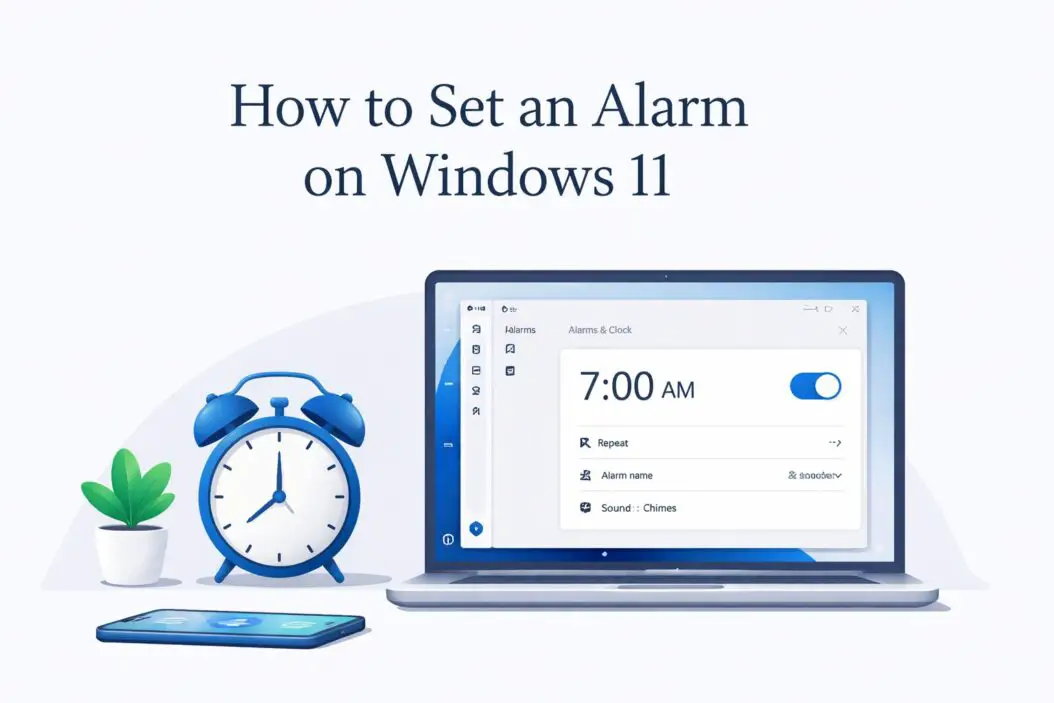
Step 1: Open the Clock App
- Click the Start Menu (Windows icon at the bottom of your screen)
- Type Clock in the search bar
- Click on the Clock app from the results
You can also pin the Clock app to your taskbar for quick access later.
Step 2: Go to the Alarm Section
- Once the Clock app opens, look at the left sidebar
- Click on Alarm (it looks like a small clock icon)
- This opens your alarms panel
Step 3: Add a New Alarm
- Click the plus (+) button at the bottom right of the screen
- A new alarm setup screen will appear
Step 4: Set the Time
- Use the hour and minute selectors to pick your alarm time
- Toggle between AM and PM as needed
- The interface is clean and easy to read
Step 5: Customize Your Alarm
This is where most people stop too early. Windows 11 lets you do more than just pick a time.
| Option | What It Does |
|---|---|
| Alarm name | Label it something meaningful like “Team Meeting” or “Wake Up” |
| Repeat | Choose specific days (Mon to Fri, weekends, daily, or once) |
| Sound | Pick from built-in alarm tones |
| Snooze time | Set snooze for 5, 10, 20, or 30 minutes |
Step 6: Save the Alarm
- Click the Save button (checkmark icon)
- Your alarm will now appear in the alarms list
- The toggle next to it should be turned on (blue)
That’s it. Your alarm is set and will go off at the time you chose.
How to Set Multiple Alarms on Windows 11
You are not limited to one alarm. You can create as many as you need.
- Open the Clock app
- Go to Alarm
- Tap the + button again for each new alarm
- Each alarm can have its own time, name, sound, and repeat schedule
This is useful if you need reminders throughout the day or different alarms for different days of the week.
How to Turn Off or Delete an Alarm
Turning Off an Alarm Temporarily
- Open the Clock app
- Find your alarm in the list
- Toggle the switch to the off position (gray)
- The alarm stays saved but won’t go off
Deleting an Alarm Permanently
- Hover over the alarm in the list
- Click the trash icon that appears
- Confirm deletion if prompted
Setting a Timer vs an Alarm: What’s the Difference?
A lot of people confuse timers and alarms. Here is a simple breakdown.
| Feature | Alarm | Timer |
|---|---|---|
| Triggers at | A specific time (e.g., 7:00 AM) | After a set duration (e.g., 20 minutes) |
| Best for | Wake-up, meetings, daily reminders | Cooking, workouts, short tasks |
| Repeats | Yes, on selected days | No, resets after each use |
To set a Timer in the same Clock app, click Timer in the left sidebar, set the duration, and press start. It counts down and alerts you when done.
Does Windows 11 Alarm Work When the PC is Asleep?
This is a common question. The short answer is: it depends on your power settings.
By default, if your PC goes into deep sleep (hibernate), the alarm may not wake it up. Here is how to make sure your alarm works correctly.
Fix Sleep Settings for Alarms to Work
- Press Windows + I to open Settings
- Go to System and then Power and Sleep
- Under Sleep, set it to a longer interval or Never if you want alarms to always fire
- Alternatively, go to Power Options in Control Panel and adjust the sleep timeout
For laptops, make sure the lid close action does not put the machine into hibernate mode if you rely on alarms.
If you need alarms that wake your PC from sleep reliably, consider using Windows Task Scheduler for more advanced needs. Microsoft’s official documentation on Task Scheduler explains how to set triggered tasks based on time.
How to Use Focus Sessions With Alarms in Windows 11
Windows 11 also added a Focus Sessions feature inside the Clock app. It combines timers with a work or study mode. Here is how it works.
- Open the Clock app
- Click Focus Sessions in the left sidebar
- Set a focus duration (like 25 or 50 minutes)
- Optionally connect it to Spotify or Microsoft To Do
- Click Start focus session
When the session ends, the app notifies you. This is different from a standard alarm but useful for productivity blocks. It works like the Pomodoro technique built directly into Windows.
Alarm Sounds: How to Change Them
Windows 11 gives you a small but decent selection of alarm tones.
- While setting up or editing an alarm, look for the sound dropdown
- Options include: Chimes, Jingle, Ringtone, Xylophone, and others
- Pick the one that suits you
- There is no option to upload a custom sound in the default Clock app
If you want custom alarm sounds, you can use third-party apps like Alarmy for Windows which supports custom audio files and has extra features like puzzle dismissal to stop you hitting snooze.
What to Do If the Clock App Is Missing or Not Working
In rare cases, the Clock app might be uninstalled or broken. Here is how to fix it.
Reinstall the Clock App
- Open Microsoft Store
- Search for Windows Clock
- Click Get or Install
- Open it once installed
Reset the Clock App
- Press Windows + I to open Settings
- Go to Apps and then Installed Apps
- Find Clock in the list
- Click the three-dot menu and choose Advanced options
- Scroll down and click Reset
This often fixes issues where the alarm does not sound or the app crashes on open.
Alarm Notifications: Make Sure They Are Enabled
If your alarms are set but you are not hearing them, the issue might be notifications or volume.
Check Notification Settings
- Press Windows + I
- Go to System and then Notifications
- Scroll down to find Clock
- Make sure notifications are toggled on
Check Volume and Do Not Disturb
- Right-click the speaker icon in your taskbar
- Make sure volume is not muted or set too low
- Also check Focus Assist or Do Not Disturb settings
- If Focus Assist is on, it may block alarm sounds
Go to Settings, then System, then Notifications, and make sure alarm priority notifications are allowed even during Do Not Disturb mode.
Setting an Alarm on Windows 11
Here is everything in a short table for those who want it fast.
| Task | How To Do It |
|---|---|
| Open Clock app | Start Menu, search “Clock” |
| Set new alarm | Click + button in Alarm tab |
| Edit alarm | Click the alarm in the list |
| Turn off alarm | Toggle switch to gray |
| Delete alarm | Hover and click trash icon |
| Fix missing sound | Check notifications and volume |
| Set timer instead | Click Timer in left sidebar |
Conclusion
Setting an alarm on Windows 11 is simple once you know where to look. The built-in Clock app handles everything from basic wake-up alarms to repeating work reminders and focus sessions. Most users do not even know this feature exists.
Open the Clock app, click the plus button in the Alarm section, pick your time, customize the name and repeat options, and hit save. That is all it takes. If alarms are not going off, check your sleep settings, volume, and notification permissions. Those three things fix almost every alarm problem on Windows 11.
Frequently Asked Questions
Can I set an alarm on Windows 11 without any extra apps?
Yes. Windows 11 comes with the Clock app pre-installed. It includes alarms, timers, and focus sessions. You do not need to install anything.
Will my Windows 11 alarm go off if my laptop lid is closed?
Only if your laptop is set to stay awake when the lid is closed. Go to Power Settings and change the lid close action to “Do nothing” if you want alarms to fire with the lid closed.
How do I make my alarm louder on Windows 11?
Increase your system volume using the speaker icon in the taskbar. Also make sure the Clock app notifications are enabled in Settings under System and then Notifications.
Can I repeat an alarm on specific days in Windows 11?
Yes. When creating or editing an alarm, you can choose specific days of the week such as Monday through Friday, weekends only, or every day. Just tap the days you want under the Repeat option.
Why is my Windows 11 alarm not going off?
The most common reasons are: the alarm toggle is turned off, the PC went into hibernate mode, notifications for the Clock app are blocked, or the volume is muted. Check all four and your alarm will work.

- How to Turn Off FPS GPU CPU Latency Overlay on PC (2026) - April 6, 2026
- How to Set an Alarm on Windows 11 (Step-by-Step Guide 2026) - April 6, 2026
- How to Delete Lock Screen Password on Windows 10/11 in 2026 - April 5, 2026