
Running out of disk space? Your computer slowing down? You need to find out what’s eating your storage. This guide shows you exactly how to see what is taking up storage on your PC, step by step.
We’ll cover built-in Windows tools, third-party software, and practical tips to free up space fast. No technical jargon. Just clear instructions that work.
Why Your Storage Fills Up (And Why It Matters)
Before we dig into solutions, understand this: storage doesn’t fill itself. Everything you download, install, create, or cache takes space. Over time, these files pile up.
When your disk hits 85% capacity, Windows slows down. Applications lag. Updates fail. You need to know what’s taking space before you can reclaim it.
Common storage hogs include:
- System files and Windows updates
- Application installation files
- Downloads folder clutter
- Temporary files and cache
- Large media files (videos, photos)
- Duplicate files
- Old backups
Let’s find them.
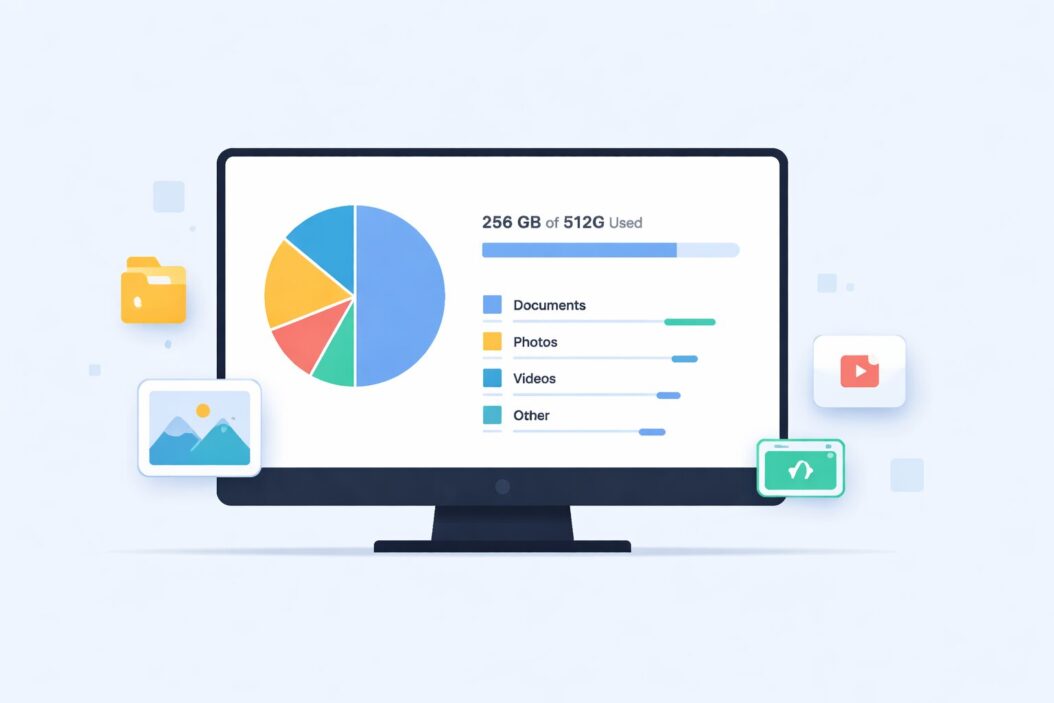
Method 1: Using Windows Storage Settings (Easiest Way)
Windows 11 and 10 have built-in storage analyzers. They’re simple, accurate, and require zero installation.
Windows 11 Storage Analysis
Step 1: Open Settings
Press Windows + I or click Start then Settings.
Step 2: Navigate to Storage
Click System in the left sidebar, then click Storage.
Step 3: View Storage Usage
You’ll see a breakdown by drive (usually C:, D:, etc.). Click your main drive to see details.
Step 4: Analyze Categories
Windows shows storage divided into categories:
- System & reserved
- Apps & features
- Documents
- Pictures
- Videos
- Music
- Desktop
- Downloads
- Temporary files
- Other
Click any category to see what’s inside. The size appears next to each item.
Windows 10 Storage Analysis
The process is nearly identical:
- Open Settings (
Windows + I) - Click System
- Click Storage
- Select the drive you want to analyze
- Review the breakdown
Pro tip: Windows 10 shows a visual bar graph. Hover over sections to see exact sizes.
Understanding the Categories
System & reserved includes Windows itself, system restore points, and hibernation files. Don’t delete these unless you know what you’re doing.
Apps & features lists every installed program. Sort by size to find space hogs.
Temporary files are safe to delete. These include browser cache, Windows update cleanup, and thumbnail cache.
Downloads often contains forgotten files. Many people never clean this folder.
Method 2: Using Storage Sense for Automatic Cleanup
Storage Sense is Windows’ built-in cleanup tool. It runs automatically and removes junk files.
Enable Storage Sense
Windows 11:
- Go to Settings > System > Storage
- Toggle Storage Sense to On
- Click Configure Storage Sense or run it now
Windows 10:
- Go to Settings > System > Storage
- Turn on Storage Sense
- Click Configure Storage Sense or run it now
Configure What Gets Deleted
Choose how often Storage Sense runs:
- Every day
- Every week
- Every month
- During low free disk space
Set rules for temporary files:
- Delete files in Recycle Bin after 1, 14, 30, or 60 days
- Delete files in Downloads folder after 1, 14, 30, or 60 days (or never)
Warning: Be careful with Downloads folder cleanup. Set it to “Never” if you keep important files there.
Run Storage Sense Manually
Click Run Storage Sense now to clean immediately. Windows will:
- Empty the Recycle Bin
- Remove temporary files
- Clear Windows Update cache
- Delete previous Windows installations (if available)
This often frees 5-20 GB depending on your system.
Method 3: Using Disk Cleanup (Classic Tool)
Disk Cleanup has been in Windows for decades. It’s still useful in 2026.
How to Run Disk Cleanup
- Press
Windows + Sand type Disk Cleanup - Select the drive to clean (usually C:)
- Wait while it calculates space
Choose What to Delete
Check the boxes next to:
- Temporary Internet Files (browser cache)
- Downloaded Program Files
- Temporary files
- Thumbnails
- Recycle Bin
For more options, click Clean up system files. This shows:
- Windows Update Cleanup (often several GB)
- Previous Windows installations (can be 10-30 GB)
- Windows upgrade log files
Important: Only delete “Previous Windows installations” if you’re sure your system is stable. You can’t roll back Windows updates after deleting this.
Click OK then Delete Files to confirm.
Method 4: Analyzing Apps and Features
Large applications eat storage. Find and remove what you don’t use.
View Installed Apps by Size
Windows 11:
- Settings > Apps > Installed apps
- Click the three dots menu (top right)
- Select Sort by: Size
Windows 10:
- Settings > Apps > Apps & features
- Click Sort by dropdown
- Select Size
What to Look For
Programs over 1 GB deserve scrutiny. Common culprits:
- Games (10-100 GB each)
- Adobe Creative Suite (multiple GB per app)
- Microsoft Office (2-4 GB)
- Development tools like Visual Studio (10+ GB)
- Old programs you installed once and forgot
Uninstall Unused Apps
Click an app, then click Uninstall. Follow the prompts.
Tip: Some apps leave behind folders even after uninstalling. Check C:\Program Files and C:\Program Files (x86) manually for leftover folders.
Method 5: Using Third-Party Storage Analyzers
Windows tools are good, but third-party software offers more detail and better visuals.
WinDirStat (Free and Popular)
WinDirStat shows your entire drive as colored blocks. Bigger blocks mean bigger files.
Download: Get it from the official WinDirStat website
How to use it:
- Install and run WinDirStat
- Select the drive to scan
- Wait for the scan (takes 1-10 minutes)
- View the treemap at the bottom
Each colored rectangle represents a file. The size is proportional. Hover to see file details. Right-click to delete, open folder, or view properties.
What the colors mean:
Each color represents a file type. Purple might be videos, blue documents, green system files. The legend appears on the right.
Best for: Finding large files buried in nested folders.
TreeSize Free
TreeSize shows folder sizes in a tree view. It’s faster than WinDirStat for quick scans.
How it works:
- Install TreeSize Free
- Select a drive or folder
- See instant size calculations
TreeSize updates in real-time. Expand folders to drill down. Sort by size, file count, or percentage.
Best for: Quick folder analysis without waiting for full scans.
SpaceSniffer
SpaceSniffer is portable (no installation) and shows live updates.
Features:
- Real-time treemap
- Filter by file type, date, or size
- Drag and drop files to delete
- Portable executable
Best for: Temporary analysis on multiple computers.
Method 6: Finding Large Files Manually
Sometimes you just want to find the biggest files, period.
Using File Explorer Search
- Open File Explorer
- Navigate to C:\ (or any drive)
- Click the search box
- Click Search tab at the top
- Click Size
- Select Gigantic (> 128 MB) or set a custom size
File Explorer lists all files matching your criteria. Sort by size (click the Size column header).
Filter by file type:
Type this in the search box:
*.mp4for videos*.zipfor archives*.isofor disk images*.psdfor Photoshop files
Using Windows PowerShell
For advanced users, PowerShell finds large files fast.
- Press
Windows + Xand select Windows PowerShell - Type this command:
Get-ChildItem C:\ -Recurse -File -ErrorAction SilentlyContinue | Sort-Object Length -Descending | Select-Object -First 20 FullName, @{Name="Size(GB)";Expression={[math]::Round($_.Length/1GB,2)}}This lists the 20 largest files on C: drive with sizes in GB.
Explanation:
Get-ChildItem C:\scans C: drive-Recurseincludes all subfolders-Fileonly shows files, not foldersSort-Object Length -Descendingsorts by size, biggest firstSelect-Object -First 20shows top 20
Change C:\ to scan different drives. Change 20 to show more or fewer files.
Method 7: Checking Specific Problem Areas
Certain folders are notorious space hogs. Check these first.
Downloads Folder
Most people never clean downloads.
Location: C:\Users\[YourName]\Downloads
Sort by size. Delete installers, old PDFs, and files you don’t need.
Desktop
Files on your desktop actually live here:
C:\Users\[YourName]\Desktop
Large video projects or disk images sitting on desktop waste space.
AppData Folder
Hidden by default, AppData stores app settings and cache.
Location: C:\Users\[YourName]\AppData
To view it:
- Open File Explorer
- Click View > Show > Hidden items (Windows 11)
- Or View tab > check Hidden items (Windows 10)
Subfolders to check:
AppData\Local\Temp(temporary files, safe to delete)AppData\Local\Microsoft\Windows\INetCache(browser cache)AppData\Local\Packages(Windows Store app data)
Warning: Don’t delete entire folders in AppData. Only remove obvious junk like old temp files or installer caches.
Windows.old Folder
After a Windows upgrade, the old installation sits in C:\Windows.old for 10 days. This folder can be 20-30 GB.
How to remove it:
Use Disk Cleanup (described earlier) and select “Previous Windows installations.”
System Volume Information
This hidden folder stores System Restore points.
Location: C:\System Volume Information
To reduce its size:
- Search for Create a restore point
- Select your drive and click Configure
- Reduce Max Usage slider
- Or turn off System Protection (not recommended unless you have another backup)
WinSxS Folder
C:\Windows\WinSxS is the Windows component store. It looks huge (often 10-15 GB) but most files are hard links, not duplicates.
Do not delete this folder manually. Use Disk Cleanup > Clean up system files > Windows Update Cleanup instead.
Storage Usage Patterns
Why Storage Fills Faster Over Time
- Windows updates accumulate. Each major update downloads 3-6 GB.
- App caches grow. Browsers, Spotify, and Steam cache gigabytes.
- System Restore points multiply if enabled.
- Download folder becomes a dumping ground.
How Much Free Space You Need
Minimum: 20% of total capacity. If you have a 500 GB drive, keep 100 GB free.
Why: Windows needs space for updates, virtual memory, and temp files. Full drives slow performance dramatically.
Quick Wins: Free Up Space in Minutes
Start with these high-impact actions:
1. Empty Recycle Bin
Right-click Recycle Bin > Empty Recycle Bin.
2. Run Disk Cleanup with System Files
Select “Windows Update Cleanup” and “Temporary files.”
3. Uninstall One Large Game
A single AAA game can be 50-100 GB.
4. Delete Downloads Folder Junk
Sort by size, delete old installers.
5. Clear Browser Cache
In Chrome/Edge: Settings > Privacy and security > Clear browsing data > Cached images and files.
These five steps often free 10-50 GB.
Storage Analysis Comparison
| Method | Best For | Speed | Detail Level | Ease of Use |
|---|---|---|---|---|
| Windows Storage Settings | Quick overview | Fast | Medium | Very Easy |
| Storage Sense | Automatic cleanup | Fast | Low | Very Easy |
| Disk Cleanup | System file cleanup | Fast | Medium | Easy |
| WinDirStat | Visual file analysis | Slow | Very High | Medium |
| TreeSize | Folder size analysis | Medium | High | Easy |
| File Explorer Search | Finding large files | Fast | Medium | Easy |
| PowerShell | Advanced file search | Fast | High | Hard |
Advanced Tips for Power Users
Use Symbolic Links for Large Folders
If your C: drive is full but D: has space, move large folders and create symbolic links.
Example: Move Steam library
- Move
C:\Program Files (x86)\Steam\steamappstoD:\steamapps - Open Command Prompt as Administrator
- Run:
mklink /D "C:\Program Files (x86)\Steam\steamapps" "D:\steamapps"
Steam thinks the folder is still on C:, but files live on D:.
Analyze System File Bloat
Check these often-overlooked system areas:
C:\Windows\Logs(log files, can be several GB)C:\Windows\SoftwareDistribution\Download(Windows Update cache)C:\ProgramData\Package Cache(installer files)
Monitor Storage Changes Over Time
Use TreeSize to export folder sizes, then compare monthly. This reveals which folders grow fastest.
Compress Old Files
Right-click a folder > Properties > Advanced > check “Compress contents to save disk space.”
Best for: Old documents you rarely access. Don’t compress active files or program folders.
Common Storage Problems and Solutions
Problem: “System” Uses Too Much Space
Causes:
- System Restore points
- Hibernation file (hiberfil.sys)
- Page file (pagefile.sys)
Solutions:
Reduce System Restore space (explained earlier).
Disable hibernation (frees space equal to your RAM):
- Open Command Prompt as Administrator
- Run:
powercfg /hibernate off
Reduce page file size:
- Search Advanced system settings
- Click Settings under Performance
- Go to Advanced tab > Change under Virtual memory
- Uncheck “Automatically manage”
- Set custom size or move to another drive
Problem: “Other” Category Is Huge
“Other” includes files Windows can’t categorize. Often it’s:
- Program installation folders
- Game files
- Virtual machines
- Developer tools
Use WinDirStat to identify what’s actually in “Other.”
Problem: Can’t Find What’s Using Space
Your tools show the drive is full, but you can’t find large files.
Check for hidden files:
- File Explorer > View > Show > Hidden items
- Also check “Hide protected operating system files” (uncheck temporarily)
Scan as Administrator:
Some files are only visible to admin accounts. Run WinDirStat as Administrator.
Problem: Storage Fills Up Immediately After Cleaning
Possible causes:
- Windows Update downloading in background
- Cloud sync (OneDrive, Dropbox) downloading files
- Browser downloading large files
- Malware
Check Task Manager (Ctrl+Shift+Esc) > Performance > Disk to see what’s writing data.
Best Practices for Maintaining Storage
1. Regular Cleanup Schedule
- Weekly: Empty Recycle Bin, check Downloads
- Monthly: Run Disk Cleanup, review installed apps
- Quarterly: Use WinDirStat for deep analysis
2. Enable Storage Sense
Let Windows clean automatically. Set conservative rules initially.
3. Move Large Files to External Storage
- Archive old photos/videos to external drives
- Use cloud storage for documents
- Keep only active projects on C: drive
4. Uninstall, Don’t Just Ignore
If you haven’t used an app in three months, uninstall it. You can always reinstall later.
5. Manage Downloads Actively
After installing software from a downloaded file, delete the installer. Don’t let installers accumulate.
6. Consider Upgrading Storage
If your drive is constantly full despite cleanup, upgrade to a larger SSD. In 2026, 1TB SSDs are affordable and dramatically improve performance.
Security Note: Avoid Fake Cleanup Tools
Many “PC cleaner” tools are scams or contain malware. Stick to:
- Windows built-in tools
- Reputable third-party software (WinDirStat, TreeSize, CCleaner from official sources only)
Never download “registry cleaners” or “speed booster” apps from random websites.
Conclusion
Finding what’s taking up storage on your PC is straightforward. Start with Windows Storage Settings for a quick overview. Use Disk Cleanup and Storage Sense for fast cleanup. For detailed analysis, download WinDirStat.
Most users can free 10-50 GB within 15 minutes by:
- Running Disk Cleanup with system files selected
- Emptying Downloads folder
- Uninstalling large unused apps
- Deleting browser cache
Make storage maintenance a monthly habit. Your computer will run faster and you’ll avoid the panic of “disk full” errors.
Frequently Asked Questions
What is taking up all my storage on Windows 11?
The most common storage hogs are system files (Windows updates, restore points), installed applications (especially games), temporary files, and the Downloads folder. Use Windows Storage Settings to see a category breakdown, or run WinDirStat for a complete visual analysis showing every file on your drive.
How do I find hidden files taking up space?
Enable hidden file viewing in File Explorer by clicking View then Show then Hidden items. Check the AppData folder in your user directory, Windows.old folder after updates, and System Volume Information folder. Run storage analysis tools like WinDirStat as Administrator to see all files including system-protected ones.
Is it safe to delete temporary files?
Yes, temporary files are safe to delete. Use Disk Cleanup or Storage Sense to remove them properly. These tools only delete true temporary files like browser cache, Windows Update cleanup files, and thumbnail cache. Never manually delete files from Windows or Program Files folders unless you know exactly what they are.
Why does my C drive keep filling up automatically?
Common causes include Windows Update downloads, System Restore creating new restore points, browser cache growing, cloud sync services downloading files, or applications storing cache data. Enable Storage Sense to automatically clean temporary files, reduce System Restore space allocation, and check Task Manager to see what’s currently writing to disk.
How much free space should I keep on my C drive?
Keep at least 20% of your total capacity free, with a minimum of 20 GB. Windows needs free space for updates, virtual memory, and temporary files. When drives exceed 85% capacity, performance degrades noticeably. If you constantly run low on space despite cleanup, consider upgrading to a larger SSD or moving large files to a secondary drive.

- How to Check If a Phone Number Is Spam: 7 Free Methods That Work (2026) - April 9, 2026
- How to See Screen Time on Your Laptop Windows 11/10 (Complete Guide) - April 9, 2026
- Best Tips for Customizing a LinkedIn Profile URL in 2026 - April 9, 2026