
You have hundreds of photos named IMG_0001, IMG_0002, IMG_0003. Or work files with messy names that make no sense. Renaming them one by one would take hours.
There’s a better way.
This guide shows you exactly how to rename multiple files at once on any computer. You’ll learn built-in methods that work right now, plus advanced tools for complex renaming tasks.
The quick answer: Every major operating system has built-in batch renaming features. Windows lets you rename files in File Explorer, Mac has a Finder rename tool, and Linux offers command-line utilities. For more control, specialized software gives you pattern matching, regular expressions, and preview features.
Let’s start with the simplest methods and work up to power-user techniques.
Why Batch Rename Files?
Renaming multiple files at once saves time and creates consistency. Here are common situations:
- Organizing photos from a camera or phone
- Standardizing document names for a project
- Adding dates or version numbers to files
- Removing unwanted characters or spaces
- Preparing files for upload or sharing
- Making files easier to search and sort
Instead of spending 30 minutes renaming files manually, you can do it in 30 seconds.
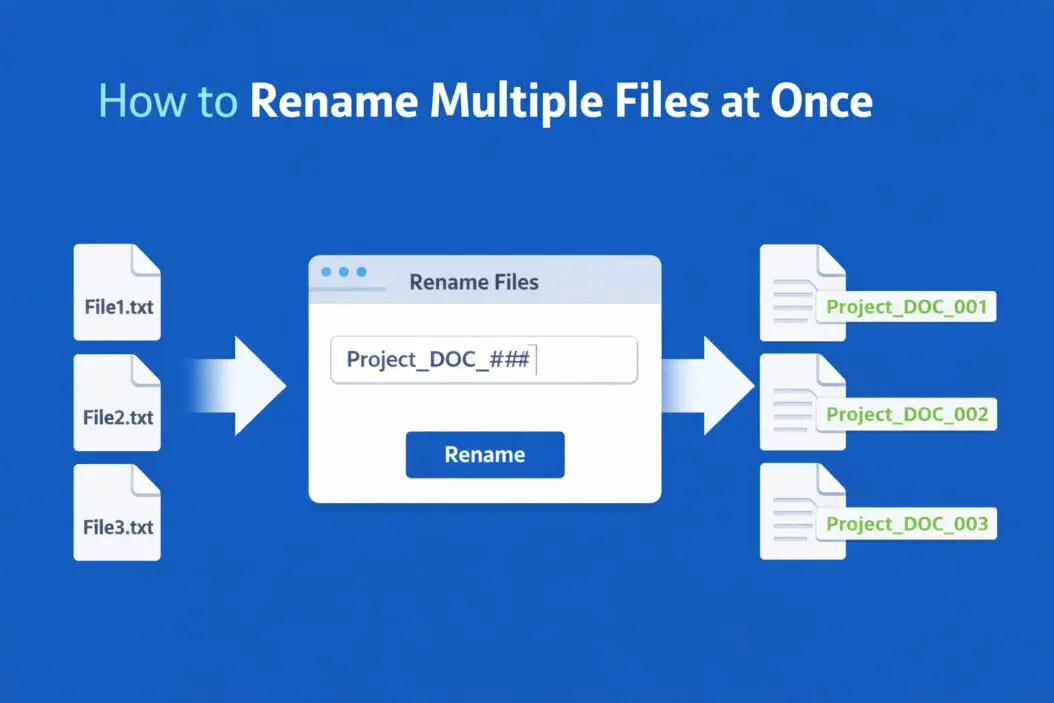
Method 1: Rename Multiple Files in Windows
Windows includes a basic batch rename feature in File Explorer. It works for simple tasks.
Using Windows File Explorer
Follow these steps:
- Open File Explorer and navigate to your folder
- Select all files you want to rename (Ctrl + A for all, or Ctrl + Click for specific files)
- Right-click the first selected file
- Choose “Rename” from the menu
- Type your new base name
- Press Enter
Windows automatically adds numbers in parentheses: Photo (1), Photo (2), Photo (3).
Limitations: This method only adds sequential numbers. You can’t customize the format, add dates, or use patterns.
Using PowerShell for Advanced Windows Renaming
PowerShell gives you more control. Here’s a practical example:
To add today’s date to all files:
Get-ChildItem *.jpg | Rename-Item -NewName {$_.BaseName + "_2026-02-01" + $_.Extension}
To replace text in filenames:
Get-ChildItem | Rename-Item -NewName {$_.Name -replace "old_text","new_text"}
To remove spaces from all filenames:
Get-ChildItem | Rename-Item -NewName {$_.Name -replace " ","_"}
Open PowerShell by typing “powershell” in the Windows search bar. Navigate to your folder using cd "C:\path\to\folder" before running commands.
Method 2: Rename Multiple Files on Mac
Mac’s Finder has a powerful built-in renaming tool that most people don’t know about.
Using Finder’s Rename Tool
Here’s how:
- Open Finder and select your files
- Right-click the selected files
- Choose “Rename X Items” from the menu
- Pick one of three options in the dialog box
Replace Text: Finds specific text and replaces it with something else.
Add Text: Adds text before or after the filename.
Format: Creates a name with custom format plus index numbers or counters.
The Format option is most useful. You can choose:
- Name format (custom name, original name, or date/time)
- Where to place numbers (before or after name)
- Starting number
Example: Turn “IMG_0001.jpg” into “Vacation_001.jpg” by choosing Format, typing “Vacation” as the custom name, and setting the counter to start at 1.
Using Terminal for Mac Power Users
Mac Terminal offers precise control:
To add text to the beginning of all files:
for f in *.jpg; do mv "$f" "Prefix_$f"; done
To replace spaces with underscores:
for f in *; do mv "$f" "${f// /_}"; done
To convert all filenames to lowercase:
for f in *; do mv "$f" "$(echo $f | tr '[:upper:]' '[:lower:]')"; done
Open Terminal from Applications > Utilities. Use cd ~/Documents/YourFolder to navigate to the right location.
Method 3: Rename Multiple Files on Linux
Linux users have powerful command-line tools built in.
Using the Rename Command
The rename command uses Perl expressions for maximum flexibility.
Install it first (if needed):
On Ubuntu/Debian:
sudo apt install rename
On Fedora:
sudo dnf install prename
Common rename operations:
Replace text:
rename 's/old/new/' *.txt
Remove spaces:
rename 's/ /_/g' *
Add prefix to all files:
rename 's/^/PREFIX_/' *
Convert to lowercase:
rename 'y/A-Z/a-z/' *
The s/old/new/ is a substitution pattern. The g flag means “global” (all occurrences). The ^ symbol means “start of filename.”
Using mv in a Loop
For simpler tasks, loop through files with mv:
for file in *.jpg; do
  mv "$file" "${file/IMG/Photo}"
done
This replaces “IMG” with “Photo” in all .jpg files.
Method 4: Specialized Renaming Software
Third-party tools offer features that built-in methods can’t match. They show previews before you commit changes, which prevents mistakes.
Best Batch Rename Tools
For Windows:
- Bulk Rename Utility (free): Handles complex patterns, regular expressions, and metadata
- Advanced Renamer (free): Clean interface with multiple renaming methods
- Rename Master (free): Adds numbering and supports scripts
For Mac:
- NameChanger (free): Simple drag-and-drop with live preview
- A Better Finder Rename ($20): Professional features including regex and metadata
- Renamer ($20): Beautiful interface with powerful pattern matching
For All Platforms:
- Ant Renamer (Windows, free): Supports 15+ renaming methods
- GPRename (Linux, free): GTK interface with preview
- KRename (Linux, free): KDE tool with extensive options
How to Use Bulk Rename Utility (Windows Example)
This free tool handles almost any renaming task:
- Download from bulkrenameutility.co.uk
- Install and open the program
- Navigate to your folder in the top section
- Select files to rename in the middle section
- Choose renaming options in the bottom panels
- Preview changes in the “New Name” column
- Click “Rename” when ready
The interface looks complicated at first. Focus on these panels:
| Panel | Purpose |
|---|---|
| Name | Change the base filename |
| Replace | Find and replace text |
| Case | Change capitalization |
| Remove | Delete characters from specific positions |
| Add | Insert text at specific locations |
| Numbering | Add sequential or random numbers |
| Extension | Change file extensions |
Preview before renaming. If something looks wrong, adjust your settings and check again.
Pattern-Based Renaming Examples
Here are practical patterns you can adapt:
Adding Dates to Files
Pattern: ProjectName_YYYY-MM-DD_###
Result: ProjectName_2026-02-01_001, ProjectName_2026-02-01_002
Use when: Organizing daily work files or document versions
Sequential Numbering with Leading Zeros
Pattern: Photo_0001, Photo_0002
Why: Files sort correctly (Photo_0010 comes after Photo_0009, not after Photo_0001)
How: Use 4-digit or 5-digit counters based on total file count
Removing Unwanted Characters
Common removals:
- Spaces (replace with underscores or hyphens)
- Special characters (%, $, #, @)
- Multiple dots (keep only the extension dot)
- Leading/trailing spaces
Clean filenames work better with scripts, web servers, and backup software.
Adding Metadata to Filenames
For photos: 2026-02-01_Location_Event_001.jpg
For documents: ClientName_ProjectType_v1.0_2026-02-01.pdf
For video: EventName_CameraAngle_ClipNumber.mp4
Metadata in filenames makes files searchable without opening them.
Regular Expressions for Advanced Users
Regular expressions (regex) let you match complex patterns. They work in PowerShell, Terminal, and most renaming software.
Basic Regex Patterns
| Pattern | Matches | Example |
|---|---|---|
. | Any single character | a.c matches “abc” or “a1c” |
* | Zero or more of previous | a*b matches “b”, “ab”, “aaab” |
+ | One or more of previous | a+b matches “ab”, “aaab” but not “b” |
\d | Any digit | \d\d matches “01”, “99” |
\w | Any word character | \w+ matches “file” or “photo123” |
^ | Start of string | ^IMG matches “IMG” only at start |
$ | End of string | .jpg$ matches “.jpg” only at end |
Practical Regex Examples
Extract date from filename:
Pattern: .*(\d{4}-\d{2}-\d{2}).* Matches: Any filename containing a date like 2026-02-01
Remove everything in parentheses:
Pattern: \([^)]*\) Matches: (1), (old), (copy) and similar
Match file number at end:
Pattern: _(\d+)\.jpg$ Matches: _001.jpg, _042.jpg, _1337.jpg
The Regular-Expressions.info site offers detailed tutorials and a testing tool.
Safety Tips for Batch Renaming
Mistakes can rename hundreds of files incorrectly. Follow these rules:
Always preview changes. Most tools show before/after names. Check them carefully.
Work on a copy first. Duplicate your folder and test there. Delete the copy after confirming results.
Start with a small batch. Rename 5 files, check the results, then process the rest.
Use undo if available. Some tools offer undo features. Learn the keyboard shortcut (usually Ctrl+Z or Cmd+Z).
Keep backups. Before major renaming, back up your files. Cloud storage or external drives work.
Check for duplicates. If your new pattern creates identical names, files will overwrite each other. Preview catches this.
Avoid these characters in filenames:
- Windows:
< > : " / \ | ? * - Mac:
: - Linux:
/
Stick to letters, numbers, hyphens, and underscores for maximum compatibility.
Automating Recurring Rename Tasks
If you rename files the same way regularly, automate it.
Creating Batch Scripts
Windows batch file example:
Create a text file named rename.bat with this content:
@echo off
for %%f in (*.jpg) do (
  ren "%%f" "Photo_%%f"
)
Double-click this file to run it. It adds “Photo_” to all .jpg files in the same folder.
Mac/Linux shell script example:
Create a file named rename.sh:
#!/bin/bash
for file in *.pdf; do
  mv "$file" "Report_${file}"
done
Make it executable: chmod +x rename.sh Run it: ./rename.sh
Using Watch Folders
Some renaming tools monitor folders and automatically rename new files based on rules:
- Set up rules once
- Drop files into the watched folder
- Files rename automatically
This works great for downloads, camera imports, or scan folders.
Renaming Files by Metadata
Photos, videos, and documents contain metadata. You can use it for intelligent renaming.
Photo EXIF Data
Digital photos store camera settings and timestamps. Use them to rename:
Pattern: YYYY-MM-DD_HH-MM-SS_CameraModel.jpg
Result: 2026-02-01_14-30-45_CanonEOS.jpg
Tools that support EXIF renaming:
- ExifTool (command-line, all platforms)
- Photo Mechanic (professional, paid)
- Advanced Renamer (Windows, free)
ExifTool example:
exiftool "-FileName<CreateDate" -d "%Y-%m-%d_%H-%M-%S.%%e" *.jpg
This creates filenames from the photo creation date.
Document Properties
Word documents, PDFs, and spreadsheets store author, title, and creation date. Some tools can access this:
- Bulk Rename Utility (Windows)
- A Better Finder Rename (Mac)
- Custom scripts with libraries
Music File Tags
MP3 and other audio files contain artist, album, and track information. Use them to create organized names:
Pattern: Artist - TrackNumber - SongTitle.mp3
Result: Beatles – 01 – Come Together.mp3
Tools: Mp3tag (Windows/Mac), EasyTAG (Linux), Picard (all platforms)
Troubleshooting Common Problems
Files Won’t Rename
Possible causes:
- File is open in another program (close it)
- Insufficient permissions (run as administrator/root)
- File is locked by system (restart computer)
- Filename too long (Windows has 260-character limit)
Unexpected Results
If renamed files look wrong:
- Undo immediately if possible
- Check your pattern for errors
- Verify you selected the right files
- Look for hidden characters in original names
Lost File Extensions
Some tools or methods remove extensions accidentally. This makes files unopenable.
Fix: Rename again, adding the extension:
ren *.* *.jpg
Or use a tool to batch-add extensions based on file type.
Duplicate Names Created
If your pattern creates identical names, files overwrite each other.
Prevention: Include sequential numbers or timestamps in your pattern.
Recovery: Check recycle bin. Use file recovery software like Recuva (Windows) or TestDisk (all platforms).
Frequently Asked Questions
Can I rename files in cloud storage (Google Drive, Dropbox)?
Yes, but methods differ. Most cloud services lack batch rename features in their web interface. Download files, rename locally, then re-upload. Or use desktop sync clients and rename the local copies. Some third-party tools connect to cloud APIs for direct renaming.
How do I rename files keeping the original date modified?
Most renaming methods preserve file timestamps automatically. If timestamps change, use tools that specifically maintain them. On Windows, Bulk Rename Utility has a “Preserve modified date” option. On Mac and Linux, the touch command can restore dates after renaming.
What is the fastest way to add numbers to file names?
Use your operating system’s built-in method for speed. Windows File Explorer adds numbers in parentheses instantly. Mac Finder’s Format option numbers files in under a second. Both work immediately without installing anything. For custom number formats, use specialized software.
Can I undo a batch rename if I make a mistake?
Some programs offer built-in undo. Bulk Rename Utility and Advanced Renamer create undo files. File Explorer undo works with Ctrl+Z immediately after renaming. For safety, always work on a backup copy first. If undo isn’t available, you’ll need to rename manually or restore from backup.
How do I rename based on file content or type?
Use metadata-aware tools or scripts. For photos, ExifTool reads camera data. For documents, PowerShell can read file properties. For music, Mp3tag accesses ID3 tags. You can also use AI-powered tools that analyze image content, though these are newer and sometimes require internet connection. The Microsoft PowerToys suite (learn more at Microsoft’s official documentation) includes PowerRename with advanced filtering options.
Summary and Conclusion
Renaming multiple files at once transforms tedious work into a quick task. You now know:
- Built-in methods for Windows, Mac, and Linux that work immediately
- Command-line tools for precise control and automation
- Specialized software for complex patterns and safety previews
- Regular expressions for advanced pattern matching
- Safety practices to prevent mistakes
- Automation techniques for recurring tasks
Start with simple methods. Windows File Explorer and Mac Finder handle basic numbering. Move to PowerShell, Terminal, or specialized software when you need patterns, dates, or metadata.
Always preview before applying changes. Work on copies when learning. Keep backups of important files.
The right tool depends on your specific task. Simple sequential numbering needs nothing extra. Complex patterns with dates, metadata, and conditional logic require advanced tools.
Most people benefit from learning one specialized tool well. Download Bulk Rename Utility (Windows), NameChanger (Mac), or GPRename (Linux). Spend 15 minutes exploring its features. That investment saves hours over time.
Batch renaming becomes second nature with practice. What once took 30 minutes now takes 30 seconds. Your files stay organized. Your work flows faster. You never waste time on manual renaming again.
