
OpenClaw is an open-source AI assistant that runs locally on your computer and can execute real tasks through messaging apps like WhatsApp, Telegram, and Discord. This guide shows you exactly how to set it up on Windows.
What is OpenClaw?
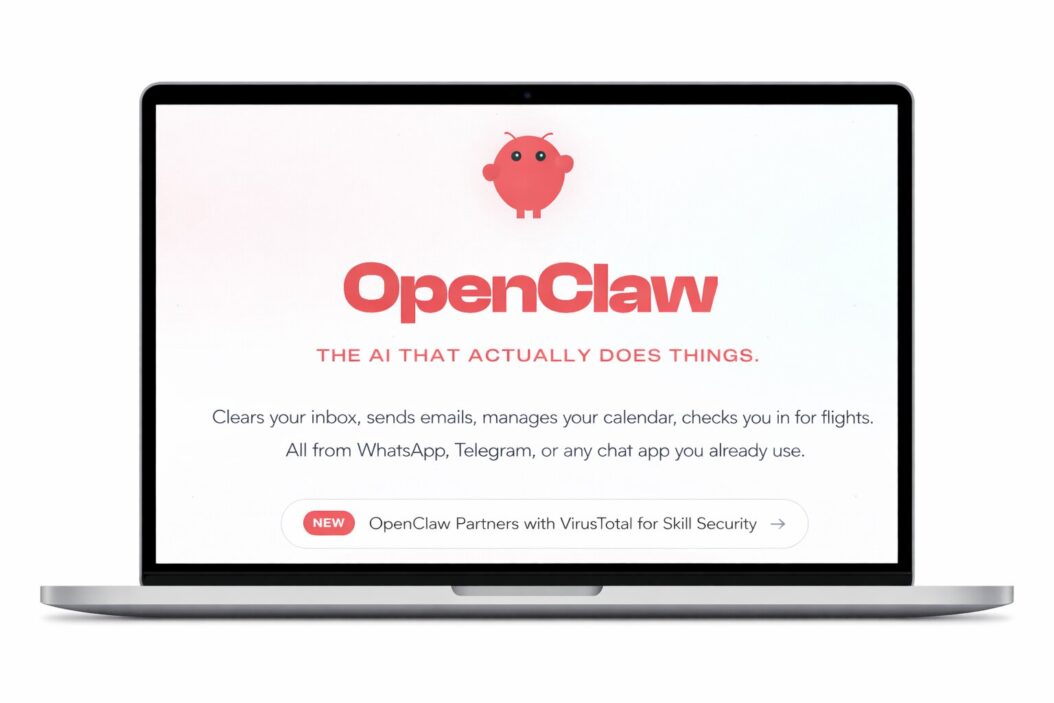
OpenClaw is a viral open-source personal AI agent created by PSPDFKit founder Peter Steinberger that operates locally on your machine, remembers context across conversations, and automates tasks around the clock. Think of it as your personal AI assistant that actually does things instead of just answering questions.
The project was originally launched in November 2025 as Clawdbot, renamed to Moltbot in January 2026 after trademark complaints from Anthropic, and finally settled on OpenClaw three days later. All three names refer to the same software.
What Makes OpenClaw Different
Unlike typical chatbots, OpenClaw delivers a true personal AI agent that runs locally, maintains memory across conversations, and can actually execute tasks on your machine. It can:
- Control your browser and fill out forms automatically
- Read and write files on your computer
- Execute shell commands and run scripts
- Manage emails, calendars, and messaging
- Install community-built skills for new capabilities
- Remember your preferences and context over time
The system works by connecting to messaging platforms you already use, letting you control your computer remotely from your phone or any device.
System Requirements
Before installing OpenClaw on Windows, verify you have:
Minimum Requirements:
- Windows 10 or Windows 11 (64-bit)
- 1GB RAM minimum
- 500MB free disk space
- Internet connection
- Administrator access
Required Software:
- Node.js 22 or higher (installer handles this)
- An API key from Anthropic, OpenAI, or similar provider
- At least one messaging app account (WhatsApp, Telegram, Discord, Slack, Signal, or iMessage)
Optional but Recommended:
- WSL2 (Windows Subsystem for Linux 2) for better stability
- Git for Windows if installing from source
Two Installation Methods for Windows
Windows users have two installation paths: native PowerShell (quick but limited) or WSL2 (stable and recommended for production use). Let me explain both.
Method 1: PowerShell Installation (Fastest Setup)
This method works directly in Windows PowerShell. It’s the quickest way to test OpenClaw.
Step 1: Open PowerShell as Administrator
- Press Windows key + X
- Select “Windows PowerShell (Admin)” or “Terminal (Admin)”
- Click Yes when prompted by User Account Control
Step 2: Run the One-Line Installer
Copy and paste this command into PowerShell (the installer automatically handles Node.js installation if needed):
irm https://openclaw.ai/windows | iex
Press Enter and wait. The installer will:
- Download and install Node.js if missing
- Install the OpenClaw CLI
- Set up necessary dependencies
Step 3: Run the Onboarding Wizard
After installation completes, run:
openclaw onboard --install-daemon
The wizard walks you through choosing a model provider, setting an API key, and configuring the Gateway, taking about 2 minutes.
Important Limitations:
PowerShell native installation is not officially tested by the OpenClaw team and may have tool compatibility issues; for production use, WSL2 is preferred.
Method 2: WSL2 Installation (Recommended)
OpenClaw works best on Windows through WSL2, which provides a full Linux environment and is the officially recommended approach.
Step 1: Install WSL2
Open PowerShell as Administrator and run:
wsl --install
Restart your computer when prompted after WSL2 installation completes.
Step 2: Open Ubuntu Terminal
After reboot:
- Search for “Ubuntu” in the Start menu
- Launch the Ubuntu app
- Create a username and password when prompted (first-time setup)
Step 3: Enable systemd
Systemd must be enabled in WSL2 for OpenClaw to run properly. Run these commands in Ubuntu:
sudo nano /etc/wsl.conf
Add these lines:
[boot]
systemd=true
Save (Ctrl + O, Enter, Ctrl + X), then restart WSL:
wsl --shutdown
Reopen Ubuntu terminal.
Step 4: Run the Linux Installer
In your Ubuntu terminal, run:
curl -fsSL https://openclaw.ai/install.sh | bash
This installs Node.js and OpenClaw automatically.
Step 5: Complete Onboarding
openclaw onboard --install-daemon
The onboarding wizard installs the systemd user service automatically, so OpenClaw runs 24/7 in the background.
Configuring Your AI Model Provider
OpenClaw needs an AI model to function. You have several options.
Using Claude (Anthropic)
Option 1: API Key
- Visit https://console.anthropic.com/
- Create an account or sign in
- Go to API Keys section
- Create a new key
- Copy the key and paste it when the onboarding wizard asks
Option 2: Reuse Claude Pro Subscription If you already pay for Claude Pro, you can use OAuth to connect your existing subscription instead of paying for API usage separately.
Using OpenAI Models
- Visit https://platform.openai.com/api-keys
- Create a new API key
- Paste it during onboarding when asked
Using Local Models
OpenClaw supports local models via Ollama, giving you privacy without API costs. Install Ollama first, then select it during onboarding.
Setting Up Messaging Platform Integration
OpenClaw connects to WhatsApp, Telegram, Discord, Slack, Signal, iMessage, and other messaging platforms. Choose at least one.
Connecting to Telegram (Easiest Setup)
- Open Telegram and search for @BotFather
- Send
/newbotcommand - Follow prompts to name your bot
- Copy the API token BotFather provides
- Run
openclaw setup telegramin your terminal - Paste the token when prompted
- Start chatting with your bot in Telegram
Connecting to WhatsApp
Run openclaw setup whatsapp to connect your WhatsApp account; the process takes about 10 minutes and handles message routing and context management automatically.
- Run
openclaw setup whatsapp - Scan the QR code with your phone
- WhatsApp Web session connects to OpenClaw
- Send messages to yourself to talk to your AI assistant
Connecting to Discord
- Create a Discord bot at https://discord.com/developers/applications
- Copy the bot token
- Run
openclaw setup discord - Paste the token and invite the bot to your server
Verifying Installation and First Commands
After setup completes, test your installation:
Check if OpenClaw is Running:
openclaw status
You should see the Gateway running on port 18789.
Open the Control UI:
openclaw ui
This opens the Control UI in your browser where you can monitor OpenClaw’s activity.
Send Your First Command:
Go to your configured messaging app and send a simple message:
Hello! Are you working?
Your OpenClaw assistant should respond within seconds.
Test File Operations:
Create a text file called test.txt with the content "OpenClaw is working"
Test Web Browsing:
Go to wikipedia.org and tell me today's featured article
Common Windows-Specific Issues and Fixes
Node.js Not Found Error
If you see “node is not recognized,” your npm global bin folder isn’t in PATH.
Fix:
- Find your npm global path:
npm config get prefix - Add that path to your System Environment Variables
- Restart PowerShell
Port 18789 Already in Use
Another program is using OpenClaw’s default port.
Fix:
openclaw config set gateway.port 18790
openclaw restart
Permission Denied Errors
Windows security is blocking OpenClaw.
Fix:
- Right-click Ubuntu or PowerShell
- Select “Run as administrator”
- Run the openclaw command again
WSL2 Networking Issues
WSL2 sometimes has trouble reaching Windows network.
Fix:
wsl --shutdown
Then reopen Ubuntu terminal.
Git Not Found During Source Install
Git for Windows is required for source installations.
Fix: Download and install Git from https://git-scm.com/download/win
Security Considerations for Windows Users
OpenClaw’s design requires broad permissions to function effectively, including access to email accounts, calendars, messaging platforms, and other sensitive services, which presents security and privacy risks if misconfigured.
Important Security Notes:
| Risk | Mitigation |
|---|---|
| System access | Run OpenClaw in sandboxed mode initially |
| Prompt injection | Don’t paste untrusted content into OpenClaw |
| Data exposure | Use a dedicated machine or VPS for 24/7 operation |
| Malicious skills | Only install skills from trusted sources |
One OpenClaw maintainer warned on Discord that if you can’t understand how to run a command line, this project is far too dangerous to use safely.
Best Practices:
- Run OpenClaw on a secondary machine, not your primary workstation
- Use API keys with usage limits
- Review configuration files regularly
- Keep OpenClaw updated to latest version
- Understand what permissions you’re granting
Advanced Configuration Options
Running OpenClaw 24/7
For always-on operation:
Windows PowerShell Method: Create a scheduled task that runs OpenClaw at startup.
WSL2 Method: The onboarding wizard automatically installs the systemd service, keeping OpenClaw running 24/7.
Using a Dedicated Hardware Setup
A Mac Mini M4 ($599) is the most popular hardware choice for running OpenClaw 24/7 due to its quiet operation, energy efficiency, and power for running local AI models.
But for Windows users, alternatives include:
- Older laptop repurposed as a server
- Raspberry Pi 4 with Ubuntu
- Windows PC running 24/7
- Cloud VPS ($5-10/month)
Installing Community Skills
Visit ClawHub to download community-built OpenClaw skills including Spotify playback control, Philips Hue smart lighting, GitHub repository management, and automatic flight check-in.
Browse skills at the ClawHub registry and install with:
openclaw skill install skill-name
Configuring Group Chat Access
Configure OpenClaw to work in group chats on WhatsApp, Telegram, and Discord by setting triggers, mentions, and permissions.
Edit your configuration to specify which groups OpenClaw can respond in and what trigger words activate it.
Performance Optimization
Reducing API Costs
If using paid API keys:
- Set usage limits in your provider dashboard
- Configure OpenClaw to use cheaper models for simple tasks
- Consider local models via Ollama for routine operations
- Monitor your API usage dashboard weekly
Improving Response Speed
- Use SSD storage for faster file operations
- Ensure stable internet connection
- Allocate more RAM to WSL2 if needed
- Close unnecessary background programs
Memory Management for WSL2
WSL2 can consume excessive RAM. Create a .wslconfig file in your Windows user folder:
[wsl2]
memory=4GB
processors=2
Adjust based on your system resources.
Keeping OpenClaw Updated
OpenClaw receives regular updates with bug fixes, new features, and security patches.
Update Command:
npm update -g openclaw
Or with pnpm:
pnpm update -g openclaw
Check Current Version:
openclaw --version
View Changelog:
Visit the GitHub releases page to see what’s new in each version before updating.
Real-World Use Cases on Windows
Remote Computer Control
Users send Telegram commands from their phone and OpenClaw spins up a browser, fills forms, and sends screenshots.
Example: “Screenshot my desktop and send it to me via WhatsApp”
Automated Email Management
OpenClaw can clear your inbox, schedule meetings, and send emails automatically.
Example: “Check my email and summarize any urgent messages”
Daily Automation
Users set up cron jobs via Discord that summarize calendars and send daily reports.
Example: “Every morning at 8am, send me today’s weather and my calendar”
Development Workflows
Developers use OpenClaw to refactor codebases, add error handling, and write unit tests.
Example: “Review my Python script for security vulnerabilities”
Troubleshooting Resources
If you encounter problems not covered here:
Official Documentation: Visit https://docs.openclaw.ai for comprehensive guides
GitHub Issues: Check https://github.com/openclaw/openclaw/issues for known problems and solutions
Community Support: Join the OpenClaw Discord server for real-time help
Detailed Error Logs: Run openclaw logs to see what’s failing
When asking for help, always include:
- Your Windows version
- Installation method (PowerShell or WSL2)
- OpenClaw version
- Exact error messages
- What you were trying to do when it failed
Summary
OpenClaw transforms your Windows computer into a powerful AI-controlled assistant. The installation process requires careful attention to detail, especially when choosing between PowerShell and WSL2 methods. WSL2 provides the most stable experience but requires more setup steps. PowerShell offers quick testing but has limitations.
The project gained 60,000+ GitHub stars in just 72 hours, with developers calling it the closest thing to JARVIS they’ve seen. While OpenClaw demands technical knowledge and security awareness, it delivers unprecedented control over your digital workspace through simple messaging commands.
For Windows users in 2026, OpenClaw represents a practical implementation of AI agents that actually work in the real world, not just in demos or marketing materials.
Frequently Asked Questions
Do I need to buy expensive hardware to run OpenClaw on Windows?
No, OpenClaw works on any machine with 1GB RAM and Node.js 22+, including a $5/month VPS, Raspberry Pi 4, or any old laptop. You don’t need a Mac Mini or high-end gaming PC.
Is OpenClaw free or does it cost money?
OpenClaw is 100% free and open source under the MIT license. You only pay for your AI provider’s API usage, or you can reuse an existing Claude Pro subscription via OAuth.
Can OpenClaw run natively on Windows without WSL2?
OpenClaw can run in native PowerShell but WSL2 is strongly recommended by the OpenClaw team for stability and full feature support. Native Windows support exists but is not officially tested.
Is it safe to give OpenClaw access to my files and browser?
OpenClaw has system access to files, shell commands, and browser, so it’s recommended to run it on a dedicated machine, VPS, or Raspberry Pi rather than your primary computer. Understanding the security implications is crucial before installation.
What’s the difference between Clawdbot, Moltbot, and OpenClaw?
They’re all the same project – it launched as Clawdbot in early 2025, was briefly renamed Moltbot after a trademark request from Anthropic, then settled on OpenClaw. The CLI command is now openclaw.

- How to Fix Overscan on Windows 11/10: Stop Your Screen Getting Cut Off (2026) - April 1, 2026
- How to Disable Lock Screen on Windows 11/10 in 2026 - April 1, 2026
- Top 7 NFT Integration Ideas for Brands in 2026 - March 31, 2026