
You need to find a file on your Linux system, but you don’t know where it is. Maybe you saved it weeks ago. Maybe someone else created it. Either way, scrolling through folders won’t work.
Linux gives you powerful tools to find files fast. This guide shows you exactly how to use them.
Why Finding Files in Linux Feels Different
Linux handles files differently than Windows. No single search bar in the file manager. No automatic indexing eating your RAM. Instead, you get command-line tools that search exactly what you want, exactly how you want it.
This approach is faster once you learn it. And it works on any Linux system, from Ubuntu on your laptop to Red Hat on a server.
The Quick Answer: Use the find Command
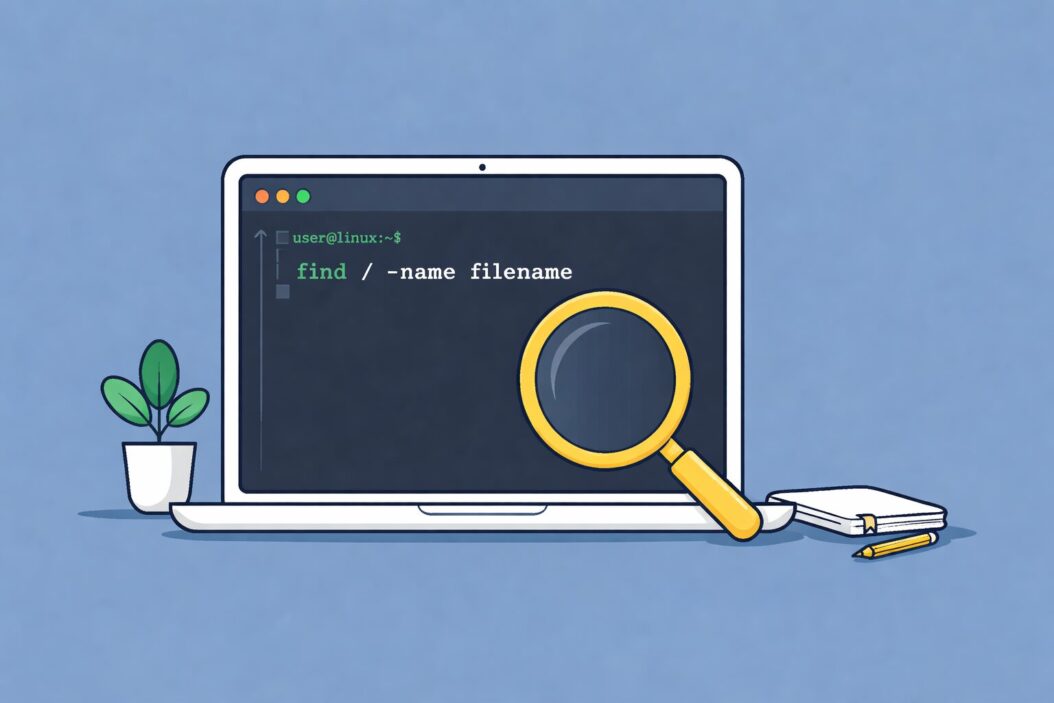
Open your terminal and type:
find /home -name "filename.txt"Replace /home with where you want to search. Replace filename.txt with your file’s name.
That’s the basic pattern. Everything else builds on this.
Understanding Linux File Search Tools
Linux offers several search tools. Each has a purpose:
find: Searches your filesystem in real time. Slow but thorough. Works everywhere.
locate: Searches a pre-built database. Fast but only finds files indexed earlier.
grep: Searches inside files for text. Different job, but people confuse it with find.
which: Finds executable programs in your PATH. Specific use case.
whereis: Finds binaries, source files, and manual pages. Also specific.
Start with find. It handles 80% of search tasks.
Using the find Command: Step by Step
Basic Syntax
find [where-to-search] [what-to-search-for] [what-to-do-with-it]Three parts. Where, what, action. Simple.
Search by Filename
find /home/username -name "report.pdf"This searches your home directory for exactly report.pdf. Case-sensitive.
Don’t know the exact name? Use wildcards:
find /home/username -name "*.pdf"This finds all PDF files. The asterisk means “anything goes here.”
Want case-insensitive search?
find /home/username -iname "Report.pdf"The -iname flag ignores case. Finds report.pdf, REPORT.PDF, or RePoRt.PdF.
Search Specific Directories
find /var/log -name "*.log"This searches only /var/log. The find command starts where you tell it and searches downward through all subdirectories.
Need to search multiple places?
find /home /var /tmp -name "config.txt"It checks all three locations.
Search Your Entire System
sudo find / -name "filename.txt"The / means “start at the root and search everything.” You need sudo because some directories require admin rights.
Warning: This takes time on large systems. Be specific when you can.
Limit Search Depth
find /home -maxdepth 2 -name "*.txt"This only searches two levels deep. Stops find from diving into every nested folder. Makes searches faster.
Search by File Type
Find Only Files
find /home -type f -name "data*"The -type f means files only. Ignores directories.
Find Only Directories
find /home -type d -name "backup"The -type d means directories only.
Find Symbolic Links
find /home -type lShows all symbolic links. Useful for debugging broken links.
Search by File Size
Find Large Files
find /home -type f -size +100MFinds files larger than 100 megabytes. Use G for gigabytes, k for kilobytes.
Need to free disk space? This shows you what’s eating storage:
find / -type f -size +1G 2>/dev/nullThe 2>/dev/null hides permission errors.
Find Small Files
find /home -type f -size -10kFinds files smaller than 10 kilobytes. Helpful for finding configuration files.
Find Exact Size
find /home -type f -size 50MFinds files exactly 50 megabytes. Rarely useful but possible.
Find Empty Files
find /home -type f -emptyShows empty files. Good for cleanup.
find /home -type d -emptyShows empty directories.
Search by Modification Time
Files Modified Recently
find /home -mtime -7Finds files modified in the last 7 days. Negative number means “less than.”
find /home -mtime +30Finds files modified more than 30 days ago. Positive number means “more than.”
Files Modified Today
find /home -mtime 0Zero means today.
Files Modified in Last Hour
find /home -mmin -60The -mmin flag uses minutes instead of days.
Files Accessed Recently
find /home -atime -7The -atime flag checks access time instead of modification time.
Files Changed Recently
find /home -ctime -7The -ctime flag checks metadata changes (permissions, ownership). Different from content modification.
Search by Permissions
Find Files by Permission Code
find /home -perm 644Finds files with exactly 644 permissions (rw-r–r–).
Find World-Writable Files
find /home -perm -002Security check. World-writable files are risky.
Find Executable Files
find /home -perm /u+xFinds files where the owner can execute them.
Search by Ownership
Find Files by User
find /home -user usernameShows all files owned by that user.
Find Files by Group
find /home -group developersShows files owned by a specific group.
Find Files Without Owners
find /home -nouserOrphaned files. Usually means a user was deleted but their files remain.
Combining Search Criteria
AND Logic (Default)
find /home -name "*.log" -size +10MFinds log files larger than 10MB. Both conditions must match.
OR Logic
find /home -name "*.pdf" -o -name "*.doc"Finds PDF or DOC files. The -o means “or.”
NOT Logic
find /home -name "*.txt" ! -name "temp*"Finds txt files except those starting with “temp.” The exclamation mark means “not.”
Complex Combinations
find /home -type f \( -name "*.jpg" -o -name "*.png" \) -size +1MFinds JPG or PNG files larger than 1MB. Parentheses group conditions. The backslash escapes them from the shell.
Performing Actions on Found Files
List Details
find /home -name "*.pdf" -lsShows detailed information like ls -l does.
Delete Files
find /home -name "*.tmp" -deleteDeletes all tmp files. Be careful. No undo.
Safer approach:
find /home -name "*.tmp" -printReview the list first. Then run with -delete.
Execute Commands
find /home -name "*.txt" -exec chmod 644 {} \;Changes permissions on all txt files. The {} represents each found file. The \; ends the command.
Execute with Confirmation
find /home -name "*.bak" -ok rm {} \;The -ok flag asks for confirmation before each action. Safer than -exec.
Move Files
find /home -name "*.log" -exec mv {} /var/log/archive/ \;Moves all log files to an archive directory.
Using the locate Command
Basic locate Usage
locate filename.txtSearches the database. Returns results instantly. Much faster than find.
Update the Database
sudo updatedbThe locate database updates daily by default. Run this manually after creating new files you want to find.
Case-Insensitive locate
locate -i filename.txtIgnores case, like find’s -iname.
Count Results
locate -c "*.pdf"Shows how many PDF files exist without listing them all.
When locate Fails
locate only knows about files in its database. New files won’t appear until the next update. System files outside indexed directories won’t appear at all.
Use find for guaranteed accuracy. Use locate for speed when you know the file has been around.
Using grep to Find Files by Content
Search Inside Files
grep -r "error" /var/log/Searches recursively through all files in /var/log/ for the word “error.”
Case-Insensitive Content Search
grep -ri "warning" /var/log/The -i flag ignores case.
Show Filenames Only
grep -rl "TODO" /home/username/projects/Lists files containing “TODO” without showing the matching lines.
Combine find and grep
find /home -name "*.py" -exec grep -l "import numpy" {} \;Finds Python files that import numpy. Powerful combination.
Using which and whereis
Find Executable Programs
which pythonShows the path to the python executable. Only searches directories in your PATH.
which -a pythonShows all matching executables in PATH.
Find Binaries and Documentation
whereis pythonShows binary location, source code location, and manual page location.
Common Search Scenarios
Scenario 1: Find Recent Downloads
find ~/Downloads -type f -mtime -7Shows files downloaded in the last week.
Scenario 2: Clean Up Old Logs
find /var/log -name "*.log" -mtime +90 -exec gzip {} \;Compresses logs older than 90 days to save space.
Scenario 3: Find Configuration Files
find /etc -name "*.conf"Lists all configuration files in the system config directory.
Scenario 4: Locate Missing Documents
find /home -name "*contract*" -iname "*.pdf"Searches for PDF files with “contract” in the name, case-insensitive.
Scenario 5: Find Duplicate Filenames
find /home -name "report.pdf" -printIf multiple results appear, you have duplicates in different directories.
Scenario 6: Find Files Modified by Specific User
find /var/www -user apache -mtime -1Finds files the apache user modified today. Useful for debugging web applications.
Performance Tips
Speed Up find Searches
Start specific: Search /home/username/Documents instead of /home.
Limit depth: Use -maxdepth to avoid deep recursion.
Use locate first: Try locate before find when speed matters.
Exclude directories:
find /home -name "*.txt" -not -path "*/node_modules/*"Skips the massive node_modules directories that slow searches.
Speed Up locate Searches
Keep database updated: Run sudo updatedb after major file changes.
Use specific patterns: locate specific.txt beats locate *.txt.
Troubleshooting Common Problems
Permission Denied Errors
find / -name "file.txt" 2>/dev/nullThe 2>/dev/null hides error messages. You see results, not access errors.
Or use sudo:
sudo find / -name "file.txt"Too Many Results
find /home -name "*.txt" | head -20Shows only the first 20 results.
Or be more specific:
find /home/username/Documents -name "*report*.txt" -mtime -30No Results Found
Check your starting directory. Check your filename spelling. Check if you need sudo for protected directories.
Try case-insensitive search:
find /home -iname "filename.txt"locate Returns Nothing
Update the database:
sudo updatedbWait a minute, then try again.
File Search Comparison
| Tool | Speed | Accuracy | Use Case |
|---|---|---|---|
| find | Slow | 100% current | General purpose, guaranteed results |
| locate | Very fast | Database may be outdated | Quick searches for known files |
| grep | Medium | N/A for filenames | Searching file contents |
| which | Very fast | Only PATH | Finding executables |
| whereis | Fast | Limited scope | Finding binaries and docs |
When to Use Each Tool
Use find when:
- You need guaranteed current results
- Searching by size, permissions, or dates
- Performing actions on found files
- The file might be very new
Use locate when:
- Speed matters most
- Files are not brand new
- Simple filename searches
- You just need to know if a file exists somewhere
Use grep when:
- Searching file contents, not names
- Finding files containing specific text
- Debugging code or logs
Use which when:
- Finding where a command lives
- Checking if a program is installed
- Debugging PATH issues
Advanced find Techniques
Find and Copy Files
find /source -name "*.jpg" -exec cp {} /backup/ \;Backs up all JPG files.
Find Files Newer Than Reference
touch -t 202601010000 /tmp/reference
find /home -newer /tmp/reference
Finds files modified after January 1, 2026.
Find by Inode
find /home -inum 12345678Finds files by inode number. Useful for finding hard links.
Exclude Specific Directories
find /home -path /home/username/.cache -prune -o -name "*.txt" -printSearches /home but skips the .cache directory entirely.
Find Broken Symbolic Links
find /home -type l ! -exec test -e {} \; -printShows symbolic links pointing to non-existent files.
Real-World Examples
Example 1: Audit Large Files
find /home -type f -size +500M -exec ls -lh {} \; | awk '{print $9, $5}'Lists files over 500MB with their sizes. Perfect for disk cleanup.
Example 2: Find Recently Modified Code
find ~/projects -name "*.py" -mtime -7 -lsShows Python files you changed this week.
Example 3: Security Scan
find /home -perm -002 -type f -lsFinds world-writable files. Security risk.
Example 4: Backup Modified Files
find /var/www -mtime -1 -type f -exec cp --parents {} /backup/ \;Backs up files modified today, preserving directory structure.
Creating Aliases for Common Searches
Add these to your .bashrc:
alias findhere='find . -name'
alias findlarge='find . -type f -size +100M'
alias findtoday='find . -type f -mtime 0'
Reload your shell:
source ~/.bashrcNow use shortcuts:
findhere "*.pdf"
findlarge
findtoday
Understanding Search Paths
Linux searches starting from the path you specify. The path determines scope:
/searches everything/homesearches all user directories/home/usernamesearches one user’s files.searches current directory and subdirectories..searches parent directory and its subdirectories
Narrower scope means faster results.
File Search in Different Linux Distributions
These commands work on all distributions:
- Ubuntu and Debian
- Fedora and Red Hat
- Arch Linux
- CentOS
- Linux Mint
- Pop!_OS
The tools are POSIX standard. Any Unix-like system has them.
Frequently Asked Questions
How do I find a file when I only know part of the name?
Use wildcards with the find command:
find /home -name "*part*"The asterisks match anything before or after “part.” For case-insensitive search, use -iname instead of -name. If you know the file extension, narrow it down:
find /home -name "*report*.pdf"This finds PDF files with “report” anywhere in the filename.
What’s the fastest way to search for files in Linux?
The locate command is fastest because it searches a pre-built database:
locate filenameBut locate only works if the file existed during the last database update. For brand new files or guaranteed accuracy, use find. You can speed up find by starting from a specific directory instead of root and using -maxdepth to limit how deep it searches.
How do I find files modified in the last 24 hours?
Use find with the -mtime flag:
find /home -mtime 0Zero means today. For the last 24 hours precisely, use minutes:
find /home -mmin -1440This searches for files modified in the last 1440 minutes (24 hours). The negative sign means “less than” that time ago.
Can I search inside files for specific text?
Yes, use grep for content search:
grep -r "search text" /path/to/search/The -r flag makes it recursive, searching all files in subdirectories. To see only filenames without the matching lines:
grep -rl "search text" /path/to/search/You can combine find and grep to search specific file types:
find /home -name "*.txt" -exec grep -l "search text" {} \;Why does find show Permission denied errors?
You’re trying to search directories you don’t have permission to read. Two solutions:
First, redirect errors to hide them:
find / -name "filename" 2>/dev/nullSecond, use sudo to search with administrator rights:
sudo find / -name "filename"The first approach shows results without clutter. The second approach searches protected system directories. Pick based on whether you need to search system files.
Conclusion
Finding files in Linux gets simple once you know the right tool for each job. Start with find for most searches. Add locate when speed matters. Use grep when searching file contents.
The basic pattern works everywhere:
find [where] [what] [action]Build from there. Add filters for size, time, permissions. Combine conditions with AND, OR, NOT. Execute actions on results.
Practice with small searches first. Search your home directory. Find files you created today. Search by extension. As you get comfortable, add complexity.
The command line feels awkward at first. But these tools are faster and more powerful than any graphical file manager. They work the same on every Linux system you’ll ever touch.
