
Concatenating in Excel means combining text from different cells into one cell. You can join names, addresses, dates, or any text data using built-in functions like CONCAT, TEXTJOIN, or the ampersand (&) symbol. This guide shows you every practical method with clear examples.
What Does Concatenate Mean in Excel?
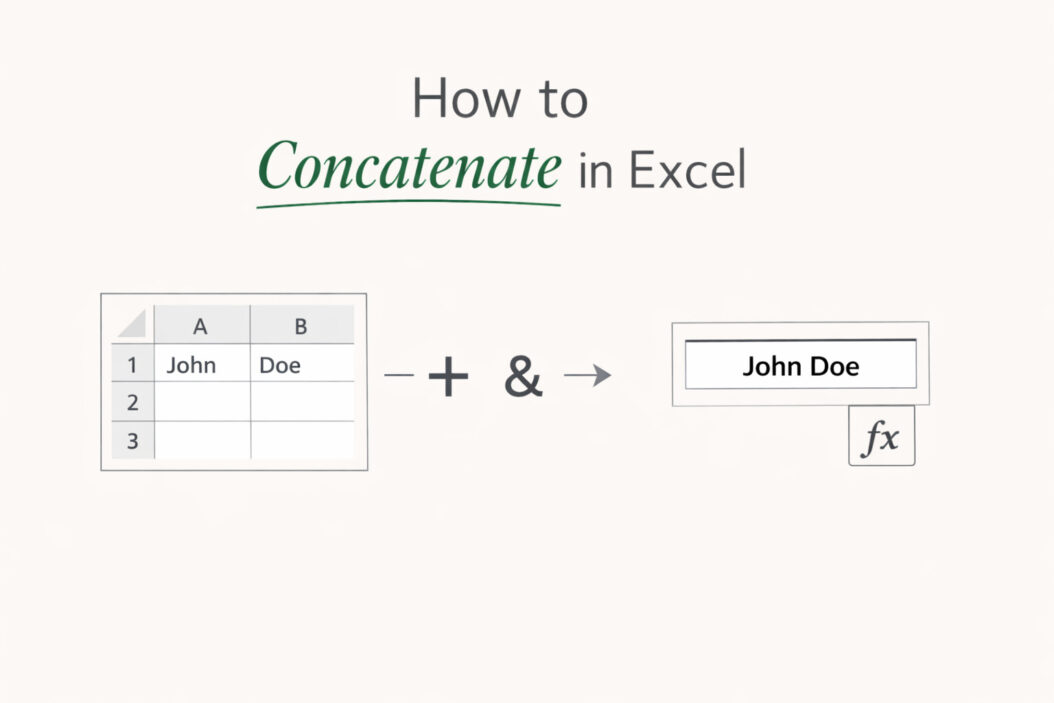
Concatenation joins separate pieces of text into a single string. Instead of having “John” in A1 and “Smith” in B1, you combine them to get “John Smith” in C1.
You need this skill when:
- Merging first and last names
- Creating full addresses from separate columns
- Building email addresses from usernames and domains
- Combining product codes with descriptions
- Generating custom messages with variable data
The fastest answer: Use the ampersand (&) for simple joins, CONCAT for basic combinations, and TEXTJOIN when you need delimiters or want to skip empty cells.
Method 1: Using the Ampersand (&) Operator
The ampersand is the simplest way to concatenate in Excel. It works in every version and gives you complete control.
Basic Ampersand Syntax
=A1&B1
This joins the contents of A1 and B1 with no space between them.
Adding Spaces and Text
To make readable results, add spaces or other characters:
=A1&" "&B1
The " " adds a space between the values. You can include any text inside quotation marks.
Real example:
- A1 contains: Sarah
- B1 contains: Johnson
- Formula:
=A1&" "&B1 - Result: Sarah Johnson
Combining Multiple Cells
Chain multiple ampersands together:
=A1&" "&B1&" "&C1
Practical example for addresses:
- A1: 123 Main St
- B1: Austin
- C1: TX
- Formula:
=A1&", "&B1&", "&C1 - Result: 123 Main St, Austin, TX
When to Use Ampersand
Best for:
- Quick, simple concatenations
- When you know exactly what separators you need
- Combining text with numbers or dates
- Building formulas where you control every element
Method 2: The CONCAT Function
CONCAT replaced the older CONCATENATE function in Excel 2016 and newer versions. It’s cleaner and accepts ranges.
Basic CONCAT Syntax
=CONCAT(A1,B1,C1)
Or with a range:
=CONCAT(A1:C1)
CONCAT vs Ampersand
CONCAT doesn’t automatically add spaces. Compare these:
=CONCAT(A1,B1)          Results in: SarahJohnson
=A1&" "&B1              Results in: Sarah Johnson
You still need to add separators manually:
=CONCAT(A1," ",B1)
Using CONCAT with Ranges
The advantage of CONCAT is handling ranges:
=CONCAT(A1:A5)
This joins all values from A1 through A5 without typing each cell reference.
Example:
- A1: The
- A2: quick
- A3: brown
- A4: fox
- Formula:
=CONCAT(A1:A5) - Result: Thequickbrownfox
Notice there are no spaces. CONCAT just smashes everything together.
Method 3: TEXTJOIN (The Most Powerful Option)
TEXTJOIN is the best concatenation function for most real-world tasks. It automatically adds delimiters and can skip empty cells.
TEXTJOIN Syntax
=TEXTJOIN(delimiter, ignore_empty, text1, [text2], ...)
Parameters explained:
- delimiter: The character(s) to put between each value (space, comma, dash, etc.)
- ignore_empty: TRUE to skip blank cells, FALSE to include them
- text1, text2: The cells or ranges to join
Basic TEXTJOIN Examples
Add spaces automatically:
=TEXTJOIN(" ",TRUE,A1:C1)
If A1=”John”, B1=”M”, C1=”Smith”, result is: John M Smith
Create comma-separated lists:
=TEXTJOIN(", ",TRUE,A1:A10)
This joins all names in column A with commas and spaces between them.
Handling Empty Cells
The ignore_empty parameter makes TEXTJOIN incredibly useful:
=TEXTJOIN(" ",TRUE,A1,B1,C1)
If B1 is empty, you get “John Smith” instead of “John Smith” (no double space).
Advanced TEXTJOIN Applications
Building email lists:
=TEXTJOIN("; ",TRUE,A2:A50)
Creates: email1@example.com; email2@example.com; email3@example.com
Creating custom messages:
="Hello "&A1&", your order "&B1&" will arrive on "&TEXT(C1,"mmm dd")&"."
Concatenating with Different Data Types
Excel treats numbers, dates, and text differently. Here’s how to handle each.
Combining Text and Numbers
Numbers concatenate directly:
=A1&B1
If A1=”Order #” and B1=1234, result is: Order #1234
Concatenating Dates
Dates need special formatting or they appear as serial numbers:
Wrong way:
=A1&" "&B1
If B1 is a date (Jan 15, 2026), this shows: Report 45672
Right way:
=A1&" "&TEXT(B1,"mm/dd/yyyy")
Result: Report 01/15/2026
The TEXT function converts dates to readable strings. Common date formats:
- “mm/dd/yyyy” → 01/15/2026
- “mmmm dd, yyyy” → January 15, 2026
- “dd-mmm-yy” → 15-Jan-26
Formatting Numbers
Use TEXT for currency, percentages, or decimals:
="Total: "&TEXT(A1,"$#,##0.00")
If A1=1234.5, result is: Total: $1,234.50
Number format codes:
- “$#,##0.00” → Currency with 2 decimals
- “0.00%” → Percentage with 2 decimals
- “#,##0” → Thousands separator, no decimals
Practical Examples for Common Tasks
Creating Full Names
Method 1 (First + Last):
=A2&" "&B2
Method 2 (First + Middle + Last, skip empty middle):
=TEXTJOIN(" ",TRUE,A2,B2,C2)
Method 3 (Last, First format):
=B2&", "&A2
Building Complete Addresses
Addresses often have empty fields (apartment numbers, second address lines). TEXTJOIN handles this perfectly:
=TEXTJOIN(", ",TRUE,A2,B2,C2,D2&" "&E2&" "&F2)
Where:
- A2 = Street Address
- B2 = Apt/Suite (sometimes empty)
- C2 = City
- D2 = State
- E2 = ZIP
- F2 = Country
Generating Email Addresses
Convert names to email addresses:
=LOWER(A2&"."&B2&"@company.com")
If A2=”Sarah” and B2=”Johnson”, result: sarah.johnson@company.com
The LOWER function ensures all lowercase letters.
Creating Product Codes
Combine category, year, and sequence:
=A2&"-"&YEAR(TODAY())&"-"&TEXT(B2,"0000")
If A2=”WIDGET” and B2=42, result: WIDGET-2026-0042
Merging Data for Import Files
Many systems need pipe-delimited or tab-delimited data:
Pipe-delimited:
=TEXTJOIN("|",FALSE,A2:F2)
Tab-delimited:
=TEXTJOIN(CHAR(9),FALSE,A2:F2)
CHAR(9) creates a tab character.
Which Method to Use
| Method | Best For | Pros | Cons |
|---|---|---|---|
| Ampersand (&) | Simple joins, precise control | Works everywhere, fast, flexible | Manual spacing, can’t handle ranges easily |
| CONCAT | Joining ranges without separators | Cleaner than multiple &, accepts ranges | No automatic delimiters, no empty cell handling |
| TEXTJOIN | Complex lists, variable data | Auto delimiters, skips empties, handles ranges | Only Excel 2016+ and Office 365 |
| CONCATENATE | Legacy files | Backward compatibility | Replaced by CONCAT, can’t use ranges |
Troubleshooting Common Concatenation Problems
Extra Spaces Appearing
Problem: Getting “John Smith” with double spaces.
Solution: Use TEXTJOIN with ignore_empty=TRUE, or use TRIM:
=TRIM(A1&" "&B1&" "&C1)
TRIM removes extra spaces.
Dates Showing as Numbers
Problem: Date appears as 45672 instead of 01/15/2026.
Solution: Wrap dates in TEXT function:
=A1&" "&TEXT(B1,"mm/dd/yyyy")
Formula Returns #NAME? Error
Problem: Excel doesn’t recognize TEXTJOIN or CONCAT.
Solution: You’re using Excel 2013 or earlier. Use ampersand or CONCATENATE instead:
=CONCATENATE(A1," ",B1)
Or upgrade to a newer Excel version.
Leading Zeros Disappear
Problem: Joining “00123” results in “123”.
Solution: Use TEXT to preserve zeros:
=A1&TEXT(B1,"00000")
This maintains 5-digit formatting.
Getting #VALUE! Error
Problem: Formula returns #VALUE!
Causes and solutions:
- Trying to concatenate an error value → Use IFERROR
- Array formula in older Excel → Enter with Ctrl+Shift+Enter
- Cell contains unsupported data type → Convert to text first
=IFERROR(TEXTJOIN(" ",TRUE,A1:C1),"Error in data")
Advanced Techniques
Concatenating with Line Breaks
Create multi-line text in one cell:
=A1&CHAR(10)&B1&CHAR(10)&C1
CHAR(10) inserts a line break. Enable “Wrap Text” in the cell to see multiple lines.
Example output:
123 Main Street
Austin, TX 78701
USA
Conditional Concatenation
Add text only if conditions are met:
=A1&IF(B1<>"", " "&B1, "")&IF(C1<>"", " "&C1, "")
This adds B1 and C1 only if they’re not empty.
Using Concatenation in Array Formulas
Combine TEXTJOIN with other functions:
=TEXTJOIN(", ",TRUE,IF(B2:B10>100,A2:A10,""))
This creates a comma-separated list of names (column A) where sales (column B) exceed 100.
In Excel 365, this works automatically. In older versions, press Ctrl+Shift+Enter.
Concatenating with VLOOKUP Results
Lookup and join in one formula:
=A2&" - "&VLOOKUP(A2,Products!A:B,2,FALSE)
Joins the product code with its description from another sheet.
Performance Considerations
Which Method is Fastest?
For small datasets (under 1000 rows), speed differences are negligible. For large datasets:
- Ampersand is fastest (direct calculation)
- CONCAT is slightly slower (function overhead)
- TEXTJOIN is slowest (but still fast enough for most uses)
Reducing Calculation Time
Avoid volatile functions when possible:
=A2&"-"&TEXT(NOW(),"yyyy")      Slower (recalculates constantly)
=A2&"-2026"                      Faster (static value)
Use helper columns for complex formulas instead of nesting everything in one cell.
Managing Large Concatenations
If joining thousands of cells, consider:
- Breaking into smaller chunks
- Using Power Query for data transformation (available in Excel 2016+)
- Copying and pasting values after calculation to remove formulas
Learn more about optimizing Excel performance at Microsoft’s Excel performance tips.
When to Use Alternative Methods
Power Query (Get & Transform)
For repetitive concatenation tasks, Power Query offers advantages:
- No formulas needed
- Automatically updates when source data changes
- Handles millions of rows efficiently
- Creates reusable transformation steps
How to access: Data tab → Get Data → From Table/Range
VBA Macros
Create custom concatenation functions for specialized needs:
Function ConcatRange(rng As Range, delimiter As String) As String
    Dim cell As Range
    Dim result As String
    For Each cell In rng
        If cell.Value <> "" Then
            result = result & cell.Value & delimiter
        End If
    Next cell
    ConcatRange = Left(result, Len(result) - Len(delimiter))
End Function
Use in worksheet: =ConcatRange(A1:A10,", ")
Flash Fill
Excel 2013+ includes Flash Fill, which detects patterns:
- Type one or two examples of your desired result
- Press Ctrl+E
- Excel fills remaining cells automatically
Good for simple, consistent patterns. Not reliable for complex logic.
Summary
Concatenating in Excel is essential for combining text, and you have multiple tools to choose from:
Use the ampersand (&) when you need precise control and your version of Excel doesn’t matter. It’s fast, flexible, and works everywhere.
Use CONCAT when joining multiple ranges without delimiters, especially in newer Excel versions where it’s cleaner than chaining ampersands.
Use TEXTJOIN for real-world scenarios with delimiters and potentially empty cells. It’s the most powerful option and saves time with automatic spacing.
Remember to format numbers and dates with the TEXT function to keep them readable. Test your formulas with sample data before applying them to entire columns.
The method you choose depends on your Excel version, data complexity, and personal preference. Start with simple ampersand joins, then move to TEXTJOIN as your needs grow.
Frequently Asked Questions
What is the difference between CONCAT and CONCATENATE?
CONCAT is the modern replacement for CONCATENATE, introduced in Excel 2016. CONCAT accepts ranges like A1:A5, while CONCATENATE requires individual cell references. Both join text without automatic delimiters. CONCATENATE still works for backward compatibility, but Microsoft recommends using CONCAT in new workbooks.
How do I concatenate with a comma in Excel?
Add the comma and space as text in quotes: =A1&", "&B1 or use TEXTJOIN: =TEXTJOIN(", ",TRUE,A1:C1). TEXTJOIN is easier when joining many cells because you specify the delimiter once instead of adding it between every cell reference.
Can I concatenate across different sheets?
Yes, reference cells from other sheets using the sheet name: =Sheet1!A1&" "&Sheet2!B1 or =TEXTJOIN(" ",TRUE,Sheet1!A1,Sheet2!B1,Sheet3!C1). If the sheet name contains spaces, use single quotes: ='Sales Data'!A1&" "&'Revenue'!B1.
Why does my concatenated date show as a number?
Excel stores dates as numbers (called serial dates). When you concatenate a date, it displays the underlying number instead of the formatted date. Wrap the date in the TEXT function: ="Date: "&TEXT(A1,"mm/dd/yyyy") to show it properly formatted.
How do I concatenate cells and skip blanks automatically?
Use TEXTJOIN with the ignore_empty parameter set to TRUE: =TEXTJOIN(" ",TRUE,A1:C1). This skips any empty cells in the range, preventing double spaces or extra delimiters. The ampersand and CONCAT functions cannot skip blanks automatically without additional IF statements.

- How to Uninstall Apps from the Start Menu in Windows 11/10 (2026 Guide) - April 2, 2026
- How to Fix Overscan on Windows 11/10: Stop Your Screen Getting Cut Off (2026) - April 1, 2026
- How to Disable Lock Screen on Windows 11/10 in 2026 - April 1, 2026