
You want to close your laptop lid and have everything show on your external monitor. That is completely possible on both Windows and Mac. This guide walks you through every step, explains what can go wrong, and helps you get a clean, focused desktop setup.
What Is Clamshell Mode?
When you close your laptop and keep working through an external monitor, that is called clamshell mode. Your laptop screen goes off, but your machine keeps running and sends the display signal to your monitor.
This works on both Windows and macOS. The steps are slightly different for each, so find your section below.
Before anything else, you need two things connected to your laptop. A power adapter and an external monitor. Without the charger plugged in, most laptops will simply go to sleep when you close the lid.
What You Need Before You Start
- An external monitor with a working cable (HDMI, DisplayPort, USB-C, or VGA)
- Your laptop charger plugged in
- A keyboard and mouse (wireless or USB)
- A few minutes to change one setting
That is genuinely all you need. No special software. No third-party apps.
How to Close Laptop and Use Monitor on Windows
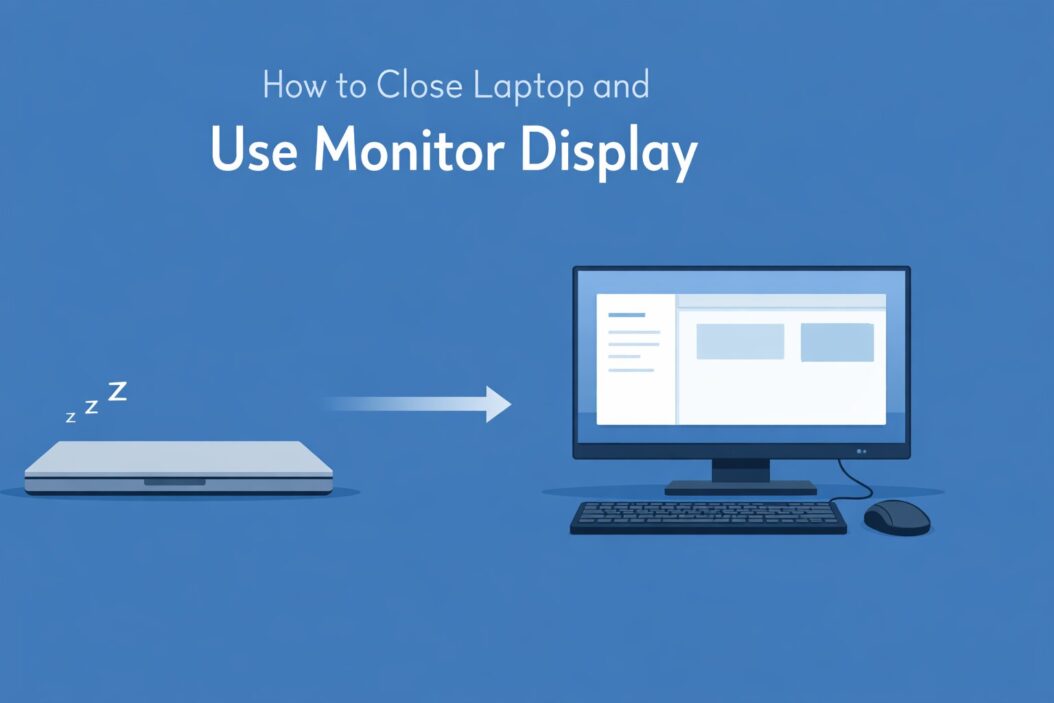
Step 1: Connect Your Monitor
Plug the cable into your laptop and the monitor. Turn the monitor on. Windows should detect it automatically within a few seconds.
If nothing shows up, press Windows key + P and select “Extend” or “Duplicate” to confirm the monitor is working.
Step 2: Change the Lid Close Behavior
This is the key step most people miss.
- Click the Start menu and type “Control Panel”
- Open Control Panel
- Click “Hardware and Sound”
- Click “Power Options”
- On the left side, click “Choose what closing the lid does”
- You will see two columns: “On battery” and “Plugged in”
- Under “Plugged in,” change the dropdown from “Sleep” to “Do nothing”
- Click “Save changes”
Now when you close the lid while plugged in, Windows will not sleep. Your monitor stays active.
Step 3: Set the External Monitor as Your Main Display
- Right-click on your desktop
- Click “Display settings”
- Scroll down to “Multiple displays”
- Click “Show only on 2” if you want everything on the external monitor
Or you can press Windows key + P and choose “Second screen only.” This is faster.
Step 4: Close the Lid
Close your laptop. The screen goes dark. Everything now runs on your external monitor. Your keyboard and mouse control everything.
That is it. You are in clamshell mode.
How to Close Laptop and Use Monitor on Mac
Mac handles this a bit differently, but it is just as simple.
Step 1: Connect Monitor and Power
Plug in your charger first. Then connect your monitor using HDMI, USB-C, or a Thunderbolt cable. Mac should detect the monitor automatically.
Step 2: No Settings Change Needed on Modern Macs
On macOS Ventura, Sonoma, and newer versions, you do not need to change any setting. macOS automatically enters clamshell mode when:
- The laptop is plugged into power
- An external monitor is connected
- An external keyboard or mouse is active
Just close the lid. The laptop screen turns off and your external monitor takes over.
Step 3: If the Mac Goes to Sleep When You Close the Lid
Go to System Settings, then Displays. Make sure your monitor is recognized. If the Mac keeps sleeping, check that your charger is fully plugged in and your Bluetooth or USB keyboard or mouse is on and connected.
Some older Macs require you to close the lid and then press a key on your external keyboard to wake the system into clamshell mode. Just close it, wait one second, then press any key.
Choosing the Right Cable for Your Setup
The cable matters. Here is a quick comparison to help you pick the right one.
| Cable Type | Max Resolution | Best For |
|---|---|---|
| HDMI 1.4 | 1080p at 60Hz | Basic monitors, older setups |
| HDMI 2.0 | 4K at 60Hz | Most modern monitors |
| DisplayPort 1.4 | 4K at 144Hz | Gaming or high refresh rate monitors |
| USB-C (with DisplayPort Alt Mode) | 4K at 60Hz | Modern laptops, single cable |
| Thunderbolt 3/4 | 4K at 60Hz | Mac, high-end Windows laptops |
| VGA | 1080p max | Old monitors only, no audio |
If your laptop only has USB-C ports, you likely need either a USB-C to HDMI cable or a USB-C hub. Make sure the hub supports “DisplayPort Alt Mode” or “Video Output.” Not all USB-C hubs carry video signals.
For a deeper look at display connection types, the VESA DisplayPort standards page is a reliable technical reference.
Setting Display Resolution and Scaling Correctly
Once your monitor is active, you want to make sure it runs at the right resolution.
On Windows, go to Display Settings and check that “Resolution” matches your monitor’s native resolution. If text looks blurry or oversized, that means the resolution is wrong.
On Mac, go to System Settings, then Displays. Click “More Space” or “Larger Text” depending on your preference. If you have a 4K monitor, enable HiDPI scaling for sharp text.
Using your monitor at a non-native resolution is the most common reason things look blurry in clamshell mode. Always match the monitor’s native resolution listed in its specs.
Common Problems and How to Fix Them
Laptop Goes to Sleep When Lid Closes (Windows)
You changed the setting but it still sleeps. Check this: some laptops have a physical magnetic sensor near the hinge. If you are using a laptop stand and the lid is only partially closed, the magnet might not fully trigger. Close it completely.
Also check your screensaver settings and your advanced power plan settings. Sometimes a screensaver or a separate “sleep after X minutes” setting overrides the lid setting.
No Signal on Monitor After Closing Lid (Mac)
Press a key on your external keyboard to wake the machine. If that does not work, open the lid, disconnect and reconnect the monitor cable, then close the lid again while the screen is still on.
External Monitor Flickering or Going Black
This is almost always a cable issue. Try a different cable. HDMI cables degrade over time. A cheap HDMI cable can cause flickering at 4K. Replace it with a quality cable if this keeps happening.
Laptop Gets Hot in Clamshell Mode
When your laptop lid is closed, airflow is slightly reduced. This is not usually a problem, but if you are running heavy tasks, make sure the laptop is not completely enclosed. Laptop stands that tilt the machine or leave gaps around the vents help with cooling. For sustained heavy workloads like video editing or gaming, monitor your CPU temperature using a tool like HWMonitor on Windows or iStatMenus on Mac.
Audio Playing Through Laptop Instead of Monitor
Right-click the speaker icon in the Windows taskbar, go to Sound settings, and set your output device to the monitor or to a connected speaker. On Mac, go to System Settings, then Sound, and select the correct output.
How to Use Two Monitors With Your Laptop Closed
This is for people who want two external monitors running while the laptop is shut.
On Windows, you just connect both monitors before closing the lid. In Display Settings, arrange them how you want. Close the lid. Both monitors stay active.
On Mac, this depends on your machine. The M1 and M2 MacBooks only natively support one external display. To run two external displays, you need a dock that supports MST (Multi-Stream Transport) or a specific DisplayLink adapter. The M3, M4, and Intel Macs support two monitors more easily. Check Apple’s tech specs page for your specific model.
Best Practices for Clamshell Mode in 2026
Keep your laptop on a stand or raised surface to improve airflow. Do not close it flat on a desk with no gap.
Use a dock or hub instead of plugging cables directly into the laptop. This protects your ports and makes it easy to connect and disconnect everything at once.
Keep your drivers updated. On Windows, outdated GPU drivers cause display issues. Open Device Manager and update your display adapter driver if things are not working right.
Label your cables. When you are running a clean clamshell desk setup, it is easy to forget which cable goes where. A small label helps.
Use a wireless keyboard and mouse so you are not tethered to your desk. Bluetooth peripherals work well in clamshell mode.
What Happens to Your Laptop Screen When You Close It
When clamshell mode is active, your laptop screen simply turns off. It is not damaged. It is not sleeping. Just the backlight and panel go dark to save power and avoid running a screen you cannot see.
When you open the lid again, Windows or macOS detects the open lid and activates the built-in screen again. You can then go back to Display Settings and choose how you want multiple screens arranged.
Nothing is permanently changed. Clamshell mode is not a permanent configuration. It works session by session.
Summary
Closing your laptop and using only an external monitor is straightforward once you know the one setting that controls it.
On Windows, go to Power Options and change “When I close the lid” to “Do nothing” while plugged in. Then press Windows + P and choose “Second screen only.”
On Mac, just plug in power and a monitor, connect an external keyboard and mouse, and close the lid. macOS handles the rest automatically.
Make sure you have the right cable for your monitor’s resolution, keep your drivers updated, and give your laptop some airflow even when the lid is closed. That covers everything for a clean and reliable clamshell setup.
Frequently Asked Questions
Can I close my laptop and use the monitor without plugging in the charger?
On most laptops, no. Without the charger, closing the lid triggers sleep or hibernate. Some laptops let you change this for battery mode too, but running in clamshell without power drains your battery fast and thermal management suffers. Always use the charger.
Why does my laptop screen stay on even after I close the lid?
The lid close sensor may not be working, or you have the lid close setting configured to “Do nothing” for both battery and plugged-in states. On Windows, go back to Power Options and confirm the settings. On Mac, this usually means the monitor was not recognized before you closed the lid.
Does clamshell mode work on all laptops?
Yes, virtually all modern Windows laptops and all Macs support it. Very old machines from before 2015 may have quirks, but the behavior is standard on anything made in the last decade.
Will my laptop overheat in clamshell mode?
For normal tasks like browsing, documents, and video calls, no. For heavy workloads like rendering or gaming, keep an eye on temps. Use a stand to improve airflow around the chassis and avoid blocking the vents.
How do I go back to using just my laptop screen?
On Windows, open the lid and press Windows + P, then choose “PC screen only.” On Mac, simply disconnect the external monitor and the built-in screen takes over automatically. No settings need to be changed.
