
If you need to check your DirectX version on Windows, here is the fastest way: press Windows + R, type dxdiag, and hit Enter. The DirectX Diagnostic Tool opens. Look at the bottom of the System tab. You will see “DirectX Version” listed there. Done.
That is the short answer. But there is more to know, especially if you are troubleshooting a game, checking hardware compatibility, or preparing to install software. This guide covers everything you need, step by step, in plain language.
Why Your DirectX Version Matters
DirectX is a collection of APIs built by Microsoft. It lets software, mostly games and multimedia apps, talk directly to your graphics card, sound card, and other hardware. Every major Windows version ships with a specific version of DirectX.
If a game requires DirectX 12 and you are running DirectX 11, it simply will not run. That is why knowing your version matters before you buy or install software.
Here is a quick breakdown of which Windows versions support which DirectX:
| Windows Version | Default DirectX Version | Max Supported |
|---|---|---|
| Windows 11 | DirectX 12 | DirectX 12 Ultimate |
| Windows 10 | DirectX 12 | DirectX 12 |
| Windows 8.1 | DirectX 11.1 | DirectX 11.2 |
| Windows 7 SP1 | DirectX 11 | DirectX 11 |
If you are running Windows 10 or 11, you almost certainly have DirectX 12. But your GPU must also support it, which is a separate thing.
How to Check DirectX Version: 4 Methods
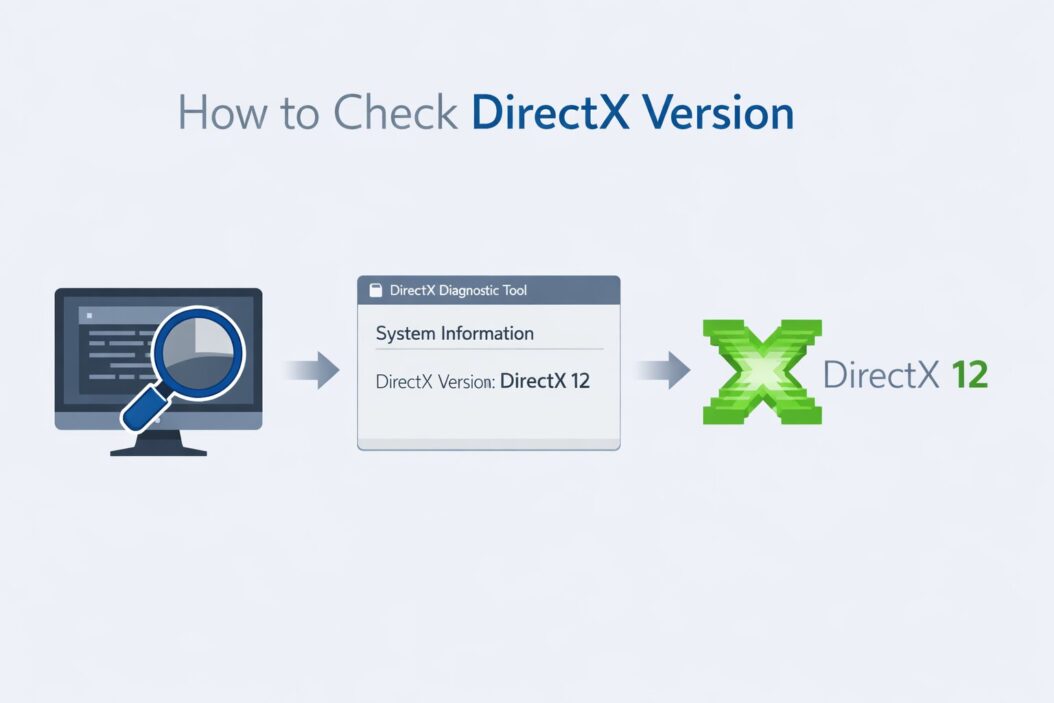
Method 1: Using the DxDiag Tool (Fastest and Most Reliable)
This is the official Microsoft method. It gives you the most complete picture.
Step 1. Press Windows + R on your keyboard. The Run dialog opens.
Step 2. Type dxdiag and press Enter.
Step 3. Windows may ask if you want to check whether your drivers are digitally signed. Click Yes to get complete info, or No to skip and go faster.
Step 4. The DirectX Diagnostic Tool opens. Stay on the System tab.
Step 5. Scroll down to the bottom of the System Information list. You will see a line that says DirectX Version: DirectX 12 (or whichever version you have).
That is your system-level DirectX version. This is what Windows reports as the maximum version it supports.
Bonus tip: Click the Display tab to check your GPU’s DirectX feature level. This tells you what your graphics card can actually handle. A card might run on a system with DirectX 12 but only support DirectX 11 feature levels, which limits what games can use.
Method 2: Using Windows Settings (No Run Dialog Needed)
If you prefer not to use keyboard shortcuts:
Step 1. Open the Start Menu and click Settings (the gear icon).
Step 2. Go to System, then click About.
Step 3. Under Device specifications, you will see your Windows version. This tells you which DirectX version your system ships with based on the table above.
This method does not show DirectX version directly, but it confirms your Windows version, which maps to a specific DirectX version.
Method 3: Check via PowerShell
For users comfortable with command-line tools:
Step 1. Right-click the Start button and select Windows PowerShell or Terminal.
Step 2. Type the following and press Enter:
Get-WmiObject -Class Win32_VideoController | Select-Object Caption, DriverVersion
This shows your GPU name and driver version. Combined with knowing your Windows version, you can confirm DirectX support.
For a direct check, you can also type:
dxdiag /t dxdiag_output.txt
This saves a complete DirectX diagnostics report to a text file in your current directory. Open it with Notepad to read all details.
Method 4: Check Inside a Game or App
Many games show DirectX version info directly in their settings or launcher. For example:
- In most PC games, go to Settings > Graphics > API and the game will list which DirectX version it is using.
- On Steam, right-click a game and choose Properties > System Requirements to see what version the game needs.
- Some launchers like Epic Games and Battle.net show DirectX requirements on the game info page.
This method works if you want to confirm a specific game’s compatibility rather than checking your system specs overall.
What to Look for in the DxDiag Tool
When the DxDiag window is open, here is what each section tells you:
| Tab | What It Shows |
|---|---|
| System | Your OS version, RAM, processor, and DirectX version |
| Display | GPU name, VRAM, driver version, and DirectX feature level |
| Sound | Audio device and sound driver info |
| Input | Connected input devices like controllers and keyboards |
The DirectX Feature Level on the Display tab is especially important for gaming. It may say something like Feature Level 12_0 or Feature Level 11_1. This is the actual capability of your GPU, not just your operating system.
DirectX Version vs. Feature Level: What Is the Difference?
This trips up a lot of people. Here is the simple version:
DirectX Version refers to the version of the DirectX runtime installed on Windows. Windows 10 and 11 come with DirectX 12 as part of the operating system.
DirectX Feature Level refers to what your graphics card can actually do. A GPU from 2012 running Windows 10 might show DirectX Version 12 in DxDiag, but its Feature Level might only be 11_0. That means the card cannot use DirectX 12 features, even though the OS supports them.
So when a game says “requires DirectX 12,” it usually means your GPU needs a Feature Level of at least 12_0. The OS version alone is not enough.
Here is a quick reference for GPU feature levels:
| Feature Level | What It Means |
|---|---|
| 12_2 | Full DirectX 12 Ultimate support (RTX 30xx, RX 6000+) |
| 12_1 | DirectX 12 with most modern features |
| 12_0 | Basic DirectX 12 support |
| 11_1 | DirectX 11 with extended features |
| 11_0 | Standard DirectX 11 (GTX 400/500, HD 4000 series) |
How to Update DirectX on Windows
Good news: you do not manually install DirectX like you used to in the early 2000s. On modern Windows, DirectX updates come through Windows Update.
To update DirectX:
Step 1. Open Settings and go to Windows Update.
Step 2. Click Check for updates and let Windows download any available updates.
Step 3. Restart your PC when prompted.
Step 4. Reopen DxDiag and confirm the version.
For older games that need DirectX 9 or DirectX 10 runtimes, Microsoft provides the DirectX End-User Runtime Web Installer. You can find it on the official Microsoft Download Center. This installs legacy DirectX libraries without replacing the newer version on your system. Both can coexist.
Troubleshooting Common DirectX Problems
DxDiag Shows an Older Version Than Expected
If you are on Windows 10 or 11 and DxDiag shows DirectX 11 instead of 12, try these steps:
- Run Windows Update and install all pending updates.
- Update your GPU driver from the manufacturer’s website (Nvidia, AMD, or Intel).
- Make sure your GPU actually supports DirectX 12 (check the feature level on the Display tab).
A Game Says You Need a Higher DirectX Version
This usually means one of two things:
- Your GPU feature level is too low. The game needs a higher feature level than your card supports. Upgrading your GPU is the only real fix here.
- You are missing a legacy DirectX runtime. Install the DirectX End-User Runtime mentioned above.
DxDiag Will Not Open
Try these fixes:
- Search for
dxdiag.exein the Windows search bar and run it as administrator. - Open Command Prompt as admin and type
dxdiag. - Run a System File Checker scan by typing
sfc /scannowin an admin Command Prompt.
How to Check DirectX Version on Windows 11 Specifically
The steps are the same as any other modern Windows version. Press Windows + R, type dxdiag, and press Enter. Windows 11 comes with DirectX 12 by default, but your actual capability depends on your GPU.
On Windows 11, you can also check a quick GPU overview by going to:
Settings > System > Display > Advanced display
This shows your GPU name and some driver info, though it does not show the DirectX version directly. DxDiag remains the best tool for a complete picture.
For a deeper look at GPU capabilities in Windows 11, you can use Task Manager too. Press Ctrl + Shift + Esc, click the Performance tab, and click GPU on the left. It shows real-time GPU usage, VRAM, and the DirectX version your card supports.
According to Microsoft’s official DirectX documentation, DirectX 12 is designed to give developers lower-level hardware access, resulting in less driver overhead and better multi-core CPU usage. This is why modern games target it so aggressively.
Summary
Here is everything covered in one place:
- The fastest way to check your DirectX version is Windows + R > dxdiag > System tab.
- Windows 10 and 11 ship with DirectX 12 as the OS-level version.
- Your GPU’s Feature Level determines what DirectX features you can actually use in games.
- DirectX updates through Windows Update, not through manual installs.
- For legacy DirectX 9 support, use Microsoft’s DirectX End-User Runtime.
- The Display tab in DxDiag shows your GPU’s actual feature level, which is the most useful number for gaming compatibility.
If you remember one thing from this article: DirectX version and DirectX feature level are two different things. Know both before you troubleshoot or make a purchase decision.
Frequently Asked Questions
How do I know if my PC supports DirectX 12?
Open DxDiag by pressing Windows + R and typing dxdiag. Go to the Display tab and look for “Feature Level.” If it says 12_0 or higher, your GPU supports DirectX 12. If you are on Windows 10 or 11, the OS already includes DirectX 12. The GPU feature level is the deciding factor for gaming.
Can I install DirectX 12 on Windows 7?
No. DirectX 12 is only available on Windows 10 and Windows 11. It is part of the operating system and cannot be installed separately. If you are on Windows 7, the highest you can go is DirectX 11 with the right hardware and updates.
Is DirectX 12 better than DirectX 11 for gaming?
In most cases, yes. DirectX 12 gives games more efficient access to GPU and CPU resources, which can reduce stuttering and improve frame rates on capable hardware. But results depend on how well a game is optimized for DirectX 12. Some games still run better on DirectX 11 because of how they were built.
Why does DxDiag show DirectX 12 but a game still will not run?
This usually means the game requires a DirectX 12 feature level that your GPU does not support. Check the Display tab in DxDiag for your GPU’s Feature Level. If the game needs Feature Level 12_0 and your card is 11_1, the game will not run regardless of what the OS says.
Does updating GPU drivers change my DirectX version?
No. Updating GPU drivers does not change your DirectX version. The DirectX runtime version is tied to your Windows version. However, driver updates can improve performance and stability for DirectX features your card already supports, and they may unlock game-specific optimizations.
