
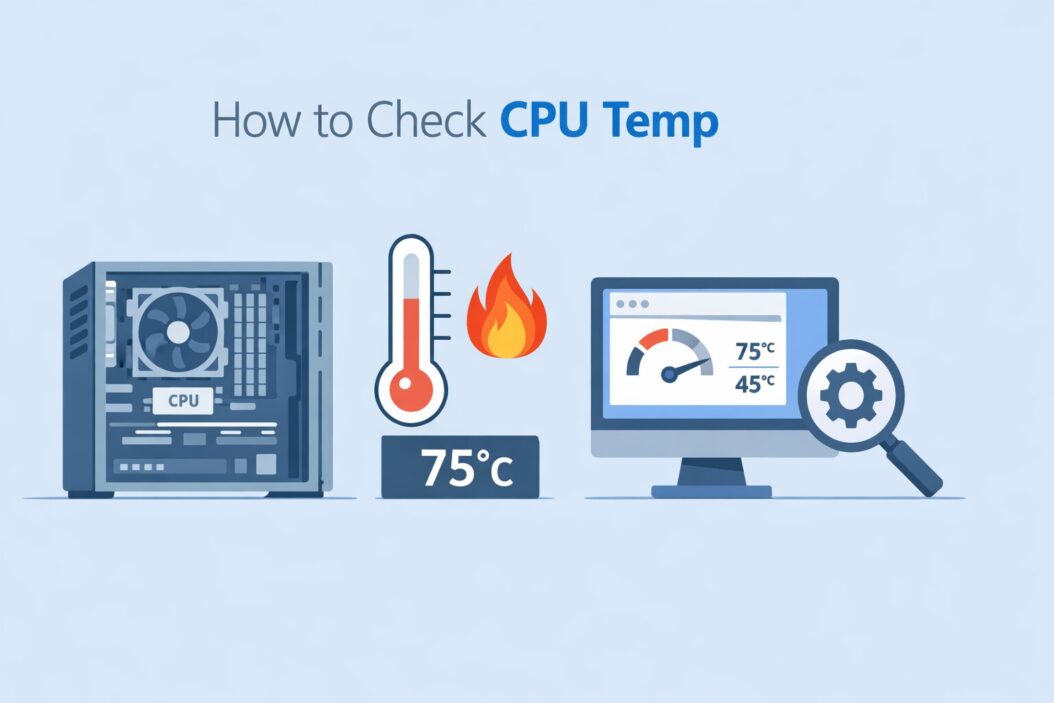
Your CPU temperature matters more than most people realize. A processor running too hot will throttle itself, slow down your PC, and over time, reduce its lifespan. The good news? Checking your CPU temp takes less than two minutes.
Short answer: Download a free tool like HWiNFO64 or Core Temp, open it, and your CPU temperature shows up immediately on the main screen. That is it.
But there is more you need to know, like what the numbers actually mean, when to worry, and what to do if temps are too high. This guide covers all of it.
Why CPU Temperature Matters
Modern CPUs are powerful but sensitive. Intel and AMD processors are designed to run safely within a specific temperature range. Push past that range consistently, and your system starts protecting itself by slowing down automatically. This is called thermal throttling.
Symptoms of an overheating CPU include:
- Sudden slowdowns during heavy tasks
- Random shutdowns or restarts
- Fan noise getting louder than usual
- System freezes during gaming or video editing
Checking your CPU temp regularly helps you catch problems early before they become expensive.
How to Check CPU Temp on Windows (Step by Step)
Windows does not have a built-in tool that shows CPU temperature in a simple way. The BIOS can show it, but you need third-party software for real-time monitoring inside Windows.
Method 1: HWiNFO64 (Most Detailed, Free)
HWiNFO64 is the gold standard for hardware monitoring. It shows per-core temperatures, package temperature, power draw, and more.
Steps:
- Go to hwinfo.com and download the free version
- Install and open the program
- Click Run when it asks about sensors-only mode (optional but cleaner for temp monitoring)
- Look for your CPU section in the sensors window
- Find CPU Package temperature, this is your main CPU temp reading
The CPU Package temp reflects the overall processor temperature. Individual core temps show per-core readings, which can vary slightly.
Method 2: Core Temp (Simple and Lightweight)
Core Temp is perfect if you just want a quick, clean temperature readout without extra information.
Steps:
- Download Core Temp from alcpu.com
- Install it (uncheck any bundled offers during installation)
- Open it and your CPU temperatures show up immediately on the main screen
- Each core gets its own column showing current, min, and max temps
Core Temp also sits in your system tray and can show live temps right on the taskbar. Very handy.
Method 3: Task Manager (Limited but Built-In)
Windows 11 Task Manager added a basic CPU temperature display in some builds. It does not always show up and only gives one number, but it requires zero downloads.
Steps:
- Press Ctrl + Shift + Esc to open Task Manager
- Click Performance in the left sidebar
- Select CPU
- Look for a temperature value at the bottom right
This method works on some Windows 11 systems but not all. If you do not see a temperature reading, use HWiNFO64 or Core Temp instead.
Method 4: Check via BIOS/UEFI (No Software Needed)
If your PC is not booting into Windows or you prefer not to install anything, the BIOS shows CPU temps directly.
Steps:
- Restart your PC
- Press Delete, F2, or F10 during startup (depends on your motherboard brand)
- Navigate to Hardware Monitor, System Status, or PC Health section
- Find CPU Temperature listed there
The downside is BIOS temps are taken when the CPU is idle and cool. You cannot monitor temps under load this way.
What Is a Safe CPU Temperature?
This is where most guides get vague. Here is a clear breakdown.
| Situation | Safe Temp Range | Concern Level |
|---|---|---|
| Idle (desktop, no apps open) | 30°C to 50°C | Normal |
| Light use (browsing, documents) | 40°C to 65°C | Normal |
| Gaming or video editing | 65°C to 85°C | Acceptable |
| Heavy sustained workloads | Up to 90°C | Watch carefully |
| Above 95°C | Danger zone | Act immediately |
Intel CPUs typically have a maximum safe temperature (Tj Max) of around 100°C. They will throttle before reaching that point.
AMD Ryzen CPUs are rated for up to 95°C on most models, and some Ryzen 7000 series chips are actually designed to run at 90°C+ under load. This is by design, not a problem.
Check your specific CPU model on the manufacturer website to confirm its exact thermal limits.
What Affects CPU Temperature?
Understanding the causes helps you fix high temps faster.
Cooling Solution
The cooler attached to your CPU makes the biggest difference. Stock coolers (included with CPUs) are adequate for light use but struggle under heavy workloads. Aftermarket air coolers and liquid coolers handle heat much better.
Thermal Paste
Thermal paste sits between your CPU and the cooler. It transfers heat efficiently. Old or dried-out thermal paste causes poor heat transfer and higher temps. If your CPU has not had a paste refresh in three or more years, that could be the problem.
Airflow Inside the Case
A case with poor airflow traps hot air. Your CPU cooler can only move heat into the air around it. If that air has nowhere to go, temps rise. Make sure your case has intake fans at the front and exhaust fans at the rear or top.
Ambient Room Temperature
A hot room means a hot PC. If your room is 35°C, your CPU idle temps will naturally be higher than someone sitting in a 20°C air-conditioned room. This is normal physics.
Background Tasks
Sometimes your temps spike because something is running in the background. Malware, a runaway browser tab, or a Windows update can push CPU usage to 100%, driving temps up unexpectedly. Check Task Manager if temps seem high without reason.
How to Monitor CPU Temp in Real Time During Gaming
Checking temps once is fine, but monitoring them during a demanding task gives you better insight.
Using HWiNFO with MSI Afterburner:
- Install both HWiNFO64 and MSI Afterburner
- In HWiNFO, enable the sensor you want to monitor (right-click on CPU Package, select “Add to tray” or enable Afterburner plugin)
- In MSI Afterburner, go to Settings > Monitoring and enable CPU Temp
- Turn on the on-screen display (OSD)
- Now when you launch a game, your CPU temp appears as an overlay on screen
This lets you see exactly what your CPU temperature is during actual gameplay, right when you need the information.
What to Do If Your CPU Is Running Too Hot
If your CPU regularly exceeds 90°C under load or 60°C at idle, take action.
Quick fixes to try first:
- Clean dust from your PC case and CPU cooler with compressed air
- Make sure all case fans are spinning properly
- Close background apps that are using CPU unnecessarily
- Check that your CPU cooler is seated properly and making full contact
If cleaning does not help:
- Reapply thermal paste between the CPU and cooler
- Upgrade to a better CPU cooler if you are using the stock one
- Improve case airflow by adding fans or reorganizing cable management
- Check if your system is overclocked and reduce the overclock if temperatures are unmanageable
For laptops specifically:
- Use a laptop cooling pad
- Clean the vents carefully
- Make sure the laptop is on a hard, flat surface, not a pillow or blanket
- Consider repasting the CPU if the laptop is older than three years
Best Free Tools to Check CPU Temperature in 2026
| Tool | Best For | Platform | Cost |
|---|---|---|---|
| HWiNFO64 | Detailed monitoring, enthusiasts | Windows | Free |
| Core Temp | Simple per-core readings | Windows | Free |
| MSI Afterburner | Gaming overlay with temps | Windows | Free |
| NZXT CAM | Beginners, clean interface | Windows | Free |
| Open Hardware Monitor | Open source alternative | Windows | Free |
All of these are safe, widely trusted, and actively maintained. Stick to these and avoid random temperature apps from unknown developers.
CPU Temp Monitoring for Laptops vs Desktops
The process is the same for both. Download the same tools, follow the same steps. However, the acceptable temperature ranges are slightly different.
Laptops run hotter by design because they have smaller coolers in a tighter space. Seeing 85°C to 90°C on a laptop during gaming is common and often within manufacturer specs. That said, if a laptop regularly thermal throttles and performance drops during use, it is worth cleaning the vents or repasting.
Desktops have more room for airflow and larger coolers, so they should generally stay cooler under the same workload. If a desktop CPU hits 90°C during light tasks, something is definitely wrong.
Conclusion
Checking your CPU temperature is simple once you have the right tool. Download HWiNFO64 or Core Temp, open it, and your temperatures are right there. No guesswork needed.
Know your safe ranges: under 50°C at idle is good, under 85°C during heavy use is generally acceptable, and anything consistently above 95°C needs your attention immediately.
If temps are high, start with the basics: clean out dust, check your cooler, refresh the thermal paste. Most overheating issues come down to one of those three causes.
Monitor your CPU temperature regularly, especially after cleaning your PC or making hardware changes, and your processor will run reliably for years.
Frequently Asked Questions
What is a good CPU temperature at idle?
A good idle temperature is between 30°C and 50°C. If your CPU sits above 60°C while doing nothing, check for dust buildup, a loose cooler, or dried thermal paste.
Can I check CPU temp without downloading any software?
Yes. You can check it through the BIOS by restarting your PC and entering setup. Some Windows 11 systems also show it in Task Manager under the Performance tab. However, these options are limited compared to dedicated tools.
Why is my CPU temperature so high on startup?
A spike during startup is normal as the system loads drivers and background apps. It should settle down after a minute or two. If it stays high at idle, investigate further with a monitoring tool.
Does high CPU temp affect gaming performance?
Yes. When a CPU gets too hot, it reduces its own clock speed to protect itself. This is called thermal throttling. You may notice frame rate drops, stuttering, or general sluggishness during gameplay. Fixing the temperature issue restores full performance.
How often should I check my CPU temperature?
Check it whenever your PC feels slow, noisy, or unusually warm. A quick monthly check is a good habit, especially if you game regularly or run heavy workloads. After cleaning your PC or changing hardware, always verify that temps are back in a normal range.

- How to Add BCC in Outlook: Complete Step-by-Step Guide (2026) - April 5, 2026
- How to Check Samsung Warranty in 2026: Complete Step-by-Step Guide - April 3, 2026
- How to Access Computer Configuration Settings in Windows 11/10 - April 3, 2026