
If your mouse feels too slow or too fast, changing the DPI is usually the fix. This guide shows you exactly how to do it, on any mouse, in any situation.
What Is Mouse DPI?
DPI stands for dots per inch. It measures how far your cursor moves on screen for every inch you physically move your mouse.
- Low DPI (400-800): Slow, precise movement. Good for sniping or graphic design.
- Medium DPI (800-1600): Balanced. Works for most tasks.
- High DPI (1600-3200+): Fast movement. Good for large monitors or fast-paced games.
Higher DPI is not always better. It depends on what you do and how you like your mouse to feel.
How to Change Mouse DPI
There are two main ways to change DPI. The method depends on your mouse.
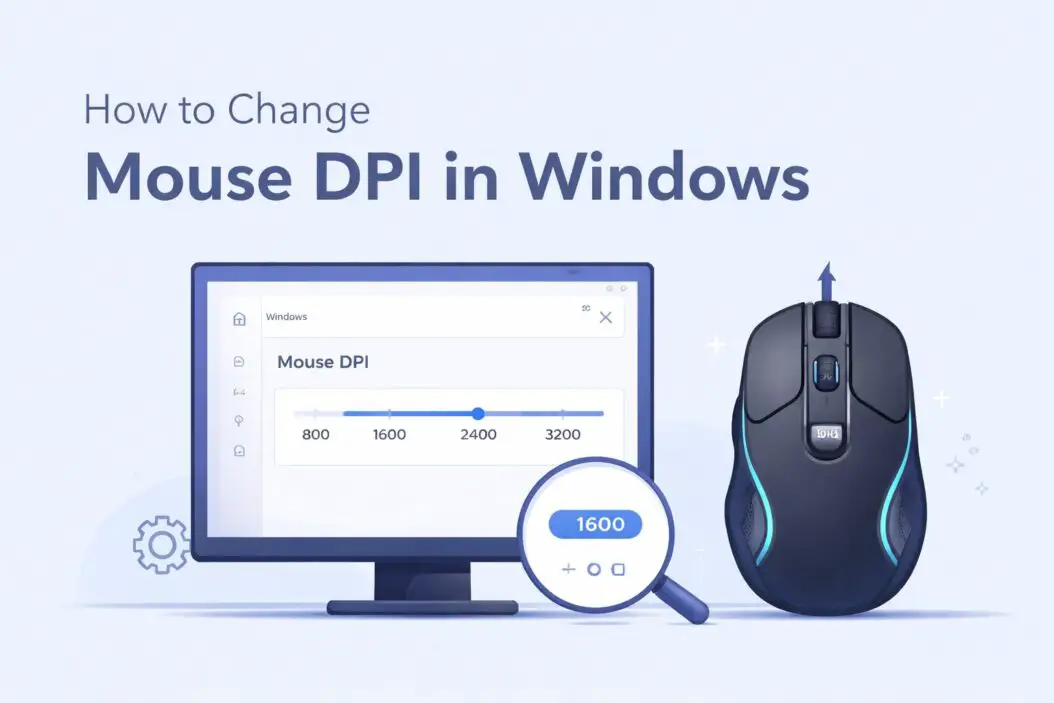
Method 1: Use the DPI Button on Your Mouse
Most gaming mice have a dedicated DPI button. It is usually on top of the mouse, near the scroll wheel.
Steps:
- Find the DPI button on your mouse.
- Press it once to cycle to the next DPI setting.
- Watch for an LED indicator. Different colors usually mean different DPI levels.
- Keep pressing until you reach a setting that feels right.
This is the fastest method. No software needed.
Method 2: Use Your Mouse’s Software
Most branded mice come with software that gives you full control over DPI. This is the most accurate method.
Popular software by brand:
| Brand | Software Name |
|---|---|
| Logitech | G HUB |
| Razer | Razer Synapse |
| SteelSeries | SteelSeries GG |
| Corsair | iCUE |
| HyperX | NGENUITY |
| ASUS ROG | Armoury Crate |
Steps:
- Download your mouse brand’s official software.
- Open the software and connect your mouse.
- Go to the DPI or Performance section.
- Set your preferred DPI value manually by typing a number or dragging a slider.
- Save your settings.
Some software lets you create multiple DPI profiles. You can switch between them using the DPI button on the mouse itself.
Method 3: Change Mouse Sensitivity in Windows Settings
This is not the same as changing DPI, but it affects how your cursor moves. Use this if your mouse has no DPI button and no software.
Steps:
- Open the Start Menu.
- Go to Settings.
- Click Bluetooth and devices.
- Click Mouse.
- Under Mouse pointer speed, drag the slider left (slower) or right (faster).
- Click Additional mouse settings for more options.
- In the Pointer Options tab, adjust the slider under Motion.
Important: Always keep Enhance pointer precision unchecked if you game. It adds acceleration, which makes movement inconsistent.
How to Change Mouse DPI Without Software
Not every mouse comes with an app. Many budget mice have no software at all.
Here is what you can do:
- Use the physical DPI button if your mouse has one. Some cheap mice have it but do not advertise it.
- Use Windows mouse settings as explained above.
- Check the manufacturer’s website. Some offer a lightweight driver or basic config tool.
- Use third-party tools like Mouse Manager for basic control on unsupported mice.
If your mouse has no DPI button and no software, your only real option is Windows sensitivity settings. It is not perfect, but it works.
Finding the Right DPI for You
This is where most people get confused. There is no single best DPI. It depends on three things.
1. What You Are Using the Mouse For
| Use Case | Recommended DPI |
|---|---|
| Casual browsing | 800-1200 |
| Office work | 800-1600 |
| FPS gaming (competitive) | 400-800 |
| MOBA or strategy games | 800-1600 |
| Graphic design or photo editing | 400-800 |
| Large 4K monitor | 1600-3200 |
| Multiple monitors | 1600-3200 |
2. Your Monitor Resolution
A 1080p monitor and a 4K monitor behave very differently. At 4K, you need more cursor travel to cover the screen. Higher DPI helps here.
3. Your Personal Preference
Some people like high DPI with low in-game sensitivity. Others like low DPI with higher sensitivity. Both work. The key is consistency. Pick a setting and stick with it. Your muscle memory will adapt.
DPI vs. Sensitivity: What Is the Difference?
This confuses a lot of people.
- DPI is a hardware setting. It is how your mouse reads movement.
- Sensitivity is a software setting. It is how Windows or your game interprets that movement.
Think of it this way. DPI is raw input. Sensitivity multiplies that input.
If you set 800 DPI and 2x in-game sensitivity, the result is similar to 1600 DPI with 1x sensitivity. But they are not the same. Raw DPI is cleaner. Software sensitivity can add slight input delay or inconsistency.
For competitive gaming, the rule is: use higher DPI and keep in-game sensitivity at 1.0 for the cleanest input.
Step-by-Step: Setting Up DPI in Logitech G HUB
Since Logitech is one of the most common gaming mouse brands, here is a full walkthrough.
- Download G HUB from the official Logitech website.
- Install and open it.
- Your connected mouse will appear on the home screen. Click it.
- Click DPI in the left menu.
- You will see DPI stages listed (up to 5 in most models).
- Click any stage and type in your preferred DPI. Common choices are 400, 800, 1200, or 1600.
- You can enable or disable stages by toggling them.
- The active stage when you press your DPI button will match the order listed.
- Click Save to device to store settings on the mouse memory.
Saving to device means your settings follow the mouse even on a different computer.
Step-by-Step: Setting Up DPI in Razer Synapse
- Install Razer Synapse 3 from the Razer website.
- Open it and sign in (account required).
- Click your mouse from the Dashboard.
- Go to the Performance tab.
- Under Sensitivity Stages, you will see DPI values for each stage.
- Click any value and type your preferred number.
- Use the + or trash icon to add or remove stages.
- Click Save.
Razer Synapse also lets you set different DPI for X and Y axes. This is useful for some workflows but usually not needed for gaming.
Common Mistakes When Changing DPI
Mistake 1: Setting DPI Too High
Many beginners think high DPI equals better performance. It does not. At 3200+ DPI, small hand movements cause massive cursor jumps. This kills accuracy.
Mistake 2: Leaving Pointer Acceleration On
Pointer acceleration changes how fast your cursor moves based on how fast you physically move the mouse. This makes your movement inconsistent. Turn it off in Windows settings.
Mistake 3: Not Testing After Changes
Always test your new DPI before locking it in. Open a game or a drawing app and see how it feels. Do not judge DPI in a browser window alone.
Mistake 4: Mixing High DPI with High In-Game Sensitivity
This creates chaotic movement. If you want higher sensitivity, raise the DPI and keep software sensitivity low.
How to Test Your Mouse DPI
You can test your actual DPI using a simple method.
Using a ruler and mouse pad:
- Open MS Paint or any drawing app.
- Set the canvas to a large size.
- Place your mouse at a known starting point.
- Move your mouse exactly 1 inch (measure with a ruler).
- Count how many pixels the cursor moved.
- That number is your actual DPI.
Mouse DPI and Gaming: What the Pros Use
Most professional FPS players use surprisingly low DPI. Typical range is 400 to 1600. Many top Counter-Strike players use 400 DPI. This forces them to use large mouse movements, which gives them more control and consistency.
Low DPI is not just for pros. Anyone who wants precise aim benefits from it. The tradeoff is that you need a bigger mouse pad.
Quick DPI Reference
| Situation | Best DPI Range | Notes |
|---|---|---|
| FPS gaming | 400-800 | Low and precise |
| Casual gaming | 800-1600 | Flexible |
| Office work | 800-1200 | Comfortable daily use |
| Photo or video editing | 400-800 | Fine control needed |
| Large monitor (27-inch+) | 1200-2400 | More screen to cover |
| 4K resolution | 1600-3200 | Higher is acceptable here |
| Multiple monitors | 2000-3200 | Faster navigation needed |
Conclusion
Changing your mouse DPI is straightforward once you know where to look. Use the DPI button on your mouse for quick adjustments. Use your brand’s software for precise control. Use Windows settings if you have no other option.
Start with 800 DPI if you are unsure. Test it for a day or two. Then go up or down based on how it feels. Small changes make a big difference. Keep pointer acceleration off, keep in-game sensitivity at default, and let raw DPI do the work.
The goal is a setting where your hand movement feels natural and your cursor lands where you intend. When that happens, you have found your DPI.
Frequently Asked Questions
Does changing DPI affect aim in games?
Yes, it directly affects how fast your crosshair moves. Lower DPI means slower, more controlled movement. Higher DPI means faster movement. Most FPS players prefer 400-800 DPI for better aim consistency.
Can I change DPI without software?
Yes. Use the physical DPI button on your mouse if it has one. If not, adjust the pointer speed in Windows Settings under Bluetooth and devices, then Mouse. This is not the same as changing true hardware DPI but achieves a similar result.
What DPI should I use for a 1080p monitor?
800 to 1600 DPI works well for most 1080p use cases. For gaming at 1080p, many players prefer 400 to 800 DPI for better precision.
Is 3200 DPI too high?
For most users, yes. At 3200 DPI, small movements cause large cursor jumps, which reduces control. It can make sense on large 4K displays or for fast browsing across multiple monitors, but it is usually too high for gaming or detailed work.
Why does my DPI button not work?
The button may require software to function fully. Some mice only allow DPI switching through their companion app. Install the official software for your mouse brand and configure the DPI stages there. If the button is still unresponsive, check if it needs a firmware update or if there is a physical issue.
