
Adding apps to your desktop gives you quick access to programs you use every day. Instead of searching through menus, you can launch what you need with one double-click.
This guide shows you exactly how to add any app to your desktop in Windows 11 and Windows 10. You’ll learn multiple methods that work for different types of applications.
What Does Adding an App to Desktop Mean?
When you add an app to your desktop, you create a shortcut. This shortcut is a small file that points to the actual program. The app itself stays in its original location. You’re just creating a quick way to open it.
Think of it like a bookmark. The website doesn’t move to your bookmark bar. The bookmark just helps you find it faster.
Why Add Apps to Your Desktop?
Speed and convenience. Desktop shortcuts save you time. No more clicking through Start Menu folders or typing in search boxes.
Visual organization. You can arrange your most-used apps exactly how you want them. Create a workspace that makes sense for your workflow.
Easy access for non-technical users. If you share your computer with family members who aren’t tech-savvy, desktop shortcuts make things simpler for them.
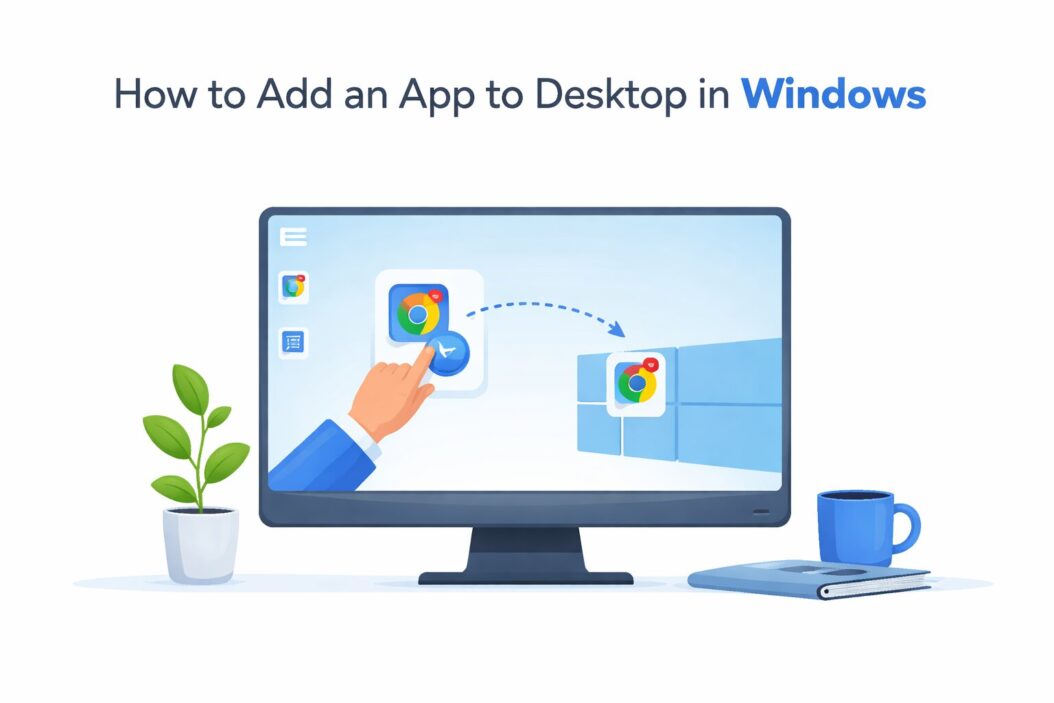
Method 1: Add Apps to Desktop from Start Menu (Windows 11)
This method works for apps already installed on your computer.
Step 1: Click the Start button or press the Windows key on your keyboard.
Step 2: Find the app you want to add. You can scroll through the app list or type the app name in the search box.
Step 3: Right-click on the app icon.
Step 4: Hover over “More” in the menu that appears.
Step 5: Click “Open file location.”
Step 6: A new window opens showing the app’s shortcut file. Right-click this shortcut.
Step 7: Select “Show more options” if you’re in Windows 11.
Step 8: Click “Send to” and then choose “Desktop (create shortcut).”
Your desktop now has a shortcut to that app.
Method 2: Add Apps to Desktop from Start Menu (Windows 10)
Windows 10 makes this even simpler.
Step 1: Open the Start Menu.
Step 2: Find your app in the list.
Step 3: Click and hold the app icon.
Step 4: Drag it to your desktop.
Step 5: Release your mouse button.
Windows 10 creates the shortcut automatically. No extra clicks needed.
You can also right-click the app in Start Menu, select “More,” then “Open file location,” and follow steps 6-8 from Method 1.
Method 3: Create Desktop Shortcut Manually
Sometimes you need to create a shortcut for a program that doesn’t appear in your Start Menu. Or you want more control over the shortcut properties.
Step 1: Right-click on an empty area of your desktop.
Step 2: Select “New” from the menu.
Step 3: Click “Shortcut.”
Step 4: A window appears asking for the item’s location. Click “Browse.”
Step 5: Navigate to where your program is installed. Common locations include:
- C:\Program Files\
- C:\Program Files (x86)\
- C:\Users[YourUsername]\AppData\Local\
Step 6: Select the program’s .exe file (the actual application file).
Step 7: Click “OK” then “Next.”
Step 8: Type a name for your shortcut.
Step 9: Click “Finish.”
The shortcut appears on your desktop immediately.
Method 4: Add Microsoft Store Apps to Desktop
Apps from the Microsoft Store need a different approach because Windows hides their actual file locations.
Step 1: Open the Start Menu.
Step 2: Find the Microsoft Store app you want.
Step 3: Right-click the app.
Step 4: Select “More” and then “App settings.”
Step 5: Scroll down in the settings window. You’ll see the app’s details but not a direct way to create shortcuts here.
Alternative approach for Microsoft Store apps:
Step 1: Right-click the app in Start Menu.
Step 2: Select “Pin to taskbar” first.
Step 3: Find the app icon on your taskbar.
Step 4: Right-click it.
Step 5: Right-click the app name in the menu that appears.
Step 6: Select “Open file location.”
Step 7: Right-click the shortcut that appears.
Step 8: Choose “Send to” and select “Desktop (create shortcut).”
Some Microsoft Store apps don’t allow desktop shortcuts through normal methods. For these apps, the taskbar or Start Menu remains your best option.
Method 5: Add Web Apps and Websites to Desktop
You can create desktop shortcuts for websites you visit frequently. This works with any web browser.
For Google Chrome:
Step 1: Open Chrome and go to the website.
Step 2: Click the three dots in the top-right corner.
Step 3: Select “More tools.”
Step 4: Click “Create shortcut.”
Step 5: Name your shortcut.
Step 6: Check “Open as window” if you want the site to open without browser toolbars.
Step 7: Click “Create.”
Chrome puts the shortcut on your desktop.
For Microsoft Edge:
Step 1: Navigate to the website in Edge.
Step 2: Click the three dots in the top-right corner.
Step 3: Select “More tools.”
Step 4: Click “Pin to taskbar” or use the manual shortcut method below.
Manual method for any browser:
Step 1: Resize your browser window so you can see the desktop.
Step 2: Click and hold the icon to the left of the website address (usually a padlock or the site’s favicon).
Step 3: Drag it to your desktop.
Step 4: Release your mouse button.
This creates a shortcut that opens the website in your default browser.
Method 6: Add Apps to Desktop Using File Explorer
File Explorer gives you direct access to all installed programs.
Step 1: Open File Explorer (Windows key + E).
Step 2: Navigate to the program installation folder. Check these common locations:
- C:\Program Files\
- C:\Program Files (x86)\
- C:\ProgramData\Microsoft\Windows\Start Menu\Programs\
Step 3: Find the program’s .exe file or existing shortcut.
Step 4: Right-click it.
Step 5: Select “Send to” and choose “Desktop (create shortcut).”
Alternatively, you can hold Ctrl + Shift while dragging the file to your desktop. This creates a shortcut instead of moving the file.
How to Customize Desktop Shortcuts
Once you have shortcuts on your desktop, you can customize them.
Change the Icon:
Step 1: Right-click the shortcut.
Step 2: Select “Properties.”
Step 3: Click “Change Icon.”
Step 4: Choose from Windows default icons or browse for custom .ico files.
Step 5: Click “OK” twice.
Rename the Shortcut:
Step 1: Right-click the shortcut.
Step 2: Select “Rename.”
Step 3: Type the new name.
Step 4: Press Enter.
Add a Keyboard Shortcut:
Step 1: Right-click the desktop shortcut.
Step 2: Select “Properties.”
Step 3: Click in the “Shortcut key” field.
Step 4: Press the key combination you want (like Ctrl + Alt + N).
Step 5: Click “OK.”
Now you can launch that app with your keyboard shortcut from anywhere in Windows.
Change Shortcut Target:
Step 1: Right-click the shortcut.
Step 2: Select “Properties.”
Step 3: In the “Target” field, modify the path or add command line arguments.
Step 4: Click “OK.”
This is useful for opening programs with specific settings or files.
Organizing Desktop Shortcuts
Too many desktop icons creates clutter. Here’s how to keep things organized.
Create folders for categories. Group related apps together. Make folders like “Work Apps,” “Creative Tools,” or “Games.”
Use desktop areas strategically. Put frequently used apps in the top-left corner where they’re easiest to reach.
Adjust icon size. Right-click desktop, select “View,” and choose “Large icons,” “Medium icons,” or “Small icons.”
Enable auto-arrange. Right-click desktop, select “View,” then “Auto arrange icons.” Windows keeps icons organized automatically.
Hide desktop icons when needed. Right-click desktop, select “View,” then uncheck “Show desktop icons.” Your shortcuts stay there but become invisible.
Common Problems and Solutions
Problem: “Send to Desktop” Option Missing
Solution: The “Send to” folder might be corrupted.
Step 1: Press Windows key + R.
Step 2: Type shell:sendto and press Enter.
Step 3: Check if “Desktop (create shortcut)” exists in this folder.
Step 4: If missing, right-click in the folder, select “New” then “Shortcut.”
Step 5: Type %USERPROFILE%\Desktop as the location.
Step 6: Name it “Desktop (create shortcut).”
Problem: Shortcut Shows Wrong Icon
Solution: Windows caches icons. Refresh the icon cache.
Step 1: Press Ctrl + Shift + Esc to open Task Manager.
Step 2: Find “Windows Explorer.”
Step 3: Right-click it and select “Restart.”
If that doesn’t work, use a third-party icon cache rebuild tool or manually delete the icon cache database (advanced users only).
Problem: Shortcut Doesn’t Work After Program Update
Solution: The program location changed during the update.
Step 1: Right-click the broken shortcut.
Step 2: Select “Properties.”
Step 3: Click “Open File Location” if available, or browse to find the new program location.
Step 4: Update the “Target” field with the correct path.
Step 5: Click “OK.”
Or simply delete the old shortcut and create a new one.
Problem: Can’t Create Shortcut for Certain Apps
Some apps, especially UWP (Universal Windows Platform) apps from Microsoft Store, restrict shortcut creation.
Solution: Use the Start Menu or Taskbar for these apps instead. Or use the Method 4 workaround described earlier.
Problem: Desktop Shortcuts Keep Disappearing
Solution: Check Disk Cleanup settings.
Step 1: Type “Disk Cleanup” in Windows search.
Step 2: Open Disk Cleanup.
Step 3: Look for “Desktop Shortcuts” in the cleanup options.
Step 4: Make sure it’s not selected for automatic removal.
Also check if you have desktop management software from your IT department that removes shortcuts automatically.
Desktop Shortcuts vs. Taskbar vs. Start Menu
Understanding the differences helps you choose the right method.
| Feature | Desktop Shortcuts | Taskbar | Start Menu |
|---|---|---|---|
| Access Speed | Fast (if visible) | Fastest | Medium |
| Space Used | Can clutter screen | Limited slots | No screen space |
| Always Visible | Yes (unless minimized) | Yes | No |
| Organizational Options | Folders, positioning | Order only | Folders, groups |
| Keyboard Access | Requires custom shortcut | Windows key + number | Windows key + search |
| Best For | Important apps you use daily | Top 5-10 most-used apps | Everything else |
The best approach uses all three. Pin your absolute most-used apps to the taskbar. Add important daily apps to your desktop. Keep everything else in the Start Menu.
Security Considerations
Desktop shortcuts can pose security risks if you’re not careful.
Never run shortcuts from unknown sources. Malicious shortcuts can execute harmful commands.
Check shortcut properties before using. Right-click any shortcut you didn’t create yourself. Look at the “Target” field. It should point to a legitimate program, not a script or command that looks suspicious.
Be cautious with shortcuts received via email. These are common malware delivery methods. According to research from Microsoft’s Security team, shortcut files (.lnk) remain a popular attack vector in 2026 (source).
Scan downloaded shortcuts with antivirus. Before creating desktop shortcuts for newly downloaded programs, run a virus scan.
Advanced Tips for Power Users
Create Shortcuts with Command Line Arguments
You can make shortcuts that open programs with specific settings.
Example: Create a Chrome shortcut that opens in incognito mode.
Step 1: Create a shortcut to Chrome.
Step 2: Right-click it and select “Properties.”
Step 3: In the “Target” field, add --incognito after the chrome.exe path.
Step 4: It should look like: "C:\Program Files\Google\Chrome\Application\chrome.exe" --incognito
Use Environment Variables in Shortcuts
Instead of hardcoding paths, use environment variables.
Example: %USERPROFILE%\Documents instead of C:\Users\YourName\Documents
This makes shortcuts portable across different user accounts.
Create Shortcuts to System Tools
You can shortcut to Control Panel items, system settings, or special folders.
Examples of useful targets:
- Control Panel:
control - Device Manager:
devmgmt.msc - Services:
services.msc - System Information:
msinfo32 - Disk Management:
diskmgmt.msc
Create shortcuts using Method 3 and type these commands as the location.
Batch Create Multiple Shortcuts
For system administrators or users who need many shortcuts:
Step 1: Open Notepad.
Step 2: Type commands like this:
@echo off
powershell "$s=(New-Object -COM WScript.Shell).CreateShortcut('%userprofile%\Desktop\Firefox.lnk');$s.TargetPath='C:\Program Files\Mozilla Firefox\firefox.exe';$s.Save()"
powershell "$s=(New-Object -COM WScript.Shell).CreateShortcut('%userprofile%\Desktop\Chrome.lnk');$s.TargetPath='C:\Program Files\Google\Chrome\Application\chrome.exe';$s.Save()"
Step 3: Save as create_shortcuts.bat
Step 4: Run the batch file.
This creates multiple shortcuts at once. Useful when setting up new computers.
Alternative Methods to Access Apps Quickly
Desktop shortcuts aren’t the only option. Consider these alternatives.
Windows Search: Press the Windows key and start typing. Windows 11 search is fast and learns your habits.
Quick Access Toolbar: Pin frequently accessed folders and apps here for one-click access from any File Explorer window.
Third-party launchers: Tools like PowerToys Run or Launchy provide quick app launching with keyboard shortcuts.
Windows Key shortcuts: Many apps support Windows key combinations. Windows key + E opens File Explorer. Windows key + I opens Settings.
Startup folder: Add shortcuts to shell:startup to launch apps automatically when Windows starts.
Each method has advantages. Power users often combine several approaches based on how frequently they use each app.
Desktop Shortcuts on Multiple Monitors
If you use multiple monitors, desktop shortcuts need special consideration.
Shortcuts appear on primary monitor only. Windows doesn’t duplicate desktop shortcuts across screens.
Use different organization strategies. Some users keep their primary monitor desktop clean and use the secondary monitor for shortcuts.
Fences or desktop dividers help. Third-party tools like Stardock Fences create organized zones on large or multiple desktop spaces.
Remember icon positions. Windows sometimes forgets icon positions when you disconnect monitors. Third-party tools like DesktopOK can restore layouts.
Accessibility Features for Desktop Shortcuts
Windows includes features that make desktop shortcuts more accessible.
High contrast icons: Go to Settings > Accessibility > Contrast themes. This makes icons easier to see.
Larger icons: Right-click desktop, select “View,” then “Large icons.” You can also adjust icon spacing.
Narrator support: Windows Narrator reads desktop shortcut names aloud. Press Windows key + Ctrl + Enter to enable.
Keyboard navigation: Press Windows key + D to show desktop, then use arrow keys to navigate shortcuts. Press Enter to launch.
Voice Access: Windows 11 Voice Access lets you say “Click [app name]” to launch desktop shortcuts hands-free.
Summary
Adding apps to your desktop in Windows 11 and Windows 10 is straightforward. You have multiple methods:
- Drag from Start Menu to desktop (Windows 10)
- Right-click and use “Send to Desktop” (both versions)
- Create shortcuts manually through right-click menu
- Use File Explorer to create shortcuts from program files
- Add web shortcuts from browsers
Choose the method that fits your situation. Use desktop shortcuts for apps you need quick access to daily. Combine them with taskbar pins and Start Menu organization for an efficient workflow.
Keep your desktop organized with folders and smart positioning. Customize shortcuts with better icons and keyboard combinations. Always verify shortcuts from unknown sources before using them.
Frequently Asked Questions
Can I add any app to my desktop?
Yes, you can create desktop shortcuts for almost any installed application. Some UWP apps from Microsoft Store make it slightly more difficult, but you can usually find a workaround using the Start Menu or taskbar method. The only true exceptions are certain system processes or protected Windows components that don’t have executable files accessible to users.
Will desktop shortcuts slow down my computer?
No. Desktop shortcuts are tiny files (usually less than 1KB each) that contain only a path reference to the actual program. Even hundreds of shortcuts have negligible impact on performance. What might slow down your computer is having many large files (like videos or photos) on your desktop, but shortcuts themselves are harmless.
What happens to desktop shortcuts when I uninstall an app?
Desktop shortcuts become broken links. The shortcut file stays on your desktop, but clicking it gives an error because the target program no longer exists. Windows doesn’t automatically remove shortcuts when you uninstall programs. You need to manually delete these orphaned shortcuts. They show a generic icon and won’t open anything.
Can I sync desktop shortcuts across multiple computers?
Windows doesn’t sync desktop shortcuts by default through OneDrive or Microsoft account sync. Your desktop files can sync if you enable OneDrive desktop folder backup, which moves your desktop to OneDrive. However, shortcuts that point to specific program locations will break on other computers if those programs aren’t installed in identical locations. Cloud desktop tools or third-party sync solutions offer better options for multi-computer setups.
How do I remove desktop shortcuts without deleting the actual app?
Right-click the shortcut and select “Delete,” or select it and press the Delete key. This removes only the shortcut file, not the actual program. The shortcut is just a pointer. Deleting it is like removing a bookmark, the program remains installed and accessible through Start Menu or other methods. If you want to uninstall the actual app, go to Settings > Apps > Installed apps.

- How to Add SharePoint to File Explorer in Windows 11/10: Complete Guide in 2026 - April 8, 2026
- How to Add an App to Desktop in Windows 11/10 (2026 Guide) - April 8, 2026
- How to Fix Windows Search Indexing: Step-by-Step Guide 2026 - April 7, 2026