
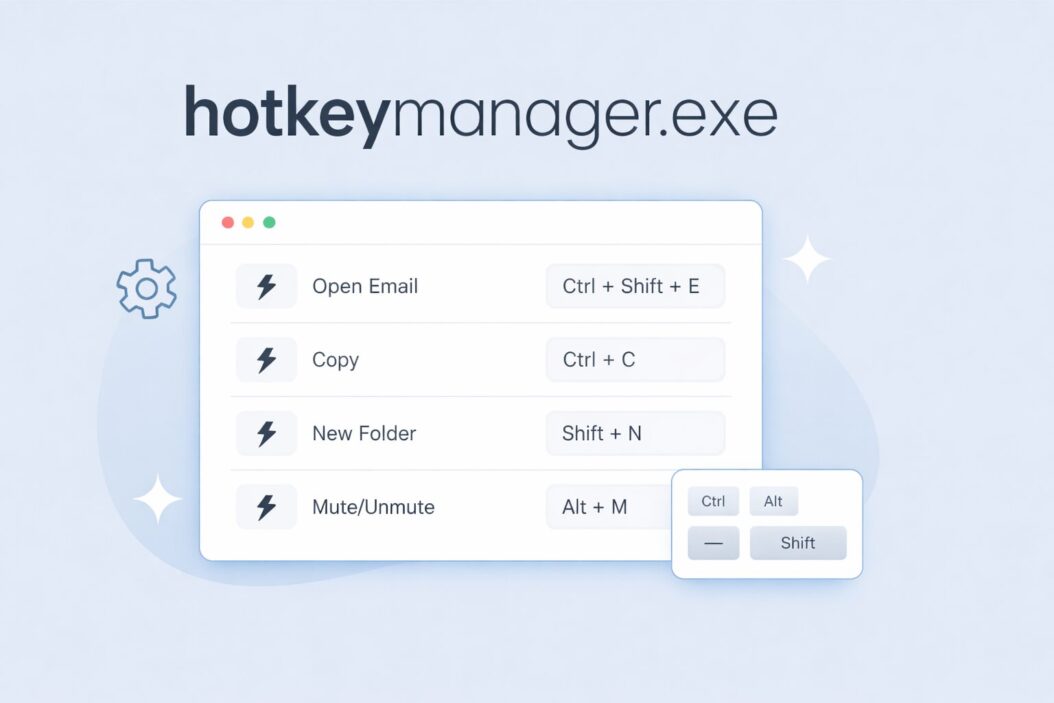
hotkeymanager.exe is a Windows executable file that manages keyboard shortcut assignments on your computer. It runs in the background and listens for hotkey combinations you press, then triggers the associated actions.
Most of the time, this process belongs to a legitimate program already installed on your system. It is not a core Windows file, meaning Windows does not need it to run. But it shows up often enough in Task Manager to confuse people.
The short answer: it is usually safe. But the file name alone does not guarantee that. Where it lives on your hard drive tells you much more.
Who Installs hotkeymanager.exe?
Several real software packages install this file as part of their shortcut management system. The most common sources include:
- ASUS utilities such as ATK Hotkey or the ASUS System Control Interface, found on ASUS laptops
- Logitech Options or G HUB, which manage macro keys on Logitech keyboards and mice
- Corsair iCUE, which handles programmable keys on Corsair peripherals
- Intel Driver and Support Assistant, which registers system-level hotkeys
- Third-party macro tools like AutoHotkey-based apps or HotkeyManager standalone software
If you recently installed any of these programs or bought a laptop that came with vendor software preloaded, that is almost certainly where this file came from.
Is hotkeymanager.exe Safe or a Virus?
This is where things get important. The file name itself is not protected. Malware writers sometimes name malicious files after common, trusted-sounding executables to avoid suspicion. A virus using the name hotkeymanager.exe is rare but has been documented.
Here is how to tell the difference quickly.
Check the File Location
Right-click on the process in Task Manager, then click “Open file location.” Compare what you see against this table:
| File Location | Verdict |
|---|---|
| C:\Program Files\ASUS\ | Safe, ASUS utility |
| C:\Program Files\Logitech\ | Safe, Logitech software |
| C:\Program Files\Corsair\ | Safe, Corsair iCUE |
| C:\Windows\System32\ | Suspicious, investigate further |
| C:\Users[YourName]\AppData\Local\Temp\ | High risk, likely malware |
| C:\Windows\Temp\ | High risk, likely malware |
| Any random folder you do not recognize | Scan immediately |
Legitimate versions of this file will always sit inside a named software vendor’s program folder. If it is in a temp folder or somewhere obscure, treat it as malware until proven otherwise.
Verify the File Signature
- Right-click the file in its folder
- Click Properties
- Go to the Digital Signatures tab
- Check whether the signature is from ASUS, Logitech, Corsair, or another known vendor
- If there is no signature at all, that is a red flag
Scan With Windows Defender
Open Windows Security, go to Virus and Threat Protection, and run a full scan. You can also right-click the specific file and choose “Scan with Microsoft Defender” directly.
For a second opinion, you can upload the file to VirusTotal, which checks it against 70+ antivirus engines simultaneously. This is one of the most reliable ways to confirm whether a specific file is clean.
Why Is hotkeymanager.exe Using CPU or Memory?
If the process is eating CPU or RAM that seems excessive, a few things could be happening.
It is stuck in a loop. This happens when the software that manages hotkeys has a conflict with another app that has registered the same keyboard shortcut. The manager keeps firing and re-firing.
A recent Windows update broke compatibility. After major Windows updates, background utilities sometimes lose sync with system APIs and spin while trying to reconnect.
The program has a memory leak. Older versions of ASUS ATK utilities especially are known for this. Updating the software usually solves it.
The file is actually malware. If none of the above applies and usage is consistently high with no clear vendor behind the file, run a full scan.
How to Check CPU Usage
- Press Ctrl + Shift + Esc to open Task Manager
- Click the CPU or Memory column header to sort by usage
- Find hotkeymanager.exe in the list
- Right-click it and choose “Open file location” to confirm the source
Normal usage should be near zero most of the time. Anything consistently above 1 to 2 percent warrants a closer look.
How to Fix hotkeymanager.exe Problems
Fix 1: Update the Parent Software
If the file belongs to ASUS, Logitech, or Corsair software, check for updates.
For ASUS laptops, open MyASUS or visit the ASUS support site and search your model number. Download the latest ATK or System Control Interface package. For Logitech, open Logitech Options or G HUB and check for updates inside the app. For Corsair, open iCUE and update from there.
Outdated driver utilities are the single most common cause of hotkeymanager.exe misbehaving on Windows 11 in 2026.
Fix 2: Disable It at Startup
If you do not use the hotkey features of the associated software, you can stop it from launching automatically without uninstalling anything.
- Press Ctrl + Shift + Esc
- Click the Startup Apps tab (or Startup in older Windows versions)
- Find the entry linked to hotkeymanager.exe
- Right-click and choose Disable
This does not delete the file. It simply stops it from running when Windows starts. You can re-enable it any time.
Fix 3: Reinstall the Software
If the file is corrupted and causing errors, a clean reinstall often fixes it.
- Open Settings > Apps > Installed Apps
- Find the associated software (ASUS, Logitech, etc.)
- Click Uninstall and follow the prompts
- Restart your computer
- Download the latest version from the official vendor site and reinstall
Fix 4: Remove It If You Do Not Need It
If you have no use for the software that installed this file, simply uninstall that software. Go to Settings > Apps, find the program, and remove it. The hotkeymanager.exe file will go with it.
Do not manually delete the .exe file from its folder without uninstalling the parent software first. Leaving orphaned registry entries can cause small but annoying Windows errors.
Fix 5: If It Is Malware
If your scan confirmed the file is malicious:
- Open Windows Security
- Go to Virus and Threat Protection > Protection History
- Find the detected threat and choose Remove
- Restart your computer
- Run a second full scan to confirm it is gone
For stubborn malware, boot into Windows Safe Mode and run the scan from there. Safe Mode prevents most malware from loading, which makes removal much more effective.
Should You Delete hotkeymanager.exe?
If it is legitimate, do not delete it manually. Let the software uninstaller handle removal properly. Manual deletion can leave the software in a broken state and cause error messages on startup.
If it is malware, let your antivirus quarantine and remove it. That process is safer than dragging the file to your Recycle Bin, because some malware can reinstate itself if not fully quarantined.
hotkeymanager.exe on Windows 11 vs Windows 10
The file behaves the same on both systems. However, Windows 11 introduced some changes to how background processes interact with the kernel, and a handful of older ASUS ATK packages written for Windows 10 run less efficiently on Windows 11. If you upgraded from Windows 10 and this process became a problem afterward, updating the ASUS software specifically for Windows 11 compatibility usually resolves it.
Summary
hotkeymanager.exe is a background process that manages keyboard shortcuts for third-party software, most commonly from ASUS, Logitech, or Corsair. It is safe when it lives in the correct program folder and carries a valid digital signature from its vendor. It becomes a problem only when it is outdated, conflicting with another app, or is a malware impersonator.
To handle it: check the file location first, verify the digital signature, update the parent software, and scan with Windows Defender if anything looks off. If you do not use the hotkey features of the associated software, disabling it at startup is a clean, non-destructive solution that costs you nothing.
Frequently Asked Questions
Is hotkeymanager.exe a virus?
It is not inherently a virus. The legitimate file is installed by software like ASUS utilities, Logitech Options, or Corsair iCUE. However, malware can use this name as a disguise. Always check the file’s location and digital signature. If it sits in a temp folder or has no valid signature, scan it immediately with Windows Defender or VirusTotal.
Can I end the hotkeymanager.exe process in Task Manager?
Yes. Right-click it in Task Manager and choose End Task. This stops it for the current session. It will restart the next time you reboot unless you also disable it in the Startup Apps tab. Ending it will not damage your system or delete any files.
Why does hotkeymanager.exe use high CPU?
High CPU usually means a conflict with another app using the same hotkey, a compatibility issue after a Windows update, or an outdated version of the software that installed it. Update the parent program first. If that does not help, disable it at startup and see whether the problem disappears.
Where should hotkeymanager.exe be located?
It should be inside a vendor’s program folder, such as C:\Program Files\ASUS, C:\Program Files\Logitech, or C:\Program Files\Corsair. If it is in C:\Windows\Temp, C:\Users\AppData\Local\Temp, or any random directory you do not recognize, treat it as suspicious and run a full antivirus scan.
How do I remove hotkeymanager.exe permanently?
Uninstall the software that installed it. Go to Settings > Apps > Installed Apps, find the associated program such as ASUS System Control Interface or Logitech Options, and uninstall it. The file will be removed as part of that process. Do not delete the .exe manually without uninstalling the parent software first.

- How to Uninstall Apps from the Start Menu in Windows 11/10 (2026 Guide) - April 2, 2026
- How to Fix Overscan on Windows 11/10: Stop Your Screen Getting Cut Off (2026) - April 1, 2026
- How to Disable Lock Screen on Windows 11/10 in 2026 - April 1, 2026