
You just discovered a massive file called hiberfil.sys eating up gigabytes of your hard drive. You didn’t put it there. You can’t delete it the normal way. And you’re wondering what the hell it is.
Let me explain exactly what this file does, whether you actually need it, and how to reclaim that space if you don’t.
What Is Hiberfil.sys?
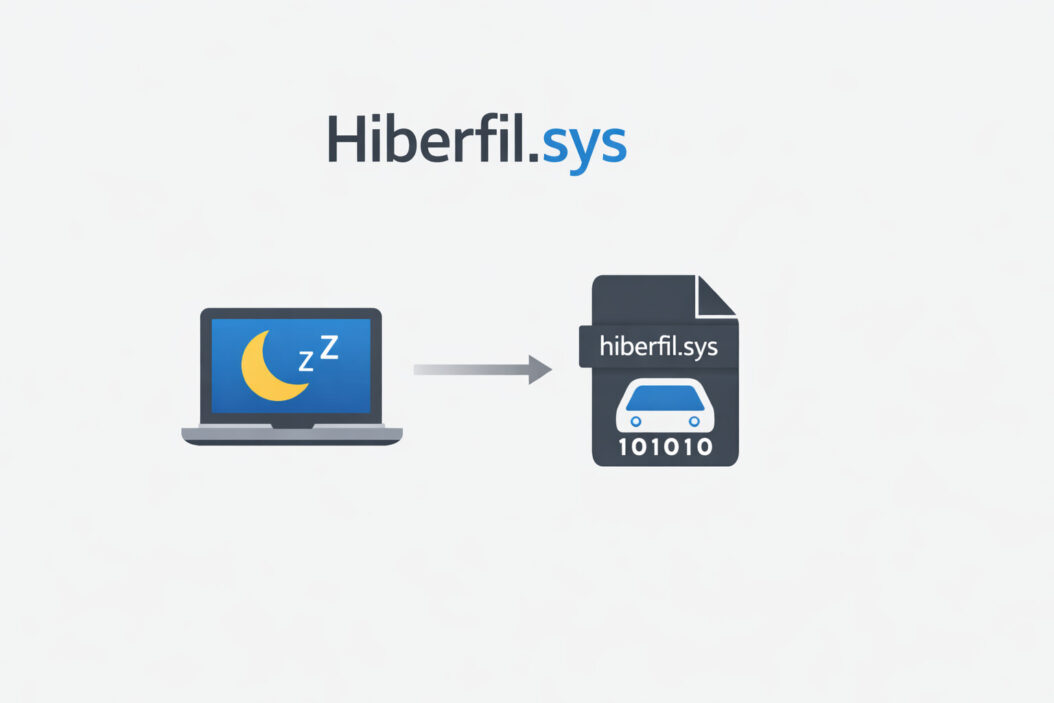
Hiberfil.sys is a hidden system file Windows creates to support hibernation mode. When your computer hibernates, it saves everything from your RAM (memory) to this file on your hard drive. This allows your PC to power down completely while preserving your open programs, documents, and system state.
When you power back on, Windows reads hiberfil.sys and restores everything exactly as you left it. It’s like pausing your entire computer session and resuming later without using any power.
The file sits in the root of your C: drive (usually C:\hiberfil.sys) and remains hidden by default. You won’t see it in File Explorer unless you enable “Show hidden files and folders” and uncheck “Hide protected operating system files.”
Why Is Hiberfil.sys So Large?
The file size equals your installed RAM, sometimes slightly larger. Here’s why:
| Your RAM | Approximate Hiberfil.sys Size |
|---|---|
| 8 GB | 6-8 GB |
| 16 GB | 12-16 GB |
| 32 GB | 24-32 GB |
| 64 GB | 48-64 GB |
Windows needs enough space to store everything currently in your memory. If you have 16 GB of RAM, the file will consume around 12-16 GB of disk space. Modern computers with 32 GB or more RAM will see even larger files.
Starting with Windows 10, Microsoft reduced the default size to approximately 75% of your RAM for typical users. The exact size depends on your hibernation settings and system configuration.
Do You Actually Need Hiberfil.sys?
This depends entirely on how you use your computer.
You need hibernation if:
You use a laptop and want maximum battery savings. Hibernation uses zero power, unlike sleep mode which still drains battery slowly.
You want to preserve your work session for days or weeks without keeping your computer running.
You shut down daily but hate reopening all your programs and browser tabs.
You don’t need hibernation if:
You use a desktop PC that stays plugged in. Sleep mode works fine and wakes faster.
You have a modern laptop with excellent standby battery life. Modern Windows supports Connected Standby, which uses minimal power.
You restart your computer frequently or don’t mind closing programs when you’re done.
You’re running low on disk space and every gigabyte counts.
Most desktop users never hibernate. Many laptop users prefer sleep mode for its faster wake time. If you’ve never intentionally used hibernate, you probably don’t need it.
How Hibernation Differs from Sleep Mode
People confuse these two power states constantly. Here’s the actual difference:
Sleep Mode:
- Keeps your RAM powered on
- System uses 1-5 watts of power
- Wakes in 2-5 seconds
- Loses your session if power fails or battery dies
- No large file required
Hibernation:
- Copies RAM contents to hiberfil.sys
- Powers down completely (0 watts)
- Wakes in 10-30 seconds
- Survives power loss or dead batteries
- Requires hiberfil.sys file
Hybrid Sleep (default on desktops):
- Combines both approaches
- Stays in sleep mode normally
- Falls back to hibernation if power fails
- Also uses hiberfil.sys
Understanding this helps you decide which feature you actually use.
How to Check If You Use Hibernation
Before deleting hiberfil.sys, verify you’re not actively using hibernate.
Open Command Prompt as administrator. Type this command:
powercfg /a
This shows available sleep states on your system. Look at the output carefully.
If you see “Hibernate has not been enabled,” you’re already not using it. The file might still exist from previous Windows versions or settings.
If you see “The following sleep states are available: Hibernate,” it’s currently enabled. Check your actual usage next.
Reviewing Your Power Usage
Open Command Prompt as administrator again and run:
powercfg /sleepstudy
This generates an HTML report showing your sleep and hibernation patterns over the last three days. Open the file it creates to see exactly how your computer has been sleeping.
If you see zero hibernation events but lots of sleep events, you’re not using hibernate in practice.
How to Disable Hibernation and Delete Hiberfil.sys
Deleting the file through File Explorer won’t work. Windows protects it. You need to disable hibernation through system settings.
Method 1: Using Command Prompt (Recommended)
This is the fastest and most reliable method.
Step 1: Right-click the Start button and select “Terminal (Admin)” or “Command Prompt (Admin).” Windows 11 users will see Terminal by default.
Step 2: Type this exact command:
powercfg /hibernate off
Step 3: Press Enter. You won’t see a confirmation message. The command executes silently.
Step 4: Close the command prompt and restart your computer.
When Windows boots back up, hiberfil.sys will be completely gone. Check your C: drive to confirm you’ve reclaimed the space.
Method 2: Using PowerShell
If you prefer PowerShell over Command Prompt, the process is identical.
Open PowerShell as administrator and run the same command:
powercfg /hibernate off
The result is exactly the same. Use whichever tool you’re comfortable with.
Method 3: Through Power Options (Partial)
You can also disable hibernate through Windows Settings, though this method is less straightforward.
Open Control Panel and navigate to Power Options. Click “Choose what the power buttons do” in the left sidebar. Click “Change settings that are currently unavailable” at the top. Uncheck “Hibernate” under shutdown settings.
This removes the hibernate option from your power menu but may not delete hiberfil.sys on all systems. The command line method is more thorough.
Will Disabling Hibernation Cause Problems?
For most users, absolutely not. But understand these consequences:
You lose the hibernate power option. You can’t select Hibernate from the Start menu anymore. Only Sleep, Shut Down, and Restart remain.
Hybrid Sleep stops working on desktops. If you use Hybrid Sleep (sleep mode that saves to disk as backup), this feature becomes unavailable. Your desktop will use regular sleep mode instead.
Fast Startup may be affected. Windows Fast Startup uses hibernation technology to boot faster. Some users report longer boot times after disabling hibernate, though the difference is usually 5-10 seconds on modern SSDs.
System restore points still work. Disabling hibernate doesn’t affect System Restore, shadow copies, or backup features. Those use different files.
Windows updates still function normally. Updates don’t require hibernation to install.
If you discover you actually needed hibernation, you can always re-enable it.
How to Re-enable Hibernation
Changed your mind? Bringing hibernation back takes one command.
Open Command Prompt or PowerShell as administrator and type:
powercfg /hibernate on
Windows recreates hiberfil.sys immediately. The file reappears in your C: drive root folder at full size.
You can toggle this on and off whenever your needs change. The process is completely reversible.
Reducing Hiberfil.sys Size Without Completely Disabling It
Maybe you want to keep hibernation but reduce the file size. Windows allows this through a lesser-known setting.
Open Command Prompt as administrator and run:
powercfg /hibernate /type reduced
This shrinks hiberfil.sys to approximately 50% of your RAM size. Windows can still hibernate but with reduced functionality. Some system drivers and services won’t fully restore.
This compromise saves space while maintaining basic hibernation. Laptop users who occasionally need hibernate might prefer this option.
To return to full hibernation:
powercfg /hibernate /type full
The file expands back to its original size.
Alternative: Moving Windows to a Larger Drive
If disk space is your main concern, consider whether upgrading storage makes more sense than disabling features.
SSD prices have dropped dramatically in 2026. A 1 TB NVMe drive costs less than $60. If you’re running Windows on a 128 GB or 256 GB drive, upgrading gives you breathing room for hiberfil.sys, pagefile.sys, and regular files.
Cloning your existing drive to a larger one takes about an hour with free tools like Macrium Reflect or the manufacturer’s migration software. You keep all your programs, settings, and files intact.
This solution lets you maintain hibernation while solving the underlying storage problem. Learn more about SSD migration best practices from hardware manufacturers.
Understanding Related System Files
While investigating hiberfil.sys, you might notice other large system files eating disk space.
Pagefile.sys
This file supports virtual memory. Windows uses it when RAM fills up, swapping data between memory and disk. Size varies but typically equals 1-2 times your RAM.
You can reduce pagefile.sys, but this risks system instability if you run memory-intensive programs. Most users should leave it alone.
Swapfile.sys
A smaller file (usually 256 MB to 1 GB) that supports Windows Store apps and system functions. It’s tiny compared to hibernation files and doesn’t waste meaningful space.
System Volume Information
This folder contains System Restore points and shadow copies. Size depends on how much restore space you’ve allocated. You can reduce this through System Properties > System Protection.
None of these files should be deleted manually. Use proper Windows settings to manage them.
Hibernation on Laptops vs. Desktops
Your device type should influence your decision about hibernation.
Laptop Considerations
Laptops benefit most from hibernation because:
Battery life matters. Hibernation preserves your session without draining power overnight.
You move between locations frequently. Hibernate lets you close the lid, throw the laptop in a bag, and resume later without battery anxiety.
Modern standby isn’t perfect. Some laptops still drain 5-10% battery overnight in sleep mode. Hibernation eliminates this completely.
If you use a laptop as your primary computer, think carefully before disabling hibernate. The disk space sacrifice might be worth the convenience.
Desktop Considerations
Desktops rarely need hibernation because:
They stay plugged in. Power consumption in sleep mode is irrelevant when electricity is constant.
Sleep wakes much faster. The 10-30 second hibernate wake time feels sluggish compared to 2-3 second sleep mode.
You probably shut down regularly anyway. Desktop users tend to fully power down more often than laptop users.
Most desktop users can safely disable hibernation and reclaim the space. The feature provides minimal benefit when your computer never runs on battery.
Troubleshooting Hiberfil.sys Issues
Sometimes hiberfil.sys causes unexpected problems beyond just consuming space.
“Hiberfil.sys is corrupted”
If Windows reports hibernation file corruption, disable and re-enable hibernation:
powercfg /hibernate off
powercfg /hibernate on
This forces Windows to create a fresh file. The corruption typically occurs after abrupt shutdowns or disk errors.
File Won’t Delete
You see hiberfil.sys but can’t delete it even after running the disable command. This usually means:
You didn’t run Command Prompt as administrator. The command fails silently without admin privileges.
Fast Startup is still enabled. Disable it in Power Options > “Choose what the power buttons do” > “Change settings that are currently unavailable.”
Third-party software is maintaining hibernation. Some backup tools or virtualization software force hibernation to remain enabled.
Hibernation Keeps Re-enabling
Windows automatically re-enables hibernation under certain conditions:
Major Windows updates sometimes reset power settings to defaults.
Laptop manufacturer utilities may force hibernation on for their power management features.
Group Policy settings in corporate environments might enforce hibernation.
Check your power settings after major updates to verify hibernation remains disabled if that’s your preference.
Security and Privacy Considerations
Hiberfil.sys contains a complete snapshot of your RAM, which means it potentially holds sensitive data.
When you hibernate, everything in memory gets written to disk: passwords you’ve typed, documents you’re editing, websites you’re browsing, encryption keys temporarily stored in RAM.
If someone gains physical access to your hard drive, they could theoretically extract data from hiberfil.sys. This rarely matters for home users but could concern those handling sensitive information.
Full disk encryption (BitLocker or VeraCrypt) protects hiberfil.sys along with everything else on your drive. If you use encryption, this concern disappears.
For maximum security on shared computers or laptops that might be lost or stolen, consider disabling hibernation entirely. Use sleep mode or shut down instead.
Impact on SSD Lifespan
You might worry that constantly writing gigabytes to hiberfil.sys wears out your SSD faster.
This concern is overblown with modern drives. Today’s SSDs handle hundreds of terabytes of writes before failure. Even if you hibernate twice daily, that’s maybe 30-50 GB of writes per day, or roughly 11-18 TB per year.
Consumer SSDs are rated for 150-600 TBW (terabytes written) depending on capacity. You’d need to use hibernation aggressively for many years to approach those limits. Normal use will never kill your SSD through hibernation alone.
Your drive will likely become obsolete due to age or capacity constraints long before write endurance becomes a problem. Don’t disable hibernation solely for SSD health. The benefit is negligible.
Performance Implications
Hibernation affects system performance in subtle ways.
Boot speed: Resuming from hibernation is faster than a cold boot but slower than sleep mode. On modern NVMe SSDs, the difference is 10-20 seconds.
Disk I/O: Writing hiberfil.sys uses disk bandwidth. If you hibernate while other programs are running, you might notice brief slowdowns.
Free space fragmentation: On traditional hard drives, a huge hiberfil.sys file can contribute to fragmentation. SSDs handle this differently and don’t suffer fragmentation issues.
For general performance, hibernation is neutral or slightly negative. If you’re trying to optimize a slow computer, disabling hibernate won’t make a noticeable difference. Focus on RAM upgrades, SSD installation, or startup program management instead.
Group Policy and Enterprise Environments
Corporate or school computers often have hibernation controlled by administrators through Group Policy.
If you can’t disable hibernation using the command line methods above, your organization might enforce it. Contact your IT department before attempting registry hacks or workarounds.
Enterprise environments sometimes require hibernation for power management compliance or remote management capabilities. Fighting these policies can cause conflicts with centrally managed settings.
For additional technical details on Windows power management, Microsoft’s official documentation provides comprehensive coverage of modern standby, hibernation, and related features.
Summary
Hiberfil.sys exists to support hibernation by storing your RAM contents on disk. The file size matches your installed RAM and can easily consume 8-32 GB or more.
Disable hibernation if you:
- Use a desktop computer that stays plugged in
- Never intentionally use the hibernate option
- Need to free up disk space quickly
- Prefer sleep mode or regular shutdown
Keep hibernation enabled if you:
- Use a laptop and want maximum battery savings
- Travel frequently and need reliable session preservation
- Work on long projects and value the ability to resume exactly where you left off
- Have plenty of free disk space
To disable hibernation: Open Command Prompt as administrator and run powercfg /hibernate off. The file deletes automatically.
To re-enable hibernation: Run powercfg /hibernate on in an elevated Command Prompt. The file returns immediately.
To reduce file size: Use powercfg /hibernate /type reduced for a 50% smaller hibernation file with limited functionality.
Make your decision based on actual usage patterns, not assumptions. Check your sleep study report to see whether you’re really using hibernate or just sleep mode.
For most desktop users, disabling hibernation is safe and beneficial. Laptop users should consider their workflow before removing this useful power-saving feature.
The choice is yours. Windows makes it easy to toggle hibernation on and off as your needs change.
Frequently Asked Questions
Can I manually delete hiberfil.sys to free up space?
No. Manually deleting hiberfil.sys through File Explorer won’t work and can cause system instability. Windows protects this file because it’s critical for hibernation functionality. You must use the proper command (powercfg /hibernate off) to safely disable hibernation and automatically remove the file. Any other method risks corrupting your power management settings.
Will disabling hibernation make my computer faster?
Not noticeably. Disabling hibernation frees disk space but doesn’t improve system performance in any meaningful way. You might see boot times increase by 5-10 seconds if you previously used Fast Startup, which relies on hibernation technology. The main benefit is reclaiming storage space, not speed improvements. Focus on other optimizations like SSD upgrades or RAM additions for actual performance gains.
What happens if I hibernate with a nearly full hard drive?
Windows may fail to hibernate properly if insufficient space exists to write your entire RAM contents to hiberfil.sys. You’ll likely see an error message, and the system will either sleep normally or shut down instead. Hibernation requires free space equal to your RAM size plus a small buffer. If your drive is critically full, hibernation becomes unreliable until you free up space.
Can I move hiberfil.sys to a different drive?
No. Windows always creates hiberfil.sys on your system drive (usually C:) in the root directory. You cannot relocate it to another partition or drive through any supported method. Some advanced users attempt registry modifications to change this, but Microsoft doesn’t support these workarounds and they often cause boot failures. If space is tight on your C: drive, your only options are disabling hibernation or upgrading to a larger system drive.
Does hibernation work the same way on Windows 10 and Windows 11?
Yes. The underlying hibernation technology functions identically in Windows 10 and Windows 11. Both operating systems use hiberfil.sys the same way, and the commands to enable or disable hibernation are identical. Windows 11 did improve modern standby features for laptops, which provides better sleep mode efficiency, but the core hibernation mechanism remains unchanged from Windows 10.
