
Face ID is supposed to make your life easier. You glance at your phone, it unlocks, and you move on. When Face ID stops working, it’s frustrating. You’re stuck entering a passcode every time, or worse, your phone feels broken. The good news: most Face ID problems have simple solutions. This guide walks you through exactly what to do.
Why Is My Face ID Not Working?
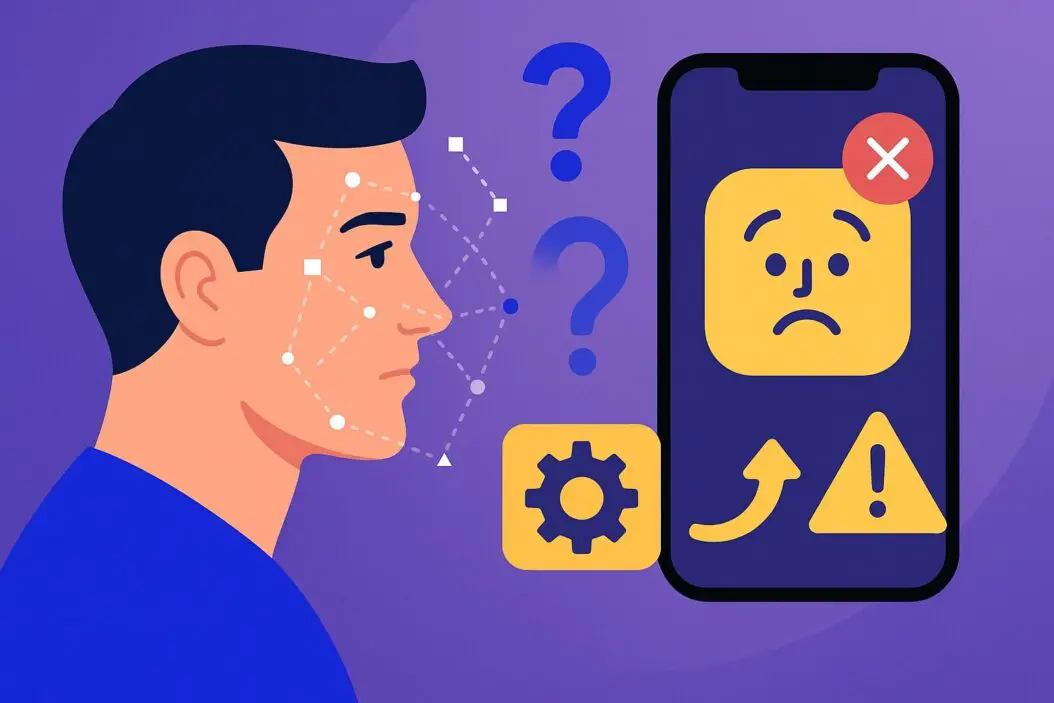
Face ID fails for a few core reasons. Your TrueDepth camera system might be blocked by dirt, dust, or a screen protector. Your face angle could be wrong. Your phone’s software might need an update. Or your biometric data got corrupted and needs to be reset. Most of these problems take less than five minutes to fix.
Quick Fixes to Try First
Start with these before doing anything complex.
Clean Your Camera
Dust and oils block the infrared sensors on your TrueDepth camera. Wipe the top of your iPhone gently with a clean, dry cloth. Do this for the front-facing camera area. Don’t use water or harsh chemicals. Just a microfiber cloth works best.
Adjust Your Face Position
Hold your phone at a natural angle in front of your face. Too high, too low, or too far away causes Face ID to fail. Your face should be about 10 to 20 inches from the screen. Make sure your eyes are visible and unobstructed. Sunglasses, ski masks, and scarves can block recognition.
Check Your Screen Protector
Some screen protectors interfere with Face ID sensors. If you recently added one, try removing it for a test. Quality tempered glass protectors labeled as “Face ID compatible” work fine, but cheap protectors often block the sensors.
Restart Your iPhone
This solves more problems than you’d expect. Hold down the power button and volume button together. Slide to power off. Wait ten seconds. Turn it back on. If Face ID still doesn’t work after a restart, move forward to the next step.
Face ID Not Working After iOS Update
Updates sometimes reset biometric settings or cause conflicts. Here’s what to do.
Go to Settings. Tap Face ID and Passcode. Enter your passcode. If you see “Face ID is not available,” delete your current Face ID data and set it up again. Tap Delete Face ID. Now tap Set Up Face ID. Follow the on screen instructions. Keep your face centered in the circle. Move your head slowly in a circle to capture different angles. Your phone needs to see your face from multiple positions.
If the setup keeps failing, restart your phone and try again. Updates can cause temporary glitches that a restart clears up.
Hard Reset Your Face ID
When Face ID acts unpredictable or randomly fails, resetting it often works.
Go to Settings. Select Face ID and Passcode. Enter your passcode. Tap Delete Face ID. Confirm the deletion. Now set it up again from scratch. This forces your phone to create fresh biometric templates.
This process usually takes about two minutes. You’ll be guided through the setup with visual instructions on your screen.
Your Phone’s Software Is Outdated
Face ID quality improves with iOS updates. Older software sometimes has bugs that affect facial recognition.
Go to Settings. Tap General. Select Software Update. If an update is available, download and install it. Let your phone stay on Wi Fi during the update. Don’t turn off your phone while updating.
After the update installs, test Face ID again. Software fixes often resolve sensor recognition issues.
Check for Camera Obstructions
Physical blockages prevent the TrueDepth camera from working. These aren’t always visible at first glance.
Look at the top of your phone carefully. You’ll see a small notch. Inside the notch is your TrueDepth camera. Make sure nothing covers it. Check for peeling screen protectors, plastic film you forgot to remove, or stuck dust. Sometimes hair gets in the way too. Move it aside.
Also check if you’re wearing reflective glasses or heavy makeup that creates a mirror effect. Face ID reads unique facial features. Extreme changes to your appearance sometimes cause issues.
Face ID Works Sometimes but Not Always
Inconsistent Face ID means your phone is learning your face differently in different conditions.
Add an Alternate Appearance
Your face looks different in various lighting, with makeup, or with glasses. Go to Settings. Tap Face ID and Passcode. Enter your passcode. Select Set Up an Alternate Appearance. Follow the setup process again. This teaches your phone to recognize your face in more conditions.
Test Different Lighting
Test Face ID in the same lighting where you usually unlock your phone. Face ID uses infrared sensors, so it works in the dark. But bright sunlight sometimes confuses it. Try unlocking indoors versus outdoors. Move to different rooms. This helps you understand if lighting is the issue.
Adjust Your Angle
Face ID works best when your phone is in front of you at a slight downward angle. If you always unlock your phone while lying in bed at a steep angle, Face ID might struggle in other positions. Practice holding it straight on.
Face ID Not Working After an Accident or Drop
Physical damage to the TrueDepth camera system breaks Face ID. If you dropped your phone or it got hit, Face ID might fail even if your screen looks fine.
The TrueDepth camera is delicate. Physical damage isn’t always visible. If Face ID worked before the accident and stopped after, damage is likely. You’ll need professional repair. Visit an Apple Store or authorized service provider. They can run diagnostics and replace the camera if needed.
You’re Wearing New Glasses or Had Face Changes
Face ID learns your unique facial geometry. Major changes confuse it.
New Glasses or Sunglasses
Face ID now recognizes faces with glasses. But extreme frame changes sometimes cause problems. Add an alternate appearance in settings to account for your new look. Go to Settings. Face ID and Passcode. Set Up an Alternate Appearance.
Makeup, Facial Hair, or Weight Changes
Major changes to your appearance, like growing a beard, significant weight loss, or daily heavy makeup application, can reduce Face ID accuracy. Your phone has learned your face from your past appearance. Gradual changes are fine. Sudden major changes might require resetting Face ID.
Cosmetic Surgery
If you’ve had facial surgery, Face ID might not recognize you. This is temporary. Your face will settle after healing, and Face ID adapts over time as your phone learns your new appearance. If it’s been weeks and Face ID still fails, reset it and set it up again.
Accessibility Settings Affecting Face ID
Some accessibility features interfere with facial recognition.
Check if you’ve enabled Attention Aware Features. This detects if you’re looking at your screen. If this is turned off or glitchy, Face ID behaves oddly. Go to Settings. Face ID and Passcode. Enter your passcode. Check the Attention Aware Features toggle. Try turning it on and off. See if this helps Face ID work more consistently.
When to Get Professional Help
Some Face ID problems require Apple support. Seek professional help if you’ve tried all these steps and Face ID still doesn’t work.
Visit an Apple Store or call Apple Support at 1 800 MY APPLE. They run diagnostics to check if hardware is damaged. They can also ensure your phone’s software is fully updated and optimized.
If you’re out of warranty, repair costs typically range from 150 to 400 dollars depending on the damage. Water damage, physical damage to the camera, or issues with internal sensors usually require professional repair.
Comparing Face ID to Passcode Security
| Feature | Face ID | Passcode |
|---|---|---|
| Speed to unlock | 1 second | 6 to 15 seconds |
| Accuracy | 99.97% match rate | 100% if remembered |
| Works in darkness | Yes | Yes |
| Works with glasses | Yes (usually) | Yes |
| Works with masks | Limited | Yes |
| Spoofed by photos | No (infrared depth) | Yes (if observed) |
| Privacy | On device only | On device only |
Both methods keep your data secure. Face ID is faster but requires a functioning camera. Passcodes are reliable but slower. Most users prefer Face ID when it works.
Troubleshooting Checklist
Use this as your action plan if Face ID fails.
- Clean the front camera with a dry cloth
- Remove any screen protector you added recently
- Restart your iPhone
- Update to the latest iOS version
- Reset Face ID and set it up again
- Check for physical damage to the camera area
- Add an alternate appearance for different lighting
- Test Face ID in various lighting conditions
- Contact Apple Support if none of these work
Work through this list in order. Most people fix Face ID within the first three steps.
Key Takeaways
Face ID not working is usually fixable. Most problems stem from a dirty camera, software issues, or simple glitches. Clean your camera, restart your phone, and reset Face ID if needed. If you’ve tried these steps and Face ID still fails, the hardware likely needs professional repair. Don’t wait weeks hoping it fixes itself. Test these solutions today.
For more detailed guidance on iPhone settings, visit Apple’s official Face ID support page. If you’re dealing with iOS updates, check Apple’s Security Updates page for the latest information.
Frequently Asked Questions
Can I use Face ID if I wear glasses?
Yes. Face ID recognizes faces with glasses on. If you wear different glasses in different situations, set up an alternate appearance to help your phone recognize you in various conditions. Polarized or heavily tinted glasses sometimes cause minor delays but usually work fine.
Does Face ID work in the dark?
Yes. The TrueDepth camera uses infrared sensors that work without visible light. Your phone will unlock in complete darkness just like in daylight. This is one of Face ID’s main advantages over fingerprint recognition.
Why does Face ID fail when I’m wearing a mask?
Face ID reads unique facial geometry. Masks cover most of your face, removing key identifying features. Apple improved this in iOS 15 and later versions. If you’re on an older iOS version, update to the latest. Even with updates, masks reduce Face ID’s effectiveness.
Will resetting Face ID delete my other phone data?
No. Resetting Face ID only removes your biometric templates. Your photos, messages, apps, and all other data stay untouched. You won’t lose anything.
How often should I update my Face ID data?
You don’t need to manually update it. Face ID learns and adapts every time you use it. Over time, your phone gets better at recognizing your face. If you experience a major change in appearance, reset and set up Face ID again so it learns your new look from scratch.

- How to Uninstall Apps from the Start Menu in Windows 11/10 (2026 Guide) - April 2, 2026
- How to Fix Overscan on Windows 11/10: Stop Your Screen Getting Cut Off (2026) - April 1, 2026
- How to Disable Lock Screen on Windows 11/10 in 2026 - April 1, 2026