
You’re staring at your computer right now, but do you actually know what’s happening inside? Most people don’t, and that’s fine until you need to upgrade, troubleshoot, or simply understand why your machine runs the way it does.
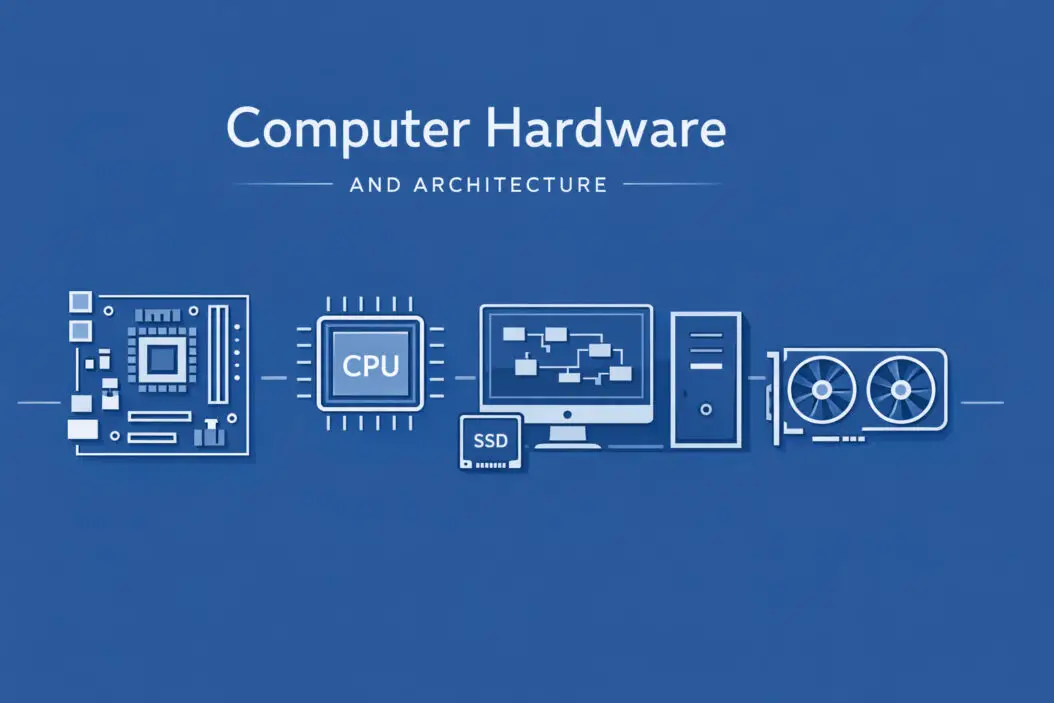
Computer hardware and architecture is the study of physical components and how they work together to process data. The architecture defines how these parts communicate, while the hardware represents the tangible pieces you can touch: processors, memory, storage, and circuit boards.
This guide breaks down everything in simple terms. You’ll learn what each component does, how they connect, and why understanding this matters for anyone using a computer in 2026.
What Is Computer Hardware?
Hardware means any physical part of a computer system. Unlike software (programs and operating systems), you can hold hardware in your hands.
Main hardware categories include:
Input devices like keyboards, mice, and cameras that send information into the computer.
Processing components such as the CPU and GPU that perform calculations and execute instructions.
Memory and storage including RAM and hard drives that hold data temporarily or permanently.
Output devices like monitors, printers, and speakers that display or present results.
Motherboards and buses that connect everything together and allow communication between parts.
Each piece serves a specific function. Remove any critical component, and your computer stops working properly.
Understanding Computer Architecture
Architecture describes the blueprint of how a computer system is organized. Think of it as the design philosophy that determines how components interact.
Two main architectural approaches exist:
Von Neumann architecture stores both program instructions and data in the same memory space. Most modern computers follow this design because it’s simpler and more flexible.
Harvard architecture uses separate memory for instructions and data. You’ll find this in specialized processors like digital signal processors and some microcontrollers.
The architecture determines three critical factors:
- How fast the computer processes information
- How efficiently it uses resources like power and memory
- What types of tasks it handles best
Modern processors combine both approaches, using modified Harvard architecture internally while presenting a Von Neumann interface to programmers.
The Central Processing Unit: Your Computer’s Brain
The CPU executes every instruction your computer follows. It’s the most important component for overall system performance.
How CPUs Process Information
A CPU operates in cycles, repeating four basic steps:
Fetch: Retrieve the next instruction from memory.
Decode: Figure out what the instruction means and what data it needs.
Execute: Perform the actual operation (add numbers, compare values, move data).
Store: Write the result back to memory or a register.
This happens billions of times per second. A 4 GHz processor completes 4 billion cycles every second.
CPU Components Explained
Arithmetic Logic Unit (ALU): Performs math and logical operations like addition, subtraction, and comparisons.
Control Unit: Directs traffic by coordinating all CPU activities and managing instruction execution.
Registers: Tiny, extremely fast memory locations inside the CPU that hold data being actively processed.
Cache memory: Small amounts of very fast memory (L1, L2, L3) that store frequently used data to reduce delays.
Modern CPUs contain multiple cores, essentially separate processors on one chip. A quad-core CPU can handle four instruction streams simultaneously, improving multitasking and performance for parallel workloads.
Memory Hierarchy: From Fastest to Slowest
Computers use different types of memory, each with tradeoffs between speed, size, and cost.
| Memory Type | Speed | Size | Purpose |
|---|---|---|---|
| CPU Registers | Fastest | Bytes | Active calculation data |
| L1 Cache | Extremely Fast | 32-256 KB per core | Most frequently used instructions |
| L2 Cache | Very Fast | 256 KB – 1 MB per core | Recently used data |
| L3 Cache | Fast | 4-64 MB shared | Data shared between cores |
| RAM | Moderate | 8-128 GB typical | Currently running programs |
| SSD Storage | Slower | 256 GB – 4 TB typical | Long-term file storage |
| HDD Storage | Slowest | 500 GB – 20 TB | Bulk data storage |
RAM: Random Access Memory
RAM holds data for programs currently running. When you open an application, it loads from storage into RAM because accessing RAM is thousands of times faster.
RAM is volatile, meaning it loses everything when power cuts off. That’s why unsaved work disappears during crashes.
Two common RAM types in 2026:
DDR5: The current standard, offering speeds up to 8400 MT/s with lower power consumption than previous generations.
LPDDR5: Low-power variant used in laptops and mobile devices, sacrificing some performance for better battery life.
More RAM lets you run more programs simultaneously without slowdowns. 16 GB handles most tasks comfortably, while 32 GB or more suits heavy multitasking, video editing, and 3D rendering.
Storage Devices: Where Data Lives Permanently
Storage keeps your files, programs, and operating system even when the computer is off.
Solid State Drives (SSDs)
SSDs use flash memory chips with no moving parts. They’ve mostly replaced traditional hard drives because they’re dramatically faster.
NVMe SSDs connect directly to the motherboard through PCIe slots, reaching read speeds over 7000 MB/s in 2026. They make computers boot in seconds and load large files almost instantly.
SATA SSDs use older connection standards and max out around 550 MB/s. Still much faster than hard drives, but significantly slower than NVMe.
SSDs cost more per gigabyte than hard drives but deliver massive performance improvements that justify the price for most users.
Hard Disk Drives (HDDs)
HDDs store data on spinning magnetic platters. Mechanical read/write heads move across the platters to access information.
They’re slower and more fragile than SSDs but offer huge capacity at lower cost. A 4 TB HDD costs less than a 1 TB SSD.
Best use: Secondary storage for large media libraries, backups, and archives where speed matters less than capacity.
The Motherboard: Connecting Everything Together
The motherboard is the main circuit board holding most components and providing pathways for them to communicate.
Key motherboard elements include:
CPU socket: Holds the processor and connects it to other components.
RAM slots: Usually 2-4 slots accepting memory sticks.
PCIe slots: Accept expansion cards like graphics cards, sound cards, and network adapters.
Chipset: Controls data flow between the CPU, memory, and peripherals.
BIOS/UEFI chip: Contains firmware that initializes hardware during startup before loading the operating system.
Power connectors: Deliver electricity from the power supply to components.
Buses and Data Pathways
Buses are communication systems that transfer data between components. Think of them as highways with different speed limits.
System bus connects the CPU to memory and has the highest priority.
PCIe bus links expansion cards with bandwidth measured in lanes (x1, x4, x8, x16). A graphics card typically uses x16 for maximum throughput.
USB connects external devices with speeds ranging from 480 Mbps (USB 2.0) to 80 Gbps (USB4 Version 2.0) in modern implementations.
Bus width and clock speed determine how much data moves per second. Wider buses and faster clocks mean better performance but increased complexity and cost.
Graphics Processing Units: Beyond Gaming
GPUs originally handled only graphics rendering but now tackle many parallel computing tasks.
How GPUs Differ from CPUs
CPUs excel at sequential tasks and complex logic with a few powerful cores. GPUs contain hundreds or thousands of smaller, simpler cores designed for parallel processing.
A CPU might have 8-16 cores running at 4-5 GHz. A GPU might have 5000 cores running at 2 GHz. The GPU crushes tasks that can be split into many simultaneous operations.
GPU Applications in 2026
Graphics rendering: Still the primary purpose, processing millions of pixels and polygons for games and professional 3D work.
AI and machine learning: Training neural networks requires massive parallel matrix calculations that GPUs handle exceptionally well. According to research from Stanford University (https://cs.stanford.edu/people/eroberts/courses/soco/projects/risc/risccisc/), architectural choices significantly impact computational efficiency.
Video encoding: Converting video formats processes many frames simultaneously, perfect for GPU parallelism.
Scientific computing: Simulations in physics, chemistry, and climate modeling benefit from GPU acceleration.
Cryptocurrency mining: Though less profitable than years past, some coins still use GPU mining.
Integrated GPUs built into CPUs handle basic tasks. Discrete GPUs on separate cards deliver serious performance for demanding workloads.
Power Supplies and Cooling Systems
These often-overlooked components keep everything running reliably.
Power Supply Units (PSUs)
PSUs convert AC power from your wall outlet into DC power that computer components use. They supply multiple voltages (3.3V, 5V, 12V) through different connectors.
Key specifications:
Wattage: Total power capacity, typically 450-1000W for desktops. Calculate your needs based on all components, especially CPU and GPU power draw.
Efficiency rating: 80 Plus certifications (Bronze, Silver, Gold, Platinum, Titanium) indicate how much energy is wasted as heat. Higher ratings save electricity and run cooler.
Modular design: Removable cables reduce clutter and improve airflow.
Underpowered or poor-quality PSUs cause crashes, damage components, or fail catastrophically. Don’t cheap out here.
Cooling Solutions
Electronics generate heat. Too much heat degrades performance and shortens component lifespan.
Air cooling uses heatsinks (metal fins) and fans to dissipate heat. Simple, reliable, and adequate for most systems.
Liquid cooling circulates coolant through tubes to radiators. More expensive and complex but handles higher heat loads and runs quieter.
Thermal paste fills microscopic gaps between processors and heatsinks, improving heat transfer. It degrades over years and should be replaced during maintenance.
Proper case airflow matters as much as individual coolers. Cool air enters the front, passes over components, and exits the rear or top as heated air.
Instruction Set Architectures
The instruction set architecture (ISA) defines the language a processor understands. It’s the interface between hardware and software.
Common ISAs in 2026
x86-64 (AMD64): Dominates desktop and server markets. Used by Intel and AMD processors. Supports vast amounts of software due to decades of backward compatibility.
ARM: Powers most smartphones, tablets, and increasingly laptops. More power-efficient than x86 for many workloads. Apple’s M-series chips and Qualcomm’s Snapdragon processors use ARM.
RISC-V: Open-source ISA gaining traction in embedded systems and specialized processors. No licensing fees make it attractive for custom designs.
Software compiled for one ISA won’t run natively on another. You can’t run an x86 Windows program directly on an ARM processor without emulation or recompilation.
RISC vs CISC: Architectural Philosophies
Two fundamental design approaches shape processor architecture:
RISC (Reduced Instruction Set Computer): Uses simple instructions that execute in one clock cycle. Programs require more instructions but each runs faster. ARM follows RISC principles.
CISC (Complex Instruction Set Computer): Employs complex instructions that might take multiple cycles but accomplish more per instruction. x86 is historically CISC.
Modern processors blur these lines. x86 chips translate complex instructions into simpler micro-operations internally. ARM processors have added some complex instructions over time.
The practical difference matters less than it used to. Both approaches deliver excellent performance when well-implemented.
Peripheral Devices and Input/Output Systems
Peripherals extend computer functionality beyond the core system.
Input Peripherals
Keyboards, mice, touchscreens, microphones, cameras, scanners, and game controllers send data into the computer. Each uses specific protocols and drivers to communicate.
USB has standardized most peripheral connections, simplifying compatibility. Older interfaces like PS/2 for keyboards or serial ports have mostly disappeared.
Output Peripherals
Monitors, printers, speakers, and headphones present information to users. Quality varies enormously, often mattering more than internal components for user experience.
Display technology has evolved rapidly:
LCD panels remain common and affordable.
OLED offers perfect blacks and vibrant colors but costs more.
Mini-LED backlighting improves LCD contrast.
MicroLED promises OLED quality with better longevity and brightness, emerging in premium devices.
Resolution, refresh rate, and color accuracy all impact usability depending on your work.
Building Blocks: Logic Gates and Digital Circuits
At the lowest level, computers operate using logic gates built from transistors.
Basic logic gates include:
AND gate: Outputs true only if both inputs are true.
OR gate: Outputs true if either input is true.
NOT gate: Inverts the input (true becomes false, false becomes true).
XOR gate: Outputs true if inputs differ.
Combining millions or billions of these simple gates creates complex circuits that perform arithmetic, store data, and make decisions.
Modern processors pack over 50 billion transistors into a chip smaller than your fingernail. Manufacturing at 3-nanometer process nodes pushes physical limits.
Clock Speeds, Cores, and Performance Metrics
Understanding processor specifications helps evaluate performance.
Clock Speed
Measured in GHz, clock speed indicates how many cycles a processor completes per second. Higher numbers mean faster individual operations.
But clock speed alone doesn’t determine performance. A 4 GHz processor with efficient architecture outperforms a 5 GHz processor with poor design.
Core Count and Threading
Physical cores are independent processing units. More cores handle more simultaneous tasks.
Threads allow one core to work on multiple instruction streams by rapidly switching between them. Hyperthreading or SMT (Simultaneous Multithreading) technology creates two virtual cores per physical core.
An 8-core, 16-thread processor has 8 physical cores, each handling 2 threads.
Real-World Performance
Benchmarks measure actual performance across various tasks. Look for tests matching your workload:
Gaming performance depends heavily on single-core speed and GPU power.
Video rendering scales well with core count.
General productivity benefits from balanced specifications.
Comparing specs between different brands and architectures rarely tells the whole story. Check independent reviews with real-world testing.
Memory Addressing and Virtual Memory
Computers need systems to locate data in memory efficiently.
Memory Addressing
Each byte in memory has a unique address, like a street address for data. The CPU uses these addresses to read and write information.
32-bit systems can address 4 GB of memory maximum. 64-bit systems theoretically handle 16 exabytes, though practical limits are much lower (current systems support up to 128 GB to several terabytes depending on configuration).
Virtual Memory
Operating systems create an illusion that each program has access to more memory than physically exists. They map virtual addresses used by programs to physical RAM addresses.
When RAM fills up, the OS moves less-used data to storage in a swap file or partition. This lets you run more programs than would fit in RAM alone, though performance suffers when heavily swapping because storage is so much slower.
Virtual memory also provides security by isolating programs from each other’s memory spaces.
Parallel Processing and Multi-Core Architecture
Modern computing heavily relies on parallel processing to improve performance.
Types of Parallelism
Instruction-level parallelism: Single core executes multiple instructions simultaneously through pipelining and superscalar execution.
Thread-level parallelism: Multiple threads run concurrently on different cores or through hyperthreading.
Data parallelism: Same operation applied to different data elements simultaneously, common in GPU computing.
Not all tasks parallelize well. Some programs must execute sequentially, limiting multi-core benefits.
Well-written modern software increasingly exploits parallelism. Video editors, 3D renderers, compilers, and scientific applications scale beautifully across many cores.
Cache Memory: Speed Through Prediction
Cache memory dramatically reduces the performance gap between fast processors and slower main memory.
How Cache Works
The CPU checks cache for needed data before accessing RAM. If found (cache hit), retrieval is nearly instant. If not found (cache miss), the CPU fetches from RAM and stores a copy in cache.
Caching works because of two principles:
Temporal locality: Recently accessed data will likely be accessed again soon.
Spatial locality: Data near recently accessed locations will likely be accessed soon.
Cache Levels
L1 cache sits closest to the CPU core, smallest but fastest (1-2 cycles latency).
L2 cache is larger and slightly slower (10-20 cycles latency).
L3 cache is shared between cores, largest but slowest of the caches (40-80 cycles latency).
More cache generally improves performance, especially for applications working with large datasets. Gaming, video editing, and scientific computing benefit significantly from larger L3 cache.
The Boot Process: From Power to Operating System
Understanding startup reveals how hardware and software interact.
When you press the power button:
Power supply activates and delivers electricity to components.
Motherboard firmware (UEFI/BIOS) initializes, checking for connected hardware.
POST (Power-On Self-Test) verifies critical components function correctly. Beeps or error codes indicate problems.
Firmware locates the boot device and loads the bootloader program.
Bootloader starts the operating system, loading it from storage into RAM.
Operating system initializes drivers, starts background services, and presents the login screen or desktop.
This entire process takes 10-30 seconds on modern systems with SSDs, versus minutes on older HDD-based computers.
Form Factors and Physical Design
Computers come in various physical configurations suited to different needs.
Desktop towers offer maximum expandability and cooling, easy upgrades, and high performance. They’re bulky and stationary.
Small form factor (SFF) PCs sacrifice some expandability for compact size. Popular for home theater systems and office environments with limited space.
All-in-one (AIO) computers integrate components behind the monitor. Clean appearance but difficult to upgrade, similar limitations to laptops.
Laptops prioritize portability with integrated batteries. Performance per dollar is lower than desktops, upgrading is limited, and cooling constraints reduce maximum performance.
Servers optimize for reliability, density, and continuous operation rather than peak performance. They use error-correcting memory, redundant power supplies, and rack-mount designs.
Choose based on your primary requirements: portability, performance, upgradability, or space constraints.
Emerging Technologies and Future Directions
Computer architecture continues evolving. Several technologies will shape computing through the late 2020s:
3D chip stacking places multiple silicon layers vertically, reducing distances signals travel and improving performance per watt. Already used in some high-end memory and processors.
Chiplet designs combine multiple smaller chips instead of one giant chip, improving manufacturing yields and enabling mix-and-match configurations.
Quantum computing uses quantum mechanical properties for certain calculations. Still experimental but progressing toward practical applications in cryptography and simulation.
Neuromorphic chips mimic biological neural networks for efficient AI processing. IBM and Intel have working prototypes.
Photonic computing uses light instead of electricity for data transmission and processing, potentially offering massive speed improvements and lower power consumption.
These technologies may complement or eventually replace current silicon-based computing, though traditional architectures will dominate for years to come.
Practical Considerations for Buyers and Builders
Whether buying prebuilt or building your own system, understanding hardware helps make smart decisions.
Bottleneck Awareness
Performance is limited by the slowest component. A powerful CPU with inadequate RAM causes slowdowns. An excellent GPU paired with a weak CPU can’t reach its potential.
Balance your components based on intended use:
Gaming: Prioritize GPU, then CPU, ensure 16+ GB RAM and SSD storage.
Content creation: Strong CPU with many cores, 32+ GB RAM, fast NVMe SSD, moderate GPU.
Office work: Budget CPU, 8-16 GB RAM, basic integrated graphics, SSD for responsiveness.
Programming/development: Good CPU, plenty of RAM (16-32 GB), fast SSD, integrated graphics often sufficient.
Upgrade Paths
Consider future expandability when selecting components:
Choose motherboards with extra RAM slots and PCIe slots for later additions.
Power supplies should have 20-30% headroom above current needs.
Cases should accommodate larger coolers or longer graphics cards if you might upgrade.
Select CPUs compatible with your motherboard’s socket for potential processor upgrades.
Quality Over Specs
Premium components often deliver better reliability and longevity than budget parts with impressive specifications.
Higher-quality motherboards use better voltage regulation for stable power delivery.
Name-brand RAM includes better chips that last longer and handle overclocking.
Reputable power supply manufacturers have superior protection circuitry.
Research reviews from trusted sources rather than relying on spec sheets alone. According to the Computer Science department at Carnegie Mellon University (https://www.cs.cmu.edu/~./213/lectures/05-machine-basics.pdf), understanding underlying architecture helps optimize software performance.
Conclusion
Computer hardware and architecture form the foundation of modern computing. The CPU processes instructions, memory stores data temporarily, storage preserves it permanently, and the motherboard connects everything together. Architecture defines how these components interact and communicate.
Understanding these fundamentals helps you make informed decisions when buying, upgrading, or troubleshooting computers. You don’t need to become an engineer, but knowing what a CPU cache does or why SSD speed matters puts you ahead of most users.
Technology evolves constantly. Processors get faster, storage grows larger, and new architectural approaches emerge. The core principles remain stable: computers process binary data through billions of transistors organized into functional units that follow programmed instructions.
Start with your needs, choose balanced components that work well together, and don’t overpay for specifications you won’t use. A well-chosen system matching your workload outperforms a more expensive machine with poorly matched parts.
Frequently Asked Questions
What is the difference between computer hardware and architecture?
Hardware refers to physical components you can touch, like processors, memory chips, and circuit boards. Architecture describes the design and organization of how these components connect and communicate. You can think of hardware as the building materials and architecture as the blueprint showing how they fit together.
How much RAM do I actually need in 2026?
For basic web browsing and office applications, 8 GB works adequately. Most users benefit from 16 GB, which handles multitasking comfortably without slowdowns. Content creators, gamers playing demanding titles, or anyone running virtual machines should consider 32 GB or more. More RAM prevents slowdowns when running multiple programs but doesn’t speed up individual applications unless they were previously limited by insufficient memory.
Should I prioritize CPU or GPU for better performance?
This depends entirely on your workload. Gaming, 3D rendering, video editing, and AI tasks benefit most from powerful GPUs. General productivity, programming, compiling code, and running virtual machines need strong CPUs. Many professional applications use both intensively. Identify your primary use case and allocate your budget accordingly rather than assuming one always matters more than the other.
What makes NVMe SSDs faster than SATA SSDs?
NVMe uses the PCIe interface with direct connection to the CPU, supporting multiple command queues and parallel operations. SATA uses older protocols designed for mechanical hard drives with single command queues. NVMe SSDs reach 7000+ MB/s read speeds while SATA maxes out around 550 MB/s. For everyday tasks, both feel responsive, but NVMe provides noticeable improvements when transferring large files or loading massive applications.
How often should I upgrade my computer hardware?
No fixed schedule exists, upgrade when performance no longer meets your needs. Well-chosen components remain useful for 5-7 years for most users. Gamers might upgrade GPUs every 3-4 years to maintain high settings in new titles. Adding RAM or switching to an SSD can extend the useful life of aging systems more cost-effectively than full replacements. Monitor your actual usage rather than chasing newest releases, most hardware improvements are incremental rather than revolutionary.

- How to Fix Overscan on Windows 11/10: Stop Your Screen Getting Cut Off (2026) - April 1, 2026
- How to Disable Lock Screen on Windows 11/10 in 2026 - April 1, 2026
- Top 7 NFT Integration Ideas for Brands in 2026 - March 31, 2026