
If you press Win + R, type compmgmt.msc, and hit Enter, you open one of the most powerful built-in tools in Windows. It is called the Computer Management console, and it lets you manage almost every critical part of your system from a single window. No third-party software needed.
This guide covers everything you need to know about compmgmt.msc, from what it is to how to use each section inside it, with real steps you can follow right now.
What Is compmgmt.msc?
compmgmt.msc is a Microsoft Management Console (MMC) snap-in file that opens the Computer Management tool in Windows. The “.msc” extension stands for Management Saved Console. When you run this file, Windows loads a unified dashboard that gives you access to system tools, storage settings, and services all in one place.
It works on Windows 7, 8, 10, and Windows 11. It is also available on Windows Server editions.
Think of it as a control room for your PC. Instead of hunting through different menus, everything is organized in one panel on the left.
How to Open compmgmt.msc
There are several ways to open it. Pick whichever feels easiest.
Method 1: Run Dialog Press Win + R, type compmgmt.msc, press Enter.
Method 2: Right-click the Start Button Right-click the Start button (or press Win + X), then click Computer Management from the menu.
Method 3: Search Bar Click the search bar, type Computer Management, click the result.
Method 4: Command Prompt or PowerShell Type compmgmt.msc and press Enter inside either terminal.
Method 5: Control Panel Go to Control Panel, then Administrative Tools, then Computer Management.
You need administrator rights to use most features inside it. If it opens but some sections are greyed out, right-click your shortcut and choose Run as administrator.
The Layout of Computer Management
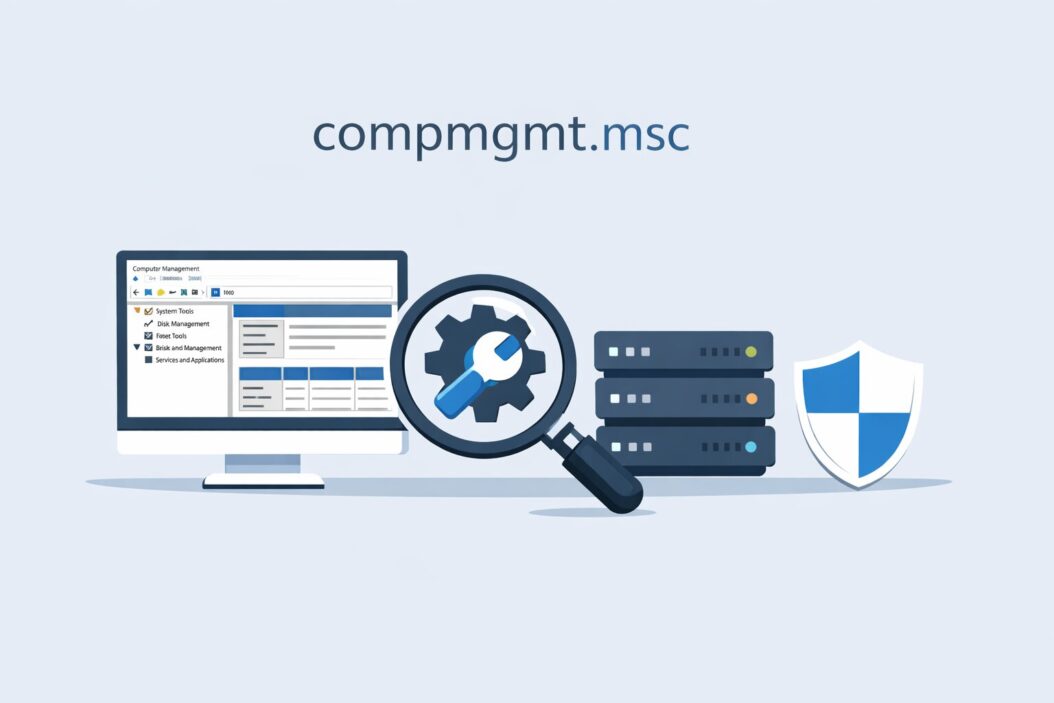
When compmgmt.msc opens, you see three panels:
- Left panel: Navigation tree with all the tools
- Center panel: Details for the selected tool
- Right panel: Actions you can take
The left panel is organized into three main sections:
| Section | What It Contains |
|---|---|
| System Tools | Task Scheduler, Event Viewer, Shared Folders, Local Users and Groups, Performance, Device Manager |
| Storage | Disk Management, Windows Server Backup (server only) |
| Services and Applications | Services, WMI Control, Routing (server only) |
System Tools Section Explained
Task Scheduler
Task Scheduler lets you automate tasks on your PC. You can set a program to run at a specific time, after login, or when a certain event happens.
Practical use: You want to run a backup script every night at 2 AM. Open Task Scheduler, click Create Basic Task, follow the wizard, and you are done.
You can also view tasks already set up by Windows and third-party programs. Sometimes malware hides here too. It is worth reviewing the task list if your PC is acting strange.
Event Viewer
Event Viewer records everything that happens on your system: errors, warnings, logins, crashes, service starts and stops. It is your first stop when something goes wrong.
How to find a crash cause:
- Open Event Viewer inside compmgmt.msc
- Go to Windows Logs, then Application or System
- Filter by Error or Critical level
- Click an event to read the description
The Event ID number is very useful. For example, Event ID 41 means the system rebooted unexpectedly. You can search that ID online to find the exact cause.
For more detailed Windows event log guidance, Microsoft’s own documentation at docs.microsoft.com is a reliable reference.
Shared Folders
This section shows three things:
- Shares: All folders currently shared on your network, including hidden admin shares like C$, ADMIN$
- Sessions: Who is currently connected to your shared folders
- Open Files: Which files remote users have open right now
This is useful if you run a small office network and want to see who is accessing what. You can also disconnect a session or close a file from here if needed.
Local Users and Groups
This is one of the most used parts of compmgmt.msc. It lets you create, delete, and manage user accounts and groups on your local machine.
Note: This section is not available on Windows 11 Home or Windows 10 Home. You need Pro, Enterprise, or Education editions.
Common tasks you can do here:
- Create a new local user account
- Reset a forgotten local password
- Disable or enable an account
- Add a user to the Administrators group
- Remove a user from a group
How to reset a local user password:
- Open Local Users and Groups
- Click Users in the left panel
- Right-click the username
- Click Set Password
- Enter the new password and confirm
How to add a user to the Administrators group:
- Go to Groups
- Double-click Administrators
- Click Add
- Type the username and click OK
This is much faster than navigating through Settings for the same tasks.
Performance Monitor
Performance Monitor inside compmgmt.msc gives you a basic live view of system metrics. You can add counters for CPU, memory, disk, and network.
It is slightly less intuitive than opening Performance Monitor on its own, but it is accessible from here for convenience. For deep performance analysis, open perfmon.msc directly.
Device Manager
Device Manager is the tool you use to manage hardware. Every piece of hardware in your PC appears here: your graphics card, network adapters, USB controllers, printers, and more.
What you can do:
- Update a driver
- Roll back a driver to a previous version
- Disable or enable a device
- Uninstall a device driver
- Check for hardware errors (a yellow warning icon means something is wrong)
How to fix a driver issue:
- Open Device Manager in compmgmt.msc
- Look for any device with a yellow triangle
- Right-click it and choose Update driver
- Select Search automatically or Browse my computer if you have the driver file
If a new driver broke something, right-click the device, go to Properties, then the Driver tab, and click Roll Back Driver.
Storage Section: Disk Management
Disk Management is arguably the most powerful part of compmgmt.msc for everyday users. It shows all drives connected to your PC and lets you manage partitions without any extra software.
What you can do in Disk Management:
| Task | How |
|---|---|
| Create a new partition | Right-click unallocated space, choose New Simple Volume |
| Delete a partition | Right-click the partition, choose Delete Volume |
| Format a drive | Right-click the partition, choose Format |
| Change a drive letter | Right-click, choose Change Drive Letter and Paths |
| Extend a volume | Right-click the partition, choose Extend Volume |
| Shrink a volume | Right-click the partition, choose Shrink Volume |
| Mark as active | Right-click, choose Mark Partition as Active |
| Initialize a new disk | New disks show as “Unknown,” right-click the disk label and choose Initialize Disk |
Important warning: Deleting or formatting a partition removes all data on it permanently. Always back up before making changes.
How to shrink C: drive to create a new partition:
- Open Disk Management
- Right-click the C: drive
- Click Shrink Volume
- Enter the amount of space to shrink in MB
- Click Shrink
- Right-click the new unallocated space
- Click New Simple Volume and follow the wizard
This is the safest way to add a new drive letter without buying a new hard drive.
For partition management best practices, the resource at support.microsoft.com offers official step-by-step guidance.
Services and Applications Section
Services
The Services snap-in inside compmgmt.msc shows every service running or installed on Windows. Services are background programs that run quietly to support features like printing, networking, Windows Update, and audio.
Columns you will see:
- Name: Service name
- Description: What it does
- Status: Running or stopped
- Startup type: Automatic, Manual, Disabled, or Automatic (Delayed Start)
How to stop or start a service:
- Find the service in the list
- Right-click it
- Choose Start, Stop, Restart, or Pause
How to disable a service:
- Double-click the service
- Change Startup type to Disabled
- Click Stop if it is currently running
- Click OK
Be careful disabling services you do not recognize. Some are critical for Windows to function. If you are trying to fix a slow PC, research the service name before disabling it.
Common services people adjust:
| Service | What It Does | Common Action |
|---|---|---|
| Windows Update | Manages updates | Sometimes set to Manual to control update timing |
| Print Spooler | Manages printing | Restart it if printer is stuck |
| Windows Search | Indexes files for search | Disable if search is causing high disk usage |
| Superfetch (SysMain) | Preloads apps into RAM | Sometimes disabled on older HDDs |
| Remote Desktop Services | Enables remote access | Disable if you do not use remote desktop |
WMI Control
Windows Management Instrumentation (WMI) is a system that allows programs and scripts to interact with Windows components. You will rarely need to touch this manually. The main reason to come here is to check WMI status or repair it if a script is failing.
To check WMI status: right-click WMI Control, click Properties. If it connects and shows system info, WMI is working fine.
Connecting to a Remote Computer
One feature many people miss is that compmgmt.msc can connect to another computer on your network. This means you can manage a remote PC’s services, event logs, users, and disk layout from your own machine.
How to connect remotely:
- Open compmgmt.msc
- Right-click Computer Management (Local) at the top of the left panel
- Click Connect to another computer
- Enter the computer name or IP address
- Click OK
You need admin rights on the remote machine and the right firewall ports open. This is extremely useful for IT administrators managing multiple machines.
Common Problems People Solve Using compmgmt.msc
Problem: Drive not showing up in File Explorer Solution: Open Disk Management. The drive is probably initialized but has no drive letter. Right-click it and assign a letter.
Problem: Cannot log in after password change Solution: Open Local Users and Groups. Reset the password or check if the account is locked or disabled.
Problem: Printer stuck in queue Solution: Go to Services. Find Print Spooler. Restart it. The queue clears.
Problem: PC running slow after Windows Update Solution: Open Event Viewer. Filter System log for errors after the update date. Look for driver conflicts or failing services.
Problem: Unknown partition taking up space Solution: Open Disk Management. You can see every partition visually, including recovery partitions and EFI partitions that are hidden in File Explorer.
Problem: A program is not starting automatically Solution: Check Task Scheduler for any disabled task related to that program, or check Services to see if a related service is stopped.
compmgmt.msc vs Other Admin Tools
| Tool | What It Is | When to Use It Instead |
|---|---|---|
| compmgmt.msc | Unified dashboard | When you need a broad overview or quick access |
| devmgmt.msc | Device Manager only | When you only need hardware management |
| diskmgmt.msc | Disk Management only | When you only need to manage drives |
| services.msc | Services only | When you only need to manage services |
| eventvwr.msc | Event Viewer only | For deep log analysis |
| lusrmgr.msc | Local Users and Groups only | For focused user management |
You can open any of these .msc files directly from Run (Win + R) to go straight to that tool without opening the full Computer Management console.
Tips for Using compmgmt.msc Effectively
- Always run it as administrator. Many settings are read-only otherwise.
- Use the right panel (Actions panel) for quick shortcuts related to what you are viewing.
- You can pin compmgmt.msc to your taskbar or Start menu for fast access.
- Use Ctrl + F in Event Viewer to search for specific error text.
- In Disk Management, the visual bar at the bottom helps you understand partition layout at a glance. Blue means primary partition, green means logical partition, black means unallocated.
- When troubleshooting a service, note its “Log On As” account. If it says a specific user account that no longer exists, the service will fail to start.
Conclusion
compmgmt.msc is one of the most underused tools built into Windows. Most users never open it. But if you take ten minutes to understand its layout, it saves hours of troubleshooting time. Whether you need to fix a broken driver, reset a local password, manage disk partitions, review system errors, or control which services run at startup, this single console gives you the access to do all of it.
You do not need to be an IT professional to use it. Each section has a clear purpose. Start with the area relevant to your problem and work from there. The tool is free, built-in, and available right now on your Windows machine.
Frequently Asked Questions
What does compmgmt.msc stand for?
It stands for Computer Management Microsoft Saved Console. The compmgmt part is short for Computer Management, and .msc is the file extension used by Microsoft Management Console snap-in files. When Windows runs this file, it loads the Computer Management interface with all its built-in administrative tools.
Why does compmgmt.msc not open or show an error?
The most common reason is that you are not running it as an administrator. Right-click your shortcut or the Run dialog result and choose Run as administrator. If it still fails, the MMC framework might be corrupted. You can try running sfc /scannow in Command Prompt as administrator to repair system files.
Can I use compmgmt.msc on Windows 11 Home?
Yes, but with one limitation. The Local Users and Groups section is not available on Windows Home editions, including Windows 11 Home. Everything else, including Device Manager, Disk Management, Event Viewer, Task Scheduler, and Services, works normally on Home editions.
Is it safe to disable services in compmgmt.msc?
It depends on the service. Disabling the wrong service can break Windows features or even prevent your PC from starting. Always research a service name before disabling it. Look up the exact service name and check whether it is a core Windows service or a third-party one. A good rule: if you do not know what it does, leave it alone.
How do I use compmgmt.msc to fix a disk not showing up in Windows?
Open compmgmt.msc, go to Disk Management under Storage. If the disk appears there but not in File Explorer, it likely has no assigned drive letter or is not yet initialized. Right-click the disk and choose Initialize Disk if it shows as Unknown. If it is already initialized, right-click the partition and select Change Drive Letter and Paths to assign a letter.

- How to Uninstall Apps from the Start Menu in Windows 11/10 (2026 Guide) - April 2, 2026
- How to Fix Overscan on Windows 11/10: Stop Your Screen Getting Cut Off (2026) - April 1, 2026
- How to Disable Lock Screen on Windows 11/10 in 2026 - April 1, 2026