
Character Map is a Windows utility that helps you find and insert special characters, symbols, and foreign language letters that aren’t visible on your keyboard. If you’ve ever needed an em dash, copyright symbol, or accented letter, Character Map solves this problem in seconds.
This guide shows you exactly how to use Character Map, troubleshoot common issues, and work faster with special characters in 2026.
What Is Character Map and Why You Need It
Character Map (charmap.exe) is a built-in Windows program that displays every character available in each font installed on your computer. Think of it as a visual catalog of every letter, number, symbol, and special character your system can display.
Real-world uses:
- Inserting copyright (©), trademark (™), or registered (®) symbols in documents
- Adding accented characters like é, ñ, or ü when writing in foreign languages
- Finding mathematical symbols (±, ≤, ∞) for technical writing
- Using decorative characters and emoji in creative projects
- Copying Greek letters (α, β, γ) for scientific notation
Without Character Map, you’d need to memorize dozens of Alt codes or search online every time you need a special character.
How to Open Character Map in Windows
Method 1: Search Bar (Fastest)
- Click the Windows Start button
- Type “character map” in the search box
- Click the Character Map app when it appears
This works on Windows 10, Windows 11, and older versions.
Method 2: Run Command
- Press Windows key + R
- Type
charmaporcharmap.exe - Press Enter
Method 3: Direct File Location
Navigate to: C:\Windows\System32\charmap.exe
Double-click the file to launch it.
Tip: Pin Character Map to your taskbar for quick access. Right-click the app icon while it’s open and select “Pin to taskbar.”
Understanding the Character Map Interface
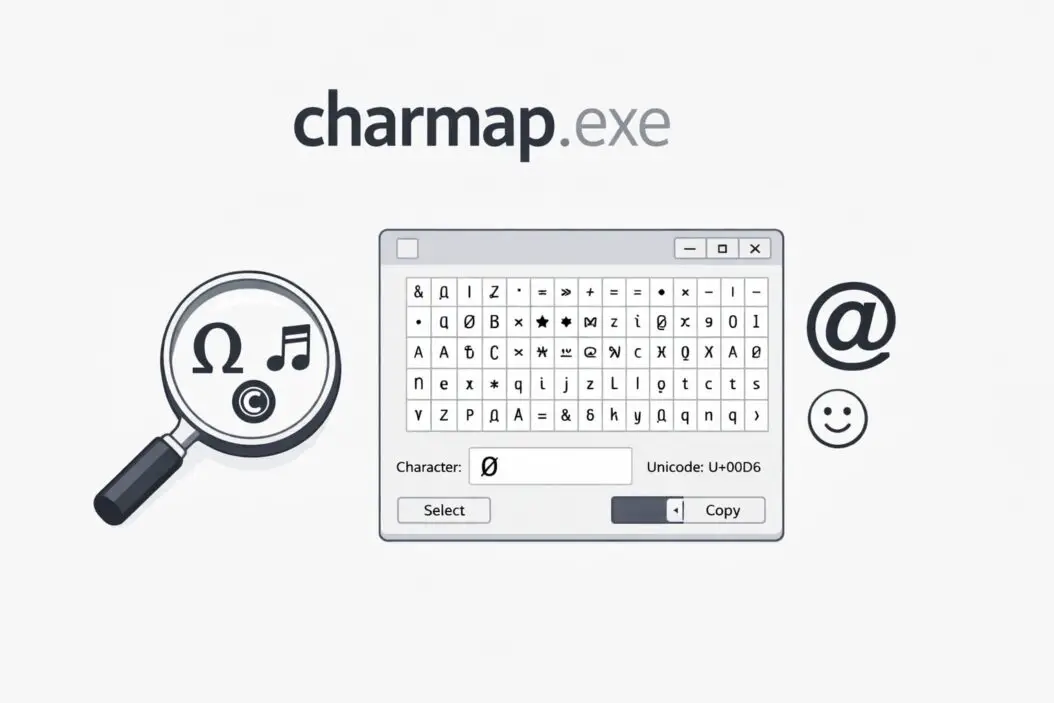
When you open Character Map, you see a simple window with several key sections:
Font dropdown menu: Select which font’s characters you want to view. Different fonts contain different character sets.
Character grid: Displays all available characters in the selected font. Each character appears in its own square.
Advanced view checkbox: Enables search and filtering options.
Characters to copy field: Shows selected characters before copying them.
Select and Copy buttons: Used to pick characters and copy them to your clipboard.
The status bar at the bottom shows the Unicode name and keystroke code for any character you hover over.
Step-by-Step Guide: Using Character Map to Insert Special Characters
Basic Character Insertion
- Open Character Map using any method above
- Choose your desired font from the dropdown menu
- Scroll through the character grid or use the search function
- Click on the character you want to use
- Click the “Select” button (the character appears in the “Characters to copy” field)
- Click “Copy” to copy the character to your clipboard
- Switch to your document or application
- Press Ctrl + V to paste the character
You can select multiple characters before copying. They’ll appear in sequence in the copy field.
Using Advanced View for Faster Searches
Check the “Advanced view” box at the bottom of Character Map to unlock powerful search features:
Search by character name: Type “copyright” to find © instantly, or “euro” to locate €.
Group by Unicode subrange: Filter characters by category like Currency Symbols, Mathematical Operators, or Latin Extended.
Character set selection: Choose Unicode, DOS, or Windows character sets.
This feature saves enormous time compared to scrolling through hundreds of characters manually.
Finding Specific Characters Quickly
Common Characters People Search For
| Character Type | Examples | Search Terms |
|---|---|---|
| Currency | €, £, ¥, ¢ | Euro, pound, yen, cent |
| Legal | ©, ®, ™ | Copyright, registered, trademark |
| Punctuation | —, …, « » | Em dash, ellipsis, guillemets |
| Math | ±, ≠, ∞, ² | Plus minus, not equal, infinity, superscript |
| Arrows | →, ←, ↑, ↓ | Right arrow, left arrow, up, down |
| Fractions | ½, ¼, ¾ | Half, quarter, three quarters |
Unicode Search Tips
Every character has a Unicode name. Learning common patterns helps:
- Accented letters: Type the base letter + “acute” (é), “grave” (è), or “circumflex” (ê)
- Greek letters: Type the letter name directly (“alpha”, “beta”, “omega”)
- Symbols: Use descriptive terms (“heart”, “star”, “music note”)
According to the Unicode Consortium, Unicode 15.1 contains over 149,000 characters from 161 scripts, giving you massive variety.
Character Map Keyboard Shortcuts and Alt Codes
Character Map displays the Alt code for many characters. When you click on a character, look at the bottom right of the window. If it shows something like “Keystroke: Alt+0169”, you can type that character directly without opening Character Map.
How to use Alt codes:
- Hold down the Alt key
- Type the numbers on your numeric keypad (not the number row above letters)
- Release the Alt key
- The character appears
Important: Alt codes only work with the numeric keypad. Laptop users may need to enable Num Lock and use the embedded numeric keypad (usually on J, K, L, U, I, O keys) or use Character Map instead.
Troubleshooting Common Character Map Problems
Character Map Won’t Open
Solution 1: Run System File Checker to repair corrupted system files.
- Right-click Start button
- Select “Windows Terminal (Admin)” or “Command Prompt (Admin)”
- Type:
sfc /scannow - Press Enter and wait for the scan to complete
Solution 2: Check if charmap.exe exists in System32 folder. If missing, restore from Windows installation media or use System Restore.
Characters Display as Boxes or Question Marks
This happens when the destination application doesn’t support the font or character set you’re using.
Fix:
- Choose a standard font like Arial or Times New Roman in Character Map
- Ensure the target application supports Unicode
- Install additional font support through Windows language settings
Can’t Find a Specific Character
Solution: Enable Advanced View and search by character name or Unicode value. If still missing, the character might not exist in your selected font. Try switching to fonts like “Arial Unicode MS” or “Segoe UI Symbol” which contain extensive character sets.
Copied Characters Paste as Different Symbols
This occurs when the destination application uses a different character encoding.
Fix: Paste into Notepad first, then copy from Notepad into your final destination. This often resolves encoding issues.
Alternative Methods to Access Special Characters
Windows Emoji Picker (Windows 10/11)
Press Windows key + . (period) or Windows key + ; (semicolon) to open a modern popup with emoji, symbols, and special characters. This method is faster for common symbols and emoji but offers less selection than Character Map.
Microsoft Word Symbol Menu
In Word, go to Insert > Symbol for built-in character selection with font preview.
Third-Party Character Pickers
Tools like WinCompose let you create character combinations using a compose key, similar to how Linux systems work.
Advanced Character Map Features You Might Not Know
Copying Unicode Values
When Advanced View is enabled, you can see the Unicode hexadecimal value for any character (like U+00A9 for ©). This helps developers and technical writers who need to reference exact character codes in documentation or programming.
Font Comparison
Switch between different fonts to see how the same character renders differently. This matters for design work where visual consistency is critical.
Character Information
Hover over any character to see:
- Character name
- Unicode value
- Alt code (if available)
- Font-specific rendering
This information helps you understand what you’re inserting and why certain characters appear differently across applications.
Character Map Performance Tips
Speed up browsing:
- Use Advanced View search instead of scrolling
- Memorize Alt codes for frequently used characters
- Create a reference document with your common special characters for quick copy-paste
Font selection strategy:
- Stick to Unicode fonts for broadest compatibility
- Use Arial, Calibri, or Times New Roman for standard documents
- Switch to symbol-specific fonts (Webdings, Wingdings) only when needed
Using Character Map for Specific Tasks
Creating Professional Documents
Business documents often require specific formatting characters that improve readability:
En dash (–): Used for ranges like “pages 10–15” or “January–March” Em dash (—): Used for emphasis or breaks in thought Non-breaking space: Prevents line breaks between specific words Ellipsis (…): Single character instead of three periods
Find these in Character Map by searching their names in Advanced View.
Foreign Language Typing
If you occasionally write in languages with accent marks but don’t want to install full keyboard layouts, Character Map provides quick access:
Spanish: á, é, í, ó, ú, ñ, ¿, ¡ French: à, é, è, ê, ç, œ German: ä, ö, ü, ß Portuguese: ã, õ, ç
Search by typing the base letter and accent type.
Mathematical and Technical Writing
Character Map contains extensive mathematical symbols beyond basic operators:
- Greek alphabet for variables and constants
- Subscript and superscript numbers
- Set theory symbols
- Geometric shapes
- Logic operators
These save time compared to equation editors for simple notation.
Creating a Personal Character Reference Sheet
Build your own quick-reference document with frequently used characters:
- Open Character Map and a blank document side-by-side
- Find and copy each character you use regularly
- Paste them into your document with labels
- Note the Alt code next to each character
- Save this document where you can quickly access it
This one-time setup eliminates repetitive Character Map searches.
Character Map vs Modern Alternatives in 2026
Character Map remains relevant despite newer tools because:
Advantages:
- Built into Windows with no installation needed
- Shows complete font character sets
- Works offline
- Lightweight and fast
- No learning curve
Limitations:
- Interface hasn’t changed significantly in years
- Emoji picker is faster for common symbols
- No character favorites or history
- Single character selection workflow
For casual users needing occasional special characters, Character Map perfectly balances simplicity and functionality.
Summary
Character Map (charmap.exe) is an essential Windows utility that gives you access to thousands of special characters, symbols, and foreign letters. You can open it by searching “character map” in the Start menu or running charmap.exe from the Run dialog.
The basic workflow involves selecting a font, finding your desired character, clicking Select, then Copy, and pasting into your destination. Enable Advanced View to search characters by name for much faster results.
While modern alternatives like the Windows emoji picker offer convenience for common symbols, Character Map remains the most comprehensive built-in tool for accessing complete font character sets. It’s particularly valuable for professional documents, foreign language text, technical writing, and any situation requiring precise character selection.
Master this simple tool and you’ll never struggle to find special characters again.
Frequently Asked Questions
Where is Character Map located on my computer?
Character Map is located at C:\Windows\System32\charmap.exe on all Windows systems. You don’t need to navigate to this folder manually. Simply search “character map” in the Windows Start menu or press Windows + R, type charmap, and press Enter.
Can I use Character Map on Windows 11?
Yes, Character Map works identically on Windows 11 as it does on Windows 10 and earlier versions. Windows 11 also includes the emoji picker (Windows + . shortcut) as an additional option for accessing common symbols quickly, but Character Map remains available for comprehensive character selection.
Why do some characters not appear in my document after copying from Character Map?
This happens when the destination application doesn’t support the font or Unicode encoding of the character you copied. Try these solutions: select a more common font like Arial in Character Map before copying, ensure your destination application supports Unicode, or paste into Notepad first as an intermediate step to normalize the encoding.
How do I type special characters without opening Character Map every time?
Learn the Alt codes displayed in Character Map’s status bar when you click on characters you use frequently. Hold Alt and type the numeric code on your numpad, then release Alt to insert the character. Alternatively, use the Windows emoji picker (Windows + period key) for quick access to common symbols and emoji.
Is there a way to search for characters in Character Map?
Yes, check the “Advanced view” checkbox at the bottom of Character Map to enable the search function. You can then search by character name (like “copyright” or “euro”), filter by Unicode subrange (like Mathematical Operators or Currency Symbols), or enter a specific Unicode value to jump directly to a character.
