
Changing your VPN connection in Windows is simple once you know where to look. You can switch between VPN servers, disconnect and reconnect, or change VPN providers entirely through Windows Settings, your VPN app, or the system tray. This guide shows you exactly how to do all three.
Why You Need to Change VPN Connections
You might need to change your VPN connection for several reasons:
Speed issues: Your current server might be overloaded or too far away Access problems: Some websites block specific VPN servers Location needs: You need an IP address from a different country Privacy concerns: Regular server rotation improves security Connection drops: A different server might offer better stability
Understanding how to switch quickly saves time and frustration.
How to Change VPN Server Using Your VPN App
Most VPN services provide their own apps. This is the easiest method for most people.
Step 1: Open Your VPN Application
Locate your VPN app icon in the Start menu or system tray. Double-click to open it.
Step 2: Disconnect Current Connection
Click the disconnect button. This usually appears as a toggle switch or button showing “Connected” or “Disconnect.”
Wait 3-5 seconds for the disconnection to complete.
Step 3: Select New Server Location
Browse the server list in your app. Most VPN apps organize servers by:
- Country or region
- Server load percentage
- Special purposes (streaming, gaming, P2P)
- Fastest available options
Click your preferred server location.
Step 4: Connect to New Server
Press the connect button. The app will establish a new connection, usually within 10-20 seconds.
Verify the connection by checking the app status. It should show your new server location and IP address.
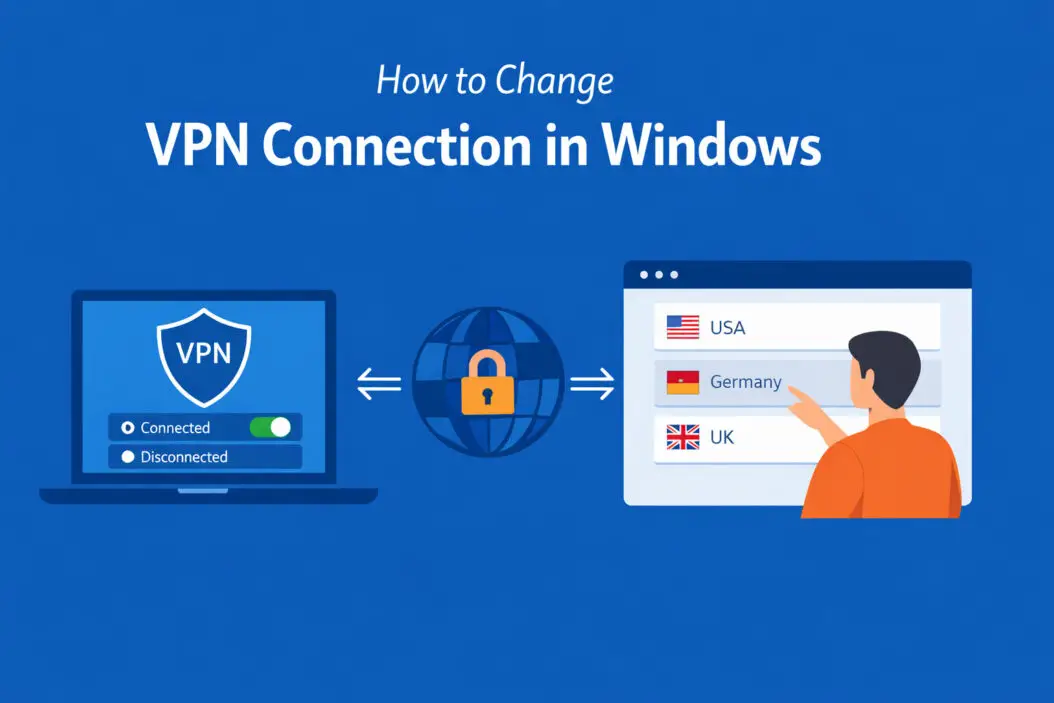
How to Change VPN Connection in Windows Settings
Windows has built-in VPN support. You can manage multiple VPN connections directly through system settings.
Adding a New VPN Connection
Windows 11 Steps:
- Press Windows key + I to open Settings
- Click “Network & Internet” in the left sidebar
- Select “VPN” from the options
- Click “Add VPN” button
Windows 10 Steps:
- Open Settings (Windows key + I)
- Click “Network & Internet”
- Select “VPN” from the left menu
- Click “Add a VPN connection”
Entering VPN Details
Fill in the required information:
| Field | What to Enter |
|---|---|
| VPN Provider | Choose “Windows (built-in)” |
| Connection Name | Give it a memorable name like “Work VPN” or “Server US East” |
| Server Name or Address | Your VPN server address (get this from your VPN provider) |
| VPN Type | Usually “IKEv2” or “L2TP/IPsec” (check with your provider) |
| Sign-in Info | Your username and password |
Click “Save” when finished.
Switching Between VPN Connections
Once you have multiple VPN connections configured:
- Go to Settings > Network & Internet > VPN
- You’ll see all saved VPN connections listed
- Click the VPN you want to use
- Press “Connect”
To disconnect from one and switch to another, click “Disconnect” on the active connection first, then connect to your preferred one.
Quick VPN Switching from System Tray
The fastest way to change VPN connections is through the Windows system tray.
Using the Network Icon
- Click the network icon in the bottom-right corner of your taskbar
- Look for the VPN section in the quick settings panel
- Click on your current VPN connection
- Select “Disconnect”
- Click on a different VPN connection
- Select “Connect”
This method works in both Windows 10 and Windows 11, though the interface looks slightly different.
Windows 11 Quick Settings Enhancement
Windows 11 offers improved quick settings:
- Click the network icon in the system tray
- VPN connections appear in the main quick settings panel
- One-click access to connect or disconnect
- Shows connection status at a glance
Changing VPN Protocol or Settings
Sometimes you need to modify how your VPN connects, not just which server you use.
Editing Existing VPN Connection Settings
- Navigate to Settings > Network & Internet > VPN
- Click on the VPN connection you want to modify
- Select “Advanced options”
- Here you can change:
Connection type: Switch between IKEv2, L2TP/IPsec, PPTP, or SSTP Authentication method: Password, certificate, or smart card Encryption level: Basic, strong, or maximum Split tunneling: Allow or block local network access
Make your changes and click “Save.”
When to Change VPN Protocol
Different protocols serve different purposes:
IKEv2: Best for mobile devices, handles network changes well L2TP/IPsec: Good balance of security and speed OpenVPN: Most secure but requires third-party apps SSTP: Works well through firewalls, Windows-friendly WireGuard: Newest protocol, extremely fast and secure
Troubleshooting VPN Connection Changes
VPN Won’t Disconnect
If your VPN refuses to disconnect:
- Close the VPN application completely
- Open Task Manager (Ctrl + Shift + Esc)
- Look for VPN-related processes
- Right-click and select “End Task”
- Restart the VPN app and try again
Cannot Connect to New Server
When a new server connection fails:
Check your internet: Disconnect VPN and verify your base internet works Verify server address: One typo breaks everything Update VPN app: Outdated apps cause connection problems Try different protocol: Switch from IKEv2 to L2TP or vice versa Restart network adapter: Disable and re-enable in Device Manager
Multiple VPN Connections Conflict
Windows sometimes struggles with multiple active VPN configurations:
- Disconnect all VPN connections
- Remove unused VPN profiles from Settings
- Restart your computer
- Reconnect to your preferred VPN only
Automating VPN Connection Changes
You can create shortcuts for faster VPN switching.
Creating Desktop Shortcuts
For Windows built-in VPN:
- Right-click on your desktop
- Select New > Shortcut
- Type:
rasdial "VPN Connection Name" username password - Replace the connection name, username, and password with your actual credentials
- Name your shortcut and click Finish
Double-clicking this shortcut connects you instantly.
To disconnect:
Create another shortcut with: rasdial "VPN Connection Name" /disconnect
Using PowerShell Scripts
For advanced users, PowerShell offers more control:
Add-VpnConnection -Name "MyVPN" -ServerAddress "vpn.example.com" -TunnelType L2tp -EncryptionLevel Required -AuthenticationMethod Pap -RememberCredential
This command creates a new VPN connection. Modify parameters as needed for your setup.
Managing Multiple VPN Providers
Many people use different VPN services for different purposes.
Organizing Your VPN Connections
Create a clear naming system:
- Work_VPN_Main
- Personal_NordVPN_US
- Personal_NordVPN_UK
- Streaming_ExpressVPN_Japan
This clarity prevents confusion when switching.
Priority and Auto-Connect Settings
Most VPN apps let you set a default server:
- Open your VPN application settings
- Look for “Auto-connect” or “Default server”
- Choose your most-used server location
- Enable auto-connect on Windows startup if desired
This ensures you’re protected immediately after booting your computer.
VPN Connection Best Practices
Regular Server Rotation
Change your VPN server every few days for better privacy. This prevents tracking patterns based on consistent IP addresses.
Testing After Switching
After changing VPN connections, always verify:
IP address changed: Visit a site like whatismyipaddress.com DNS leak protection works: Use dnsleaktest.com Speed is acceptable: Run a quick speed test Websites load properly: Check a few common sites
These checks take 60 seconds but prevent problems.
Keeping Connection Details Secure
Never share VPN credentials. If using Windows built-in VPN with saved passwords, enable BitLocker encryption on your drive for added security.
The Cybersecurity & Infrastructure Security Agency recommends treating VPN access like any other critical password.
VPN App vs Windows Built-in
| Feature | VPN App | Windows Built-in |
|---|---|---|
| Ease of Use | Very easy | Moderate |
| Server Options | Hundreds available | Limited to manual entry |
| Speed | Optimized | Basic |
| Protocol Support | Multiple | Limited |
| Kill Switch | Usually included | Not available |
| Split Tunneling | Common feature | Limited support |
| Best For | Most users | Corporate/specific setups |
Most people should use their VPN provider’s app. Windows built-in VPN works best for corporate connections or when you can’t install third-party software.
Common Mistakes to Avoid
Leaving old VPN connections configured: This creates confusion and potential conflicts. Remove unused VPN profiles regularly.
Not testing after switching: Always verify your new connection works properly before assuming you’re protected.
Using outdated protocols: PPTP is insecure. Stick with IKEv2, L2TP/IPsec, or newer options.
Ignoring app updates: VPN apps update frequently for security. Keep yours current.
Connecting to random servers: Choose servers strategically based on your needs, not randomly.
Frequently Asked Questions
How do I know which VPN server to choose?
Pick servers based on your specific need. For speed, choose the geographically closest server with low load (under 50%). For streaming, select a server in the country where your content is available. For maximum privacy, choose servers in countries with strong privacy laws like Switzerland or Iceland.
Can I use multiple VPN connections at the same time?
Windows typically allows only one active VPN connection. Trying to run multiple simultaneously causes conflicts and connection failures. Disconnect from one before connecting to another.
Why does my VPN keep disconnecting when I switch networks?
This happens when moving between WiFi networks or from WiFi to ethernet. Enable the “auto-reconnect” feature in your VPN app settings. IKEv2 protocol handles network changes better than other protocols, so consider switching if this is a frequent problem.
Will changing VPN servers slow down my internet?
Sometimes. Server distance and load affect speed. A server 5,000 miles away will always be slower than one 500 miles away. However, if your current server is overloaded, switching to a less-crowded server might actually improve your speed. Test different servers to find the best balance.
Do I need administrator rights to change VPN connections?
Not for switching between existing VPN connections. However, you do need administrator rights to add new VPN connections or modify VPN settings in Windows. If you’re on a work computer, contact your IT department for assistance.
Conclusion
Changing your VPN connection in Windows is straightforward whether you use a VPN app or Windows built-in tools. The fastest method is using your VPN provider’s application, which offers one-click server switching and automatic optimization. For corporate or specific setups, Windows Settings provides full control over VPN protocols and configurations.
Remember to disconnect before connecting to a new server, verify your new connection works properly, and choose servers strategically based on your needs. With these skills, you can optimize your VPN for speed, access, and privacy anytime you need.
Regular VPN server changes improve your online privacy and help you access the content you need without restrictions. Master these techniques and you’ll navigate VPN connections confidently in any situation.
