
You see bootstrapper.exe running on your computer. Maybe it’s using too much memory. Maybe your antivirus flagged it. Maybe you just want to know if it’s safe.
Let me explain exactly what this file does and how to handle it.
What Is Bootstrapper.exe?
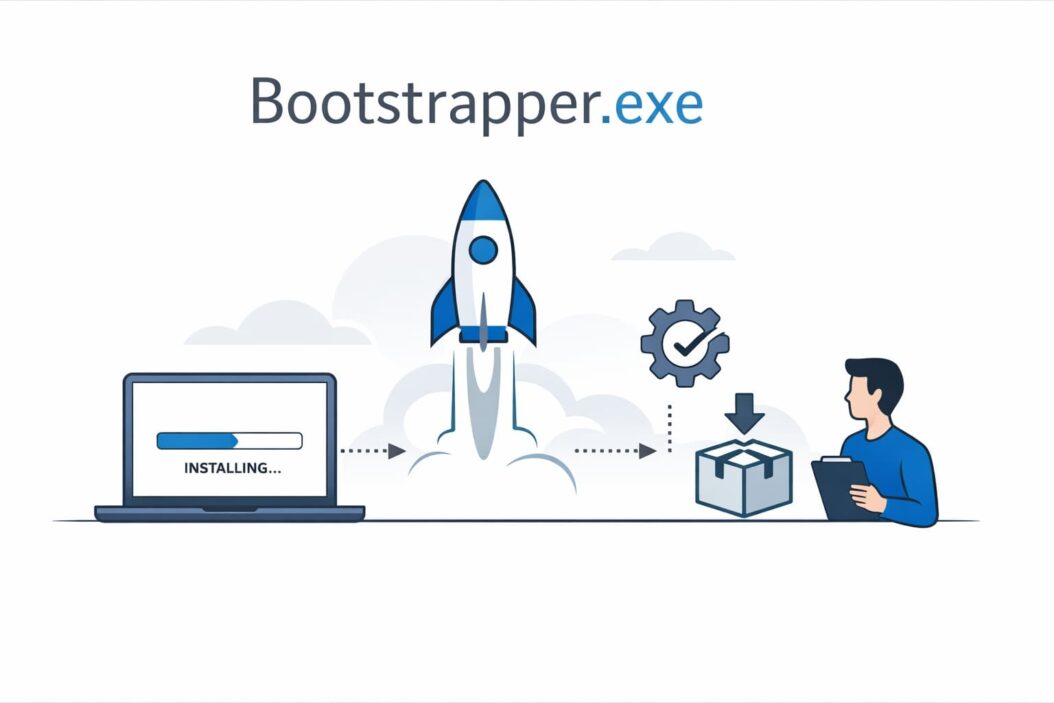
Bootstrapper.exe is a legitimate Windows file that helps install and update software on your computer. Think of it as a helper program that prepares your system before the main installation begins.
When you install software, especially from Microsoft or large software companies, the process often works in stages. The bootstrapper runs first. It checks your system, downloads necessary files, and sets up everything the main installer needs. Then it hands control over to the actual installation program.
The name “bootstrapper” comes from the phrase “pulling yourself up by your bootstraps.” The program essentially pulls up the rest of the installation process.
Where Bootstrapper.exe Comes From
You’ll encounter bootstrapper.exe from several legitimate sources:
Microsoft Products: Visual Studio, .NET Framework, and other Microsoft development tools use bootstrappers heavily. These are completely safe.
Adobe Software: Adobe Creative Cloud and other Adobe products use bootstrapper processes during installation and updates.
Third-Party Applications: Many professional software packages use bootstrappers to manage complex installations that need multiple components.
Windows Updates: Sometimes Windows Update mechanisms use bootstrapper processes to prepare your system for major updates.
The file typically appears in temporary folders while installing software, then disappears after the installation completes. If you see it running, someone likely just installed or updated a program.
How Bootstrapper.exe Actually Works
Understanding the process helps you spot problems:
- Initial Launch: You run an installer. That installer is actually the bootstrapper, or it calls the bootstrapper.
- System Check: The bootstrapper scans your computer. It checks Windows version, available disk space, installed components, and system requirements.
- Download Phase: If files are needed, the bootstrapper downloads them. This might include prerequisites like specific .NET versions or Visual C++ redistributables.
- Preparation: The bootstrapper unpacks files, creates temporary directories, and sets up the environment the main installer needs.
- Handoff: Once everything is ready, the bootstrapper launches the main installer and typically exits.
- Cleanup: After installation finishes, most bootstrappers delete their temporary files automatically.
This whole process usually takes seconds to minutes, depending on your internet speed and what needs downloading.
Is Bootstrapper.exe Safe?
Here’s the honest answer: legitimate bootstrapper.exe files are completely safe. But malware sometimes disguises itself using this name.
Signs It’s Legitimate:
- Appears only during or right after software installation
- Located in temporary folders like C:\Users\YourName\AppData\Local\Temp
- Has a valid digital signature from a known company
- Disappears after installation completes
- Uses reasonable system resources (usually under 100MB RAM)
Red Flags That Suggest Malware:
- Runs constantly, not just during installations
- Located in C:\Windows\System32 or your user profile root folder
- Has no digital signature or a signature from an unknown publisher
- Uses excessive CPU or network resources continuously
- Appears when you haven’t installed anything recently
- Multiple bootstrapper.exe processes run simultaneously
According to Microsoft’s security guidelines at https://docs.microsoft.com/en-us/windows/security/, legitimate system files should always have valid digital signatures. Check this first.
How to Check If Your Bootstrapper.exe Is Legitimate
Follow these steps:
Step 1: Open Task Manager
- Press Ctrl + Shift + Esc
- Click the Details tab
- Find bootstrapper.exe in the list
Step 2: Check the File Location
- Right-click on bootstrapper.exe
- Select “Open file location”
- Note the folder path
Step 3: Verify the Digital Signature
- In the file location, right-click bootstrapper.exe
- Choose Properties
- Click the Digital Signatures tab
- Check if a reputable company signed it
Step 4: Scan with Antivirus
- Right-click the file
- Select “Scan with [your antivirus]”
- Wait for results
If the file location is a temp folder, has a valid signature from Microsoft or another known software company, and your antivirus finds nothing, you’re fine.
Common Bootstrapper.exe Problems and Solutions
High CPU or Memory Usage
Bootstrappers sometimes consume significant resources, especially during large downloads or when extracting files.
Normal behavior: 30-70% CPU for a few minutes during installation, 50-200MB RAM usage.
Problem behavior: 100% CPU for hours, or over 500MB RAM continuously.
Solution:
- Wait 10-15 minutes to see if it completes naturally
- Check your internet connection (slow downloads cause bootstrappers to run longer)
- Restart the installation if it seems stuck
- Close other programs to free up resources
Bootstrapper.exe Won’t Close
Sometimes bootstrappers get stuck and won’t terminate after installation.
Quick fix:
- Open Task Manager (Ctrl + Shift + Esc)
- Find bootstrapper.exe under Processes or Details
- Right-click it and select End Task
- If it won’t close, restart your computer
This usually happens when an installation fails or gets interrupted. The bootstrapper doesn’t realize it should exit.
Antivirus Flags Bootstrapper.exe
False positives happen because bootstrappers do things that look suspicious to antivirus software. They download files, modify system settings, and run with elevated privileges.
What to do:
- Check the digital signature first (as explained above)
- Research the specific software you’re installing
- Download installers only from official websites
- If legitimate, add an exception in your antivirus temporarily
- Remove the exception after installation completes
Never disable your antivirus completely. Just create a specific exception for the file if you’re certain it’s safe.
Multiple Bootstrapper Processes
Seeing several bootstrapper.exe processes can be normal if you’re installing multiple programs or if one installer has several components.
When it’s normal:
- You just installed several programs
- You’re installing Microsoft Visual Studio (uses multiple bootstrappers)
- Windows is applying several updates
When it’s suspicious:
- You haven’t installed anything
- Processes persist for days
- They restart automatically when you close them
If suspicious, run a full system scan with your antivirus and consider using Malwarebytes as a second opinion.
Bootstrapper.exe Variants You Might See
Different companies name their bootstrappers differently:
| File Name | Source | Purpose |
|---|---|---|
| bootstrapper.exe | Generic name used by many installers | Standard installation helper |
| setup_bootstrapper.exe | Microsoft Visual Studio | Manages Visual Studio installation |
| AdobeGCClient.exe | Adobe Creative Cloud | Updates and manages Adobe apps |
| InstallShield bootstrapper | Various software | Commercial installer framework |
| ClickOnce bootstrapper | .NET applications | Deploys .NET applications |
Each works similarly but serves different software ecosystems.
When Should You Remove Bootstrapper.exe?
You don’t typically need to remove bootstrappers manually. They clean up after themselves. But sometimes files get left behind.
Remove it if:
- The installation completed days ago but the file still runs
- It’s using resources constantly
- You confirmed it’s malware
- It’s in a strange location without a valid signature
How to remove it safely:
- Open Task Manager and end the process
- Navigate to the file location
- Delete the file
- Empty your Recycle Bin
- Run Disk Cleanup to clear temp folders
- Restart your computer
For suspected malware, use your antivirus removal tool or boot into Safe Mode before deleting.
Preventing Bootstrapper.exe Problems
Most issues stem from interrupted installations or downloading software from questionable sources.
Best practices:
Don’t interrupt installations. Let them complete fully, even if they seem slow. Interrupting creates orphaned bootstrapper processes.
Download only from official sources. Get software directly from the publisher’s website, not from download aggregators or third-party sites.
Keep your system updated. Windows updates fix bugs that cause installation problems.
Maintain free disk space. Bootstrappers need temporary space to work. Keep at least 20GB free on your system drive.
Use reliable antivirus software. Good antivirus distinguishes between legitimate bootstrappers and malware more accurately. Consider checking recommendations from independent testing labs like AV-Comparatives at https://www.av-comparatives.org/.
Check system requirements before installing. If your computer doesn’t meet requirements, bootstrappers may fail or behave erratically.
Technical Details: How Bootstrappers Differ from Regular Installers
Regular installers contain all necessary files. They work offline. They’re often larger downloads.
Bootstrappers are small launchers. They download components as needed. This makes initial downloads faster but requires internet connectivity.
Advantages of bootstrappers:
- Smaller initial download
- Always installs the latest version
- Downloads only needed components
- Checks prerequisites automatically
- Can install multiple related products in sequence
Disadvantages:
- Requires internet connection
- Takes longer overall if connection is slow
- More points of potential failure
- Can be confusing when something goes wrong
Software companies use bootstrappers for products that update frequently or have many optional components. This explains why development tools, creative software, and enterprise applications use them most.
The Connection Between Bootstrapper.exe and .NET Framework
Many bootstrappers relate to Microsoft .NET Framework because countless Windows applications require it.
When you install a program that needs .NET 4.8, for example, the bootstrapper checks if you have it. If not, it downloads and installs .NET 4.8 first, then installs the program you actually wanted.
This chaining behavior explains why installations sometimes take longer than expected. You’re not just installing one thing. You’re installing prerequisites too.
If you develop software or install development tools, you’ll see bootstrappers constantly. They’re managing complex dependency chains behind the scenes.
Bootstrapper.exe in Different Windows Versions
Bootstrappers work across all modern Windows versions, but behavior varies slightly:
Windows 10: Bootstrappers integrate well with Windows Defender and SmartScreen. You’ll get warnings for unsigned bootstrappers, but legitimate ones pass through smoothly.
Windows 11: Similar to Windows 10 but with stricter security policies. You might see more permission prompts, especially for bootstrappers that modify system directories.
Windows Server: Bootstrappers often require explicit administrator privileges. Group Policy may restrict bootstrapper behavior in managed environments.
The core concept remains the same across versions. Only the security prompts and permission requirements change.
What System Administrators Need to Know
If you manage multiple computers, bootstrappers can complicate software deployment.
Enterprise considerations:
Create administrative installation points. Many bootstrappers support creating network installation sources. This lets you download once and install on multiple machines without repeated downloads.
Test before deploying. Run bootstrapped installations in test environments first. Some bootstrappers phone home for verification, which may fail in restricted networks.
Use Group Policy. Configure software installation policies to allow bootstrappers from trusted publishers while blocking unknown ones.
Monitor with event logs. Windows logs installation events. Review Application and System logs to track bootstrapper behavior and catch problems early.
Consider alternatives. Enterprise software management tools like Microsoft SCCM or third-party solutions offer more control than individual bootstrappers.
Mobile and Web Bootstrappers
The bootstrapper concept extends beyond Windows desktop applications.
ClickOnce bootstrappers deploy .NET applications from websites. Users click a link, the bootstrapper downloads and installs the application automatically.
Electron app bootstrappers manage cross-platform desktop applications built with web technologies. Applications like Slack or Discord use bootstrapper-style updaters.
Mobile app stores essentially act as bootstrappers. They check system compatibility, download components, and handle installation, just like desktop bootstrappers.
The principle stays consistent: a small program manages the installation of a larger one.
Troubleshooting Advanced Bootstrapper Issues
Sometimes standard solutions don’t work. Here are deeper fixes:
Corrupted temporary files:
- Open Run dialog (Windows + R)
- Type %temp% and press Enter
- Delete everything in this folder (some files may refuse, skip those)
- Restart and retry installation
Insufficient permissions:
- Right-click the installer
- Select “Run as administrator”
- Approve the User Account Control prompt
- Proceed with installation
Conflicting software:
- Temporarily disable antivirus
- Close all non-essential programs
- Disable VPN or proxy connections during installation
- Turn off Windows Firewall temporarily (re-enable immediately after)
Registry conflicts:
- Only for advanced users
- Backup registry before changes
- Search for orphaned installation entries
- Remove incomplete installation registry keys
- Use caution as registry errors can break Windows
Network problems:
- Disable network throttling in Windows Update settings
- Temporarily disable network firewalls
- Try a different network if possible
- Use a wired connection instead of WiFi
Creating Your Own Bootstrapper
Developers sometimes need to create custom bootstrappers for their applications.
Popular frameworks:
Microsoft provides the Visual Studio Bootstrapper Package. It integrates with Visual Studio setup projects and handles prerequisites automatically.
WiX Toolset offers bootstrapper functionality through its Burn component. This gives fine control over installation sequences.
InstallShield and Advanced Installer include bootstrapper builders with graphical interfaces.
Basic requirements:
- Check system compatibility
- Download prerequisites
- Verify digital signatures
- Handle errors gracefully
- Clean up temporary files
- Provide clear user feedback
Creating reliable bootstrappers requires careful error handling and testing across multiple Windows configurations.
Summary
Bootstrapper.exe is a legitimate helper program that manages software installation on Windows computers. It appears during installations, downloads necessary components, checks system requirements, and prepares your computer for the main installer.
The file itself is safe when it comes from reputable software publishers like Microsoft, Adobe, or other established companies. You can verify legitimacy by checking the digital signature, file location (should be in temp folders), and ensuring it only runs during actual installations.
Problems with bootstrapper.exe usually involve high resource usage during installation, processes that won’t close after installation completes, or antivirus false positives. Most issues resolve by waiting for installation to complete, restarting your computer, or ending the task manually through Task Manager.
To avoid problems, download software only from official sources, don’t interrupt installations, maintain free disk space, and keep Windows updated. If you suspect malware using the bootstrapper.exe name, check the digital signature, verify the file location, and scan with updated antivirus software.
Bootstrappers make software installation more efficient by downloading only needed components and ensuring all prerequisites are met before installing the main program. Understanding how they work helps you troubleshoot installation problems and recognize potential security threats.
Frequently Asked Questions
Can I delete bootstrapper.exe from my computer?
Wait until installation completes. If the file persists days after installation and continues running, you can safely end the task and delete it. Most bootstrappers automatically clean up their temporary files, so manual deletion rarely becomes necessary. Never delete a bootstrapper while it’s actively installing something.
Why does bootstrapper.exe keep appearing on my computer?
If it appears repeatedly without you installing software, either Windows Update is running in the background, you have automatic updates enabled for programs like Adobe Creative Cloud, or malware is using the name. Check Task Manager for the full file path and digital signature to determine which scenario applies.
How much RAM should bootstrapper.exe use?
Typical usage ranges from 50MB to 200MB during active installation. Temporary spikes to 300-400MB can occur when extracting large archives. If usage exceeds 500MB continuously or the process runs for hours without progress, something is wrong. End the task and restart the installation.
Is bootstrapper.exe a virus?
Legitimate bootstrapper.exe files are not viruses. However, malware sometimes uses this name because it sounds like a system file. Check the digital signature and file location. Real bootstrappers are digitally signed by known companies and appear in temp folders only during installations. Unsigned files in system folders are suspicious.
What happens if I end the bootstrapper.exe task during installation?
The installation will fail or partially complete. You’ll need to restart the installation process from the beginning. Some installers handle interruption gracefully and let you resume, but most require starting over. If you must stop an installation, use the installer’s cancel button rather than force-closing bootstrapper.exe through Task Manager.
