
If you’ve seen “afd.sys” appear in an error message or crash report on your Windows computer, you’re probably worried. Let me explain exactly what this file is, why it matters, and how to solve problems related to it.
What Is AFD.SYS?
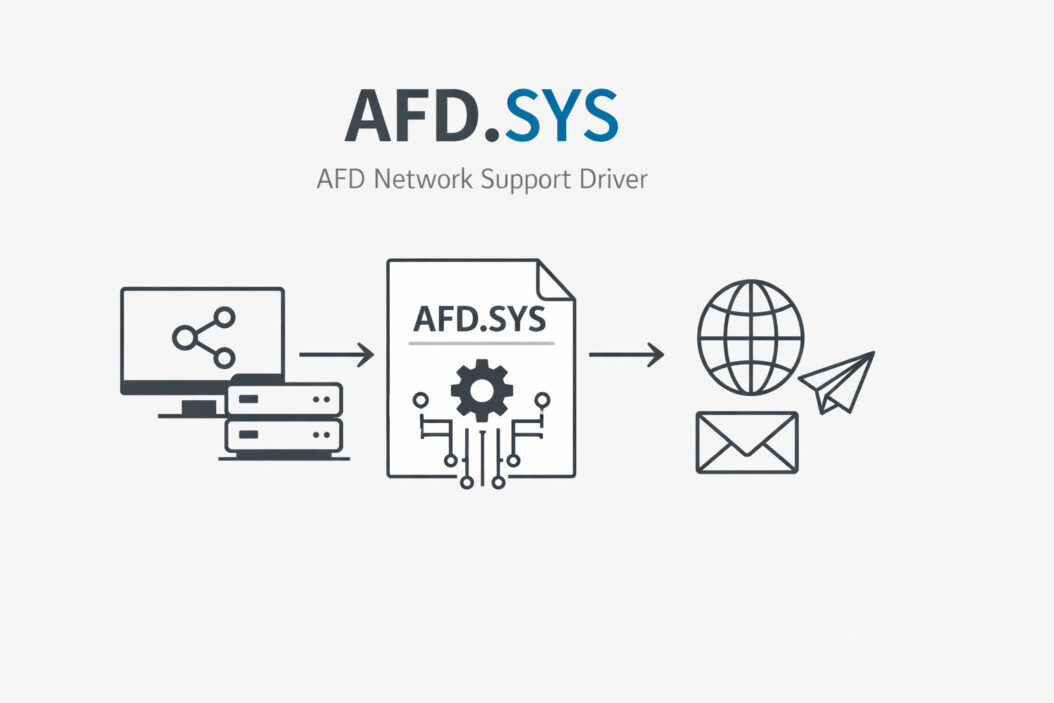
AFD.SYS stands for Ancillary Function Driver for WinSock. It’s a core Windows system file that handles network connections at a deep level.
This driver sits between your applications (like web browsers, games, or streaming apps) and your network hardware. When any program needs to send or receive data over the internet or a local network, AFD.SYS manages that communication.
Key facts about AFD.SYS:
- Location: C:\Windows\System32\drivers\afd.sys
- File type: Kernel mode driver
- Purpose: Network socket operations
- Developer: Microsoft Corporation
- Operating system: All Windows versions (Windows 7, 8, 10, 11, Server editions)
The file runs with high privileges because it needs direct access to your network adapter and memory. This is normal and necessary for network operations to work properly.
Why AFD.SYS Matters to Your Computer
Every time you open a website, send an email, stream a video, or play an online game, AFD.SYS is working in the background. Without this driver, your computer couldn’t communicate over networks at all.
Think of it as a translator. Your applications speak one language, your network card speaks another. AFD.SYS translates between them so they can understand each other.
Because it handles so much network traffic and runs at the kernel level, problems with AFD.SYS can cause:
- Blue screen crashes (BSOD)
- Network connectivity failures
- Slow internet performance
- Application freezes
- System instability
Common AFD.SYS Errors and What They Mean
Blue Screen of Death (BSOD) Errors
The most serious AFD.SYS problems show up as blue screen crashes. Here are the most common error codes:
DRIVER_IRQL_NOT_LESS_OR_EQUAL (afd.sys)
This means the driver tried to access memory it shouldn’t touch. Usually caused by:
- Corrupted driver file
- Incompatible network software
- Faulty RAM
- Malware infection
SYSTEM_THREAD_EXCEPTION_NOT_HANDLED (afd.sys)
This indicates the driver crashed while processing a network request. Common causes:
- Outdated network drivers
- Conflicting security software
- Windows system file corruption
PAGE_FAULT_IN_NONPAGED_AREA (afd.sys)
This happens when the system can’t find data it expects in memory. Reasons include:
- Bad RAM modules
- Hard drive errors
- Corrupted Windows installation
Non-Crash Errors
Not all AFD.SYS problems cause blue screens. You might see:
- “afd.sys is missing or not found”
- High CPU usage by System process (related to AFD.SYS)
- Network connections dropping randomly
- Slow file transfers
How to Fix AFD.SYS Problems: Step-by-Step Solutions
Solution 1: Update Your Network Drivers
Outdated network adapter drivers are the most common cause of AFD.SYS errors.
Steps:
- Press Windows + X and select Device Manager
- Expand “Network adapters”
- Right-click your network adapter (Ethernet or Wi-Fi)
- Select “Update driver”
- Choose “Search automatically for drivers”
- Restart your computer after installation
For better results, visit your computer manufacturer’s website and download the latest network drivers directly. This ensures you get the newest version.
Solution 2: Run Windows System File Checker
Corrupted system files can damage AFD.SYS functionality.
Steps:
- Press Windows + X and select “Windows Terminal (Admin)” or “Command Prompt (Admin)”
- Type this command and press Enter:
sfc /scannow - Wait for the scan to complete (takes 15-30 minutes)
- If it finds problems, it will repair them automatically
- Restart your computer
If SFC finds corrupted files it can’t fix, run these additional commands:
DISM /Online /Cleanup-Image /RestoreHealth
Then run sfc /scannow again.
Solution 3: Check for Malware
Malware sometimes disguises itself as system files or corrupts legitimate drivers like AFD.SYS.
Steps:
- Open Windows Security (built into Windows 10/11)
- Click “Virus & threat protection“
- Select “Quick scan” or “Full scan”
- Remove any threats found
- Restart your computer
Consider using a second opinion scanner like Malwarebytes for thorough checking. According to Microsoft’s security guidance at https://learn.microsoft.com/en-us/windows/security/, keeping your system updated is essential for preventing driver-related malware infections.
Solution 4: Test Your RAM
Faulty memory can cause AFD.SYS crashes because the driver relies on stable memory access.
Steps:
- Press Windows + R
- Type
mdsched.exeand press Enter - Select “Restart now and check for problems”
- Your computer will restart and run memory diagnostics
- Review results after restart (check Event Viewer if needed)
If errors are found, you’ll need to replace the faulty RAM module.
Solution 5: Disable or Update Security Software
Third-party antivirus and firewall programs can conflict with AFD.SYS.
Steps:
- Temporarily disable your antivirus software
- Test if the error still occurs
- If the problem stops, update your security software to the latest version
- Re-enable protection
- If problems continue, consider switching to a different security solution
Programs known to sometimes conflict include older versions of Norton, McAfee, and certain VPN clients.
Solution 6: Reset Network Stack
Corrupted network configuration can stress AFD.SYS and cause errors.
Steps:
- Open Command Prompt as Administrator
- Run these commands one at a time:
netsh winsock reset
netsh int ip reset
ipconfig /release
ipconfig /renew
ipconfig /flushdns
- Restart your computer
This resets all network settings to defaults without affecting your files.
Solution 7: Check Hard Drive Health
Disk errors can corrupt system files including AFD.SYS.
Steps:
- Open Command Prompt as Administrator
- Type:
chkdsk C: /f /r - Press Y when asked to schedule the check
- Restart your computer
- The check will run before Windows starts (takes 1-3 hours)
Replace “C:” with your Windows drive letter if different.
Solution 8: Perform a Clean Boot
Startup programs can interfere with system drivers.
Steps:
- Press Windows + R
- Type
msconfigand press Enter - Click the “Services” tab
- Check “Hide all Microsoft services”
- Click “Disable all”
- Click the “Startup” tab
- Click “Open Task Manager”
- Disable all startup items
- Restart your computer
If the error disappears, re-enable services one by one to find the culprit.
Solution 9: Update Windows
Microsoft regularly patches driver issues through Windows updates.
Steps:
- Open Settings (Windows + I)
- Click “Windows Update”
- Click “Check for updates”
- Install all available updates
- Restart your computer
Enable automatic updates to prevent future problems.
Solution 10: Repair Install Windows
If nothing else works, a repair installation replaces system files without deleting your personal data.
Steps:
- Download the Windows Media Creation Tool from Microsoft
- Run the tool and select “Upgrade this PC now”
- Choose “Keep personal files and apps”
- Follow the installation wizard
- The process takes 1-2 hours
This replaces AFD.SYS and all other system files with fresh copies.
Understanding AFD.SYS High CPU Usage
Sometimes AFD.SYS doesn’t crash but causes performance problems. You might notice high CPU usage in Task Manager under the “System” process.
Common causes:
- Network scanning or mapping operations
- Heavy network traffic from multiple applications
- Malware using your network connection
- Bugs in specific Windows builds
Solutions:
Check which programs are using your network heavily:
- Open Task Manager (Ctrl + Shift + Esc)
- Click the “Performance” tab
- Select “Ethernet” or “Wi-Fi”
- Click “Open Resource Monitor” at the bottom
- Look at the “Network” tab to see which processes are active
Close unnecessary programs using high network bandwidth.
If you see unknown processes, research them online or scan for malware.
AFD.SYS in Windows 11 vs. Older Windows Versions
Microsoft has updated AFD.SYS across Windows versions to improve performance and security.
| Windows Version | AFD.SYS Changes | Common Issues |
|---|---|---|
| Windows 7 | Original implementation | Driver conflicts with newer software |
| Windows 8/8.1 | Performance improvements | Compatibility with legacy apps |
| Windows 10 | Security enhancements | Occasional build-specific bugs |
| Windows 11 | Optimized for modern hardware | Better stability overall |
Windows 11 has the most refined version of AFD.SYS, but problems can still occur due to third-party software conflicts or hardware issues.
How to Prevent Future AFD.SYS Problems
Keep your system updated
Enable automatic Windows updates. Microsoft fixes driver bugs regularly, and staying current prevents known issues.
Use quality hardware
Cheap network adapters and faulty RAM cause most AFD.SYS crashes. Invest in reliable components.
Be careful with network software
VPNs, firewalls, and network monitoring tools can conflict with AFD.SYS. Only install software from trusted sources.
Regular maintenance
Run these monthly:
- Windows Update check
- Full malware scan
- Disk cleanup
- System File Checker
Monitor system health
Check Event Viewer (Windows + X, then Event Viewer) for warnings related to AFD.SYS. Early detection prevents crashes.
Is AFD.SYS Safe? How to Verify Authenticity
Real AFD.SYS is completely safe. It’s a legitimate Microsoft file. However, malware sometimes uses similar names.
Verify your file is genuine:
- Open File Explorer
- Navigate to C:\Windows\System32\drivers
- Find afd.sys
- Right-click and select “Properties”
- Check the “Digital Signatures” tab
- Verify the signer is “Microsoft Windows”
Red flags for fake files:
- Located anywhere except System32\drivers
- No digital signature from Microsoft
- File size dramatically different from normal (usually around 500-700 KB)
- Recently created/modified date when you haven’t updated Windows
If you find a suspicious file, scan immediately with antivirus software and run System File Checker.
Advanced Troubleshooting for IT Professionals
For system administrators dealing with recurring AFD.SYS issues across multiple machines:
Check for known issues
Visit Microsoft’s Windows Update History page at https://support.microsoft.com/en-us/topic/windows-update-history to see if your Windows build has documented AFD.SYS problems.
Use Driver Verifier
This advanced tool can catch driver problems:
- Run
verifierfrom Administrator Command Prompt - Select “Create custom settings”
- Choose verification options
- Select AFD.SYS specifically
- Restart and monitor for crashes
Warning: This intentionally stresses the driver. Only use on test systems or when troubleshooting is critical.
Analyze memory dump files
When AFD.SYS causes a blue screen, Windows creates a memory dump:
- Install WinDbg from Microsoft
- Open the dump file (usually in C:\Windows\MEMORY.DMP)
- Run
!analyze -vcommand - Look for specific function calls in AFD.SYS that failed
This identifies exactly what operation failed, helping pinpoint the root cause.
Summary
AFD.SYS is a critical Windows network driver that enables all internet and network connectivity on your computer. While it’s normally reliable, corruption, driver conflicts, or hardware problems can cause blue screen crashes and network failures.
Most AFD.SYS problems resolve through simple fixes: updating network drivers, running System File Checker, scanning for malware, or testing RAM. For persistent issues, a Windows repair installation replaces all system files without losing your data.
Regular system maintenance prevents most AFD.SYS errors. Keep Windows updated, use quality hardware, and be selective about network software you install.
The key is identifying whether your problem stems from software conflicts, hardware failure, or system file corruption. Work through solutions systematically, starting with the simplest fixes first.
Frequently Asked Questions
Can I delete afd.sys to fix problems?
No, never delete AFD.SYS. This file is essential for network functionality. Deleting it will break all internet and network connections. If the file is corrupted, use System File Checker or a repair installation to replace it with a clean copy.
Why does afd.sys cause blue screens during gaming?
Games generate heavy network traffic, especially online multiplayer games. This stresses AFD.SYS more than normal use. The crash usually indicates outdated network drivers, insufficient RAM, or overheating. Update your network adapter drivers first, then check your system temperature and RAM.
Is afd.sys a virus?
The legitimate AFD.SYS in C:\Windows\System32\drivers is not a virus. It’s a genuine Microsoft file. However, malware sometimes uses similar names or locations. Verify the file’s digital signature shows “Microsoft Windows” as the signer. If located elsewhere or lacking a valid signature, scan for malware immediately.
How do I fix afd.sys failed error on startup?
This error during boot means Windows can’t load the network driver. Boot into Safe Mode (press F8 during startup on Windows 7/8, or use Advanced Startup on Windows 10/11). From Safe Mode, run System File Checker (sfc /scannow) to repair the file. If that fails, use a Windows installation USB to run Startup Repair.
Can outdated BIOS cause afd.sys errors?
Yes, outdated BIOS can cause driver compatibility issues, including with AFD.SYS. If you’ve tried all software solutions without success, check your motherboard manufacturer’s website for BIOS updates. Update carefully following their instructions, as incorrect BIOS flashing can damage your motherboard.

- How to Uninstall Apps from the Start Menu in Windows 11/10 (2026 Guide) - April 2, 2026
- How to Fix Overscan on Windows 11/10: Stop Your Screen Getting Cut Off (2026) - April 1, 2026
- How to Disable Lock Screen on Windows 11/10 in 2026 - April 1, 2026