
You’re hearing more sound from one speaker than the other. Maybe your left earbud is louder, or your right desktop speaker is barely audible. This happens to everyone, and fixing it takes less than two minutes.
Volume balance settings control how sound splits between your left and right audio channels. Windows lets you adjust this balance so both sides play at equal levels, or you can deliberately favor one side if you need to compensate for hearing differences or faulty hardware.
This guide shows you exactly how to fix unbalanced audio on Windows 10, 11, and older versions. You’ll learn multiple methods, troubleshoot common problems, and understand why balance issues happen in the first place.
Audio Balance and Why It Matters
Audio balance determines the volume ratio between your left and right speakers or headphones. A centered balance (50/50) sends equal sound to both channels. Shifting the balance left or right changes this ratio.
When you need to adjust balance:
- One earbud or speaker sounds quieter than the other
- You have hearing loss in one ear
- Your audio hardware has a defect
- You want to test if a channel is working
- You’re using a single working speaker temporarily
Windows stores balance settings separately for each audio device. Your headphones can have different balance than your speakers. This flexibility helps when you switch between devices throughout the day.
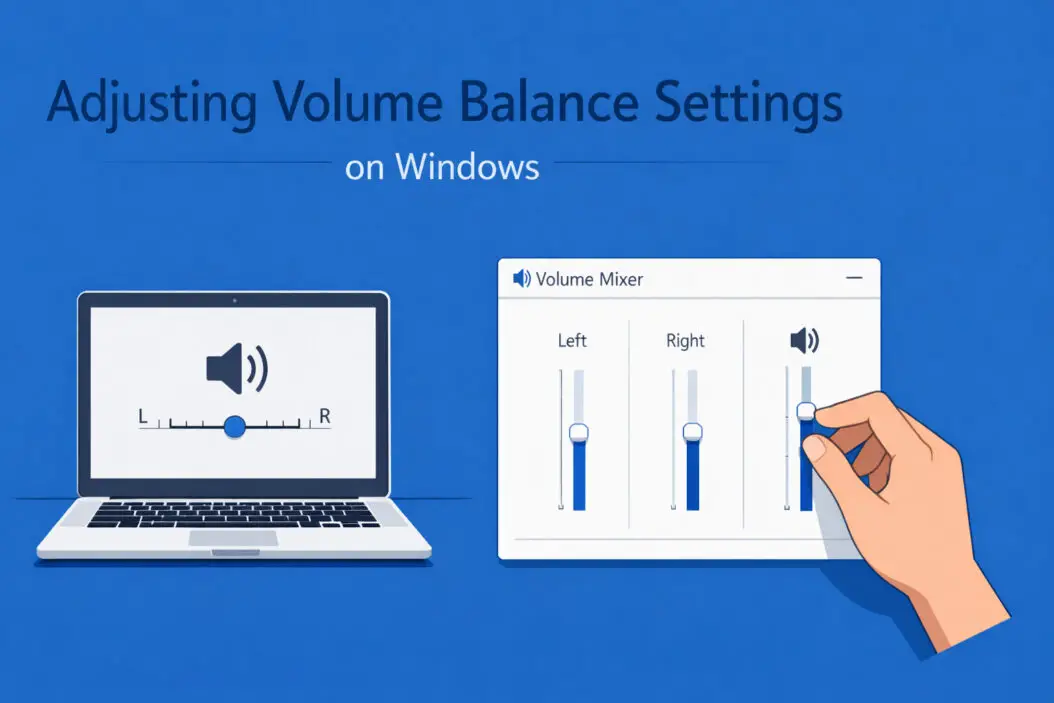
Quick Method: Adjust Balance Through Volume Mixer (Windows 10/11)
This is the fastest way to fix balance issues on modern Windows systems.
Step by step:
- Right-click the speaker icon in your taskbar (bottom right corner)
- Select “Open Volume mixer” (Windows 10) or “Volume mixer” (Windows 11)
- Click the device name or arrow next to your active playback device
- Find the balance sliders for Left and Right channels
- Drag the sliders until you hear equal volume from both sides
- Click outside the window to save changes automatically
The sliders range from 0 (silent) to 100 (full volume). Default is 100 on both sides. If your right speaker sounds quiet, try setting Left to 70 and Right to 100. This compensates by reducing the louder side.
Test your changes by playing music or a YouTube video. Adjust again if needed.
Detailed Method: Sound Control Panel (All Windows Versions)
The classic Sound Control Panel gives you more precise control and works on Windows 7, 8, 10, and 11.
Access the sound settings:
- Press Windows key + R to open Run dialog
- Type “mmsys.cpl” and press Enter
- The Sound window opens to the Playback tab
- Find your current audio device (marked with a green checkmark)
- Double-click it to open Properties
Adjust the balance:
- Click the “Levels” tab in the Properties window
- Click the “Balance” button next to the main volume slider
- A new window shows L (Left) and R (Right) sliders
- Move each slider between 0 and 100
- Click OK twice to apply changes
This method shows exact percentage values. You can set precise numbers like Left: 85, Right: 100 if you need specific compensation.
Testing Your Balance Settings
Play audio that uses both channels clearly. Avoid mono tracks since they sound the same on both sides anyway.
Good test sources:
- Stereo music (most modern songs)
- YouTube stereo test videos (search “left right audio test”)
- Movie trailers with surround sound
- Video games with directional audio
Listen carefully. Both sides should feel equally loud. If you still notice imbalance, adjust again in small increments.
Advanced Balance Control: Per-App Volume Settings
Windows 10 and 11 let you set different balance for individual programs. This helps when one application has weird audio mixing.
Set app-specific balance:
- Open Settings (Windows + I)
- Go to System, then Sound
- Scroll to Advanced sound options
- Click “App volume and device preferences”
- Find your application in the list
- Click the device dropdown and select “Volume Mixer”
- Adjust balance for just that app
This feature works great for video conferencing apps where your microphone and speakers need different settings than your music player.
Fixing Balance on Bluetooth Headphones and Speakers
Bluetooth devices sometimes have their own balance quirks. The audio signal goes through multiple processing stages, which can introduce imbalance.
Bluetooth-specific fixes:
Check balance in Windows first using the methods above. Bluetooth devices show up as regular playback devices in your sound settings.
If balance won’t change:
- Disconnect and reconnect the Bluetooth device
- Remove the device completely and pair it again
- Update your Bluetooth drivers through Device Manager
- Check if your headphones have a companion app with balance controls
- Test the device on another computer or phone to rule out hardware failure
Some wireless headphones include their own apps (Sony Headphones Connect, Bose Music, Jabra Sound+) that override Windows balance settings. Check those apps if Windows adjustments don’t work.
For detailed information about Bluetooth audio quality and settings, the Bluetooth SIG official documentation provides technical specifications that explain why wireless devices sometimes behave differently than wired ones.
Using Accessibility Features for Permanent Balance Adjustment
Windows includes accessibility options designed for people with hearing differences. These settings persist across all apps and survive restarts.
Enable mono audio (Windows 10/11):
- Open Settings
- Go to Accessibility (or Ease of Access in older versions)
- Click Audio
- Toggle “Mono audio” to On
Mono audio combines both channels into one and plays the same sound through both speakers. This completely eliminates balance as a concept but ensures you never miss audio that only plays on one side.
Combine mono with balance:
You can use mono audio AND adjust balance. This seems contradictory but helps if one ear needs significantly more volume. Set mono on, then increase one channel’s volume to compensate for hearing loss.
Troubleshooting Common Balance Problems
Balance Settings Reset After Restart
This happens when Windows doesn’t save your changes properly, often due to driver issues.
Fixes:
- Update your audio drivers from Device Manager
- Download the latest drivers from your motherboard or sound card manufacturer
- Set your audio device as the default device in Sound Control Panel
- Run Windows Update to get generic Microsoft audio drivers
Balance Slider Grayed Out or Missing
Some audio drivers don’t expose balance controls to Windows.
Solutions:
- Check for audio software that came with your computer (Realtek HD Audio Manager, ASUS Sonic Studio)
- Install manufacturer-specific drivers instead of generic Windows drivers
- Use third-party tools like Equalizer APO for advanced control
- Consider if your device actually supports stereo (some cheap USB headsets are mono only)
One Side Completely Silent
If moving the balance slider to 100 on one side produces zero sound, you have a hardware problem, not a settings issue.
Diagnostic steps:
- Test the device on another computer
- Try different audio ports (front vs back panel)
- Check cable connections if using wired speakers
- Look for physical damage to cables or connectors
- Test with different headphones/speakers to isolate the problem
If hardware works elsewhere, reinstall your audio drivers completely. Use Device Manager to uninstall the device, restart, and let Windows reinstall fresh drivers.
Volume Changes But Balance Won’t Adjust
This indicates the audio driver doesn’t support independent channel control.
Workarounds:
Install Equalizer APO, a free audio processing tool that adds system-wide balance control even when drivers don’t support it. This requires more setup but works with any audio hardware.
Another option: Use your media player’s balance settings instead of Windows. VLC Media Player, Foobar2000, and most audio programs have their own balance controls that work independently of Windows.
Third-Party Tools for Enhanced Balance Control
Sometimes Windows built-in options aren’t enough. These free tools add features Microsoft doesn’t include.
Equalizer APO
This system-wide audio processor adds balance control plus 31-band equalization.
Installation:
- Download from SourceForge
- Run installer and select your audio device
- Restart your computer
- Open Configuration Editor from Start Menu
- Add a “Balance” filter
- Adjust left/right channels as needed
Equalizer APO works at the driver level. Every application automatically uses your settings without individual configuration.
VoiceMeeter
This virtual audio mixer creates multiple audio channels with independent balance controls.
Best for:
- Streamers who need different balance for microphone, game, and music
- Musicians routing multiple audio sources
- Anyone wanting separate balance for different applications
VoiceMeeter has a learning curve but provides professional-level audio routing on standard Windows systems.
Balance Settings for Gaming and Entertainment
Games and movies use audio balance differently than music.
Gaming Balance Considerations
Many games use surround sound processing that expects centered balance. Shifting balance left or right can mess up directional audio cues.
Gaming tips:
- Keep balance centered when playing competitive games
- Adjust individual ear cup volume on your headset instead (if available)
- Use game-specific audio settings before changing Windows balance
- Some gaming headsets include software with balance controls (Logitech G Hub, SteelSeries GG)
Home Theater and Surround Sound
If you’re using 5.1 or 7.1 speaker systems, balance settings work differently.
Surround audio:
- Balance controls affect front left/right speakers only
- Use speaker configuration in Sound Control Panel to adjust other channels
- Some surround systems need configuration through receiver software, not Windows
- Test all speakers individually using the speaker test feature in Sound Properties
How Balance Interacts with Volume
Balance and volume are separate controls that multiply together.
Example calculation:
- Master volume: 80%
- Left balance: 100%
- Right balance: 50%
Result: Left plays at 80%, right plays at 40% (80% × 50%)
This matters when troubleshooting. If your volume is already low and you reduce one channel’s balance, that channel might become too quiet to hear even though it’s working fine.
Always set your master volume to a comfortable listening level first, then adjust balance to equalize the channels.
Creating Balance Profiles for Different Situations
You might need different balance settings for different activities.
Common scenarios:
| Situation | Recommended Balance | Reason |
|---|---|---|
| Music listening | 50/50 (centered) | Hear stereo mix as intended |
| Phone calls (one damaged ear) | Adjust to stronger ear | Understand speech clearly |
| Single working speaker | 100 to working side, 0 to broken side | Maximize available sound |
| Temporary hearing loss | Adjust to healthy ear | Compensate until recovery |
| Testing audio equipment | Vary as needed | Isolate which channel has problems |
Windows doesn’t save balance profiles natively. You’ll need to manually change settings when switching activities, or use third-party tools that support profiles.
Hardware vs Software Balance
Balance adjustments happen at different points in the audio chain.
Software balance (Windows settings):
- Changes the digital audio signal before it reaches your hardware
- Works with any audio device
- Controlled through Windows interface
- Processes through CPU
Hardware balance (device settings):
- Physical adjustment on speakers or headphone amplifier
- Some professional audio interfaces have balance knobs
- Doesn’t use CPU resources
- Usually offers finer analog control
Software balance is more convenient. Hardware balance often sounds slightly better because it avoids digital processing artifacts, but the difference is minimal on modern systems.
Maintaining Balanced Audio Long-Term
Once you fix balance issues, keep them fixed.
Prevention tips:
- Clean headphone jacks regularly (dust causes connectivity issues)
- Don’t yank cables (damages internal wiring)
- Update audio drivers every few months
- Check balance settings after Windows updates
- Keep backup speakers/headphones to test if problems are device-specific
Document your working balance settings. Take a screenshot or write down the numbers. If settings reset unexpectedly, you can restore them instantly.
When to Replace Hardware Instead of Adjusting Balance
Sometimes adjusting balance is fixing a symptom rather than solving the problem.
Replace your audio device if:
- You need extreme balance (100 vs 20 or similar) to hear equally
- Balance requirements keep changing daily
- You hear crackling, popping, or distortion in one channel
- Physical damage is visible on cables or connectors
- The device is several years old and shows multiple problems
Audio equipment wears out. Headphone drivers degrade, speaker cones tear, and cables break internally. Balance adjustments help temporarily, but eventually you need new hardware.
Budget headphones ($20-$50) typically last 1-2 years with daily use. Quality headphones ($100+) last 5+ years. Speaker systems vary widely but follow similar patterns.
Frequently Asked Questions
Why does my audio balance keep resetting to center?
Windows resets balance when audio drivers update, when you switch between playback devices, or when applications override system settings. Check if you have audio software from your motherboard manufacturer (like Realtek HD Audio Manager) that might be enforcing its own defaults. Disable any “audio enhancements” in the sound properties, as these sometimes reset balance to center when activated.
Can I adjust balance on laptop built-in speakers?
Yes, laptop speakers work like any other audio device. Use the same methods described earlier. However, some laptops have speakers very close together, making balance adjustments less noticeable. If your laptop has a dedicated audio control app (Dell Audio, HP Audio Control), check there first as it might override Windows settings.
Does adjusting balance reduce overall audio quality?
No, not in any meaningful way. Balance adjustment is a simple volume multiplication that doesn’t compress or alter the audio signal itself. You’re just making one channel quieter relative to the other. The audio processing happens in the digital domain with 24-bit or 32-bit precision, which is far beyond human hearing capability to detect any degradation.
How do I fix balance on USB headphones that don’t show balance options?
Some USB headphones use proprietary drivers that hide Windows balance controls. First, check if the manufacturer provides software with balance settings. If not, install Equalizer APO to force system-level balance control. As a last resort, right-click your USB headphones in Device Manager, select Properties, click Details tab, change Property to “Hardware Ids,” and search online for alternative drivers that might expose standard Windows controls.
Is there a keyboard shortcut to adjust audio balance quickly?
Windows doesn’t include a native keyboard shortcut for balance. However, you can use AutoHotkey (a free scripting tool) to create custom shortcuts that adjust balance values through Windows API calls. For most users, keeping the Volume Mixer or Sound Control Panel pinned to the taskbar provides quick enough access. Gaming keyboards with macro keys can also be programmed to open balance settings.
Summary
Adjusting volume balance on Windows solves uneven audio from damaged hardware, compensates for hearing differences, and helps troubleshoot speaker problems. The fastest method uses the Volume Mixer accessible from your taskbar speaker icon. For precise control, use the Sound Control Panel’s balance sliders in the Levels tab.
Balance settings are device-specific and apply to headphones, speakers, and Bluetooth devices separately. Windows saves your preferences automatically, though driver updates or switching devices sometimes reset balance to center.
When built-in Windows controls aren’t sufficient, tools like Equalizer APO provide system-wide balance adjustments that work with any application. Always fix hardware problems when possible rather than compensating indefinitely with extreme balance settings.
Test your changes with stereo audio, adjust in small increments, and remember that balance and volume multiply together to determine final output levels for each channel.

- How to Uninstall Apps from the Start Menu in Windows 11/10 (2026 Guide) - April 2, 2026
- How to Fix Overscan on Windows 11/10: Stop Your Screen Getting Cut Off (2026) - April 1, 2026
- How to Disable Lock Screen on Windows 11/10 in 2026 - April 1, 2026