
Getting your Xbox controller working with your PC opens up a better gaming experience. Whether you’re playing on Steam, Game Pass, or emulator games, the process is straightforward once you know the steps.
This guide walks you through every connection method, troubleshooting tips, and compatibility details you need.
Why Connect an Xbox Controller to Your PC?
PC gaming with a keyboard and mouse works great for strategy games and shooters. But platformers, racing games, and sports titles feel better with a controller.
Xbox controllers offer:
- Native support in Windows 10 and 11
- Better ergonomics for long gaming sessions
- Precise analog stick control
- Vibration feedback in supported games
- Wide compatibility across Steam, Epic Games, and other platforms
You can connect through USB, Bluetooth, or the Xbox Wireless Adapter. Each method has different benefits.
What You Need Before Starting
For Xbox One and Xbox Series X|S Controllers:
- A Windows 10 or Windows 11 PC
- Available USB port or Bluetooth 4.0+ capability
- Updated Windows drivers (usually automatic)
For Xbox 360 Controllers:
- Windows 7 or newer
- USB cable connection only (wireless requires specific adapter)
- Xbox 360 controller driver from Microsoft
Most modern Xbox controllers work without installing extra software. Windows recognizes them immediately.
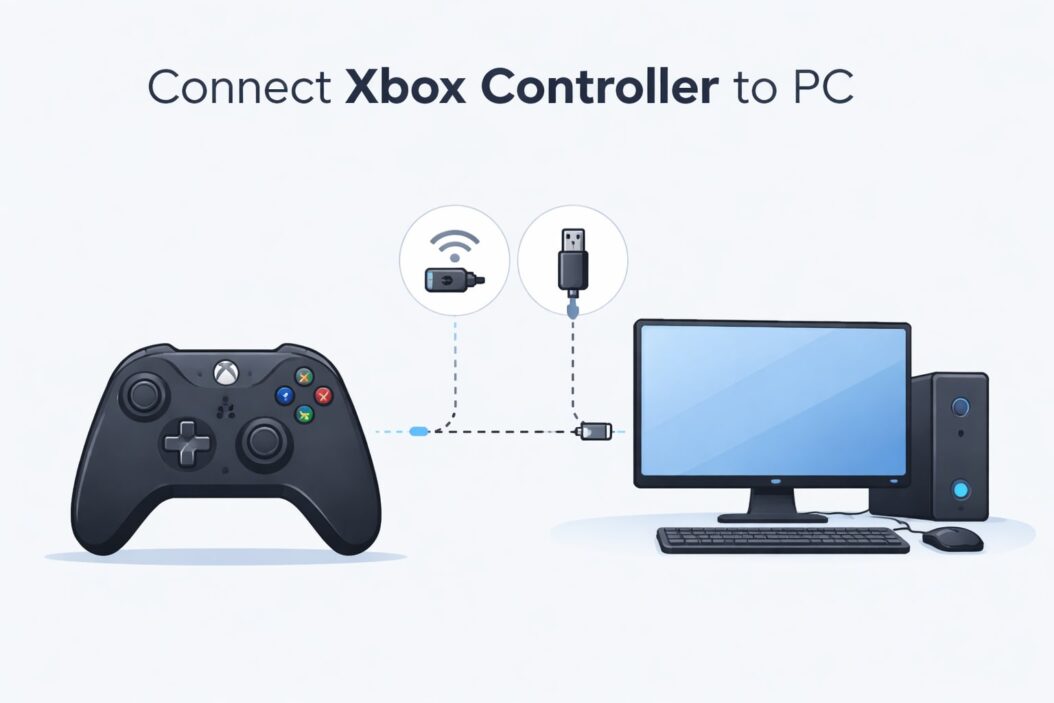
Method 1: USB Cable Connection (Easiest Method)
This method works for all Xbox controller types and requires zero setup.
Step by step process:
- Locate a USB cable. Xbox One controllers use micro USB. Xbox Series controllers use USB-C.
- Plug the cable into your controller’s port at the top.
- Connect the other end to any available USB port on your PC.
- Wait 3 to 5 seconds while Windows installs drivers automatically.
- Press the Xbox button on your controller. The light should stay solid white.
Your controller is now ready. Launch any game that supports controllers and start playing.
Benefits of wired connection:
- No battery drain or charging needed
- Zero input lag
- No pairing required ever
- Works while charging the controller
Drawbacks:
- Limited movement range due to cable length
- Cable can wear out over time
- Less convenient for couch gaming
If your controller doesn’t respond after plugging in, try a different USB port or cable. Some cables are charge-only and don’t transfer data.
Method 2: Bluetooth Wireless Connection
Bluetooth works great if you want wireless freedom without buying extra hardware. Only Xbox One (model 1708 and newer) and Xbox Series controllers support Bluetooth. Xbox 360 controllers do not have Bluetooth.
How to check if your controller has Bluetooth:
Look at the plastic around the Xbox button. If it’s part of the controller’s front face plate, you have Bluetooth. If the plastic is only around the button itself, you have the older model without Bluetooth.
Connecting via Bluetooth:
- Make sure your PC has Bluetooth turned on. Check Settings > Devices > Bluetooth & other devices.
- Turn on your Xbox controller by pressing the Xbox button.
- Press and hold the small pairing button on top of the controller near the USB port. The Xbox button will start flashing rapidly.
- On your PC, click “Add Bluetooth or other device” in the Bluetooth settings.
- Select “Bluetooth” from the options.
- Choose “Xbox Wireless Controller” when it appears in the list.
- Wait for the connection to complete. The Xbox button light becomes solid.
Your controller connects automatically next time you turn it on, as long as Bluetooth is enabled on your PC.
Bluetooth connection tips:
- Keep your controller within 20 feet of your PC
- Remove obstacles between the controller and PC for better signal
- Disable other Bluetooth devices if you experience lag
- Update your Bluetooth drivers if connection drops frequently
Bluetooth vs wired latency:
Bluetooth adds roughly 4 to 8 milliseconds of input delay compared to wired. Most players won’t notice this in regular gaming. Competitive players in fighting games or rhythm games might prefer wired.
Method 3: Xbox Wireless Adapter
Microsoft sells an Xbox Wireless Adapter that provides the same wireless connection your Xbox console uses. This gives better range and lower latency than Bluetooth.
The adapter costs around $25 and supports up to 8 controllers simultaneously.
Setting up the Xbox Wireless Adapter:
- Plug the adapter into a USB port on your PC.
- Windows installs drivers automatically within 10 to 15 seconds.
- Press the pairing button on the adapter. A light will start blinking.
- Press and hold the pairing button on your Xbox controller.
- Both lights will become solid when paired successfully.
Advantages over Bluetooth:
- Works with older Xbox One controllers that lack Bluetooth
- Better signal range (up to 30 feet)
- Lower latency than Bluetooth
- Can connect up to 8 controllers plus 4 chat headsets
- More stable connection with less interference
This adapter works well if you already own an older Xbox One controller or frequently play local multiplayer games on your PC.
Connecting Xbox 360 Controllers to PC
Xbox 360 controllers require different steps because they use older technology.
For wired Xbox 360 controllers:
- Download the Xbox 360 Controller driver from Microsoft’s official support page.
- Install the driver package.
- Connect your controller via USB.
- Windows recognizes it as an Xbox 360 controller.
For wireless Xbox 360 controllers:
You must purchase the Xbox 360 Wireless Gaming Receiver. The Xbox One wireless adapter does not work with Xbox 360 controllers.
Plug in the receiver, install drivers if prompted, and press the pairing button on both the receiver and controller.
Xbox 360 controllers work fine for older games but lack the improved ergonomics and features of newer models.
Troubleshooting Common Connection Issues
Controller not detected at all:
- Try different USB ports, especially USB 3.0 ports
- Test with a different USB cable (ensure it’s a data cable, not charge-only)
- Restart your PC with the controller connected
- Check Device Manager for yellow warning icons under “Xbox Peripherals”
Bluetooth pairing fails repeatedly:
- Remove the controller from your Bluetooth device list and re-pair
- Update your Bluetooth drivers through Device Manager
- Disable Bluetooth on your phone or other nearby devices temporarily
- Try pairing with the controller closer to your PC (within 3 feet)
Controller connects but doesn’t work in games:
- Verify the game supports controllers (check Steam settings or game options)
- Enable controller support in Steam under Settings > Controller > General Controller Settings
- Close programs that might interfere (Discord overlay, screen capture software)
- Test the controller in Windows Settings > Devices > Devices and Printers (right-click controller > Game controller settings > Properties)
Frequent disconnections or input lag:
- Replace controller batteries if using wireless
- Update controller firmware through Xbox Accessories app
- Move wireless router away from your PC or change WiFi channel
- Reduce distance between controller and PC/adapter
Driver issues:
Open Device Manager (Win + X, then select Device Manager). Look under “Xbox Peripherals” or “Human Interface Devices.” Right-click your controller and select “Update driver.” Choose “Search automatically for drivers.”
Updating Your Xbox Controller Firmware
Controller firmware updates improve performance and fix bugs. Microsoft releases updates periodically.
Using Xbox Accessories app:
- Download Xbox Accessories from the Microsoft Store (free).
- Connect your controller via USB cable.
- Open the Xbox Accessories app.
- The app detects your controller and shows current firmware version.
- Click the three dots (…) and select “Firmware version.”
- If an update is available, click “Update now.”
- Keep the controller connected during the 2 to 3 minute update process.
Never disconnect your controller during a firmware update. This can brick the device.
Testing Your Controller Connection
After connecting your controller, verify everything works correctly.
Windows Game Controller Test:
- Press Windows key + R to open Run dialog.
- Type “joy.cpl” and press Enter.
- Select your Xbox controller from the list.
- Click “Properties.”
- Test all buttons, triggers, and analog sticks in the test interface.
- Verify the D-pad registers all directions correctly.
Every button press should light up immediately in the test window. If any button doesn’t respond or triggers multiple inputs, you may have a hardware problem.
Steam Controller Configuration:
Steam offers advanced controller customization beyond Windows defaults.
- Open Steam and go to Settings > Controller.
- Click “General Controller Settings.”
- Enable “Xbox Configuration Support.”
- Your controller appears in the detected controllers list.
- Click on your controller to customize button mapping.
Steam’s controller configuration lets you create custom profiles for specific games, adjust dead zones, and enable desktop configuration mode.
Compatibility Across Gaming Platforms
Steam:
Works perfectly with native controller support. Enable Xbox Configuration Support in Steam settings for full functionality. You can customize controls extensively through Steam Input.
Epic Games Store:
Controllers work automatically in supported games. No special configuration required. Check individual game settings for controller options.
GOG Galaxy:
Full Xbox controller support. Works identically to Steam in most games.
Xbox Game Pass for PC:
Native support for all Xbox controllers. This is the most seamless experience since Microsoft designs both the platform and hardware.
Emulators:
RetroArch, Dolphin, PCSX2, and other emulators fully support Xbox controllers. Map buttons through each emulator’s input configuration menu.
Browser games:
Most HTML5 games support gamepad input through the Gamepad API. Xbox controllers work but button prompts may show PlayStation or generic icons.
Multiple Controller Setup for Local Multiplayer
Windows supports up to 4 controllers simultaneously for local multiplayer games.
Connecting multiple controllers:
- Connect your first controller using any method described above.
- For additional Bluetooth controllers, repeat the pairing process for each one.
- For USB controllers, plug each into separate USB ports.
- For Xbox Wireless Adapter, press the pairing button and sync each controller individually.
Each controller gets assigned Player 1, Player 2, etc. based on connection order.
Player order assignment:
The first controller you connect becomes Player 1. To change this, disconnect all controllers and reconnect in your preferred order. Some games allow you to reassign players in their settings menu.
Performance considerations:
Using 4 Bluetooth controllers simultaneously can cause input lag due to bandwidth limitations. The Xbox Wireless Adapter handles multiple controllers better. For the best performance in 4-player games, use wired connections or the wireless adapter.
Battery Life and Power Management
Xbox controllers use AA batteries or rechargeable battery packs. Understanding power management helps avoid mid-game disconnections.
Battery options comparison:
| Battery Type | Play Time | Cost | Pros | Cons |
|---|---|---|---|---|
| Alkaline AA | 30-40 hours | $5-8 per set | Cheap, widely available | Wasteful, ongoing cost |
| Rechargeable AA | 25-35 hours | $15-25 initial | Reusable, economical long-term | Need separate charger |
| Xbox Rechargeable Pack | 30 hours | $25 | Convenient, USB-C charging | Higher upfront cost |
| Wired USB | Unlimited | Cable cost only | Never dies, zero lag | Restricted movement |
Extending battery life:
- Lower controller vibration intensity in game settings
- Turn off controller when taking breaks (press and hold Xbox button for 5 seconds)
- Use wired connection when playing near your PC
- Keep firmware updated for better power efficiency
Windows automatically puts idle controllers to sleep after 15 minutes to save battery.
Advanced Controller Customization
Beyond basic button mapping, you can deeply customize your Xbox controller experience on PC.
Xbox Accessories app features:
- Remap any button to different functions
- Adjust trigger sensitivity and dead zones
- Configure vibration intensity
- Create multiple profiles for different games
- Share button configurations with other players
Third-party customization software:
reWASD and JoyToKey offer even more control. These programs let you map keyboard keys to controller buttons, create macros, and adjust sensitivity curves beyond what Xbox Accessories allows.
Use third-party software carefully. Some competitive games flag these as cheating tools.
Steam Input customization:
Steam’s overlay provides per-game profiles, gyro aiming simulation, and mode shifts (buttons that change other button functions when held).
Security and Privacy Considerations
Xbox controllers connect through standard protocols and don’t transmit personal data. However, keep these points in mind:
Bluetooth security:
Bluetooth connections use encryption automatically. Someone would need to be within 30 feet and actively attempting to intercept the signal, which is impractical for gaming controllers.
USB connections:
Completely secure. Data travels through direct physical connection with no wireless transmission.
Microsoft account integration:
The Xbox Accessories app connects to your Microsoft account to sync controller profiles across devices. This is optional. Controllers work fine without signing in.
When to Replace Your Controller
Xbox controllers are durable but eventually wear out.
Signs you need a new controller:
- Stick drift (character moves without touching stick)
- Unresponsive buttons requiring multiple presses
- Loose analog sticks with excessive play
- Broken bumpers or triggers
- Battery compartment that won’t stay closed
Stick drift is the most common issue. It happens when the potentiometers inside analog sticks wear out and register false inputs.
You can attempt repairs yourself or send controllers to Microsoft for service if under warranty. Replacement costs typically range from $40 to $65 depending on the model.
Conclusion
Connecting your Xbox controller to PC takes just a few minutes regardless of which method you choose. USB cables offer the simplest plug-and-play experience. Bluetooth provides wireless convenience for compatible controllers. The Xbox Wireless Adapter delivers the best wireless performance.
Most connection problems stem from outdated drivers, Bluetooth interference, or faulty cables. Work through the troubleshooting steps systematically and you’ll get gaming quickly.
Update your controller firmware regularly and test all buttons after connecting to ensure everything works correctly. With proper setup, your Xbox controller provides years of reliable PC gaming.
Frequently Asked Questions
Can I use my Xbox controller on PC while it’s charging?
Yes, absolutely. When you plug in a USB cable to charge your controller, it simultaneously works as a wired connection. You can play indefinitely without draining the battery since the cable powers the controller directly.
Do I need Xbox Live or Game Pass to use my controller on PC?
No subscription is required. Xbox controllers work on PC for any game regardless of whether you have Xbox Live Gold, Game Pass, or any Microsoft subscription. The controller functions as a standard PC peripheral.
Why does my controller keep disconnecting from Bluetooth?
Common causes include weak batteries, Bluetooth driver issues, or signal interference from WiFi routers. Replace the batteries first, then update your Bluetooth drivers through Device Manager. Move your router farther from your PC or try a different USB port for your Bluetooth adapter if using one.
Can I connect a PlayStation controller to PC the same way?
PlayStation controllers require different setup steps. DS4Windows software lets you use PS4 controllers on PC with Xbox button prompts. PS5 controllers work natively in some games through Steam but need additional software for full compatibility elsewhere. Xbox controllers have better native Windows support overall.
Will my Xbox One controller work on Windows 7?
Yes, but you need to download and install the Xbox One controller driver from Microsoft’s support website. Windows 7 doesn’t include these drivers by default like Windows 10 and 11 do. Bluetooth functionality may be limited depending on your Bluetooth hardware and drivers.

- How to Improve Wi-Fi Signal on My Phone (2026 Guide) - March 17, 2026
- How to Enable MMS Messaging on iPhone (2026 Guide) - March 15, 2026
- 9 Best Software for Web Development in 2026 - March 15, 2026