
MMS messaging lets you send photos, videos, audio clips, and group texts from your iPhone. If your iPhone is only sending plain text, or group messages are not working, MMS is likely turned off. Here is exactly how to fix that.
What Is MMS Messaging?
SMS is a plain text message. MMS (Multimedia Messaging Service) is what carries everything else: images, videos, GIFs, audio, and group chats with more than two people.
When MMS is off, your iPhone falls back to SMS. Group messages break. Photos fail to send. You get error messages or nothing at all.
How to Enable MMS Messaging on iPhone
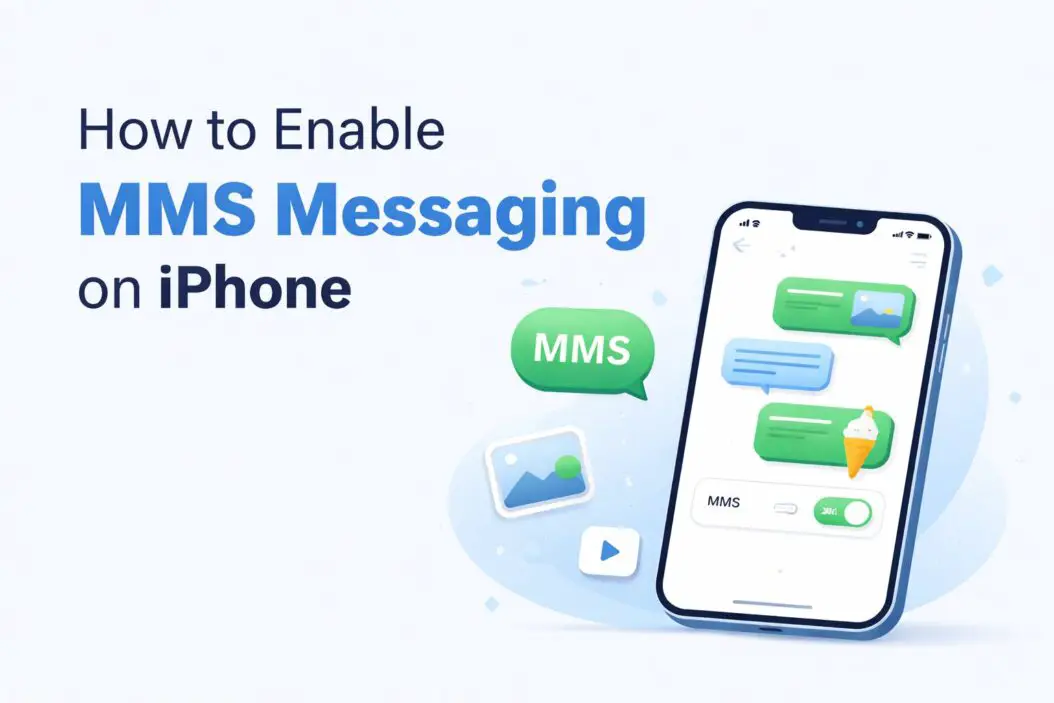
Go to Settings > Apps > Messages and toggle on MMS Messaging.
That is the short answer. Here is the full step-by-step:
Step 1: Open Settings
Tap the grey Settings icon on your home screen.
Step 2: Scroll Down to Apps, Then Messages
- On iOS 18 and later, tap Apps first, then scroll to Messages
- On older iOS versions, scroll directly to Messages in the main Settings list
Step 3: Turn On MMS Messaging
Under the SMS/MMS section, find the MMS Messaging toggle. Tap it so it turns green.
Step 4: Also Check These Toggles
While you are here, make sure these are also enabled:
| Setting | What It Does |
|---|---|
| MMS Messaging | Allows sending/receiving photos, videos, GIFs |
| Group Messaging | Enables group SMS and MMS threads |
| iMessage | Apple’s own messaging system over Wi-Fi/data |
| Send as SMS | Fallback to SMS when iMessage is unavailable |
Turn on all four for the best messaging experience.
Why MMS Messaging Might Still Not Work
Enabling the toggle is step one. But there are several other reasons MMS can fail even after you turn it on.
Your Cellular Data Is Off
MMS uses cellular data, even when you are connected to Wi-Fi. This surprises many people.
Go to Settings > Cellular and make sure Cellular Data is turned on. Without it, MMS will not work regardless of what you set in Messages.
You Are in Airplane Mode
Airplane Mode cuts all wireless signals. If it is on, MMS will not send. Swipe down from the top-right corner to open Control Center and check the airplane icon.
Your Carrier Has Not Enabled MMS
Some carriers, especially MVNOs (budget carriers that run on larger networks), disable MMS by default or require you to add it to your plan. Call your carrier and ask:
- Is MMS enabled on my account?
- Do I need a specific data plan for MMS?
- Is there a separate MMS feature that needs to be activated?
Your APN Settings Are Wrong
APN (Access Point Name) settings tell your iPhone how to connect to your carrier’s data network. Wrong APN settings break MMS completely.
If your carrier provided a SIM card or eSIM recently, the APN should be set automatically. But if you switched carriers or had a manual setup, check your APN settings.
Go to Settings > Cellular > Cellular Data Options > Cellular Data Network (this option may not appear on all carriers or may be locked).
If you cannot see this menu, contact your carrier for the correct APN settings.
You Are on a Wi-Fi Only Plan or Tablet Plan
MMS requires a voice and data SIM. If you are using a data-only plan (common on iPads), MMS will not work because there is no phone number tied to the line.
How to Fix MMS on iPhone After a Carrier Switch
Just switched carriers? Here is a quick checklist:
- Restart your iPhone after inserting the new SIM
- Go to Settings > General > About and wait for a carrier update prompt. Accept it.
- Toggle Airplane Mode on for 30 seconds, then back off
- Check Settings > Apps > Messages and re-enable MMS Messaging
- If issues continue, reset network settings: Settings > General > Transfer or Reset iPhone > Reset > Reset Network Settings (this will also forget saved Wi-Fi passwords, so note them first)
MMS vs iMessage: What Is the Difference?
Many iPhone users confuse these two. Here is a clean comparison:
| Feature | iMessage | MMS |
|---|---|---|
| Works with | iPhones only | Any phone (Android, basic phones) |
| Requires | Wi-Fi or cellular data | Cellular data |
| Cost | Free (uses data) | Depends on your carrier plan |
| Chat bubble color | Blue | Green |
| Group chat support | Yes | Yes |
| Read receipts | Yes | No |
When you are texting another iPhone user and both have iMessage on, your phone uses iMessage automatically. MMS kicks in when you text Android users or when iMessage is unavailable.
For a deeper look at how iPhone handles different messaging protocols, Apple’s official support page on iMessage and SMS/MMS is worth reading.
How to Test If MMS Is Working
After enabling MMS, do a quick test:
- Open Messages and start a new conversation
- Tap the + or camera icon next to the text field
- Attach a photo from your library
- Send it to a contact (preferably someone on Android to rule out iMessage)
- Ask them if they received the image
If they receive it as an image, MMS is working. If they receive a link or nothing at all, there is still a carrier or data issue.
Common MMS Error Messages and What They Mean
“Could Not Activate Cellular Data Network”
This usually means your APN settings are missing or incorrect. Contact your carrier for the correct settings.
“Message Send Failure”
This can mean your cellular data is off, your carrier has not enabled MMS, or there is a temporary network issue. Try toggling Airplane Mode, then resend.
“Delivered” But No Image Received
The recipient may have MMS disabled on their end, or their carrier is blocking it. Ask them to check their own MMS settings.
Group Messages Sending as Individual Texts
Go back to Settings > Apps > Messages and enable Group Messaging. Without this, group threads break into individual SMS conversations.
MMS Settings on iPhone for Specific Carriers
Different carriers have slightly different setups. Here is what to know:
| Carrier | Notes |
|---|---|
| AT&T | MMS usually auto-configured. If not, call 611. |
| Verizon | MMS enabled by default. Requires active data plan. |
| T-Mobile | Auto-configured. Reset network settings if issues persist. |
| Cricket | MVNO on AT&T. Sometimes needs manual APN setup. |
| Mint Mobile | Requires correct T-Mobile APN settings manually. |
| Boost Mobile | Call support to confirm MMS is active on account. |
If you are on a smaller or regional carrier, search for “[your carrier name] iPhone APN settings” to find the exact values needed.
How to Enable MMS on iPhone Without Cellular Data
You cannot send traditional MMS without cellular data. MMS by design routes through your carrier’s data network.
However, there is a workaround: use iMessage for media over Wi-Fi. If both you and the recipient use iPhones, make sure iMessage is enabled and just send photos or videos through that. It works on Wi-Fi and looks the same in the Messages app.
For sending media to non-iPhone users without cellular data, you would need a third-party app like WhatsApp or Telegram, both of which use internet data (Wi-Fi works fine).
Quick Troubleshooting Checklist
Use this before calling your carrier:
- MMS Messaging toggle is ON in Settings > Apps > Messages
- Cellular Data is ON in Settings > Cellular
- Airplane Mode is OFF
- Group Messaging is ON (for group chats)
- iPhone has been restarted recently
- Carrier update has been accepted (Settings > General > About)
- Network settings have been reset if all else fails
Conclusion
Enabling MMS on iPhone takes less than a minute if you know where to look. Go to Settings > Apps > Messages and turn on MMS Messaging. Then confirm cellular data is active and your carrier has MMS enabled on your plan.
If it still does not work after that, the issue is almost always one of three things: cellular data is off, your carrier needs to activate MMS on your account, or your APN settings need to be corrected.
Work through the checklist above and you will have MMS working in minutes. If your carrier is the problem, one quick call usually resolves it.
Frequently Asked Questions
Why is my MMS Messaging toggle greyed out on iPhone?
A greyed-out MMS toggle usually means your carrier does not support MMS on your current plan, or your SIM is not properly activated. It can also happen with data-only SIMs that have no phone number. Contact your carrier to confirm MMS is included in your plan.
Does MMS work on Wi-Fi only?
No. Standard MMS requires cellular data to send and receive. It does not work over Wi-Fi alone. If you want to send photos and videos over Wi-Fi, use iMessage (iPhone to iPhone) or a messaging app like WhatsApp.
Why are my group messages sending as individual texts?
Group Messaging is likely turned off. Go to Settings > Apps > Messages and enable the Group Messaging toggle. This setting is separate from MMS Messaging and controls how group threads are handled.
Will enabling MMS cost me extra?
It depends on your carrier and plan. Many modern unlimited plans include MMS at no extra charge. Older or budget plans may charge per MMS or require a data add-on. Check your plan details or call your carrier to confirm.
How do I know if my iPhone is sending MMS or iMessage?
Look at the chat bubble color. Blue means iMessage. Green means SMS or MMS. If you sent a photo and the bubble is green, your iPhone used MMS. If it is blue, iMessage handled the delivery instead.

- How to Improve Wi-Fi Signal on My Phone (2026 Guide) - March 17, 2026
- How to Enable MMS Messaging on iPhone (2026 Guide) - March 15, 2026
- 9 Best Software for Web Development in 2026 - March 15, 2026