
Handle.exe is a legitimate Windows system utility created by Microsoft that shows you which files, folders, or registry keys are currently open by programs on your computer. If you’ve seen this process running or need to figure out why a file won’t delete, this tool can help you identify what’s holding it.
This article explains everything you need to know about handle.exe, from basic troubleshooting to advanced usage, so you can work with it confidently.
What Is Handle.exe?
Handle.exe is a command-line program from Microsoft’s Sysinternals suite. It displays information about open handles in your system. A “handle” is essentially a reference that a program uses to access a file, folder, registry key, or other system resource.
When you try to delete a file and Windows says “the file is in use,” handle.exe can tell you exactly which program has it open.
Key facts:
- Free tool from Microsoft
- Part of Sysinternals utilities
- Command-line based (runs in Command Prompt or PowerShell)
- Shows all open file handles across your system
- Helps troubleshoot locked files
Why Handle.exe Appears on Your Computer
You might encounter handle.exe in three situations:
You downloaded it intentionally. System administrators and technical users download handle.exe to troubleshoot file access problems.
Another program installed it. Some IT management tools or diagnostic software include handle.exe as part of their toolkit.
It’s running as a process. If you see handle.exe in Task Manager, someone or something executed it recently.
Handle.exe doesn’t run automatically. It only appears when launched manually or by another program.
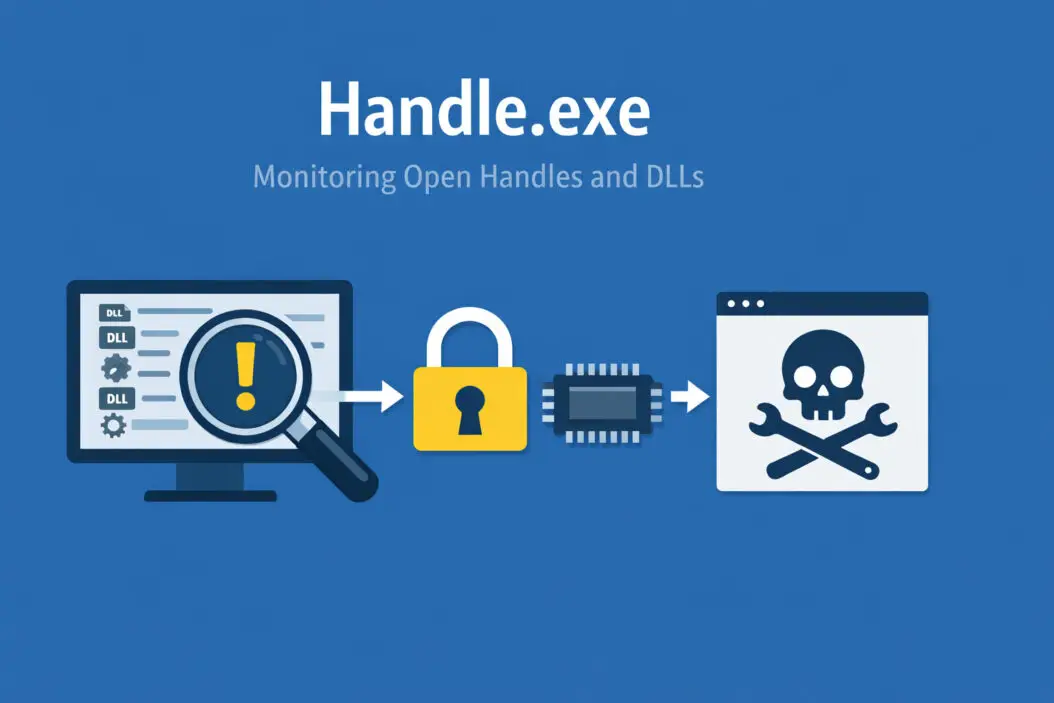
Is Handle.exe Safe or a Virus?
The legitimate handle.exe from Microsoft is completely safe. However, malware sometimes disguises itself using similar names.
How to verify it’s legitimate:
Check the file location. The real handle.exe should be in a folder where you downloaded it, not in C:\Windows\System32.
Right-click the file and select Properties. Go to the Digital Signatures tab. You should see “Microsoft Corporation” as the signer.
Scan with antivirus software. Run a full system scan if you’re uncertain about any executable file.
Warning signs of malware:
- Handle.exe running from System32 or Windows folders
- High CPU or memory usage
- No digital signature from Microsoft
- Multiple instances running constantly
If something feels wrong, scan your system with Windows Defender or another trusted antivirus program.
How to Download and Install Handle.exe
Getting handle.exe takes just a few minutes.
Step 1: Visit the Microsoft Sysinternals download page at https://docs.microsoft.com/en-us/sysinternals/downloads/handle.
Step 2: Click the “Download Handle” link.
Step 3: Extract the ZIP file to a folder you’ll remember. Many users create a C:\Sysinternals folder.
Step 4: (Optional) Add the folder to your system PATH so you can run handle from any command prompt location.
That’s it. Handle.exe doesn’t require installation. It runs directly as a portable executable.
Common Uses for Handle.exe
Finding Which Program Has a File Open
This is the most common reason people use handle.exe.
Open Command Prompt as Administrator. Search for “cmd” in the Start menu, right-click Command Prompt, and choose “Run as administrator.”
Navigate to where you saved handle.exe, or use the full path.
Type this command:
handle.exe "C:\path\to\your\file.txt"
Replace the path with your actual file location.
Handle.exe will show you every process that has that file open, including the process ID (PID) and the handle number.
Closing a Locked File Handle
Once you know which process has a file locked, you have options.
Option 1: Close the program normally through Task Manager.
Option 2: Use handle.exe to close the specific handle without killing the entire program.
To close a handle:
handle.exe -c [handle-id] -p [process-id]
Example:
handle.exe -c 1A4 -p 2356
Be careful with this. Closing handles can make programs unstable or crash them.
Searching for All Files Open by a Specific Program
If you want to see everything a program has open:
handle.exe -p [process-id]
Or by process name:
handle.exe -a -p explorer.exe
This shows all handles for Windows Explorer.
Handle.exe Command Line Options
| Option | What It Does |
|---|---|
| -a | Shows all handle types (files, registry, etc.) |
| -u | Shows only files with Unicode names |
| -p | Filters by process ID or name |
| -c | Closes a specific handle |
| -v | Shows version information |
| -nobanner | Hides the startup banner |
Combine options for more specific searches:
handle.exe -a -u -p chrome.exe
This shows all Unicode handles for Chrome.
Troubleshooting Common Problems
Handle.exe Won’t Run
Cause: You’re not running as Administrator.
Solution: Always run Command Prompt with admin rights. Handle.exe needs elevated privileges to see system-wide handles.
“Access Denied” Errors
Cause: Some system processes are protected.
Solution: Even as Administrator, certain critical Windows processes block handle manipulation. This is normal security behavior.
Handle Closes But File Still Locked
Cause: Multiple handles may exist for the same file, or the program immediately reopened it.
Solution: Close the entire program instead of individual handles, or check for multiple processes accessing the file.
Output Is Too Long to Read
Cause: Systems with many running programs generate thousands of handles.
Solution: Redirect output to a text file:
handle.exe > handles.txt
Then open handles.txt in Notepad to search through results.
Handle.exe vs. Other Tools
Process Explorer: Also from Sysinternals, this GUI tool shows handles visually. Easier for beginners but less scriptable.
Handle.exe: Command-line tool, perfect for scripts and automation. Better for quick checks.
Resource Monitor: Built into Windows, shows some file handle information. Less detailed than handle.exe.
LockHunter: Third-party tool with a right-click context menu. User-friendly but not from Microsoft.
Choose handle.exe when you need precision, scriptability, or want to avoid third-party tools.
Advanced Usage Scenarios
Batch Scripts for Automated Cleanup
System administrators often script handle.exe to find and close problematic handles automatically.
Example script:
@echo off
handle.exe "C:\logs\*.log" > temp.txt
for /f "tokens=3,5" %%a in (temp.txt) do (
    handle.exe -c %%b -p %%a -y
)
del temp.txt
This finds all handles to log files and closes them.
Finding Memory Leaks
Developers use handle.exe to detect programs that open too many handles and never close them.
Run handle.exe before and after running your program. Compare the handle counts. Growing numbers indicate a leak.
Remote System Diagnostics
Handle.exe works with PsExec (another Sysinternals tool) to check handles on remote computers:
psexec \\remote-computer handle.exe
Useful for IT support scenarios.
Security and Privacy Considerations
Handle.exe can see everything running on your system. This includes:
- Which files programs are reading or writing
- Registry keys being accessed
- Network ports in use
Use handle.exe only on systems you own or have permission to diagnose. Never run it on someone else’s computer without consent.
The tool itself doesn’t collect data or send information anywhere. It simply reads system information and displays it.
Alternatives When Handle.exe Isn’t Enough
Sometimes you need different tools:
For DLL files: Use ListDLLs.exe from Sysinternals to see loaded libraries.
For network connections: Use TCPView to see which programs are using network handles.
For driver issues: Use WinObj to explore the Windows object namespace.
For everything visual: Process Explorer combines many tools into one GUI.
All these tools come from the Sysinternals suite and work well together.
Best Practices for Using Handle.exe
Always run as Administrator. Most handle operations require elevated permissions.
Save important work first. Closing handles can crash programs. Save your documents before experimenting.
Use specific searches. Instead of listing all handles, search for specific files or processes to reduce clutter.
Keep it updated. Download the latest version from Microsoft periodically. Handle.exe gets updates as Windows evolves.
Test in safe environments. Practice on test systems before using handle.exe in production environments.
When You Should NOT Use Handle.exe
Skip handle.exe in these situations:
Basic file operations. If restarting your computer solves the problem, you don’t need handle.exe.
You’re uncomfortable with command-line tools. Process Explorer offers a visual alternative.
Production servers during business hours. Closing wrong handles can crash critical services.
You don’t understand the output. Misinterpreting results can lead to worse problems than you started with.
Antivirus is already quarantining files. Let security software finish its job first.
Understanding Handle Types
Handle.exe shows different types of handles:
File handles: References to open files on disk. Most common type users care about.
Registry handles: References to Windows Registry keys. Important for system configuration.
Thread handles: References to running threads within processes.
Event handles: Synchronization objects programs use to communicate.
Mutant handles: Mutual exclusion objects (mutexes) that prevent conflicts.
For file troubleshooting, focus on File type handles. The others are for advanced debugging.
Real World Example
Let’s walk through a complete scenario.
Problem: You’re trying to delete old_report.pdf, but Windows says the file is in use.
Step 1: Open Command Prompt as Administrator.
Step 2: Run this command:
handle.exe "C:\Documents\old_report.pdf"
Step 3: Output shows:
AcroRd32.exe pid: 3456 type: File 12C: C:\Documents\old_report.pdf
Step 4: Adobe Reader (AcroRd32.exe) has the file open with process ID 3456.
Step 5: Close Adobe Reader through Task Manager or the program itself.
Step 6: Delete old_report.pdf successfully.
No need to restart. Problem solved in under a minute.
Summary
Handle.exe is a powerful diagnostic tool that helps you understand which programs are accessing files, folders, and other resources on your Windows computer. It’s safe when downloaded from Microsoft, runs from the command line, and excels at solving “file in use” errors.
The tool requires Administrator rights and some comfort with command-line interfaces. For most users, it solves specific problems that other methods can’t address. Download it when you need it, use it carefully, and keep it in your troubleshooting toolkit.
Whether you’re a system administrator managing servers or a regular user trying to delete a stubborn file, handle.exe gives you visibility into what’s happening behind the scenes in Windows.
Frequently Asked Questions
Is handle.exe a virus or malware?
No, the legitimate handle.exe from Microsoft Sysinternals is completely safe. However, malware sometimes uses similar names to hide. Always verify the file comes from Microsoft’s official website, check its digital signature, and scan it with antivirus software if you’re uncertain about its origin.
Why can’t I delete a file even after using handle.exe?
Several possibilities exist. Multiple programs might have the file open, requiring you to close all of them. The file might have permission restrictions beyond just being locked. Windows Search Indexer or antivirus software might be scanning it. Try closing all shown handles, disabling antivirus temporarily, or restarting in Safe Mode.
Do I need handle.exe if I have Process Explorer?
Not necessarily. Process Explorer includes handle viewing capabilities with a visual interface. Use handle.exe when you need command-line access for scripts, automation, or quick checks without opening a GUI program. Both tools come from Microsoft and complement each other well.
Can handle.exe damage my system if used incorrectly?
Handle.exe itself won’t damage Windows, but closing wrong handles can crash programs or make them unstable. Always save your work before using the close handle function. Avoid closing handles for critical system processes like csrss.exe or services.exe. When in doubt, close the entire program instead of individual handles.
Does handle.exe work on Windows 11?
Yes, handle.exe works on all modern Windows versions including Windows 11, Windows 10, Windows Server 2019, and newer releases. Microsoft continues updating Sysinternals tools to maintain compatibility with current Windows versions. Download the latest version for best results with newer operating systems.
