
PCI.sys is a critical Windows system driver that manages communication between your operating system and PCI (Peripheral Component Interconnect) devices. Without this file working correctly, your computer cannot recognize or use essential hardware like graphics cards, network adapters, sound cards, and USB controllers.
This file sits at the core of how Windows talks to your hardware. When it fails, you’ll see blue screens, device errors, or hardware that simply stops working. This guide explains exactly what PCI.sys does, why it causes problems, and how to fix those issues step by step.
What Is PCI.sys and What Does It Do?
PCI.sys is a kernel mode driver located in the C:\Windows\System32\drivers folder. Microsoft includes it with every version of Windows, from Windows XP through Windows 11.
Core functions:
- Detects PCI and PCI Express devices connected to your motherboard
- Assigns system resources (memory addresses, IRQ lines) to each device
- Enables communication between Windows and hardware components
- Manages power states for connected devices
- Handles hot plugging for devices that support it
Think of PCI.sys as the translator between Windows and your hardware. When you plug in a device or turn on your computer, this driver identifies what’s connected and makes sure Windows can use it.
The PCI bus architecture has been the standard for connecting internal computer components since the 1990s. Modern computers use PCI Express (PCIe), but the fundamental driver structure remains similar.
Why PCI.sys Errors Happen
Several factors cause PCI.sys to malfunction:
Corrupted system files: Windows updates that fail partway through, sudden power loss, or disk errors can damage the PCI.sys file itself.
Driver conflicts: Outdated or incompatible device drivers, especially for graphics cards or chipsets, interfere with how PCI.sys manages hardware.
Hardware failures: Dying components send incorrect signals through the PCI bus, confusing the driver and triggering crashes.
BIOS/UEFI settings: Incorrect motherboard firmware settings change how the PCI bus operates, creating conflicts with Windows expectations.
Memory problems: Bad RAM causes random corruption in system files, including critical drivers like PCI.sys.
Malware infection: Viruses and rootkits sometimes target system drivers to gain deep access to your computer.
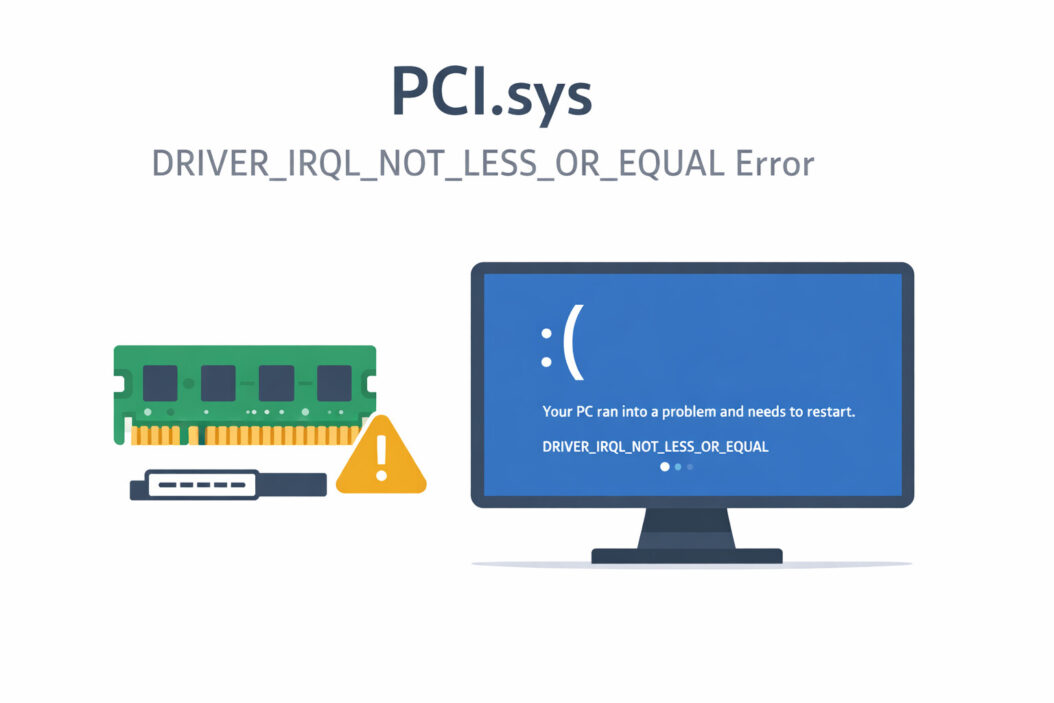
Common PCI.sys Error Messages
You’ll typically see these errors:
Blue Screen of Death (BSOD) errors:
DRIVER_IRQL_NOT_LESS_OR_EQUAL(PCI.sys)SYSTEM_SERVICE_EXCEPTION(PCI.sys)KERNEL_MODE_EXCEPTION_NOT_HANDLED(PCI.sys)PAGE_FAULT_IN_NONPAGED_AREA(PCI.sys)
Device Manager errors:
- Code 10: “This device cannot start”
- Code 28: “The drivers for this device are not installed”
- Yellow exclamation marks on PCI devices
Startup problems:
- Windows fails to boot completely
- Stuck on loading screen
- Automatic repair loop
These errors mean Windows cannot properly communicate with one or more hardware devices.
How to Fix PCI.sys Errors: Step by Step Solutions
Solution 1: Run System File Checker
Windows includes a built-in tool to repair corrupted system files.
- Press
Windows key + X - Select “Terminal (Admin)” or “Command Prompt (Admin)”
- Type
sfc /scannowand press Enter - Wait 10-30 minutes for the scan to complete
- Restart your computer
The System File Checker compares your system files against clean copies stored in Windows and replaces any damaged files, including PCI.sys if needed.
Solution 2: Update Chipset and Device Drivers
Outdated drivers frequently cause PCI.sys conflicts.
Update chipset drivers:
- Identify your motherboard manufacturer (Dell, HP, ASUS, MSI, etc.)
- Visit their official support website
- Download the latest chipset driver for your exact model
- Install and restart
Update other critical drivers:
- Graphics card (NVIDIA, AMD, Intel)
- Network adapter
- Audio device
- Storage controller
Driver updates from manufacturer websites are more reliable than Windows Update versions. The Microsoft Hardware Compatibility documentation provides technical details about driver requirements.
Solution 3: Run DISM Tool
DISM (Deployment Image Servicing and Management) repairs the Windows system image itself.
- Open Terminal or Command Prompt as administrator
- Type
DISM /Online /Cleanup-Image /RestoreHealth - Press Enter
- Wait 15-45 minutes
- Run
sfc /scannowagain after DISM completes - Restart
DISM downloads fresh system files from Microsoft servers, fixing deeper corruption that SFC cannot handle.
Solution 4: Check for Memory Problems
Bad RAM causes random driver errors.
- Press
Windows key + R - Type
mdsched.exeand press Enter - Select “Restart now and check for problems”
- Wait for the memory diagnostic to complete (30+ minutes)
- Review results after restart
If errors appear, remove or replace the faulty RAM module. Memory problems cause unpredictable PCI.sys crashes that resist other fixes.
Solution 5: Update BIOS/UEFI Firmware
Motherboard firmware controls PCI bus behavior.
Warning: BIOS updates carry risk. Never interrupt the process or update during storms.
- Identify your exact motherboard or computer model
- Visit the manufacturer support page
- Download the latest BIOS/UEFI update
- Follow manufacturer instructions carefully
- Load optimized defaults in BIOS after updating
Many PCI.sys errors traced to specific hardware configurations disappear after firmware updates.
Solution 6: Disable Fast Startup
Fast Startup sometimes prevents proper driver initialization.
- Open Control Panel
- Go to “Power Options”
- Click “Choose what the power buttons do”
- Click “Change settings that are currently unavailable”
- Uncheck “Turn on fast startup”
- Save changes and restart
Fast Startup hibernates kernel drivers between sessions, which can preserve corrupted states.
Solution 7: Perform Clean Boot
Identify third-party software conflicts.
- Press
Windows key + R - Type
msconfigand press Enter - Go to Services tab
- Check “Hide all Microsoft services”
- Click “Disable all”
- Go to Startup tab
- Click “Open Task Manager”
- Disable all startup items
- Restart computer
If PCI.sys errors disappear, a third-party program was causing the conflict. Re-enable services one by one to identify the culprit.
Solution 8: Check Hardware Connections
Physical connection problems trigger PCI.sys errors.
For desktop computers:
- Shut down and unplug power
- Open the case
- Reseat all expansion cards (GPU, sound card, network card)
- Check all power connectors
- Remove dust from PCI/PCIe slots
- Reassemble and test
For all computers:
- Disconnect all USB devices except keyboard and mouse
- Remove external drives and peripherals
- Test if errors continue
Loose connections create intermittent communication failures that confuse the PCI driver.
Advanced Troubleshooting for Persistent Problems
Check Event Viewer Logs
Windows records detailed error information.
- Press
Windows key + X - Select “Event Viewer“
- Navigate to “Windows Logs” → “System”
- Look for red error entries around crash times
- Note the specific error codes and device names
Event Viewer reveals which exact device triggers PCI.sys crashes, helping you target the right hardware or driver.
Test Hardware in Safe Mode
Safe Mode loads minimal drivers.
- Hold Shift while clicking Restart
- Select “Troubleshoot” → “Advanced options” → “Startup Settings”
- Press F5 for “Safe Mode with Networking”
- Use computer normally
If PCI.sys errors disappear in Safe Mode, the problem is a third-party driver or software, not hardware failure.
Use Driver Verifier
This advanced tool stresses driver code to expose hidden problems.
Warning: Driver Verifier can cause crashes. Only use if you can boot to Safe Mode.
- Press
Windows key + R - Type
verifierand press Enter - Select “Create standard settings”
- Choose “Select driver names from a list”
- Select non-Microsoft drivers
- Restart
If a specific driver causes crashes, Driver Verifier identifies it through blue screen messages.
Consider Hardware Replacement
When software fixes fail, hardware may be failing.
Signs of hardware failure:
- Errors persist after clean Windows installation
- Problems occur with different operating systems
- Multiple devices show errors simultaneously
- Visual artifacts or strange behavior from specific hardware
Test suspected components in another computer if possible. Graphics cards, network adapters, and motherboards most commonly fail.
How to Prevent PCI.sys Problems
Prevention saves time and frustration.
Keep Windows updated: Install all updates promptly. Microsoft regularly patches driver bugs.
Update drivers quarterly: Check manufacturer websites every few months for graphics, chipset, and network driver updates.
Maintain clean power: Use surge protectors. Power fluctuations corrupt system files and damage hardware.
Monitor temperatures: Overheating components malfunction and send bad signals through the PCI bus. Keep vents clean.
Run regular disk checks: Execute chkdsk C: /f /r from administrator command prompt every six months.
Avoid interrupting Windows updates: Let installations complete fully. Interrupted updates are the leading cause of driver corruption.
Back up regularly: System image backups let you restore working configurations when problems occur.
Understanding PCI Architecture and Windows Driver Model
The PCI (Peripheral Component Interconnect) standard defines how expansion cards communicate with your processor and memory. PCI.sys implements Microsoft’s WDM (Windows Driver Model) to manage this communication.
Driver stack layers:
- Hardware device (physical card)
- PCI.sys (bus driver)
- Device-specific driver (graphics, network, etc.)
- Application layer
Each layer depends on the one below it. When PCI.sys fails, every layer above it cannot function properly.
Modern PCI Express (PCIe) uses the same driver architecture but provides higher bandwidth through serial point-to-point connections instead of shared parallel bus. PCIe lanes (x1, x4, x8, x16) determine connection speed.
The Windows Hardware Developer documentation explains the complete driver architecture for those interested in technical details.
PCI.sys Error Causes and Solutions
| Cause | Symptoms | Best Solution | Time Required |
|---|---|---|---|
| Corrupted system files | Random BSODs, boot failures | SFC and DISM scans | 1 hour |
| Outdated drivers | Specific device errors | Update chipset/device drivers | 30 minutes |
| Bad RAM | Unpredictable crashes | Memory diagnostic and replacement | 1 hour + replacement |
| BIOS issues | Boot problems, device detection failures | BIOS update | 20 minutes |
| Hardware failure | Persistent errors after all fixes | Replace faulty component | Varies |
| Software conflicts | Errors only in normal mode | Clean boot, uninstall problematic software | 2 hours |
When to Seek Professional Help
Some situations require expert assistance:
- You’ve tried all solutions without success
- Multiple hardware components show errors
- You’re uncomfortable opening your computer case
- Errors started after physical damage (drop, spill, impact)
- Computer is under warranty
Professional technicians have diagnostic tools to test individual components and can replace hardware under warranty terms.
Conclusion
PCI.sys is essential for Windows to communicate with your hardware. When it fails, you’ll see blue screens, device errors, or complete boot failures. Most PCI.sys problems stem from corrupted system files, outdated drivers, or hardware issues.
Start with simple software fixes: run System File Checker, update your chipset and device drivers, and use DISM to repair the Windows image. These steps resolve most common errors within an hour.
If software solutions fail, investigate hardware: test your RAM, check physical connections, and update your BIOS. Persistent errors after all troubleshooting usually indicate failing hardware that needs replacement.
Regular Windows updates, quarterly driver updates, and clean power supply prevent most PCI.sys problems before they start. When issues do occur, systematic troubleshooting identifies and fixes the root cause efficiently.
The key is working methodically through solutions rather than random attempts. Document what you try and the results. This approach either fixes your computer or provides clear information for professional technicians if needed.
Frequently Asked Questions
Can I delete PCI.sys to fix errors?
No, never delete PCI.sys. This driver is essential for Windows to recognize and use your hardware. Deleting it will prevent Windows from booting. If the file is corrupted, replace it using System File Checker (sfc /scannow) or DISM commands, which automatically restore the correct version from Windows backup stores.
Is PCI.sys a virus or malware?
The legitimate PCI.sys file is a Microsoft Windows system driver, not malware. However, viruses sometimes disguise themselves with similar names. The real file is located at C:\Windows\System32\drivers\pci.sys and is digitally signed by Microsoft Corporation. If you find PCI.sys elsewhere or your antivirus flags it, run a full system scan with updated security software.
Why does PCI.sys cause blue screens only during gaming or heavy use?
High-performance activities stress your graphics card, CPU, and power supply more than normal use. PCI.sys errors during gaming usually indicate inadequate power delivery, overheating components, or a failing graphics card. Check your GPU temperatures, ensure your power supply provides sufficient wattage for your hardware, and update your graphics drivers. If problems persist, the graphics card may be failing.
Can outdated Windows cause PCI.sys errors?
Yes, running outdated Windows versions often causes PCI.sys errors. Microsoft regularly releases patches that fix driver bugs and improve hardware compatibility. Open Windows Update and install all available updates, including optional driver updates. After updating, restart your computer twice to ensure all changes apply properly.
How do I know if my PCI.sys error is hardware or software related?
Boot into Safe Mode (hold Shift while clicking Restart, then choose Troubleshoot → Advanced Options → Startup Settings → Safe Mode). If errors disappear in Safe Mode, the problem is software related, likely a third-party driver or program. If crashes continue in Safe Mode, suspect hardware failure or deep system file corruption requiring clean Windows installation or component replacement.

- How to Fix Overscan on Windows 11/10: Stop Your Screen Getting Cut Off (2026) - April 1, 2026
- How to Disable Lock Screen on Windows 11/10 in 2026 - April 1, 2026
- Top 7 NFT Integration Ideas for Brands in 2026 - March 31, 2026