
joy.cpl is a Windows system file that opens the Game Controllers configuration panel. When you type “joy.cpl” in the Run dialog or Command Prompt, Windows launches a control panel window where you can test, calibrate, and troubleshoot game controllers, joysticks, and gamepads connected to your computer.
This built-in tool has been part of Windows for decades, helping gamers and users fix controller issues without installing third-party software.
The joy.cpl Command
The term “joy.cpl” breaks down into two parts. “Joy” refers to joystick controls, the original gaming input devices this tool was designed for. “CPL” stands for Control Panel file, a special file type Windows uses to launch specific system settings.
Every time you execute joy.cpl, Windows accesses this system file located in your System32 folder. The file acts as a shortcut to controller management features built into Windows itself.
Why this matters: Unlike many settings buried deep in Windows menus, joy.cpl gives you direct access to controller diagnostics in seconds.
How to Open joy.cpl (Multiple Methods)
Method 1: Using the Run Dialog
Press Windows key + R on your keyboard. This opens the Run dialog box.
Type joy.cpl in the text field.
Press Enter or click OK.
The Game Controllers window appears immediately.
Method 2: Through Command Prompt
Right-click the Start button and select Command Prompt or Windows PowerShell.
Type joy.cpl and press Enter.
Method 3: Via Windows Search
Click the search icon on your taskbar.
Type joy.cpl in the search box.
Click the result that appears.
Method 4: Direct File Access
Open File Explorer and navigate to C:\Windows\System32.
Scroll down to find joy.cpl.
Double-click the file to launch it.
Pro tip: The Run dialog method is fastest. Create a desktop shortcut by right-clicking joy.cpl in System32, selecting “Create shortcut,” and moving it to your desktop.
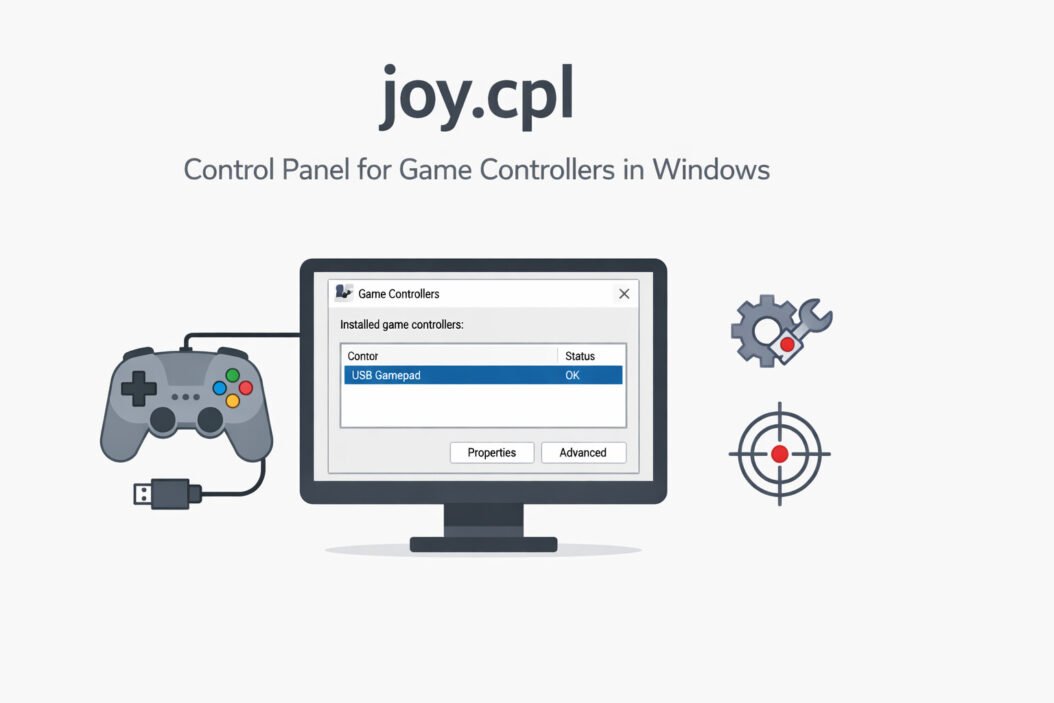
What You See Inside the Game Controllers Panel
When joy.cpl opens, you see a simple window titled “Game Controllers.” This interface shows:
List of connected controllers: Every gamepad, joystick, racing wheel, or flight stick connected to your PC appears here with its device name.
Status column: Displays whether each controller is working correctly (usually shows “OK” for functioning devices).
Action buttons: Properties, Advanced settings, and Troubleshoot options.
If no controllers appear in the list, Windows hasn’t detected any gaming devices. This could mean your controller isn’t connected properly or needs drivers.
Using joy.cpl to Test Your Controller
Testing your controller helps identify button problems, stick drift, and connection issues.
Click on your controller name in the list.
Click the Properties button.
A new window opens with multiple tabs.
The Test Tab
The Test tab shows a live view of your controller’s inputs:
Axis indicators: Watch the crosshair move as you tilt your analog sticks. The X-axis shows left/right movement, Y-axis shows up/down.
Button indicators: Each button on your controller corresponds to a numbered box. Press buttons and watch them light up or display as pressed.
Point of View Hat: If your controller has a D-pad or POV hat, this circular indicator shows which direction you’re pressing.
Z-axis and Rotation controls: For controllers with triggers or additional axes, separate indicators show these inputs.
Move every stick through its full range. The crosshairs should reach all corners smoothly without jumping or sticking.
Press every button one by one. Each corresponding number should highlight instantly.
Test triggers fully. They should move from minimum to maximum values smoothly.
Common problems you’ll spot:
Stick drift shows as the crosshair moving when you’re not touching the controller.
Dead zones appear when you move a stick but the indicator doesn’t respond.
Unresponsive buttons won’t light up when pressed.
Inverted axes move the indicator in the wrong direction.
Calibrating Controllers with joy.cpl
Calibration fixes issues where your controller inputs don’t match what happens in games.
When to Calibrate
Your character or cursor drifts without input.
Steering or aiming feels off-center.
Full stick movement doesn’t register completely in games.
You’ve just connected a new or older controller.
Calibration Steps
Open joy.cpl and select your controller.
Click Properties, then switch to the Settings tab.
Click Calibrate to launch the Device Calibration Wizard.
Follow the on-screen instructions carefully:
Step 1: Leave all controls in their neutral position, then click Next.
Step 2: Move the stick or control to all extreme positions as instructed. This teaches Windows the full range of movement.
Step 3: If your device has a point-of-view hat, press each direction.
Step 4: Click Finish to save the calibration.
Test your controller again in the Test tab to verify calibration worked.
Important: Some modern controllers (like Xbox and PlayStation controllers) handle calibration internally and may not need this Windows calibration. The option might be grayed out for these devices.
Troubleshooting Controller Problems Using joy.cpl
Controller Not Appearing in the List
Check physical connections: Unplug and reconnect USB cables. Try different USB ports, preferably USB 3.0 ports directly on your motherboard.
Wireless controller issues: Ensure Bluetooth is enabled. Check if the controller is paired. Replace batteries if using a wireless gamepad.
Driver problems: Open Device Manager (press Windows + X, select Device Manager). Look under “Human Interface Devices” or “Xbox Peripherals” for your controller. A yellow triangle indicates driver issues. Right-click and select “Update driver.”
Windows updates: Outdated Windows versions may lack drivers for newer controllers. Check for Windows updates through Settings > Update & Security.
Buttons Registering Wrong Actions
This happens when button mapping is incorrect. While joy.cpl doesn’t remap buttons, it helps confirm which physical button corresponds to which number. Use this information with third-party tools like reWASD or Steam’s controller configuration to fix mappings.
Stick Drift or Erratic Movement
Clean your controller: Dust and debris under analog sticks cause drift. Use compressed air around the stick base.
Adjust dead zones: joy.cpl doesn’t control dead zones, but testing here confirms drift exists. Adjust dead zones in individual games or use third-party software.
Replace worn components: Persistent drift after cleaning usually means worn potentiometers. Consider professional repair or replacement.
Multiple Controllers Causing Conflicts
When multiple controllers connect simultaneously, games may read inputs from the wrong device.
Open joy.cpl and note which controller is listed first.
Windows typically prioritizes Controller 1 as the primary input.
Disconnect unused controllers or use the Advanced button in joy.cpl to change preferred devices (this option appears only when multiple controllers connect).
Advanced Options in joy.cpl
Click the Advanced button in the main Game Controllers window to access additional settings:
Preferred Device Selection
If you have multiple controllers, set which one Windows should treat as the primary device. This matters for older games that only recognize the first controller.
Select your preferred controller from the dropdown menu under “Preferred device.”
Gaming options: Legacy DirectInput settings appear here for older games. Most modern games use XInput and don’t need these settings changed.
Compatibility with Different Controller Types
joy.cpl works with virtually any controller Windows recognizes:
Xbox controllers: All Xbox One, Xbox Series X/S, and Xbox 360 controllers work natively. These usually don’t need calibration.
PlayStation controllers: PS4 and PS5 DualShock and DualSense controllers appear in joy.cpl when connected via USB or Bluetooth. Advanced features like touchpads and motion controls won’t show in joy.cpl but basic inputs will.
Generic USB controllers: Third-party and older controllers appear with generic names. These benefit most from joy.cpl testing and calibration.
Flight sticks and racing wheels: Complex input devices with multiple axes show all controls in the test panel. Calibration becomes critical for accurate control.
Arcade sticks: Fighting game controllers register as standard gamepads with many buttons.
Using joy.cpl for Diagnostic Purposes
When a game doesn’t recognize your controller properly, joy.cpl helps diagnose where the problem lies:
If the controller appears and tests correctly in joy.cpl but not in a game: The issue is game-specific. Check the game’s controller settings, update the game, or look for controller compatibility mods.
If the controller doesn’t appear in joy.cpl: The problem is at the Windows level. Focus on drivers, connections, and Windows settings.
If buttons test incorrectly in joy.cpl: The controller hardware may be faulty or require firmware updates.
This diagnostic approach saves hours of troubleshooting by identifying the exact point of failure.
Alternatives and Additional Tools
While joy.cpl provides essential controller testing, other tools offer expanded functionality:
DS4Windows: For PlayStation controllers, this tool adds full Windows support including touchpad and lightbar control. Find it at ds4-windows.com.
Steam Input: Steam’s built-in controller configuration offers extensive remapping and profile sharing. Access it through Steam’s Big Picture mode.
JoyToKey: Converts controller inputs to keyboard presses, useful for games without controller support.
x360ce: Xbox 360 Controller Emulator makes non-Xbox controllers appear as Xbox controllers for games requiring XInput.
These tools complement joy.cpl rather than replace it. Use joy.cpl first to confirm hardware functionality, then move to specialized software for advanced features.
Common joy.cpl Error Messages and Solutions
“joy.cpl is missing or corrupted”
Your Windows system files may be damaged. Run System File Checker:
Open Command Prompt as Administrator.
Type sfc /scannow and press Enter.
Wait for the scan to complete (this takes 10-30 minutes).
Restart your computer.
“Windows cannot find joy.cpl”
The file might be deleted or quarantined by antivirus software.
Check your antivirus quarantine and restore joy.cpl if found.
Navigate to C:\Windows\System32 and search for joy.cpl manually.
If missing, copy it from another Windows computer with the same version or run sfc /scannow as described above.
“Access Denied” Error
You need administrator privileges to access certain joy.cpl functions.
Right-click Command Prompt and select “Run as Administrator.”
Type joy.cpl and press Enter.
Performance Considerations
joy.cpl is a lightweight tool that uses minimal system resources. However:
Keep the Properties window open only when actively testing to avoid unnecessary background processes.
Close the window when finished to free up system resources.
Running multiple controller configuration tools simultaneously can cause conflicts. Use one tool at a time.
Quick Reference Table for joy.cpl Functions
| Function | How to Access | What It Does |
|---|---|---|
| Open controller panel | Windows + R, type joy.cpl | Shows all connected controllers |
| Test buttons and sticks | Properties > Test tab | Displays live input from your controller |
| Calibrate controller | Properties > Settings > Calibrate | Adjusts controller input ranges |
| Set preferred device | Advanced button | Chooses primary controller when multiple devices connect |
| Check controller status | Main window Status column | Confirms if Windows recognizes the device properly |
| Troubleshoot issues | Properties > Test tab observation | Identifies hardware problems like drift or dead buttons |
Conclusion
joy.cpl remains one of Windows’ most useful built-in tools for anyone using game controllers. This simple command gives you immediate access to controller testing, calibration, and basic troubleshooting without installing additional software.
Remember these key points:
Open joy.cpl quickly with Windows + R, then type the command.
Use the Test tab to diagnose button and stick issues before assuming problems lie with your games.
Calibrate older or third-party controllers for better accuracy.
Check joy.cpl first when troubleshooting to determine if issues are hardware or software related.
While modern Xbox and PlayStation controllers often work perfectly without intervention, joy.cpl provides essential diagnostic capabilities when problems arise. Bookmark this tool in your troubleshooting workflow. The few seconds it takes to check your controller in joy.cpl can save hours of frustration trying to fix game settings that were never the problem.
Whether you’re a competitive gamer dealing with input lag concerns, a flight sim enthusiast calibrating a complex HOTAS setup, or someone whose controller simply stopped working, joy.cpl gives you the Windows-level visibility you need to identify and solve controller problems efficiently.
Frequently Asked Questions
Does joy.cpl work on Windows 11?
Yes, joy.cpl works perfectly on Windows 11, Windows 10, Windows 8, and Windows 7. Microsoft has maintained this tool across all modern Windows versions because it provides essential controller management functionality. The interface looks nearly identical across Windows versions, making the instructions in this guide applicable regardless of which Windows version you’re running. Windows 11 users access it the same way through the Run dialog or Command Prompt.
Can joy.cpl fix stick drift permanently?
No, joy.cpl cannot permanently fix stick drift caused by hardware wear. The tool can help you confirm that stick drift exists by showing unwanted movement in the Test tab, and calibration might temporarily reduce drift symptoms by adjusting dead zones at the Windows level. However, true stick drift results from worn potentiometers or damaged sensors inside your controller. Permanent fixes require either replacing internal components, professional repair services, or buying a new controller. Use joy.cpl to diagnose the problem, then decide whether repair or replacement makes sense.
Why doesn’t my PS5 controller show all features in joy.cpl?
joy.cpl only displays basic DirectInput functions like buttons, triggers, and analog sticks. Advanced features specific to PlayStation 5 controllers including the adaptive triggers, haptic feedback, touchpad, motion sensors, and lightbar require specialized drivers or software like DS4Windows. Windows recognizes the PS5 controller as a basic gamepad through joy.cpl, which is sufficient for testing core functionality. If you need full PS5 controller features on PC, install dedicated software while using joy.cpl for basic hardware verification.
How do I fix joy.cpl not opening in Windows?
If joy.cpl won’t open, try these solutions in order. First, run Command Prompt as Administrator and type “sfc /scannow” to repair corrupted system files. Second, check if your antivirus software blocked or quarantined the file by reviewing quarantine logs. Third, verify the file exists by navigating to C:\Windows\System32 and searching for joy.cpl. Fourth, run Windows Update to ensure your system has the latest patches. Finally, create a new user account and test if joy.cpl works there, as profile corruption sometimes prevents control panel files from launching. If none of these work, consider using System Restore to return Windows to a point when joy.cpl worked correctly.
Can I use joy.cpl to connect a Bluetooth controller?
No, joy.cpl does not handle Bluetooth pairing. You must connect Bluetooth controllers through Windows Bluetooth settings first, then joy.cpl will detect them. To pair a Bluetooth controller, open Settings > Devices > Bluetooth & other devices, turn on Bluetooth, put your controller in pairing mode (usually by holding specific buttons), and select it when it appears in available devices. Once paired and connected, open joy.cpl to test and calibrate the controller. Think of joy.cpl as a diagnostic tool for already-connected controllers rather than a connection manager.

- How to Check Samsung Warranty in 2026: Complete Step-by-Step Guide - April 3, 2026
- How to Access Computer Configuration Settings in Windows 11/10 - April 3, 2026
- How to Check ASUS Warranty Status in 2026 (Step-by-Step) - April 3, 2026