
fltmgr.sys is a critical Windows system file that manages file system filters. If you’re seeing error messages related to this file, or if your computer is crashing with a blue screen mentioning fltmgr.sys, you’re dealing with a component that sits at the heart of how Windows handles file operations.
This file controls how antivirus programs, backup tools, and encryption software interact with your files. When something goes wrong with fltmgr.sys, your system can become unstable or completely unusable. This guide will help you understand what this file does and how to fix problems when they occur.
What Is fltmgr.sys?
fltmgr.sys stands for Filter Manager. It’s a Windows kernel-mode driver that lives in your C:\Windows\System32\drivers folder.
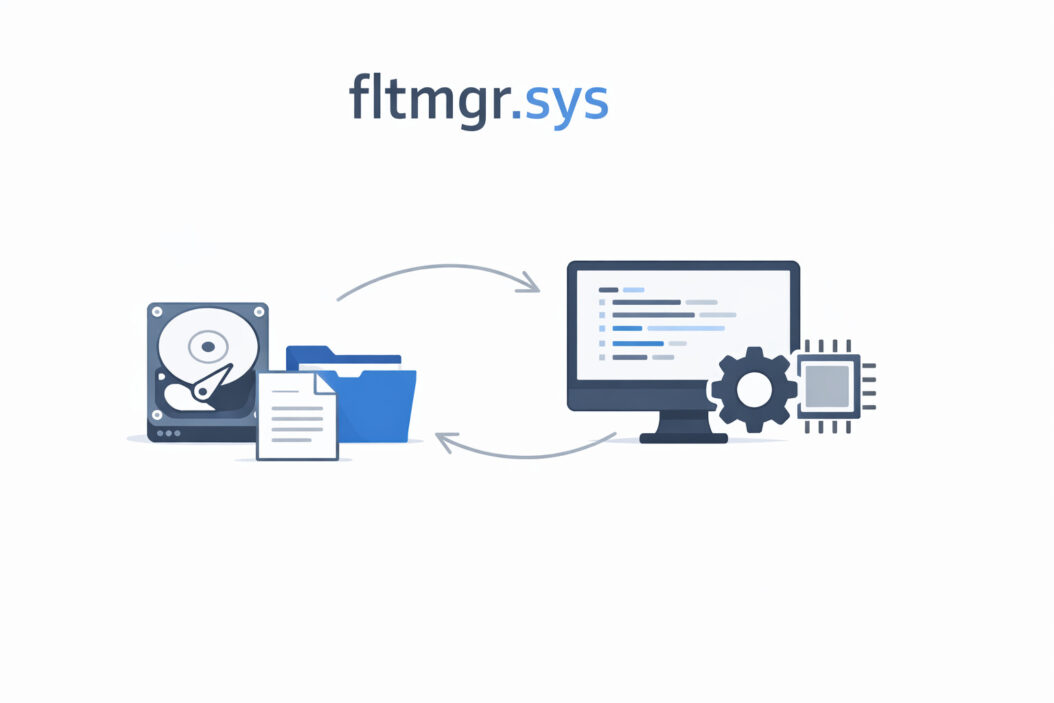
This file serves as a traffic controller for file system operations. Every time a program wants to read, write, or modify a file, fltmgr.sys coordinates that request with any filter drivers installed on your system.
Filter drivers include:
- Antivirus scanners that check files for malware
- Backup software that monitors file changes
- Encryption tools that secure your data
- Cloud storage sync clients
- System monitoring applications
Without fltmgr.sys, these programs couldn’t do their jobs properly. The file has been part of Windows since Windows Server 2003 and Windows XP SP2, replacing the older filter manager system.
How fltmgr.sys Works
When an application tries to access a file, the request passes through multiple layers:
- The application makes a file request
- Windows I/O Manager receives the request
- fltmgr.sys checks if any filter drivers need to process this request
- Filter drivers perform their tasks (scanning, encrypting, logging)
- The actual file operation happens
- Results pass back through the same chain
This happens thousands of times per minute on an active system. The process is normally invisible and fast.
Common fltmgr.sys Errors and What They Mean
Blue Screen of Death (BSOD) Errors
The most serious problems show up as blue screen crashes. Here are the typical error codes:
SYSTEM_SERVICE_EXCEPTION (fltmgr.sys)
This error means a filter driver tried to perform an illegal operation. Usually caused by outdated or buggy security software.
DRIVER_IRQL_NOT_LESS_OR_EQUAL (fltmgr.sys)
A driver tried to access memory it shouldn’t have. Often happens after Windows updates when drivers become incompatible.
PAGE_FAULT_IN_NONPAGED_AREA (fltmgr.sys)
Windows tried to read fltmgr.sys from memory but couldn’t find it. Can indicate corrupted system files or failing RAM.
KMODE_EXCEPTION_NOT_HANDLED (fltmgr.sys)
A kernel-mode driver encountered an error it couldn’t handle. Points to driver conflicts or hardware issues.
Performance Problems
Sometimes fltmgr.sys doesn’t crash your system but causes noticeable slowdowns:
- File operations take much longer than normal
- High disk usage even when you’re not doing anything
- Programs freeze when opening or saving files
- Windows Explorer becomes unresponsive
These symptoms suggest filter drivers are creating bottlenecks in the file system.
Why fltmgr.sys Problems Happen
Understanding the root causes helps you fix issues faster and prevent them from returning.
Outdated or Incompatible Drivers
Security software companies constantly update their filter drivers. When Windows updates but your antivirus doesn’t, conflicts emerge. This is the single most common cause of fltmgr.sys errors.
Corrupted System Files
Power outages, hard drive errors, or failed updates can damage fltmgr.sys itself. Even a few corrupted bytes make the file unusable.
Too Many Filter Drivers
Running multiple antivirus programs or backup tools creates competing filter drivers. They can interfere with each other and cause crashes.
Hardware Problems
Failing RAM or a dying hard drive can make any system file appear corrupted. If fltmgr.sys keeps getting damaged after repairs, suspect hardware failure.
Malware Interference
Some malware specifically targets fltmgr.sys to disable security software. Rootkits may modify this file to hide their presence.
How to Fix fltmgr.sys Errors: Step-by-Step Solutions
Work through these solutions in order. Start with the simplest fixes first.
Solution 1: Update All Filter Drivers
Most fltmgr.sys problems resolve when you update security software and other programs that use filter drivers.
Step 1: Open each of these programs and check for updates:
- Antivirus software
- Backup programs
- Cloud storage clients (Dropbox, OneDrive, Google Drive)
- Encryption tools
- System optimization utilities
Step 2: Visit the manufacturer’s website directly. Don’t rely on the program’s built-in updater.
Step 3: Download and install the latest version.
Step 4: Restart your computer.
This simple step fixes roughly 60% of fltmgr.sys errors.
Solution 2: Run System File Checker
Windows includes a built-in tool to repair corrupted system files.
Step 1: Right-click the Start button and select “Terminal (Admin)” or “Command Prompt (Admin)”
Step 2: Type this command and press Enter:
sfc /scannow
Step 3: Wait while Windows scans. This takes 15-30 minutes.
Step 4: If it finds and fixes problems, restart your computer.
Step 5: If SFC reports it couldn’t fix some files, run this more powerful command:
DISM /Online /Cleanup-Image /RestoreHealth
Step 6: After DISM completes, run sfc /scannow again.
Step 7: Restart your computer.
According to Microsoft’s official documentation, these tools fix most file corruption issues without needing to reinstall Windows.
Solution 3: Identify Problematic Filter Drivers
You can see which filter drivers are loading and disable problematic ones.
Step 1: Download the free Autoruns utility from the Microsoft Sysinternals website at https://learn.microsoft.com/en-us/sysinternals/downloads/autoruns
Step 2: Run Autoruns as administrator.
Step 3: Click the “Drivers” tab.
Step 4: Look for entries that start with “flt” or end in “.sys”
Step 5: Note which company made each driver. This tells you which program installed it.
Step 6: Temporarily disable suspicious drivers by unchecking them.
Step 7: Restart and see if the problem goes away.
If disabling a specific driver fixes the issue, uninstall that program and find an alternative.
Solution 4: Boot in Safe Mode
Safe Mode loads Windows with minimal drivers. If your system works fine in Safe Mode, you know a third-party driver is causing problems.
Step 1: Hold Shift while clicking Restart in the Start menu.
Step 2: Select Troubleshoot > Advanced Options > Startup Settings > Restart.
Step 3: Press 4 or F4 to start in Safe Mode.
Step 4: If the computer runs normally in Safe Mode, the problem is definitely a third-party driver.
Step 5: In Safe Mode, uninstall recently added security software or other programs that might use filter drivers.
Step 6: Restart normally.
Solution 5: Check for Memory Problems
Bad RAM can make fltmgr.sys appear corrupted when it’s actually fine.
Step 1: Type “Windows Memory Diagnostic” in the Start menu search.
Step 2: Click “Restart now and check for problems”
Step 3: Your computer will restart and test memory. This takes several minutes.
Step 4: Windows will show results after it restarts.
If the test finds memory errors, you need to replace your RAM modules.
Solution 6: Scan for Malware
Run a thorough malware scan with an updated antivirus program. Consider using a second opinion scanner like Malwarebytes to catch anything your primary antivirus missed.
If you suspect rootkit infection, use specialized tools like:
- GMER
- Kaspersky TDSSKiller
- Malwarebytes Anti-Rootkit
These tools can detect malware hiding in kernel-mode drivers.
Solution 7: Replace the fltmgr.sys File
If the file is genuinely corrupted and SFC can’t fix it, you can manually replace it.
Warning: Only do this if you’re comfortable with advanced troubleshooting. Mistakes can make your system unbootable.
Step 1: Boot from a Windows installation USB or DVD.
Step 2: Select “Repair your computer” instead of Install.
Step 3: Go to Troubleshoot > Command Prompt.
Step 4: Type these commands, pressing Enter after each:
cd C:\Windows\System32\drivers
ren fltmgr.sys fltmgr.sys.old
copy D:\sources\install.wim\1\Windows\System32\drivers\fltmgr.sys C:\Windows\System32\drivers\
Note: Replace “D:” with your DVD drive letter or USB drive letter.
Step 5: Restart your computer.
Solution 8: Perform a System Restore
If problems started recently, System Restore can roll back to when everything worked.
Step 1: Type “Create a restore point” in Start menu search.
Step 2: Click “System Restore”
Step 3: Choose a restore point from before the problems began.
Step 4: Follow the wizard and let Windows restore.
This undoes recent driver installations and system changes without affecting your personal files.
Solution 9: Reset or Reinstall Windows
If nothing else works, a clean Windows installation will definitely fix fltmgr.sys problems.
Windows Reset (keeps your files):
Step 1: Go to Settings > System > Recovery.
Step 2: Click “Reset PC”
Step 3: Choose “Keep my files”
Step 4: Follow the prompts.
Clean Installation (fresh start):
Back up everything important, then install Windows from scratch using installation media from Microsoft.
Preventing fltmgr.sys Problems
Prevention is easier than troubleshooting. Follow these practices:
Keep everything updated. Enable automatic updates for Windows and all security software.
Don’t run multiple antivirus programs. Pick one and stick with it. Running two creates conflicts.
Install programs carefully. Read what’s being installed. Some free programs bundle unwanted filter drivers.
Monitor system health. Check Event Viewer regularly for driver warnings.
Maintain your hardware. Test RAM annually. Replace aging hard drives before they fail.
Create regular backups. System Image backups let you restore a working configuration quickly.
Understanding fltmgr.sys in Different Windows Versions
The core function stays the same across Windows versions, but implementation details vary.
| Windows Version | fltmgr.sys Location | Notable Changes |
|---|---|---|
| Windows XP SP2 | System32\drivers | First introduction of new filter manager |
| Windows Vista/7 | System32\drivers | Improved performance and stability |
| Windows 8/8.1 | System32\drivers | Better handling of cloud storage filters |
| Windows 10 | System32\drivers | Enhanced security checks for filter drivers |
| Windows 11 | System32\drivers | Stricter driver signing requirements |
Windows 11 requires all filter drivers to be digitally signed by Microsoft. This reduces problems from poorly written third-party drivers.
Advanced Troubleshooting: Reading Crash Dumps
When fltmgr.sys causes a blue screen, Windows creates a memory dump file. These files contain detailed information about what went wrong.
Step 1: Download WinDbg from Microsoft at https://learn.microsoft.com/en-us/windows-hardware/drivers/debugger/
Step 2: Install WinDbg.
Step 3: Open the dump file from C:\Windows\Minidump\
Step 4: Let WinDbg analyze the crash.
Step 5: Look for the “Probably caused by” line.
This often identifies exactly which filter driver triggered the crash.
Reading dump files requires technical knowledge, but it provides definitive answers when other methods fail.
When to Seek Professional Help
Consider professional assistance if:
- Problems persist after trying all solutions
- You’re not comfortable with command line tools
- Your system won’t boot at all
- You suspect hardware failure
- You have critical data at risk
A qualified technician can diagnose hardware problems, recover data, and perform repairs you might not feel comfortable attempting.
The Technical Side: How Filter Drivers Work
For those interested in the deeper technical details, filter drivers operate in kernel mode with high privileges.
They register with fltmgr.sys by calling FltRegisterFilter(). This function tells the filter manager:
- What file operations to monitor
- What to do before operations (pre-callbacks)
- What to do after operations (post-callbacks)
- Which files or volumes to filter
The filter manager maintains an ordered list of filters. When a file operation occurs, fltmgr.sys calls each filter’s callback functions in the correct sequence.
Well-written filter drivers are fast and stable. Poorly written ones cause the exact problems described in this guide.
Comparing fltmgr.sys to Legacy Filter Systems
Before fltmgr.sys, Windows used file system filter drivers that attached directly to the file system stack. This older method had serious limitations:
Old System Problems:
- No standardized way to order filters
- Filters could easily conflict
- Difficult to develop and debug
- Performance bottlenecks common
fltmgr.sys Advantages:
- Centralized management
- Automatic altitude-based ordering
- Better performance
- Easier development
- More stable under load
The transition to fltmgr.sys dramatically improved Windows stability and made it easier for developers to create reliable security software.
Summary
fltmgr.sys is essential infrastructure for Windows. It manages how security software, backup tools, and other programs interact with your files. When it fails, you’ll experience crashes or severe performance problems.
Most issues come from outdated drivers, file corruption, or conflicts between multiple filter drivers. Update your security software first. Run System File Checker second. These two steps fix the majority of problems.
For persistent issues, use Safe Mode to identify problematic drivers, check your hardware, and scan for malware. In worst cases, System Restore or Windows Reset will resolve the issue.
Keep your system updated, avoid running multiple antivirus programs, and maintain regular backups to prevent future problems.
Frequently Asked Questions
Can I delete fltmgr.sys to fix errors?
No. Never delete fltmgr.sys. This file is essential for Windows to function. Deleting it will make your system unbootable. If the file is corrupted, replace it with a clean copy from Windows installation media or use System File Checker to repair it.
Is high CPU usage by fltmgr.sys normal?
Occasional brief spikes are normal during file operations. Sustained high CPU usage indicates a problem. Usually this means a filter driver is inefficient or stuck in a loop. Update all security software and check Task Manager to see which programs are actively scanning files.
How do I know if fltmgr.sys is infected with malware?
Check the file location and digital signature. Legitimate fltmgr.sys lives in C:\Windows\System32\drivers and is signed by Microsoft. Right-click the file, select Properties, and check the Digital Signatures tab. If the signature is missing or invalid, scan with updated antivirus software.
Why does fltmgr.sys error happen after Windows updates?
Windows updates sometimes introduce driver incompatibilities. Your filter drivers were written for the old Windows version and don’t work correctly with the updated one. Security software companies usually release updated drivers within days of major Windows updates. Check for updates to all programs that use filter drivers.
What’s the difference between fltmgr.sys and other .sys files?
All .sys files are drivers, but they serve different purposes. fltmgr.sys specifically manages file system filtering. Other .sys files might control hardware like graphics cards, network adapters, or storage controllers. Each has a specific job in making Windows and your hardware work together.
