
If your computer crashes with a blue screen mentioning “dxgmms2.sys,” you’re dealing with a graphics driver problem that needs immediate attention. This file controls how Windows manages your graphics hardware, and when it fails, your system becomes unstable.
This guide will show you exactly how to fix dxgmms2.sys errors, understand what causes them, and prevent future crashes.
What Is dxgmms2.sys?
The dxgmms2.sys file is a core Windows system driver that manages DirectX Graphics Memory Management. It sits between your graphics card and Windows, controlling how your GPU handles memory, renders graphics, and processes visual data.
Location: C:\Windows\System32\drivers\dxgmms2.sys
Purpose: Manages GPU memory allocation and scheduling for all graphics operations
Type: Kernel-mode driver (runs with full system privileges)
When this file becomes corrupted or conflicts with your graphics drivers, Windows crashes to protect your hardware and data. The blue screen is actually a safety mechanism.
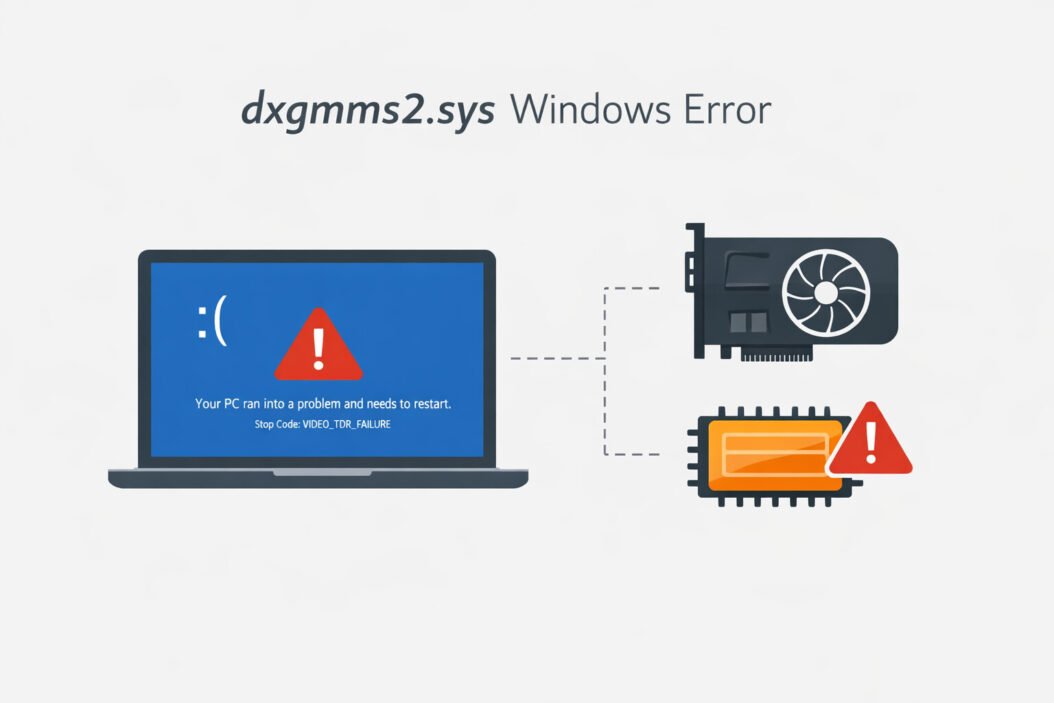
Common dxgmms2.sys Error Messages
You’ll typically see these error codes when dxgmms2.sys fails:
- SYSTEM_SERVICE_EXCEPTION (dxgmms2.sys)
- PAGE_FAULT_IN_NONPAGED_AREA
- SYSTEM_THREAD_EXCEPTION_NOT_HANDLED
- IRQL_NOT_LESS_OR_EQUAL
- VIDEO_TDR_FAILURE
- DRIVER_IRQL_NOT_LESS_OR_EQUAL
Each error points to the same root cause: your graphics driver system isn’t working correctly.
Why dxgmms2.sys Errors Happen
Understanding the cause helps you fix the problem permanently.
Outdated or Corrupted Graphics Drivers
This is the number one cause. Graphics card manufacturers update drivers constantly to fix bugs and improve performance. Running old drivers creates incompatibilities with Windows updates.
Windows Updates That Break Driver Compatibility
Sometimes Windows updates change how the system communicates with graphics drivers. Your existing driver might not understand the new commands, causing crashes.
Hardware Acceleration Conflicts
Modern applications use GPU acceleration for everything from web browsers to video players. Too many applications fighting for GPU resources can trigger dxgmms2.sys errors.
Overclocked Graphics Cards
Pushing your GPU beyond factory specifications creates instability. The memory management system expects certain performance parameters, and overclocking breaks those expectations.
Failing Graphics Hardware
A dying graphics card produces random errors as components malfunction. If you’ve tried software fixes without success, hardware failure becomes likely.
RAM Issues
Because dxgmms2.sys manages memory between system RAM and GPU memory, faulty RAM modules can trigger errors that appear graphics-related.
Quick Fixes: Try These First
Start with these simple solutions before diving into advanced troubleshooting.
Restart Your Computer
A simple restart clears temporary driver states that might be causing conflicts. This works more often than you’d think.
Update Your Graphics Drivers
For NVIDIA cards:
- Visit nvidia.com/drivers
- Enter your graphics card model
- Download the latest driver
- Run the installer and choose “Clean Installation”
For AMD cards:
- Go to amd.com/support
- Let the site auto-detect your card or select manually
- Download and install the recommended driver
For Intel integrated graphics:
- Visit intel.com/support
- Use the Driver & Support Assistant tool
- Install all recommended updates
Always restart after installing new drivers.
Disable Hardware Acceleration in Browsers
Chrome, Edge, and Firefox all use GPU acceleration by default. Temporarily disabling this identifies if specific applications trigger the error.
Chrome/Edge:
- Go to Settings > System
- Turn off “Use hardware acceleration when available”
- Restart the browser
Firefox:
- Go to Settings > General
- Scroll to Performance
- Uncheck “Use recommended performance settings”
- Uncheck “Use hardware acceleration when available”
Advanced Solutions for Persistent Errors
If quick fixes don’t work, try these more thorough approaches.
Run Windows Memory Diagnostic
Bad RAM often masquerades as driver problems.
- Press Windows Key + R
- Type “mdsched.exe” and press Enter
- Choose “Restart now and check for problems”
- Wait for the test to complete (15-20 minutes)
If errors appear, you need to replace your RAM modules.
Use Display Driver Uninstaller (DDU)
Normal driver uninstallation leaves behind files that cause conflicts. DDU removes everything completely.
- Download DDU from guru3d.com/files-details/display-driver-uninstaller-download.html
- Boot Windows into Safe Mode (Settings > Update & Security > Recovery > Advanced Startup)
- Run DDU and select your graphics card manufacturer
- Choose “Clean and restart”
- Install fresh drivers after restart
This nuclear option solves most stubborn driver issues.
Check for Windows Updates
- Go to Settings > Update & Security
- Click “Check for updates“
- Install all available updates, especially optional driver updates
- Restart your computer
Microsoft sometimes releases specific fixes for dxgmms2.sys through Windows Update.
Run System File Checker
Corrupted Windows system files cause unexpected driver behavior.
- Open Command Prompt as Administrator
- Type:
sfc /scannow - Press Enter and wait (can take 30 minutes)
- If errors are found, run:
DISM /Online /Cleanup-Image /RestoreHealth - Restart your computer
Disable Unnecessary Startup Programs
Too many applications using GPU resources at startup creates conflicts.
- Press Ctrl + Shift + Esc to open Task Manager
- Click the “Startup” tab
- Disable programs you don’t need immediately at startup
- Restart
Roll Back Your Graphics Driver
If errors started after a driver update, the new version might be buggy.
- Press Windows Key + X and select Device Manager
- Expand “Display adapters”
- Right-click your graphics card
- Select Properties > Driver tab
- Click “Roll Back Driver” if available
- Restart your computer
Adjust Virtual Memory Settings
Incorrect virtual memory configuration stresses the graphics memory management system.
- Press Windows Key + R
- Type “sysdm.cpl” and press Enter
- Go to Advanced tab > Performance Settings
- Click Advanced tab > Change (under Virtual Memory)
- Uncheck “Automatically manage paging file size”
- Select your system drive
- Choose “Custom size”
- Set Initial size: 1.5x your RAM (in MB)
- Set Maximum size: 3x your RAM (in MB)
- Click Set, then OK
- Restart
Example: If you have 16GB RAM (16384MB):
- Initial size: 24576MB
- Maximum size: 49152MB
Hardware-Related Solutions
When software fixes fail, hardware might be the problem.
Test Your Graphics Card in Another System
If possible, install your graphics card in a different computer. If errors follow the card, you’ve confirmed hardware failure.
Check GPU Temperature
Overheating causes instability and crashes.
- Download HWMonitor or GPU-Z
- Monitor temperatures during normal use and gaming
- If GPU exceeds 85°C under load, you have cooling issues
Fix overheating:
- Clean dust from GPU fans and heatsinks
- Improve case airflow
- Reapply thermal paste (advanced users)
- Replace failing fans
Reseat Your Graphics Card
Poor contact between card and motherboard causes intermittent errors.
- Shut down and unplug your computer
- Open the case
- Remove the graphics card
- Clean the PCIe slot with compressed air
- Firmly reinstall the card
- Ensure power connectors are fully seated
Test With Integrated Graphics
If your CPU has integrated graphics, test without your dedicated GPU.
- Shut down computer
- Remove graphics card
- Connect monitor to motherboard video port
- Boot and use normally
If errors disappear, your graphics card is likely failing.
Check Power Supply
Insufficient or unstable power causes GPU crashes.
Signs of power supply problems:
- Crashes only during gaming or heavy GPU use
- System restarts randomly
- Multiple hardware components failing
Use a PSU calculator online to verify your power supply meets your system’s needs. Graphics cards need stable power on the 12V rail.
Preventive Measures to Avoid Future Errors
Prevention beats troubleshooting every time.
Keep Drivers Updated Regularly
Set a monthly reminder to check for graphics driver updates. Don’t wait for problems to appear.
Monitor System Temperatures
Use monitoring software to watch GPU and CPU temperatures. Address cooling issues before they cause crashes.
Avoid Aggressive Overclocking
If you overclock, do it conservatively with thorough stability testing. Unstable overclocks will eventually corrupt system files and drivers.
Use a UPS for Power Stability
Power fluctuations damage hardware and corrupt drivers. A quality UPS protects against both.
Keep Windows Updated
Enable automatic Windows updates. Many dxgmms2.sys fixes come through Windows Update.
Clean Your Computer Regularly
Dust buildup causes overheating and hardware failures. Clean your PC every 3-6 months.
When to Seek Professional Help
Some situations require expert assistance:
- You’ve tried all software fixes without success
- Blue screens occur multiple times daily
- You’re uncomfortable opening your computer
- Hardware diagnostics show failing components
- You need data recovery before replacing hardware
Professional technicians have diagnostic tools and replacement parts that aren’t available to home users.
Understanding Blue Screen Dump Files
Blue screens create memory dump files that reveal exactly what failed.
View dump files:
- Download BlueScreenView (free tool)
- Open the application
- Look for dxgmms2.sys in the crash list
- Check the “Bug Check Code” column for specific error types
This information helps identify patterns and confirm the cause of crashes.
Different Windows Versions and dxgmms2.sys
Windows 11
Windows 11 relies heavily on DirectX 12, making dxgmms2.sys even more critical. The operating system demands newer graphics drivers than Windows 10.
Windows 11 specific fixes:
- Verify your GPU meets Windows 11 requirements
- Update to the latest Windows 11 build
- Check manufacturer support for your graphics card
Windows 10
Windows 10 is more forgiving with older hardware but still requires modern drivers for stability.
Windows 10 considerations:
- Feature updates sometimes break driver compatibility
- Use LTSC versions for maximum stability if available
- Defer feature updates until drivers are verified compatible
Impact on Gaming and Creative Work
dxgmms2.sys errors severely impact GPU-intensive tasks.
Gaming
Games crash to desktop or freeze during loading. Modern games stress the graphics memory management system harder than any other application.
Gaming-specific solutions:
- Lower graphics settings to reduce GPU memory pressure
- Close background applications before gaming
- Verify game files through Steam/Epic/etc.
- Update DirectX runtime libraries
Video Editing and 3D Rendering
Applications like Adobe Premiere, DaVinci Resolve, and Blender rely on GPU acceleration. Crashes lose unsaved work.
Creative application fixes:
- Disable GPU acceleration temporarily
- Render in smaller segments
- Increase virtual memory allocation
- Use software rendering as backup
dxgmms2.sys vs. Related Files
| File | Purpose | Common Issues |
|---|---|---|
| dxgmms2.sys | GPU memory management | Blue screens, TDR errors |
| dxgkrnl.sys | DirectX kernel interface | Display driver crashes |
| nvlddmkm.sys | NVIDIA driver kernel | NVIDIA-specific crashes |
| atikmpag.sys | AMD driver kernel | AMD-specific crashes |
| igdkmd64.sys | Intel graphics driver | Intel GPU crashes |
All these files work together. Problems with dxgmms2.sys often indicate deeper driver stack issues.
Summary and Key Takeaways
The dxgmms2.sys file is essential for graphics operations in Windows. When it fails, your entire system becomes unstable.
Most important actions:
- Update graphics drivers first (solves 70% of cases)
- Use DDU for clean driver installation
- Test RAM with Windows Memory Diagnostic
- Monitor temperatures to rule out overheating
- Check for Windows updates regularly
Remember:
- Software problems are more common than hardware failures
- Systematic troubleshooting saves time
- Document what you try so you don’t repeat steps
- Back up important data before major changes
Most dxgmms2.sys errors resolve with driver updates and basic troubleshooting. Persistent errors after trying all solutions suggest hardware replacement might be necessary.
For more technical information about Windows driver architecture, visit the Microsoft Hardware Dev Center. You can also find detailed graphics driver troubleshooting guides at Tom’s Hardware.
Frequently Asked Questions
Is dxgmms2.sys a virus or malware?
No, dxgmms2.sys is a legitimate Windows system file. However, malware sometimes disguises itself with similar names. The real file is always located in C:\Windows\System32\drivers. If you find it anywhere else, scan your system with Windows Defender or Malwarebytes immediately.
Can I delete dxgmms2.sys to fix the error?
Never delete dxgmms2.sys manually. This file is essential for Windows graphics functionality. Deleting it will prevent Windows from booting properly. If the file is corrupted, use System File Checker (sfc /scannow) to repair it automatically.
Why do dxgmms2.sys errors happen only when gaming?
Gaming pushes your graphics card to maximum performance, using more memory and generating more heat than normal tasks. This stress exposes driver instability, marginal hardware, or cooling problems that don’t appear during light use. The solution involves updating drivers, improving cooling, or reducing game graphics settings.
Will reinstalling Windows fix dxgmms2.sys errors?
Reinstalling Windows only helps if system file corruption causes the problem. If outdated drivers, failing hardware, or configuration issues are responsible, a clean Windows installation won’t solve anything. Try all other solutions first, as reinstalling Windows is time-consuming and risks data loss.
How do I know if my graphics card is dying or if it’s just a driver issue?
Test systematically: update drivers first, then use DDU for clean installation, run stress tests like FurMark (watch temperatures), and test the card in another computer if possible. If errors persist after fresh drivers and normal temperatures, and testing in another system shows the same problems, your graphics card is likely failing and needs replacement.

- How to Check Samsung Warranty in 2026: Complete Step-by-Step Guide - April 3, 2026
- How to Access Computer Configuration Settings in Windows 11/10 - April 3, 2026
- How to Check ASUS Warranty Status in 2026 (Step-by-Step) - April 3, 2026