
When your document won’t print, the first thing you need to know is whether your printer is actually ready to work. Checking your printer status shows you if it’s online, paused, out of paper, or experiencing errors. This guide walks you through every method to check printer status on Windows 11, Windows 10, and Mac computers.
Quick Answer: On Windows, go to Settings > Bluetooth & devices > Printers & scanners and click your printer to see its status. On Mac, open System Settings > Printers & Scanners and select your printer to view its current state.
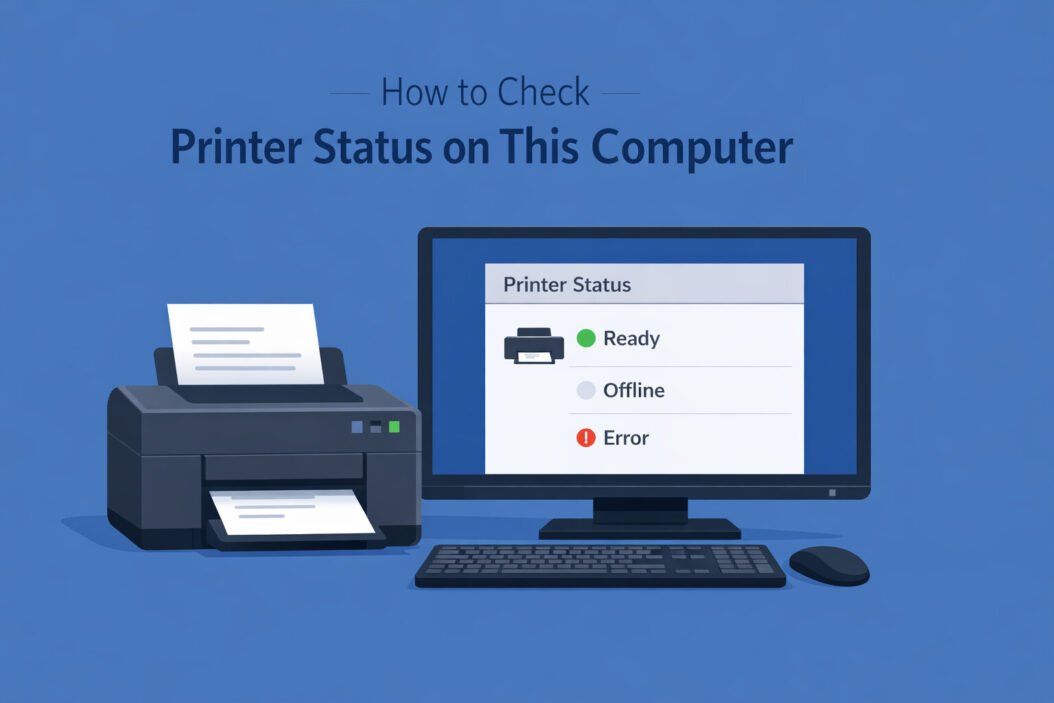
Printer Status: What It Means
Your printer status tells you exactly what your printer is doing right now. This information helps you troubleshoot problems before wasting time and paper.
Common printer statuses include:
- Ready: Printer is connected and waiting for print jobs
- Offline: Computer can’t communicate with the printer
- Paused: Printing is temporarily stopped
- Printing: Currently working on a document
- Error: Something is wrong (paper jam, low ink, door open)
- Out of Paper: Paper tray is empty
- Pending: Print job is waiting in the queue
Each status tells you what action to take next.
Check Printer Status on Windows 11
Windows 11 changed where printer settings live. Here’s how to find them.
Method 1: Settings App
- Press Windows key + I to open Settings
- Click Bluetooth & devices in the left sidebar
- Select Printers & scanners
- Click on your printer name
- Look at the status displayed under the printer name
You’ll see information like “Idle,” “Offline,” or specific error messages. This is the fastest way to check status in Windows 11.
Method 2: Control Panel (Classic View)
Some people prefer the traditional Control Panel interface.
- Press Windows key + R
- Type control printers and press Enter
- Right-click your printer
- Select See what’s printing
- Check the status in the window title or under the Printer menu
This method shows more detailed information about pending print jobs.
Method 3: Print Queue
When you send something to print, you can check status through the queue.
- Send a document to print
- Click the printer icon in the system tray (bottom-right corner)
- Double-click the notification
- The queue window shows printer status at the top
This works great when you’re actively trying to print something.
Check Printer Status on Windows 10
Windows 10 uses a slightly different layout but offers the same information.
Using Windows 10 Settings
- Click the Start button
- Select Settings (gear icon)
- Click Devices
- Choose Printers & scanners from the left menu
- Click your printer name
- Select Open queue
- Status appears in the window
The queue window shows both printer status and individual document status.
Using Devices and Printers
This classic method still works perfectly in Windows 10.
- Type devices and printers in the Windows search box
- Press Enter
- Find your printer icon
- Look for a green checkmark (ready) or other indicator
- Right-click the printer and select See what’s printing for details
Green checkmark means ready. A gray printer icon usually means offline or disconnected.
Command Prompt Method
Tech-savvy users can check printer status using Command Prompt.
- Press Windows key + X
- Select Command Prompt or Terminal
- Type:
wmic printer get name,printerstatus - Press Enter
You’ll see a list of all printers and their numeric status codes. Status 3 means idle and ready. Status 4 means printing. Status 7 means offline.
Check Printer Status on Mac
Mac organizes printer settings differently than Windows but makes status equally accessible.
System Settings Method (macOS Ventura and Later)
- Click the Apple menu
- Select System Settings
- Click Printers & Scanners in the sidebar
- Select your printer from the list
- Status appears next to the printer name
You’ll see “Idle,” “Printing,” or error messages right in the main window.
System Preferences (Older macOS Versions)
If you’re running macOS Monterey or earlier:
- Click the Apple menu
- Choose System Preferences
- Click Printers & Scanners
- Select your printer
- Check the status line below the printer list
This interface looks slightly different but provides the same information.
Print Queue on Mac
- Open any document
- Press Command + P to open print dialog
- Click Printer dropdown
- The current status shows next to each printer name
- Or open Printers & Scanners settings and click Open Print Queue
The queue window shows all pending jobs and current printer status.
Using Terminal
Mac power users can check status through Terminal.
- Open Terminal from Applications > Utilities
- Type:
lpstat -p - Press Enter
This displays all printers and whether they’re enabled and accepting jobs. According to the Common Unix Printing System documentation, this command works on all CUPS-based systems including macOS.
Troubleshooting Common Status Issues
Printer Shows Offline
This is the most common problem. The printer is on but your computer can’t see it.
For Windows:
- Open Settings > Bluetooth & devices > Printers & scanners
- Click your printer
- Select Printer properties
- Click the Ports tab
- Ensure the correct port is selected and checked
- Uncheck Use Printer Offline if it’s checked
For Mac:
- Open Printers & Scanners
- Click the minus button to remove the printer
- Click the plus button to add it again
- Your Mac will search for the printer and reconnect
Sometimes simply restarting the print spooler service fixes offline status on Windows. Open Services, find Print Spooler, and restart it.
Printer Status Shows Error
Error status means something physical is wrong.
Check these items in order:
- Open all printer covers and check for paper jams
- Ensure paper is loaded correctly in the tray
- Check ink or toner levels
- Make sure all cartridges are seated properly
- Look for any error messages on the printer’s display panel
- Verify all cables are firmly connected
Most error states clear automatically once you fix the physical problem.
Printer Status Stuck on Paused
A paused printer won’t process any print jobs until you resume it.
Windows:
- Open the print queue (Settings > Printers & scanners > your printer > Open queue)
- Click Printer in the menu bar
- If Pause Printing has a checkmark, click it to remove
- Print jobs should start processing
Mac:
- Open Print Queue
- Click Resume button
- Or right-click the printer in Printers & Scanners and select Resume
Sometimes individual documents get paused. Right-click each document in the queue and select Resume.
Print Spooler Service Issues (Windows)
The print spooler manages all print jobs. When it crashes, printers show incorrect status.
Fix it this way:
- Press Windows key + R
- Type services.msc and press Enter
- Scroll to Print Spooler
- Right-click and select Restart
- If it won’t start, right-click and choose Properties
- Set Startup type to Automatic
- Click Start then OK
This resolves most spooler-related status problems. Microsoft provides additional troubleshooting steps for printer issues on their support site.
Network Printer Status Checking
Network printers require extra steps because they connect through your router or network.
Finding Network Printer IP Address
Windows:
- Open Settings > Printers & scanners
- Click your printer
- Select Printer properties
- Click Ports tab
- The checked port shows the IP address (like 192.168.1.100)
Mac:
- Open Printers & Scanners
- Select your printer
- Look at the Location field
- The IP address appears there
Checking Network Printer Web Interface
Most network printers have a built-in web page showing detailed status.
- Copy the printer’s IP address
- Open a web browser
- Paste the IP address in the address bar
- Press Enter
- The printer’s web interface loads
This page shows ink levels, page counts, error details, and network settings. It’s the most comprehensive status view available.
Ping Test for Network Printers
Verify your computer can reach the printer over the network.
Windows:
- Press Windows key + R
- Type cmd and press Enter
- Type:
ping [printer IP address] - Press Enter
Mac:
- Open Terminal
- Type:
ping [printer IP address] - Press Enter
If you get replies, the network connection is good. If you get “Request timed out” or “Host unreachable,” there’s a network problem.
USB Printer Status Checking
USB printers connect directly to your computer. Status problems usually involve the physical connection.
Verify USB Connection
- Check that the USB cable is firmly plugged into both printer and computer
- Try a different USB port on your computer
- Look for the printer power light (should be solid, not blinking)
- Listen for sounds when you plug/unplug the cable
- Try a different USB cable if available
Windows makes a sound when USB devices connect. If you hear nothing, the cable or port might be faulty.
Device Manager Check (Windows)
- Press Windows key + X
- Select Device Manager
- Expand Print queues or Printers
- Look for your printer
- A yellow triangle means driver problems
- Right-click and select Update driver if needed
Device Manager shows if Windows recognizes the USB printer at the hardware level.
System Information (Mac)
- Hold Option key and click the Apple menu
- Select System Information
- Click USB in the sidebar
- Look for your printer in the USB Device Tree
- It should show connection details
If the printer doesn’t appear here, Mac doesn’t see it on the USB bus.
Checking Printer Status Through Printer Software
Most printer manufacturers provide their own software with better status details than Windows or Mac show.
HP Smart App
HP printers work with the HP Smart app.
- Download HP Smart from Microsoft Store or Mac App Store
- Open the app
- Your printer appears automatically if connected
- Tap or click the printer
- Status, ink levels, and error messages display prominently
The app also lets you print, scan, and order supplies.
Epson Print & Scan
Epson users can install Epson Print & Scan software.
- Download from Epson’s website
- Install and open the software
- Select your printer
- Click Status Monitor or Printer Status
- Detailed status information appears
This shows ink levels with visual indicators and specific error codes.
Canon Software
Canon provides IJ Printer Utility for Mac and various tools for Windows.
- Install Canon software from their support site
- Open the utility
- Select your printer model
- Status information appears in the main window
- Click for detailed ink level and maintenance options
Brother iPrint&Scan
Brother printer owners can use iPrint&Scan.
- Download from Brother’s website
- Install and launch
- The app automatically finds Brother printers
- Status appears on the main screen
- Tap/click for detailed information
Third-party software often shows more than the operating system does.
Status Monitoring for Print Jobs
Sometimes the printer status is fine but individual print jobs have problems.
Viewing Print Queue Details
Windows:
- Open printer queue (Settings > Printers & scanners > Open queue)
- Each document shows its own status:
- Printing: Currently processing
- Paused: Manually stopped
- Error: Failed to print
- Deleting: Being removed from queue
- Spooling: Preparing to print
Mac:
- Open print queue from Printers & Scanners
- Document status appears next to each item
- Click a document to see specific error messages
Clearing Stuck Print Jobs
Print jobs sometimes get stuck and prevent other documents from printing.
Windows:
- Open print queue
- Click Printer menu > Cancel All Documents
- If that doesn’t work, restart the Print Spooler service
- Or delete files manually from C:\Windows\System32\spool\PRINTERS
Mac:
- Open print queue
- Click the X button next to each stuck job
- Or click Delete All to clear everything
- If jobs won’t delete, restart your Mac
Sometimes you need to turn the printer off and on to clear its internal memory.
Advanced Status Checking Methods
Using PowerShell (Windows)
PowerShell provides detailed printer information.
- Press Windows key + X
- Select Windows PowerShell or Terminal
- Type:
Get-Printer | Select-Object Name, PrinterStatus, DriverName - Press Enter
This lists all printers with their current status codes and driver information.
For a specific printer:
Get-Printer -Name "YourPrinterName" | Format-List
This shows everything Windows knows about that printer.
CUPS Web Interface (Mac)
Mac uses CUPS (Common Unix Printing System) underneath. You can access its web interface.
- Open a web browser
- Go to:
http://localhost:631 - Click Printers tab
- Select your printer
- Detailed status and job information appears
This is particularly useful for network printing troubleshooting.
Third-Party Monitoring Tools
Several utilities provide better printer monitoring than built-in tools.
For Windows:
- Print Audit: Tracks all printing activity
- O&K Print Watch: Monitors printer status and usage
- Printer Pro Desktop: Shows detailed status for multiple printers
For Mac:
- PrinterSetupPro: Manages printer configurations
- CUPS PDF: Virtual printer with status monitoring
These tools work best in office environments with multiple printers.
Setting Up Status Notifications
Get alerts when printer problems occur instead of checking manually.
Windows Notifications
- Open Settings > Bluetooth & devices > Printers & scanners
- Click your printer
- Select Printing preferences
- Look for notification settings (varies by printer driver)
- Enable alerts for errors, low ink, and paper jams
Some printer drivers don’t support this. Manufacturer software often has better notification features.
Mac Notifications
- Open System Settings > Notifications
- Scroll to find your printer’s utility app
- Enable notifications
- Or go to Printers & Scanners
- Select your printer
- Click Options & Supplies
- Enable notification options if available
Email Alerts for Network Printers
Many network printers can send email when problems occur.
- Access the printer’s web interface (type its IP in a browser)
- Log in (check printer manual for default password)
- Find Email Notifications or Alerts section
- Enter your email address
- Select which events trigger emails
- Save settings
You’ll get messages about paper jams, low toner, and other issues.
Common Status Codes and What They Mean
Different systems use different status codes. Here’s what they mean.
| Status Code | Meaning | Action Needed |
|---|---|---|
| Ready/Idle | Working normally | None |
| Offline | Not connected | Check cables and power |
| Paused | Manually stopped | Resume printing |
| Error | Physical problem | Check printer display |
| Out of Paper | Paper tray empty | Add paper |
| Printing | Currently working | Wait |
| Warming Up | Laser printer heating | Wait 1-2 minutes |
| Processing | Receiving data | Wait |
| Door Open | Cover not closed | Close all doors |
| Paper Jam | Paper stuck inside | Clear jam |
Windows numeric codes:
- 1 = Other
- 2 = Unknown
- 3 = Idle
- 4 = Printing
- 5 = Warmup
- 7 = Offline
Mobile Device Status Checking
You can check printer status from phones and tablets too.
iOS (iPhone/iPad)
- Open Settings
- Scroll to Printers (or search for it)
- AirPrint printers appear here
- Or use the printer manufacturer’s app
- Status shows in the app
When you try to print from any app, iOS shows printer status in the print preview screen.
Android
- Open Settings
- Search for Printing
- Tap Printing services
- Enable your printer service (HP, Epson, Canon, etc.)
- Open the manufacturer’s app for detailed status
Or use Google Cloud Print compatible apps that show status.
Manufacturer Mobile Apps
All major brands offer mobile apps:
- HP Smart
- Epson iPrint
- Canon PRINT
- Brother iPrint&Scan
- Xerox Print Portal
These apps show the same status information as computer software.
Conclusion
Checking your printer status is straightforward once you know where to look. On Windows, use Settings > Bluetooth & devices > Printers & scanners. On Mac, open System Settings > Printers & Scanners. Both show whether your printer is ready, offline, paused, or experiencing errors.
For network printers, access the web interface by typing the printer’s IP address in a browser. This provides the most detailed status information including ink levels and error codes. USB printer status depends on proper cable connection and driver installation.
When you encounter status problems, start with the simple fixes: check power, cables, paper, and ink. Clear any stuck print jobs. Restart the Print Spooler service on Windows. Remove and re-add the printer on Mac. Most printer status issues resolve with these basic troubleshooting steps.
Regular status checks prevent printing problems before they interrupt your work. Enable notifications when available so your printer alerts you to issues automatically.
Frequently Asked Questions
Why does my printer say offline when it’s turned on?
Your printer shows offline when your computer loses connection to it. For USB printers, check the cable connection and try a different USB port. For network printers, verify the printer has a valid IP address and your computer can ping it. On Windows, open printer properties and uncheck “Use Printer Offline” under the Printer menu. Restarting both the printer and computer often resolves this issue.
How do I check if my printer is ready to print?
Open your operating system’s printer settings. On Windows 11, go to Settings > Bluetooth & devices > Printers & scanners and click your printer. On Mac, open System Settings > Printers & Scanners and select your printer. A status of “Ready,” “Idle,” or a green checkmark means the printer is prepared to accept print jobs. Any other status indicates a problem that needs attention.
What does printer status error mean?
An error status indicates a physical problem with the printer. Common causes include paper jams, empty paper trays, low or empty ink cartridges, open doors or covers, or internal mechanical issues. Check the printer’s display panel for a specific error message. Open all covers and look for jammed paper. Verify paper and ink are loaded properly. Most error states clear once you fix the underlying problem.
Can I check printer status remotely?
Yes, for network printers. If you’re on the same network, access the printer’s web interface by typing its IP address in a browser. Some manufacturers offer cloud-connected printers that you can monitor from anywhere through their mobile apps or web portals. For printers connected to a specific computer, you need remote desktop access to that computer to check status.
How do I fix a printer stuck on pending status?
Pending status means print jobs are waiting but not processing. First, check if the printer is paused by opening the print queue and clicking Printer > Resume (Windows) or clicking Resume in the queue (Mac). If that doesn’t work, cancel all documents and restart the Print Spooler service on Windows. Verify the printer shows as online and ready. Turn the printer off and on to clear its memory, then try printing again.

- How to Check Samsung Warranty in 2026: Complete Step-by-Step Guide - April 3, 2026
- How to Access Computer Configuration Settings in Windows 11/10 - April 3, 2026
- How to Check ASUS Warranty Status in 2026 (Step-by-Step) - April 3, 2026