
Your Surface Pen stopped working mid-signature on an important document. Or maybe the cursor is jumping around, making precise drawing impossible. Before you rush to buy a replacement, you probably just need a fresh battery.
The answer: Most Surface Pens use a single AAAA battery that lasts 12-18 months with regular use. You can replace it in under 60 seconds by unscrewing the pen tip, removing the old battery, and inserting a new one. The process requires no tools and costs about $2-5.
Let me walk you through everything you need to know about changing your Surface Pen battery, including which battery type you need, where people commonly get stuck, and how to avoid the mistakes that waste time and money.
Which Surface Pen Model Do You Have?
Microsoft has released several Surface Pen versions since 2014. Knowing your model matters because the battery type and replacement method differ slightly.
Surface Pen (2017-present): The current design with a flat eraser button on top. This includes pens sold with Surface Pro 7, 8, 9, Surface Laptop, and Surface Studio devices. Uses one AAAA battery.
Surface Pen (2015-2016): Similar design but with a clip attachment point. Uses one AAAA battery.
Original Surface Pen (2014): Came with Surface Pro 3. Uses one AAAA battery.
Surface Slim Pen and Slim Pen 2: These rechargeable pens do NOT use replaceable batteries. They charge wirelessly or via USB-C. If your Slim Pen won’t work, you need to charge it, not replace a battery.
The easiest way to identify your pen: look at the tip. If it unscrews, you have a battery-powered model. If it’s completely smooth with no visible threads, you have a rechargeable Slim Pen.
What Battery Does a Surface Pen Use?
The standard Surface Pen uses a AAAA battery (that’s four As, not three). This is a less common battery size than AA or AAA, which catches people off guard.
Where to Buy AAAA Batteries
You can find AAAA batteries at:
- Major retailers: Target, Walmart, CVS, Walgreens
- Office supply stores: Staples, Office Depot
- Electronics stores: Best Buy
- Online: Amazon, manufacturer websites
Expect to pay $2-7 for a two-pack. Energizer and Duracell both make reliable AAAA batteries. Generic brands work fine too, but premium brands typically last 2-3 months longer based on user reports.
Pro tip: Buy a two-pack or four-pack. Having a spare battery means you won’t lose momentum when the pen dies during an important meeting or creative session.
Can You Use a Different Battery Type?
No. The Surface Pen compartment is specifically sized for AAAA batteries. AA, AAA, or other sizes won’t fit. Some people try to modify 9V batteries (which contain six AAAAs inside), but this voids your warranty and can damage the pen’s internal components.
Step-by-Step: How to Change Your Surface Pen Battery
Here’s the complete process broken down into simple steps.
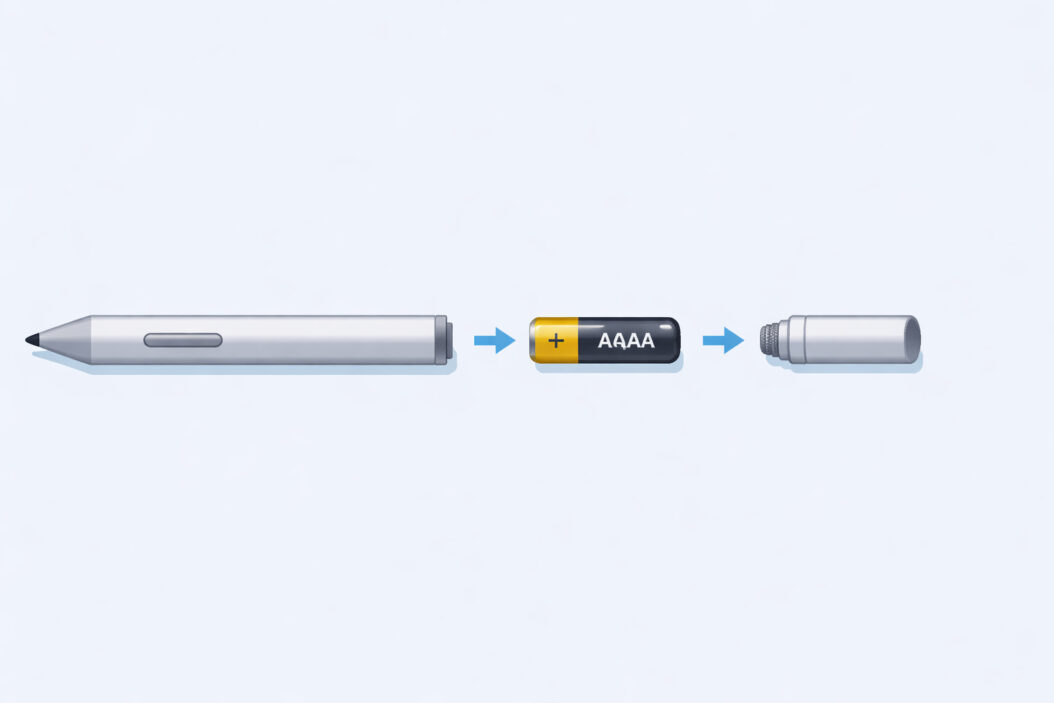
Step 1: Unscrew the Pen Tip
Hold your Surface Pen in one hand. With your other hand, grip the silver tip section where the writing point emerges. Turn the tip counterclockwise (lefty-loosey).
The tip section will unscrew after about two full rotations. Don’t force it. If it feels stuck, you’re either turning the wrong direction or gripping the wrong part of the pen.
Common mistake: Some people try to unscrew from the eraser end. The battery compartment is in the tip, not the back.
Step 2: Remove the Tip Assembly
Once unscrewed, gently pull the tip assembly away from the pen body. You’ll see a small circuit board attached to the tip. This is normal. Don’t pull too hard or you might damage the connection.
Step 3: Take Out the Old Battery
The AAAA battery sits inside the pen barrel. Tip the pen upside down and let gravity slide the battery out into your hand. If it doesn’t fall out immediately, give the pen a gentle shake.
Note which direction the battery was facing. The positive end (the flat side with the + symbol) should point toward the tip. The negative end (the bumpy side) points toward the eraser button.
Step 4: Insert the New Battery
Take your fresh AAAA battery. Insert it into the pen barrel with the positive end pointing toward the tip end where you just removed the tip assembly.
Slide the battery all the way down until it sits flush inside the barrel. You shouldn’t see any part of the battery sticking out.
Step 5: Reattach the Tip
Line up the tip assembly with the pen barrel. Push it in gently until the threads catch. Then turn clockwise (righty-tighty) until the tip feels snug.
Don’t overtighten. You should feel slight resistance when the tip is properly secured, but you shouldn’t need significant force.
Step 6: Test Your Pen
Open a drawing app like Microsoft Whiteboard, OneNote, or any app that supports pen input. Make some marks on your screen. The pen should respond immediately with accurate pressure sensitivity.
Press the eraser button on the top of the pen. It should work without delay.
If nothing happens, check the battery orientation. Nine times out of ten, a non-working “fresh” battery is just installed backwards.
Troubleshooting: When a New Battery Doesn’t Fix the Problem
You changed the battery but your Surface Pen still won’t work. Here’s what to check.
Check Battery Orientation
This is the most common issue. Open the pen again and verify the positive end of the battery points toward the tip. The battery should read positive-to-tip, negative-to-eraser.
Verify Bluetooth Connection
Your Surface Pen communicates via Bluetooth for button functions (even though drawing works without pairing). If the buttons don’t work:
- Go to Settings > Bluetooth & devices
- Look for “Surface Pen” in your device list
- If it’s missing, hold the eraser button for 7 seconds until the LED flashes
- Select “Add device” and pair the pen
Clean the Battery Contacts
Over time, the metal contacts inside your pen can develop residue or oxidation. This prevents proper electrical connection.
Remove the battery and tip assembly. Use a clean, dry cloth to wipe the metal contact points inside the barrel. A cotton swab works well for reaching inside.
Test with a Different App
Sometimes the issue isn’t your pen but the software. Try your pen in multiple apps:
- Windows Ink Workspace
- Microsoft Whiteboard
- OneNote
- Paint or Paint 3D
If the pen works in some apps but not others, you have a software configuration issue, not a hardware problem.
Check for Physical Damage
Inspect your pen tip. Is it bent, cracked, or loose? A damaged tip can prevent proper function even with a fresh battery.
Look inside the battery compartment. Do you see any broken pieces, corrosion, or debris? Any physical damage to the internal components means you’ll need a replacement pen.
How Long Does a Surface Pen Battery Last?
Battery life depends on your usage patterns, but here are realistic expectations:
Light use (notes a few times per week): 18-24 months
Moderate use (daily drawing or note-taking for 1-2 hours): 12-18 months
Heavy use (professional design work 4+ hours daily): 6-12 months
The pressure sensor and Bluetooth connection drain battery faster than simple writing. Artists who do detailed work with varying pressure levels will burn through batteries quicker than someone taking text notes.
Signs Your Battery Is Dying
Your Surface Pen gives you warning signs before it dies completely:
- Intermittent connectivity (pen works, then stops, then works again)
- Delayed response between pen movement and screen input
- Buttons stop working while drawing still functions
- Cursor jumping or erratic behavior
- Weak or no haptic feedback when clicking buttons
When you notice these symptoms, change the battery within a week. A failing battery becomes frustrating fast.
Surface Slim Pen: Charging Instead of Replacing
If you have a Surface Slim Pen or Slim Pen 2, you don’t change batteries. These models use built-in rechargeable batteries.
How to Charge a Slim Pen
Surface Slim Pen (original): Place it in the charging cradle that came with your Surface Pro X or in the compatible Surface Pen Charging Cradle.
Surface Slim Pen 2: Attach it magnetically to the designated charging spot on your Surface Pro 8/9 or Surface Laptop Studio. The pen charges wirelessly while stored. You can also use the included USB-C cable.
A full charge takes about 90 minutes and provides up to 15 hours of active writing time.
If your Slim Pen won’t charge, clean the magnetic charging contacts with a dry cloth. Dust and debris often prevent proper charging connection.
For comprehensive guidance on Surface Pen features and compatibility, visit Microsoft’s official Surface Pen support page.
Cost Comparison: Battery Replacement vs New Pen
Let’s look at the real costs over a three-year period:
| Option | Year 1 | Year 2 | Year 3 | Total |
|---|---|---|---|---|
| Replace batteries | $5 | $5 | $5 | $15 |
| Buy new pen annually | $100 | $100 | $100 | $300 |
| Buy Slim Pen (rechargeable) | $130 | $0 | $0 | $130 |
Battery replacement wins on cost. Even if you buy premium batteries every 6 months, you’ll spend under $30 over three years.
However, the rechargeable Slim Pen 2 makes sense if:
- You use your pen heavily every day
- You want the latest tilt and haptic features
- You prefer not dealing with batteries
- You already have a compatible Surface device with wireless charging
Tips to Extend Your Surface Pen Battery Life
Want to squeeze more months from each battery? Try these strategies:
Turn off Bluetooth when not using button shortcuts. The eraser and side buttons require Bluetooth, but basic drawing works without it. Unpair your pen from Bluetooth settings to conserve power.
Store your pen away from extreme temperatures. Heat and cold drain batteries faster. Don’t leave your pen in a hot car or freezing bag.
Remove the battery during long storage periods. If you won’t use your pen for several months, take out the battery. This prevents slow discharge and potential corrosion.
Use quality batteries. Cheap generic batteries might save $1 upfront but die 30-40% faster, costing more over time.
Clean your pen regularly. Dirt and debris make the pen work harder, draining battery faster. Wipe down your pen weekly with a slightly damp cloth.
Where to Buy Replacement Parts
If your issue goes beyond a simple battery change, here’s where to find parts:
Replacement tips: Microsoft sells official Surface Pen tip kits with multiple hardness options (2H, H, HB, B). Available through Microsoft Store online or retail locations.
Third-party tips: Companies like Wacom and generic brands make compatible tips. These cost less but may affect writing feel.
Complete pens: If your pen is physically damaged, buying a new pen makes more sense than repairing. Official Surface Pens cost $100. Third-party alternatives start around $40 but with reduced features.
Recycling Your Old Battery
AAAA batteries contain materials that shouldn’t go in regular trash. Proper disposal protects the environment and recovers valuable materials.
Drop-off locations:
- Best Buy stores have free battery recycling bins at the entrance
- Home Depot and Lowe’s accept household batteries
- Many municipal recycling centers accept batteries
- Call2Recycle has drop-off locations across North America
Keep used batteries in a plastic bag until you can dispose of them properly. Never throw batteries in household trash where they can leak or cause fires.
Frequently Asked Questions
Does the Surface Pen have a rechargeable battery?
No, the standard Surface Pen uses a replaceable AAAA battery. Only the Surface Slim Pen and Slim Pen 2 have rechargeable batteries. The standard pen design prioritizes long battery life over rechargeable convenience.
Can I use my Surface Pen while changing the battery?
No. The pen needs the battery installed to function. However, the change takes under a minute, so you’ll barely interrupt your workflow. Keep a spare battery nearby for instant swaps during important work.
Why won’t my Surface Pen work after changing the battery?
Check three things: battery orientation (positive end toward tip), battery freshness (even new batteries can be defective), and Bluetooth pairing for button functions. If the pen still fails, your issue likely involves hardware damage rather than the battery.
How do I know if my Surface Pen battery is low?
You’ll notice erratic behavior like cursor jumping, delayed response, or buttons that stop working. Unlike phones, the Surface Pen doesn’t show a battery indicator. Plan to change the battery every 12-18 months regardless of symptoms.
What happens if I put the battery in backwards?
Nothing breaks. The pen simply won’t work. The design prevents damage from reverse polarity. Remove the battery, flip it around, and reinstall with the positive end pointing toward the tip.
Conclusion
Changing your Surface Pen battery is straightforward once you know the process. Buy a AAAA battery, unscrew the tip counterclockwise, swap the battery with the positive end toward the tip, and screw everything back together. The whole process takes 30-60 seconds.
Keep a spare battery in your laptop bag or desk drawer. This simple preparation prevents interruptions during important work. At $2-5 per battery and 12-18 months of life, battery replacement costs nearly nothing compared to buying new pens.
If your pen still doesn’t work after a battery change, check the orientation, clean the contacts, and verify your Bluetooth connection. Physical damage or software issues require different solutions than battery replacement.
Your Surface Pen is a precise tool that deserves proper maintenance. Now you can keep it running smoothly for years without spending money on replacements or repairs.

- How to Uninstall Apps from the Start Menu in Windows 11/10 (2026 Guide) - April 2, 2026
- How to Fix Overscan on Windows 11/10: Stop Your Screen Getting Cut Off (2026) - April 1, 2026
- How to Disable Lock Screen on Windows 11/10 in 2026 - April 1, 2026