
Open Windows Settings > Apps > Default apps > Web browser, then select your preferred browser from the list. This takes about 30 seconds and works on Windows 10 and 11.
Switching your default web browser determines which program opens when you click email links, web shortcuts, or any URL from another application. Many people stick with Microsoft Edge simply because it came pre-installed, but you have better options if Chrome, Firefox, Opera, or Brave suits your needs.
This guide walks you through every method to change your default browser, fixes common problems, and helps you understand what actually happens when you make the switch.
Why Your Default Browser Matters
Your default browser affects your daily workflow more than you realize. Every time you:
- Click a link in an email
- Open a saved bookmark file
- Launch a web link from a PDF document
- Access help documentation from software
- Open URLs from messaging apps
Windows sends that link to your default browser. If Edge keeps opening when you want Chrome, you need to change this setting.
Windows 11 made this process slightly more complicated than Windows 10, requiring extra steps that deliberately slow down the switching process. Microsoft faced criticism for this decision, but you can still make the change easily once you know where to look.
Before You Start: Install Your Preferred Browser
You cannot set a browser as default unless it’s already installed on your computer. Download and install your chosen browser first:
- Google Chrome: Most popular worldwide, excellent extension library
- Mozilla Firefox: Privacy-focused, open-source, highly customizable
- Microsoft Edge: Built on Chromium, integrated with Windows features
- Opera: Built-in VPN and ad blocker, gaming features
- Brave: Blocks ads and trackers by default, cryptocurrency features
Once installed, you can proceed with changing the default setting.
How to Change Default Browser in Windows 11
Windows 11 uses a more granular approach that requires setting your browser as the default for multiple file types. Here’s the complete process:
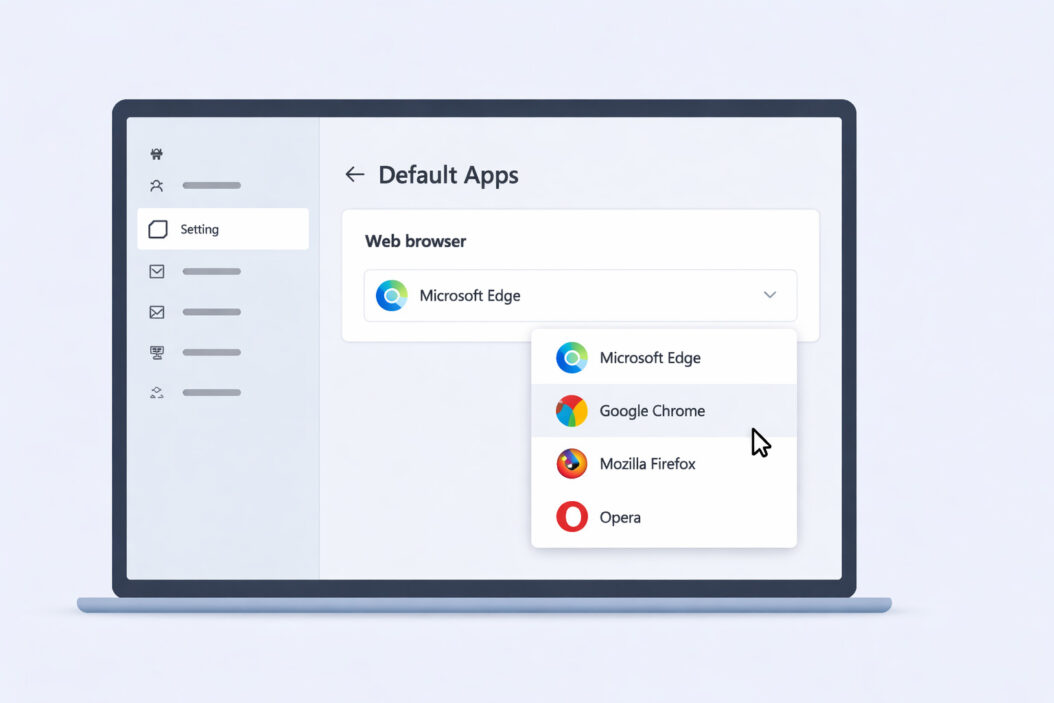
Method 1: Through Windows Settings (Recommended)
Step 1: Click the Start button or press the Windows key
Step 2: Type “default apps” and press Enter, or navigate to Settings > Apps > Default apps
Step 3: Scroll down and click “Web browser”
Step 4: Select your preferred browser from the popup list
Step 5: Windows will show file types and protocols. Click “Set default” for each one:
- .htm files
- .html files
- .pdf files (optional, but recommended)
- .svg files
- .xht files
- .xhtml files
- FTP protocol
- HTTP protocol
- HTTPS protocol
This takes about two minutes if you manually select each one. Some browsers offer a “Set as default” button that handles all these associations automatically.
Method 2: Through the Browser Itself
Most modern browsers include a built-in prompt or setting:
For Google Chrome:
- Open Chrome
- Click the three dots (menu) in the top-right corner
- Select Settings
- Click “Default browser” in the left sidebar
- Click “Make default”
- Confirm the selections in Windows Settings that appears
For Mozilla Firefox:
- Open Firefox
- Click the hamburger menu (three lines) in the top-right
- Select Settings
- Click “General” in the left sidebar
- Click “Make Default” under “Default Browser”
- Confirm in the Windows dialog
For Microsoft Edge:
- Open Edge
- Click the three dots menu
- Select Settings
- Click “Default browser”
- Click “Make default”
For Brave:
- Open Brave
- Click the hamburger menu
- Go to Settings
- Select “Get started”
- Click “Make default”
- Confirm Windows selections
Method 3: Using Control Panel (Alternative)
This older method still works but offers less control:
- Press Windows + R to open Run dialog
- Type “control” and press Enter
- Click “Programs”
- Click “Default Programs”
- Select “Set your default programs”
- Choose your browser from the list
- Click “Set this program as default”
- Click OK
How to Change Default Browser in Windows 10
Windows 10 makes this process simpler with fewer steps:
Step 1: Open the Start menu and click the gear icon for Settings
Step 2: Click “Apps”
Step 3: Click “Default apps” in the left sidebar
Step 4: Scroll to “Web browser”
Step 5: Click the current browser icon (probably Microsoft Edge)
Step 6: Select your preferred browser from the list
That’s it. Windows 10 doesn’t require you to set individual file type associations.
Using the Browser Prompt in Windows 10
When you first install a new browser on Windows 10, it typically asks if you want to make it your default. Click “Yes” or “Make default” and Windows handles the rest automatically.
Windows 10 vs Windows 11 Process
| Feature | Windows 10 | Windows 11 |
|---|---|---|
| Steps Required | 6 clicks | 15-20 clicks |
| Time to Complete | 30 seconds | 2-3 minutes |
| File Type Control | Automatic | Manual per type |
| One-Click Option | Yes, through browser | Partial, through browser |
| Reverting to Edge | Easy | Same difficulty |
The table shows why many users found Windows 11’s approach frustrating initially. Microsoft has since improved the process, but it still requires more interaction than Windows 10.
Common Problems and Solutions
Edge Keeps Opening Despite Changing Settings
Problem: You changed the default browser, but Edge still launches for certain links.
Solution: Some Windows features use Edge regardless of your default setting. Examples include:
- Windows Search results
- Widgets panel in Windows 11
- Microsoft 365 web apps (by design)
- Certain system help files
For regular web links, double-check that you set all file associations (HTTP, HTTPS, HTM, HTML) to your preferred browser.
Browser Not Appearing in Default Apps List
Problem: Your newly installed browser doesn’t show up as an option.
Solution:
- Restart your computer (this refreshes the registry)
- Reinstall the browser with administrator rights
- Right-click the installer and select “Run as administrator”
- Check if you’re using a portable version (these often don’t register as default options)
Settings Keep Reverting to Edge
Problem: After setting a new default, Windows switches back to Edge after updates.
Solution:
- Run Windows Update fully before changing defaults
- After major Windows updates, recheck your default browser settings
- Use the browser’s built-in “Set as default” feature, not just Windows Settings
- Consider reporting this issue to Microsoft if it persists
Some Links Still Open in Wrong Browser
Problem: Most links work correctly, but some still open in Edge or another browser.
Solution: Check these less obvious file type associations:
- Open Settings > Apps > Default apps
- Click your browser
- Scroll through ALL file types and protocols
- Look for .webp, .mhtml, and .url file types
- Set these to your preferred browser as well
Can’t Find Default Apps in Settings
Problem: The Default apps section doesn’t appear in your Settings menu.
Solution:
- Press Windows + I to open Settings directly
- Type “default” in the search box at the top
- Select “Default apps” from search results
- If still missing, your Windows installation may need repair
- Run: Settings > System > Recovery > Reset this PC (keep files)
What Happens When You Change Default Browser
Understanding the technical process helps troubleshoot issues:
Registry Changes: Windows stores default program associations in the registry at HKEY_CURRENT_USER\Software\Microsoft\Windows\Shell\Associations
Protocol Handlers: Your browser registers itself to handle web protocols (http://, https://, ftp://)
File Associations: The browser associates itself with web file types (.htm, .html, .xhtml, .svg)
System Notifications: Windows may show a notification confirming the change
First Launch: The next time you click a web link, Windows checks the registry and launches your new default browser
No data transfers between browsers when you change defaults. Your bookmarks, passwords, and history stay in each browser separately unless you manually import them.
How to Set Default Browser for Specific File Types
You might want Chrome for general browsing but Firefox for HTML files you’re developing. Windows allows this granular control:
- Open Settings > Apps > Default apps
- Scroll down to “Choose default apps by file type”
- Scroll to find .html, .htm, .pdf, or other web-related formats
- Click the current default app
- Select your preferred browser for that specific file type
- Repeat for other file types as needed
This creates a customized setup where different browsers handle different tasks.
Setting Default Browser for Specific Protocols
Similarly, you can set different browsers for different web protocols:
- Go to Settings > Apps > Default apps
- Click “Choose default apps by protocol”
- Find HTTP, HTTPS, FTP, and other web protocols
- Click each one and select your preferred browser
- Save changes
This advanced configuration rarely serves a practical purpose for most users, but developers and power users sometimes need it.
Switching Between Multiple Browsers Efficiently
If you regularly use multiple browsers, consider these workflow tips instead of constantly changing defaults:
Pin browsers to taskbar: Quick access without searching
Use keyboard shortcuts:
- Windows key + number (1-9) launches taskbar apps in order
- Windows + 1 opens your first pinned app, Windows + 2 the second, etc.
Create browser-specific shortcuts: Right-click a website shortcut, select Properties, and change the target browser
Use browser profiles: Chrome, Edge, and Firefox support multiple profiles for different tasks
Install Open-With extensions: Browser extensions let you send the current page to another browser with one click
Should You Change Your Default Browser?
Microsoft Edge has improved dramatically since its Chromium rebuild in 2020. Before switching, consider these points:
Reasons to keep Edge:
- Excellent performance on Windows 11
- Built-in vertical tabs and collections features
- Superior PDF handling and annotation
- Tight integration with Microsoft 365
- Lower memory usage than Chrome on some systems
- Shopping features and rewards program
Reasons to switch to Chrome:
- Largest extension ecosystem
- Best compatibility with web apps
- Seamless sync across all devices
- Preferred by most developers
- More frequent updates
Reasons to switch to Firefox:
- Best privacy controls and tracking protection
- Open-source and community-driven
- Highly customizable interface
- Lower memory usage than Chrome
- Doesn’t feed data to Google
Reasons to try Brave:
- Blocks ads and trackers by default
- Fastest page load times in many tests
- Built-in cryptocurrency wallet
- Privacy-focused without extensions
- Chrome extension compatibility
The “best” browser depends entirely on your priorities: privacy, speed, features, or ecosystem integration.
Impact on System Performance
Changing your default browser won’t speed up or slow down Windows itself, but different browsers use system resources differently:
| Browser | Average RAM Usage | CPU Impact | Startup Speed |
|---|---|---|---|
| Chrome | High (200-400MB per tab) | Medium | Fast |
| Edge | Medium (150-300MB per tab) | Low | Very Fast |
| Firefox | Medium (100-250MB per tab) | Medium | Medium |
| Brave | Medium (100-300MB per tab) | Low | Fast |
| Opera | Medium (150-300MB per tab) | Medium | Fast |
These figures vary based on extensions, open tabs, and active web apps. Test each browser with your typical workflow before deciding.
Security Considerations
All modern browsers provide strong security, but they approach it differently:
Automatic Updates: Chrome and Edge update automatically in the background. Firefox prompts you to restart after downloads. Keep whichever browser you choose updated for security patches.
Sandboxing: All major browsers isolate web processes from your system. This prevents malicious websites from accessing your files.
Phishing Protection: Chrome, Edge, Firefox, and Brave all check websites against known phishing databases.
HTTPS Enforcement: Modern browsers warn you about unencrypted connections and prioritize HTTPS versions of websites.
Extension Security: Chrome and Edge review extensions before listing them in their stores. Firefox has stricter privacy requirements but fewer total extensions.
Your default browser choice matters less for security than keeping it updated and avoiding suspicious extensions.
Conclusion
Changing your default web browser in Windows takes just a few minutes but affects every web link you click. Windows 11 requires more steps than Windows 10, setting individual file type associations rather than making one global change.
The core process remains straightforward: open Settings, navigate to Default apps, select your browser, and confirm the file type associations. Most browsers also include built-in tools that handle this automatically when you click their “Make default” buttons.
Your choice of default browser should reflect how you actually use the web. Edge works well for Windows-integrated workflows, Chrome offers the most extensions and compatibility, Firefox prioritizes privacy and customization, and browsers like Brave and Opera provide specialized features for specific needs.
Take five minutes to try your current browser alternatives. The one that feels fastest and most intuitive for your daily tasks deserves to be your default, regardless of which one Windows suggests.
Frequently Asked Questions
Does changing my default browser delete anything?
No. Changing your default browser only affects which program opens web links. Your bookmarks, passwords, browsing history, and settings remain intact in each browser. You can still open any browser manually and access all your saved data. If you want to move data between browsers, you need to use the import feature in your new browser’s settings menu.
Can I use different browsers for different tasks?
Yes. Windows lets you set specific browsers for specific file types or protocols. You can also simply open different browsers manually for different purposes without changing any defaults. Many people keep multiple browsers installed and use Chrome for personal browsing, Edge for work, and Firefox for development or testing.
Will my computer run faster if I change browsers?
Probably not noticeably. Your default browser choice doesn’t affect Windows performance. However, different browsers use RAM and CPU differently. If your computer struggles with many open tabs in Chrome, switching to Firefox or Edge might help. The speed difference comes from which browser you actively use, not which one is set as default.
How do I switch back to Microsoft Edge?
Follow the same process you used to switch away: Open Settings > Apps > Default apps > Web browser, then select Microsoft Edge. Windows will immediately start using Edge for all web links again. You can switch between browsers as often as you want without any negative effects on your system.
Why does Edge still open sometimes even after I changed my default browser?
Windows has specific features that always use Edge regardless of your default setting, including Windows Search web results, the Windows 11 Widgets panel, and some Microsoft 365 web apps. This is by design, not a bug. For regular web links from emails, documents, and most applications, your chosen default browser should open correctly if you set all the file type associations properly.
